28 Creating More Complex Pages
This chapter describes how to add more complex bindings to your pages. It describes how to use methods that take parameters for creating forms and command components. It also includes information about creating contextual events and using ADF Model-level validation.
This chapter includes the following sections:
-
Section 28.2, "Creating Command Components to Execute Methods"
-
Section 28.3, "Setting Parameter Values Using a Command Component"
Note:
Some of the implementation methods in this chapter are intended for page-level designs. If you are using task flows, you may be able to perform many of the same functions. For more information, see Chapter 14, "Getting Started with ADF Task Flows."28.1 Introduction to More Complex Pages
Once you create a basic page and add navigation capabilities, you may want to add more complex features, such as passing parameters between pages or providing the ability to override declarative actions. Oracle ADF provides many features that allow you to add this complex functionality using very little actual code.
Some of the functions described in this chapter may be performed using other methodology. For example, if you are using task flows instead of individual page flows, you should use the task flow parameter passing mechanism. Or, if you are using ADF Business Components, you should use the validation rules on entity objects in the data model project, rather than using ADF Model validation rules. For more information about validation rules for Business Components, see Chapter 7, "Defining Validation and Business Rules Declaratively."
28.2 Creating Command Components to Execute Methods
When your application contains custom methods, these methods appear in the Data Controls panel. You can then drag these methods and drop them as command buttons. When a user clicks the button, the method is executed.
For more information about creating custom methods, see Section 9.7, "Customizing an Application Module with Service Methods," and Section 9.9, "Publishing Custom Service Methods to UI Clients."
Note:
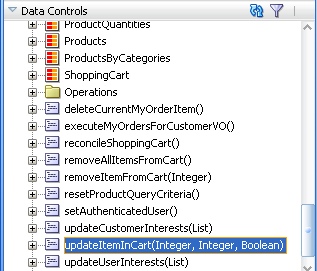
If you are using task flows, you can call methods directly from the task flow definition. For more information, see Section 15.5, "Using Method Call Activities."For example, the application module in the StoreFront module of the Fusion Order Demo application contains the updateItemInCart(Integer, Integer, Boolean) method. This method updates the items in the shopping cart. To allow the user to execute this method, you drag the updateItemInCart(Integer, Integer Boolean) method from the Data Controls panel, as shown in Figure 28-1.
28.2.1 How to Create a Command Component Bound to a Custom Method
In order to perform the required business logic, many methods require a value for their parameter or parameters. This means that when you create a button bound to the method, you need to specify where the value for the parameter(s) is to be retrieved from.
Create a custom method that can be added to the page.
For example, if you use the updateItemInCart(Integer, Integer, Boolean) method, you need to specify the items to be updated.
To add a button bound to a method:
-
From the Data Controls panel, drag the method onto the page.
Tip:
If you are dropping a button for a method that needs to work with data in a table or form, that button must be dropped inside the table or form. -
From the context menu, choose Create > Methods > ADF Button.
If the method takes parameters, the Edit Action Binding dialog opens. In the Edit Action Binding dialog, enter values for each parameter or click the Show EL Expression Builder menu selection in the Value column of Parameters to launch the EL Expression Builder.
28.2.2 What Happens When You Create Command Components Using a Method
When you drop a method as a command button, JDeveloper:
-
Defines a method action binding for the method.
-
If the method takes any parameters, JDeveloper creates
NamedDataelements that hold the parameter values. -
Inserts code in the JSF page for the ADF Faces command component.
-
Binds the button to the method using
actionListener. -
Uses the return value from the method call.
28.2.2.1 Defining Method Action Binding
JDeveloper adds an action binding for the method. Action bindings use the RequiresUpdateModel property, which determines whether or not the model needs to be updated before the action is executed. For command operations, this property is set to true by default, which means that any changes made at the view layer must be moved to the model before the operation is executed.
28.2.2.2 Using Parameters in a Method
When you drop a method that takes parameters onto a JSF page, JDeveloper creates a method action binding. This binding is what causes the method to be executed when a user clicks the command component. When the method requires parameters to run, JDeveloper also creates NamedData elements for each parameter. These elements represent the parameters of the method.
For example, the updateItemInCart(Integer, Integer, Boolean) method action binding contains NamedData elements for the parameter. This element is bound to the value specified when you created the action binding. Example 28-1 shows the method action binding created when you drop the updateItemInCart(Integer, Integer, Boolean) method, and bind the Integer parameter (named productId) and the other Integer parameter (named quantity) and the Boolean parameter (named isSet) to the appropriate variables.
Example 28-1 Method Action Binding for a Parameter Method
<methodAction id="updateItemInCart"
                  InstanceName="StoreServiceAMDataControl.dataProvider"
                  DataControl="StoreServiceAMDataControl"
                  RequiresUpdateModel="true" Action="invokeMethod"
                  MethodName="updateItemInCart" IsViewObjectMethod="false">
      <NamedData NDName="productId" NDType="java.lang.Integer"/>
      <NamedData NDName="quantity" NDType="java.lang.Integer"/>
      <NamedData NDName="isSet" NDType="java.lang.Boolean"/>
</methodAction>
28.2.2.3 Adding ADF Faces Component Code to JSF Page
JDeveloper adds code for the ADF Faces component to the JSF page. This code is the same as code for any other command button, as described in Section 22.4.2.3, "EL Expressions Used to Bind to Navigation Operations." However, instead of being bound to the execute method of the action binding for a built-in operation, the button is bound to the execute method of the method action binding for the method that was dropped.
28.2.2.4 Using EL Expressions to Bind to Methods
Like creating command buttons using operations, when you create a command button using a method, JDeveloper binds the button to the method using the actionListener attribute. The button is bound to the execute property of the action binding for the given method using an EL expression. This EL expression causes the binding's method to be invoked on the application module. For more information about the command button's actionListener attribute, see Section 22.4.4, "What Happens at Runtime: How Action Events and Action Listeners Work."
Tip:
Instead of binding a button to theexecute method on the action binding, you can bind the button to the method in a backing bean that overrides the execute method. Doing so allows you to add logic before or after the original method runs. For more information, see Section 28.4, "Overriding Declarative Methods."Like navigation operations, the disabled property on the button uses an EL expression to determine whether or not to display the button. Example 28-2 shows the EL expression used to bind the command button to the updateItemInCart(Integer, Integer, Boolean) method.
Example 28-2 JSF Code to Bind a Command Button to a Method
<af:commandButton actionListener="#{bindings.updateItemInCart.execute}"
                          text="updateItemInCart"
                          disabled="#{!bindings.updateItemInCart.enabled}"/>
Tip:
When you drop a command button component onto the page, JDeveloper automatically gives it an ID based on the number of the same type of component that was previously dropped. For example,commandButton1, commandButton2. If you change the ID to something more descriptive, you must manually update any references to it in any EL expressions in the page.28.2.2.5 Using the Return Value from a Method Call
You can also use the return value from a method call. Example 28-3 shows a custom method that returns a string value.
Example 28-3 Custom Method That Returns a Value
/**
 * Custom method.
*/
    public String getHelloString() {
        return ("Hello World");
    }
Example 28-4 shows the code in the JSF page for the command button and an outputText component.
Example 28-4 Command Button to Call the Custom Method
<af:commandButton actionListener="#{bindings.getHelloString.execute}"
        text="getHelloString"
        disabled="#{!bindings.getHelloString.enabled}"
        id="helloButtonId"/>
<af:outputText value="#{bindings.return.inputValue}"
        id="helloOutputId"/>
When the user clicks the command button, it calls the custom method. The method returns the string "Hello World" to be shown as the value of the outputText component.
28.2.3 What Happens at Runtime: Command Button Method Bindings
When the user clicks the button, the method binding causes the associated method to be invoked, passing in the value bound to the NamedData element as the parameter. For example, if a user clicks a button bound to the updateItemInCartItem(Integer, Integer, Boolean) method, the method takes the values of the product Id and quantity and updates the shopping cart.
28.3 Setting Parameter Values Using a Command Component
There may be cases where an action on one page needs to set parameters that will be used to determine application functionality. For example, you can create a search command button on one page that will navigate to a results table on another page. But the results table will display only if a parameter value is false.
You can use a managed bean to pass this parameter between the pages, and to contain the method that is used to check the value of this parameter. The managed bean is instantiated as the search page is rendered, and a method on the bean checks that parameter. If it is null (which it will be the first time the page is rendered), the bean sets the value to true.
For more information about creating custom methods, see Section 9.7, "Customizing an Application Module with Service Methods," and Section 9.9, "Publishing Custom Service Methods to UI Clients."
Note:
If you are using task flows, you can use the task flow parameter passing mechanism. For more information, see Chapter 16, "Using Parameters in Task Flows."A setPropertyListener component with type property set to action, which is nested in the command button that executed this search, is then used to set this flag to false, thus causing the results table to display once the search is executed. For information about using managed beans, see Section 20.4, "Using a Managed Bean in a Fusion Web Application."
28.3.1 How to Set Parameters Using setPropertyListener Within a Command Component
You can use the setPropertyListener component to set values on other objects. This component must be a child of a command component.
Create a command component on the page.
To use the setPropertyListener component:
-
In the Component Palette, from the Operations panel, drag a setPropertyListener component and drop it as a child to the command component.
Or right-click the component and select Insert inside Button > ADF Faces > setPropertyListener.
-
In the Insert Set Property Listener dialog, enter the parameter value in the From field.
-
Enter the parameter target in the To field.
Tip:
Consider storing the parameter value on a managed bean or in scope instead of setting it directly on the resulting page's page definition file. By setting it directly on the next page, you lose the ability to easily change navigation in the future. For more information, see Section 20.4, "Using a Managed Bean in a Fusion Web Application." Additionally, the data in a binding container is valid only during the request in which the container was prepared. The data may change between the time you set it and the time the next page is rendered. -
From the Type dropdown menu, select Action.
-
Click OK.
28.3.2 What Happens When You Set Parameters
The setPropertyListener component lets the command component set a value before it navigates to the next page. When you set the from attribute either to the source of the value you need to pass or to the actual value, the component will be able to access that value. When you set the to attribute to a target, the command component is able to set the value on the target. Example 28-5 shows the code on the JSF page for a command component that takes the value false and sets it as the value of the initialSearch flag on the searchResults managed bean.
28.3.3 What Happens at Runtime: setPropertyListener for a Command Component
When a user clicks the command component, before navigation occurs, the setPropertyListener component sets the parameter value. In Example 28-5, the setPropertyListener takes the value false and sets it as the value for the initialSearchattribute on the searchResults managed bean. Now, any component that needs to know this value in determining whether or not to render can access it using the EL expression #{searchResults.initialSearch}.
28.4 Overriding Declarative Methods
When you drop an operation or method as a command button, JDeveloper binds the button to the execute method for the operation or method. However, there may be occasions when you need to add logic before or after the existing logic.
Note:
If you are using task flows, you can call custom methods from the task flow. For more information, see Chapter 14, "Getting Started with ADF Task Flows."JDeveloper allows you to add logic to a declarative operation by creating a new method and property on a managed bean that provides access to the binding container. By default, this generated code executes the operation or method. You can then add logic before or after this code. JDeveloper automatically binds the command component to this new method, instead of to the execute property on the original operation or method. Now when the user clicks the button, the new method is executed.
For example, in the Fusion Order Demo application Orders page, the Commit operation requires additional processing. The Commit button is renamed to Submit Orders and logic is added to the submitOrders method in the orderPageBean managed bean.
In order to override a declarative method, you must have a managed bean to hold the new method to which the command component will be bound. If your page has a backing bean associated with it, JDeveloper adds the code needed to access the binding object to this backing bean. If your page does not have a backing bean, JDeveloper asks you to create one.
28.4.1 How to Override a Declarative Method
Create the method that will override the declarative method in a managed bean. Operations are available by default.
Note:
You cannot override the declarative method if the command component currently has an EL expression as its value for theAction attribute, because JDeveloper will not overwrite an EL expression. You must remove this value before continuing.To override a declarative method:
-
Drag the operation or method to be overridden onto the JSF page and drop it as a UI command component.
The component is created and bound to the associated binding object in the ADF Model layer with the
ActionListenerattribute.For more information about creating command components using methods on the Data Controls panel, see Section 28.2, "Creating Command Components to Execute Methods."
For more information about creating command components from operations, see Section 22.4.2, "What Happens When You Create Command Buttons."
-
On the JSF page, double-click the component.
-
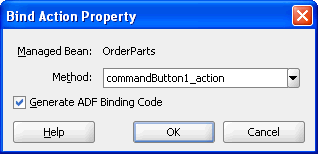
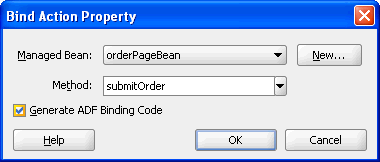
In the Bind Action Property dialog, identify the backing bean and the method to which you want to bind the component, using one of the following techniques:
-
If auto-binding has been enabled on the page, the backing bean is already selected for you, as shown in Figure 28-2.
-
To create a new method, enter a name for the method in the Method field, which initially displays a default name.
or
-
To use an existing method, select a method from the dropdown list in the Method field.
-
Select Generate ADF Binding Code.
-
-
If the page is not using auto-binding, you can select from an existing backing bean or create a new one, as shown in Figure 28-3.
-
Click New to create a new backing bean. In the Create Managed Bean dialog, name the bean and the class, and set the bean's scope.
or
-
Select an existing backing bean and method from the dropdown lists.
-
Note:
Whenever there is a value for theActionListenerattribute on the command component, JDeveloper understands that the button is bound to theexecuteproperty of a binding. If you have removed that binding, you will not be given the choice to generate the ADF binding code. You will need to insert the code manually, or to set a dummy value for theActionListenerbefore double-clicking the command component. -
-
After identifying the backing bean and method, click OK in the Bind Action Property dialog
JDeveloper opens the managed bean in the source editor. Example 28-6 shows the code inserted into the bean. In this example, a command button is bound to the
Commitoperation.Example 28-6 Generated Code in a Backing Bean to Access the Binding Object
public String submitOrder() { BindingContainer bindings = getBindings(); OperationBinding operationBinding = bindings.getOperationBinding("Commit"); Object result = operationBinding.execute(); if (!operationBinding.getErrors().isEmpty()) { return null; } } -
You can now add logic either before or after the binding object is accessed, as shown in Example 28-7.
Example 28-7 Code Added to the Overridden Method
public String submitOrder() {
        DCBindingContainer bindings =
            (DCBindingContainer)JSFUtils.resolveExpression("#{bindings}");
        OperationBinding operationBinding =
            bindings.getOperationBinding("Commit");
        JUCtrlAttrsBinding statusCode =
            (JUCtrlAttrsBinding)bindings.findNamedObject("OrderStatusCode");
        statusCode.setAttribute("OrderStatusCode", "PENDING");
        JUCtrlAttrsBinding orderDate =
            (JUCtrlAttrsBinding)bindings.findNamedObject("OrderDate");
        orderDate.setAttribute("OrderDate", new Date());
        JUCtrlAttrsBinding orderId =
            (JUCtrlAttrsBinding)bindings.findNamedObject("OrderId");
        JSFUtils.storeOnSession("orderId", orderId.getAttribute("OrderId"));
        JUCtrlAttrsBinding invoiceTotal =
            (JUCtrlAttrsBinding)bindings.findNamedObject("InvoiceTotal");
        JUCtrlAttrsBinding orderTotal =
            (JUCtrlAttrsBinding)bindings.findNamedObject("OrderTotal");
        orderTotal.setAttribute("OrderTotal",
             invoiceTotal.getAttribute("InvoiceTotal"));
        Object result = operationBinding.execute();
        ShoppingCartBean shoppingCartBean =
             (ShoppingCartBean)JSFUtils.resolveExpression("#{shoppingCartBean}");
        shoppingCartBean.removeAllItems();
        return "orderSummary";
}
The code in Example 28-7 uses the FOD utility method
JSFUtils.resolveExpressionto resolve EL expressions. The code for such a method would be similar to the code in Example 28-8.Example 28-8 Utility Method to Solve EL Expressions
public static Object resolveExpression(String expression) {
        FacesContext facesContext = getFacesContext();
        Application app = facesContext.getApplication();
        ExpressionFactory elFactory = app.getExpressionFactory();
        ELContext elContext = facesContext.getELContext();
        ValueExpression valueExp =
            elFactory.createValueExpression(elContext, expression, Object.class);
        return valueExp.getValue(elContext);
    }
In addition to any processing logic, you may also want to write conditional logic to return one of multiple outcomes. For example, you might want to return
nullif there is an error in the processing, or another outcome value if the processing was successful. A return value ofnullcauses the navigation handler to forgo evaluating navigation cases and to immediately redisplay the current page.Tip:
To trigger a specific navigation case, the outcome value returned by the method must exactly match the outcome value in the navigation rule, including case.The command button is now bound to this new method using the
Actionattribute instead of theActionListenerattribute. If a value had previously existed for theActionattribute (such as an outcome string), that value is added as the return for the new method. If there was no value, the return is kept asnull.
28.4.2 What Happens When You Override a Declarative Method
When you override a declarative method, JDeveloper adds a managed property to your backing bean with the managed property value of #{bindings} (the reference to the binding container), and it adds a strongly typed bean property to your class of the BindingContainer type, which the JSF runtime will then set with the value of the managed property expression #{bindings}. JDeveloper also adds logic to the UI command action method. This logic includes the strongly typed getBindings() method used to access the current binding container.
The code does the following:
-
Finds the binding for the associated method, and executes it.
-
Adds a return for the method that can be used for navigation. By default, the return is
null. If an outcome string had previously existed for the button'sActionattribute, that attribute is used as the return value. You can change this code as needed.
JDeveloper automatically rebinds the UI command component to the new method using the Action attribute, instead of the ActionListener attribute. Example 28-9 shows the code when a Commit operation is declaratively added to a page.
Example 28-9 JSF Page Code for a Command Button Bound to a Declarative Method
<af:commandButton actionListener="#{bindings.Commit.execute}"
                  text="Commit"
                  disabled="#{!bindings.Commit.enabled}"/>
Example 28-10 shows the code after the method on the page's backing bean is overridden. Note that the action attribute is now bound to the backing bean's method.
Example 28-10 JSF Page Code for a Command Button Bound to an Overridden Method
<af:commandButton text="#{res['order.cart.submit']}"
           action="#{orderPageBean.submitOrder}"/>
Tip:
If when you click the button that uses the overridden method you receive this error:SEVERE: Managed bean main_bean could not be created The scope of the referenced object: '#{bindings}' is shorter than the referring object
it is because the managed bean that contains the overriding method has a scope that is greater than request (that is, either session or application). Because the data in the binding container referenced in the method has a scope of request, the scope of this managed bean must be set to the same or a lesser scope.
28.5 Using the ADF Faces Calendar Component
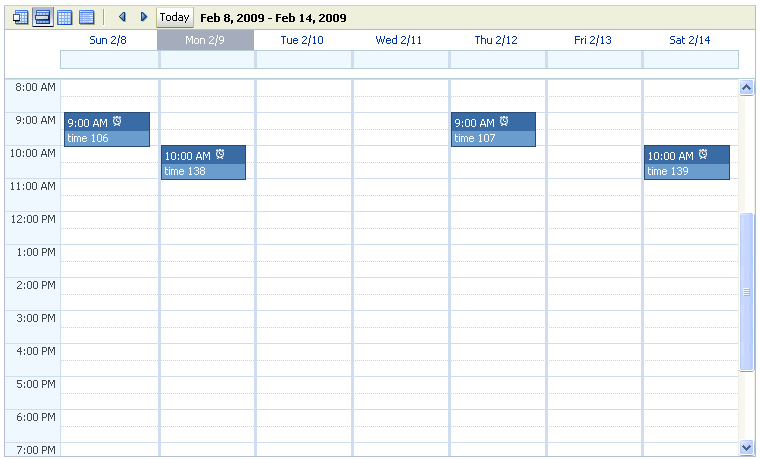
ADF Faces includes a calendar component that displays created activities in daily, weekly, or monthly views. Figure 28-4 shows an ADF Faces calendar in weekly view mode with some sample activities.
The calendar component also includes the following functionality:
-
A toolbar that allows users to switch between monthly, weekly, daily, and list views.
Tip:
When these toolbar buttons are used, attribute values on the calendar are changed. You can configure these values to be persisted so that they remain for a particular user whenever he or she accesses the calendar. For more information, see Chapter 35, "Allowing User Customizations at Runtime". -
Configurable start of the week days and start of the day hours. For example, a calendar's week might start on Sunday and the day might show 8:00 am at the top.
-
Configurable styles using skinning keys.
Additionally, you can implement the following functionality using other ADF Faces components and the rich client framework:
-
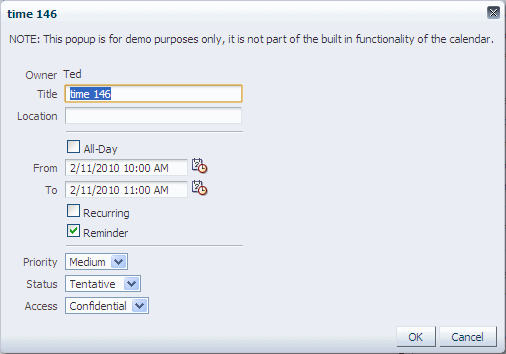
Popup functionality. Components placed in supported faces that respond to certain events and allow the user to act on activities or the calendar. For example, when a user clicks an activity in the calendar, the
CalendarActivityEventis invoked and any popup component in theActivityDetailfacet is displayed. You might use a dialog component that contains a form where users can view and edit the activity, as shown in Figure 28-5. -
Drag and drop capability: You can add the
calendarDropTargettag that allows a user to drag an activity to another place on the calendar. You then implement the functionality so that the time is actually changed on the activity and persisted to the data store. -
Toolbar customization: By default, the toolbar contains buttons that allow the user to switch between the different views, along with previous and next buttons and a button that returns to the current date. The toolbar also displays the current date range (or the date when in day view). You can customize the toolbar by adding facets that contain additional buttons of your choosing.
-
Skinning: The calendar uses skinning keys to determine things like colors and icons used. You can extend the skin to change the appearance of the calendar.
Details for configuring the built-in functionality or for implementing additional functionality can be found in the "Creating a Calendar" chapter of the Oracle Fusion Middleware Web User Interface Developer's Guide for Oracle Application Development Framework.
An ADF Faces Calendar component must be bound to a CalendarModel class. This class can be created for you when you use ADF Business Components to manage your calendar's data. For example, say you have data in your data store that represents the details of an activity, such as the date, time, title, location, and owner. When you create an entity object to represent that data, and then a view object to display the data, you can drag and drop the associated collection from the Data Controls panel to create the calendar. JDeveloper will declaratively create the model and bind the view to that model so that the correct data will display when the calendar is launched. However, in order for the model to be created, your entity objects in the data model project with ADF Business Components and your view objects in the same project must contain date-effective attributes. Additionally, the view objects must contain variables that will be used to modify the query to return the correct activities for the given date range.
28.5.1 How to Use the ADF Faces Calendar
Before you can create a calendar on a JSF page, you must first create an entity object with specific attributes that represent attributes on a calendar. You then must create a view object from that entity object, and modify the query to use named bind variables that represent the date range and current time zone to display. This will allow the query to return only the activities that should be displayed in the given view on the calendar.
For example, say you have a database table that represents an activity. It has a column for title, start time, end time, and a reference to a provider object that represents the owner. You would create an entity object and a view object based on that table (ensuring that it meets the requirements, as described in the following steps). To the view object, you would then add named bind variables for the start and end times currently displayed on the calendar, along with the time zone currently in use by the calendar, so that the query returns only those activities that fall within that time range.
Once you add the calendar component to a JSF page, you can configure it, and add further needed functionality.
To create an ADF Faces calendar:
-
Create an entity object based on your data source. The entity object must include the attributes shown in Table 28-1. The attributes do not have to use the names shown in the table; they can be named anything. However, they must be of one of the types noted. You will map these attributes to attributes in the
CalendarModelin a later step.Table 28-1 Required Attributes for a Calendar
Attribute Valid Types Description Start time
java.util.Date, java.sql.Date, oracle.jbo.domain.Date, oracle.jbo.domain.TimeStampStart time for the activity
End time
java.util.Date, java.sql.Date, oracle.jbo.domain.Date, oracle.jbo.domain.TimeStampEnd time for the activity
ID
StringUnique ID
Provider ID
StringID of the provider object that represents the owner of the activity
Title
StringShort description of the activity
The entity object can also contain the known (but not required) attributes shown in Table 28-2:
Table 28-2 Optional Attributes for a Calendar
Attribute Type Description Recurring
StringorCalendarActivity.RecurringStatus of recurrence for the activity. Valid values are
SINGLE(does not recur),RECURRING, orCHANGED(this activity was part of the recurring activity but has been modified to be different from parent activity).Reminder
StringorCalendarActivity.ReminderWhether or not the activity has an associated reminder. Valid values are
ONorOFF.Time Type
StringorCalendarActivity.TimeTypeType of time associated with the activity. Valid values are
ALLDAYandTIME. Activities that have a value ofALLDAYdo not have any time associated with them. They are considered to span the entire day. Activities with a value ofTIMEhave a specific time duration.Location
StringLocation of an activity.
Tags
SetofStringsor a semicolon separated list ofStrings.Keywords for the activity.
Your entity objects can also contain other attributes that the
CalendarModelhas no knowledge of. You will be able to add these to the model as custom properties in a later step.For information on creating entity objects, see Chapter 4, "Creating a Business Domain Layer Using Entity Objects."
-
Create an associated view object. In the Query page of the overview editor, create named bind variables for the following:
-
A string that represents the time zone
-
A date that represents the start time for the current date range shown on the calendar.
-
A date that represents the end time for the current date range shown on the calendar.
Tip:
Dates in an ADF Faces calendar are "half-open," meaning that the calendar will return all activities that start on or after the start time and before (but not on) the end time.For more information about creating named bind variables, see Section 5.10, "Working with Bind Variables".
-
-
Create an entity object that represents the provider (owner) of activities. The entity object must include the attributes shown in Table 28-3. The attributes do not have to use the names shown in the table; they can be named anything. However, they must be of the type noted. You will map these attributes to attributes in the
CalendarProviderclass in a later step. -
Create a view object for the provider.
-
Ensure that the new view objects are part of the application module, and if needed, refresh the Data Controls panel.
-
Create your JSF page, as documented in Section 20.3, "Creating a Web Page".
-
From the Data Controls panel, drag the collection that represents the view object for the activity created in Step 2 and drop it as a Calendar.
Tip:
The Calendar option will display in the context menu only if the view object contains the required attributes documented in Table 28-1 and the bind variables described in Step 2. -
Complete the Calendar Bindings dialog to map the bind variables and attributes to the
CalendarModeland theCalendarProviderclasses. For additional help, click Help or press F1. -
By default, the calendar will be read-only and will return only those activities currently in the data store. You will need to configure the calendar and implement additional functionality as described in the "Creating a Calendar" chapter of the Oracle Fusion Middleware Web User Interface Developer's Guide for Oracle Application Development Framework.
For example, to allow creation of a new activity, you might create an input form in a dialog (as described in the "How to Create a Dialog" section of the Oracle Fusion Middleware Web User Interface Developer's Guide for Oracle Application Development Framework) using the same data control collection used to create the calendar. For more information about creating input forms, see Section 22.6, "Creating an Input Form".
28.5.2 What Happens When You Create a Calendar
When you drop a collection as a calendar, JDeveloper:
-
Defines an iterator binding to the collection of activities, and another iterator binding to the collection of providers.
-
Defines an action binding to the
executeWithParamsoperation on the activities collection. It is this operation that will be invoked to execute the query to return the activities to display. Because the operation requires parameters to determine the date range and time zone,NamedDataelements are also created for each of the parameters (created as named bind variables on the view object). For more information aboutNamedDataelements, see Section 28.2.2.2, "Using Parameters in a Method". -
Defines a calendar binding. This binding contains a
nodeelement that represents a row in the collection and maps the data control attributes to the calendar activity's attributes, as defined when using the wizard.Thevalueis the data control attribute and thetypeis the calendar attribute. For any custom defined attributes, thetypewill becustomandvaluewill be the data control attribute. Each row (node) is represented by arowKey, which is the activity ID.There is also a
providerDefinitionelement the determines the source and mapping of available providers. This mapping allows the calendar model to filter activities based on the state of the provider (either enabled or disabled).Tip:
To access a custom attribute, use theCalendarActivity.getCustomAttributes()method, passing in the name of the attribute as defined by thevalueelement.Example 28-11 shows the page definition code for a calendar.
Example 28-11 Page Definition Code for a Calendar Binding
<executables>
    <iterator Binds="ActivityView1" RangeSize="-1"
              DataControl="AppModuleDataControl" id="ActivityView1Iterator"/>
    <iterator Binds="EmployeesView1" RangeSize="25"
              DataControl="AppModuleDataControl" id="EmployeesView1Iterator"/>
  </executables>
  <bindings>
    <action IterBinding="ActivityView1Iterator" id="ExecuteWithParams"
            RequiresUpdateModel="true" Action="executeWithParams">
      <NamedData NDName="startTime"
                 NDValue="#{bindings.ActivityView1.startDate}"
                 NDType="oracle.jbo.domain.Date"/>
      <NamedData NDName="endTime" NDValue="#{bindings.ActivityView1.endDate}"
                 NDType="oracle.jbo.domain.Date"/>
      <NamedData NDName="timeZone"
                 NDValue="#{bindings.ActivityView1.timeZoneId}"
                 NDType="java.lang.String"/>
    </action>
    <calendar IterBinding="ActivityView1Iterator" id="ActivityView1"
              xmlns="http://xmlns.oracle.com/adf/faces/binding"
              ActionBindingName="ExecuteWithParams">
      <nodeDefinition DefName="model.ActivityView">
        <AttrNames>
          <Item Type="id" Value="Id"/>
          <Item Type="providerId" Value="ProviderId"/>
          <Item Type="title" Value="Title"/>
          <Item Type="startTime" Value="StartTime"/>
          <Item Type="endTime" Value="EndTime"/>
        </AttrNames>
      </nodeDefinition>
      <providerDefinition IterBindingName="EmployeesView1Iterator">
        <AttrNames>
          <Item Type="id" Value="EmployeeId"/>
          <Item Type="displayName" Value="FirstName"/>
        </AttrNames>
      </providerDefinition>
    </calendar>
  </bindings>
JDeveloper inserts code onto the JSF page that binds the calendar value to the CalendarModel class, as shown in Example 28-12.
Example 28-12 JSF Page Code for a Calendar
<af:form>
  <af:calendar value="#{bindings.ActivityView1.calendarModel}"/>
</af:form>
The CalendarModel class uses CalendarActivityDefinition class to access the calendar binding.
28.5.3 What Happens at Runtime: How the Calendar Binding Works
When the calendar is accessed, the executeWithParams operation is invoked, with the value of the startDate and endDate parameters determined by the value of the calendar component's view and activeDay attributes. For example, if the view attribute is set to month and the activeDay is set to the current date (say, February 6, 2009), then the value for the startDate would be February 1, 2009 and the endDate value would be February 28, 2009. By default, the time zone value is taken from the time-zone setting in the trinidad-config.xml file (for more information, see the "Configuration in trinidad-config.xml" section of the Oracle Fusion Middleware Web User Interface Developer's Guide for Oracle Application Development Framework). Therefore, the query would be restricted to return only activities that fall within that date range.
When the query returns data, because the calendar component is bound to the CalendarModel, the CalendarModel uses the CalendarActivityDefinition class to access the calendar binding class and map the values from the data source to the calendar, using the mappings provided by the binding.
28.6 Using the ADF Faces Carousel Component
You can display images in a revolving carousel, as shown in Figure 28-6. Users can change the image at the front by using either the slider at the bottom or by dragging another image to the front.
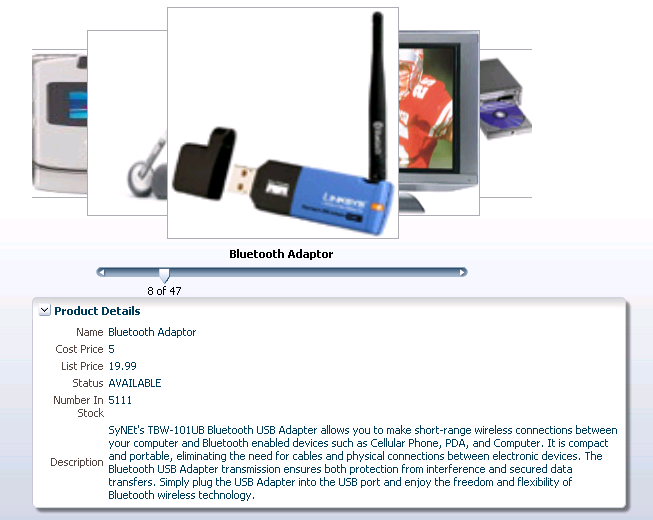
Instead of containing a child carouselItem component for each image to be displayed, and then binding these components to the individual images, the carousel component is bound to a complete collection and repeatedly renders one carouselItem component by stamping the value for each item, similar to the way a tree stamps out each row of data. As each item is stamped, the data for the current item is copied into a property that can be addressed using an EL expression using the carousel component's var attribute. Once the carousel has completed rendering, this property is removed or reverted back to its previous value. Carousels contain a nodeStamp facet, which is a holder for the carouselItem component used to display the text and short description for each item, and is also the parent component to the image displayed for each item. For more information about the carousel component, see the "Displaying Images in a Carousel" section of the Oracle Fusion Middleware Web User Interface Developer's Guide for Oracle Application Development Framework.
28.6.1 How to Create a Databound Carousel Component
When using a carousel component in a Fusion web application, you create the component using the Data Controls Panel. You also use a managed bean to handle the carousel spin event, and for other logic you may need to display your items.
You need to create a view object for the collection to be displayed in the carousel. The view object should contain attributes for at least the following:
-
Title, which will be displayed below the image in the carousel
-
Short description used for text displayed when the user mouses over the image.
To create a databound carousel component:
-
From the Data Controls panel, drag the collection for the view object on to the page and select Carousel from the context menu.
-
In the Property Inspector, in the Behavior section, bind the CarouselSpinListener to a handler method that handles the spinning of the carousel when you need logic to be executed when the carousel spin is executed. Example 28-13 shows the handler methods that might be used to handle the display of product images for the Products view object used to create the carousel:
Example 28-13 Handler for the CarouselSpinEvent
public void handleCarouselSpin(CarouselSpinEvent event) { RichCarousel carousel = getCarousel(); carousel.setRowKey(event.getNewItemKey()); detailNodeItem = (JUCtrlHierNodeBinding)carousel.getRowData(); } public JUCtrlHierNodeBinding getDetailNodeItem() { // Get the initial item if(detailNodeItem == null) { RichCarousel carousel = getCarousel(); Object oldKey = carousel.getRowKey(); try { Object key = carousel.getCurrentItemKey(); getCarousel().setRowKey(key); detailNodeItem = (JUCtrlHierNodeBinding)carousel.getRowData(); } finally { carousel.setRowKey(oldKey); } } return detailNodeItem; } -
In the Advanced section of the Property Inspector, click the dropdown menu for the Bindings attribute and select Edit. In the Edit Property: Binding dialog, select the managed bean used in Step 2. Create a new property called
carousel. This will allow the handler methods to access the carousel object. -
In the Structure window, expand the
carouselcomponent and thenodeStampfacet, and select thecarouselItemcomponent. -
Bind the
CarouselItemcomponent'stextattribute to the associated property in the data model using variable value set on the carousel'svarattribute, which by default is set toitem. So the value of thecarouselItem'stextattribute would beitem.title(given thattitleis the property used to access the text used for the carousel items on the data model).If you were using the
Productsview object, the value would be#{item.ProductName}. -
In the Advanced section of the Property Inspector, click the dropdown menu for the Bindings attribute and select Edit. In the Edit Property: Binding dialog, select the managed bean used in Step 2. Create a new property called
carouselItem. -
In the ADF Faces page of the Component Palette, from the Common Components panel, drag an Image and drop it as a child to the
carouselItem.In the Insert Image dialog, enter the path to the source for the images, being sure to use the variable for the item in the carousel. For example, the path to the image files for the products would normally be:
/imageservlet?detail=#{Products.ProductId}For an image in the carousel, you would use:
/imageservlet?detail=#{item.ProductId}For information about setting other attributes of the
carouselandcarouselItemcomponents, see the "How to Create a Carousel" section of the Oracle Fusion Middleware Web User Interface Developer's Guide for Oracle Application Development Framework. -
If you want to provide additional information about the items in the carousel, you can drag and drop the same view object onto the page, for example, as a form. For the components in the form to redisplay the information for the current item displayed once the carousel is spun, you need to set the
partialTriggerattribute of the component containing the form to the carousel component's ID.For example, the form that displays the information for each item in Figure 28-6 is contained in a
panelBoxcomponent.ThepartialTriggerattribute for thepanelBoxcomponent is set toc1, which is the carousel component's ID. This means that whenever thecarouselIteminvokes theCarouselSpinEvent, thepanelBoxwill be refreshed, causing it to display information about the item that was just made current. For more information about partial page rendering and the partialTriggers attribute, see the "Rendering Partial Page Content" chapter of the Oracle Fusion Middleware Web User Interface Developer's Guide for Oracle Application Development Framework.Example 28-14 shows the page code for the carousel displayed in Figure 28-6.
Example 28-14 Partial Trigger Updates the Form to Match the Displayed Carousel Item
<af:carousel
        currentItemKey="#{bindings.Products.treeModel.rootCurrencyRowKey}"
  value="#{bindings.Products.treeModel}" var="item"
  id="c1"
 carouselSpinListener="#{carBean.handleCarouselSpin}">
   <f:facet name="nodeStamp">
     <af:carouselItem id="ci1" text="#{item.ProductName}"
                      binding="#{carBean.carouselItem}">
       <af:image source="/imageservlet?detail=#{item.ProductId}"
                 id="i1"/>
     </af:carouselItem>
   </f:facet>
 </af:carousel>
 <af:panelBox text="PanelBox1" id="pb1" partialTriggers="c1">
   <af:panelFormLayout id="pfl1">
     <af:panelLabelAndMessage label="#{bindings.ProductName.hints.label}"
                              id="plam2">
       <af:outputText value="#{bindings.ProductName.inputValue}"
                      id="ot4"/>
     </af:panelLabelAndMessage>
.
.
.
</af:panelBox>
28.6.2 What Happens When You Create a Carousel
When you drop a collection from the Data Controls panel as a carousel, a tree value binding is created. A tree consists of a hierarchy of nodes, where each subnode is a branch off a higher level node.
The tree binding iterates over the data exposed by the iterator binding. The carousel wraps the result set from the iterator binding in a treeModel object, which is an extension of the collectionModel. The collectionModel allows each item in the collection to be available within the carousel component using the var attribute. For more information about the tree binding, see Section 23.2.2.1, "Iterator and Value Bindings for Tables."
JDeveloper adds both a carousel component and it's child carouselItem component onto the page, as shown in Example 28-15.
Example 28-15 Page Code for a Carousel Component
<af:carousel
        currentItemKey="#{bindings.Products.treeModel.rootCurrencyRowKey}"
        value="#{bindings.Products.treeModel}" var="item"
        id="c1"
        carouselSpinListener="#{carBean.handleCarouselSpin}">
   <f:facet name="nodeStamp">
     <af:carouselItem id="ci1" text="#{item.ProductName}"/>
   </f:facet>
 </af:carousel>
The carousel value is bound to the treeModel for the associated collection, and the currentItemKey attribute of the carousel is bound to the rootCurrencyRowKey of the binding object. In this example, the carousel iterates over the items in the Products iterator binding. The iterator binding binds to a rowKeySet that keeps track of the current product. By default, the currentItemKey attribute of the carousel is bound to the rootCurrencyRowKey of the binding object, which causes the product currently displayed at the front of the carousel to be the root and the current item. The carouselItem component accesses the current data object for the current item presented to the carousel tag using the item variable.
28.7 Creating Contextual Events
Often a page or a region within a page needs information from somewhere else on the page or from a different region. While you can pass parameters to obtain that information, doing so makes sense only when the parameters are well known and the inputs are EL-accessible to the page. Parameters are also useful when a task flow may need to be restarted if the parameter value changes.
However, suppose you have a task flow with multiple page fragments that contain various interesting values that could be used as input on one of the pages in the flow. If you were to use parameters to pass the value, the task flow would need to surface output parameters for the union of each of the interesting values on each and every fragment. Instead, for each fragment that contains the needed information, you can define a contextual event that will be raised when the page is submitted. The page or fragment that requires the information can then subscribe to the various events and receive the information through the event.
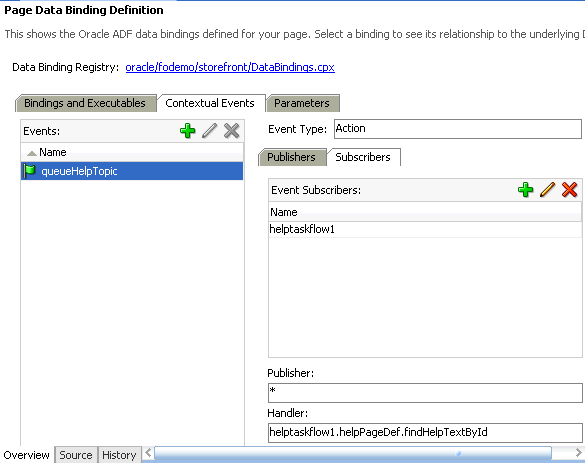
For example, in the StoreFront module, contextual events are used in the customer registration page to display the appropriate informational topic. The user registration page register.jspx contains two regions. One region contains the customer registration task flow customer-registration-task-flow, and the other contains the informational topic task flow help-task-flow. A contextual event is passed from the customer registration region to the informational topic region so that the informational topic task flow can display the information topic. At design time, the event name, producer region, consumer region, consumer handler, and other information is stored in the event map section of the page definition file, as shown in Example 28-16.
Example 28-16 Event Map in the registerPageDef.xml File
<eventMap xmlns="http://xmlns.oracle.com/adfm/contextualEvent">
    <event name="queueHelpTopic">
      <producer region="*">
        <consumer region="helptaskflow1"
                  handler="helpPageDef.findHelpTextById">
         <parameters>
            <parameter name="helpTopicId" value="${payLoad}"/>
          </parameters>
        </consumer>
      </producer>
    </event>
</eventMap>
At runtime, when a user enters the customer registration task flow, he or she progresses through a series of view activities from Basic Information to Address and then to Payment Options by entering data and clicking the Next button. When the user clicks Next, a contextual event with a payLoad parameter is broadcasted by the customer registration task flow. This event is then consumed by the information task flow and its handler, the helpPageDef.findHelpTextById() method. The consuming method uses the payLoad parameter to determine which information topic text to display. In the event map, you can specify EL expressions to bind the input parameters to variables and parameters of the page.
Events are configured in the page definition file for the page or region that will raise the event (the producer). In order to associate the producer with the consumer that will do something based on the event, you create an event map also in the page definition (when using events between regions, the page definition file which holds both the regions contains the event map). If the consuming page is in a dynamic region, the event map should be in the page definition file of the consuming page and the producer's attribute region set to "*". The attribute region is set to "*" because at design time, the framework cannot determine the relative path to the producer.
You can raise a contextual event for an action binding, a method action binding, a value attribute binding, or a range binding (table, tree, or list binding). You also can conditionally fire an event and conditionally handle an event using EL expressions.
For action and method action bindings, the event is raised when the action or method is executed. The payLoad contains the binding container and event source, and a single parameter that you can define. Action bindings can be published by multiple sources, while value attribute and list bindings can be published only by a single source.
You can also raise a contextual event from an ADF Faces event such as clicking a button or selecting from a menu. The ADF Faces component will use eventBinding to act as a contextual event producer.
For a value attribute binding, the event is triggered by the binding container and raised after the attribute is set successfully. The payLoad contains the new value, iterator, binding container and source object, and a single parameter that you can define. Example 28-17 shows a value change event inside an attribute value binding associated with an input component. The event, valueChangeEvent, will be dispatched when the user changes the value of LAST_NAME in the page.
Example 28-17 Value Attribute Event in the Page Definition File
<attributeValues IterBinding="DeptView1Iterator" id="Dname"
     xmlns="http://xmlns.oracle.com/adfm/jcuimodel">
    <events xmlns="http://xmlns.oracle.com/adfm/contextualEvent">
        <event name="valueChangeEvent"/>
     </events>
     <AttrNames xmlns="http://xmlns.oracle.com/adfm/uimodel">
        <Item Value="LAST_NAME"/>
      </AttrNames>
</attributeValues>
</bindings>
<eventMap xmlns="http://xmlns.oracle.com/adfm/contextualEvent">
    <event name="valueChangeEvent">
      <producer region="LAST_NAME">
        <consumer region="" handler="consumeEvent"/>
      </producer>
    </event>
</eventMap>
For a range binding (tree, table, list), the event is raised after the currency change has succeeded. The payLoad contains the iterator, row key, binding container and source object, and a single parameter you can define.
Value attribute binding and range binding contextual events may also be triggered by navigational changes. For example, if you create an event inside a tree table binding, the event will be dispatched when the user selects a different node of the tree in the page.
You create, publish, and subscribe to contextual events using the overview editor for page definition file's Contextual Events tab, as shown in Figure 28-7.
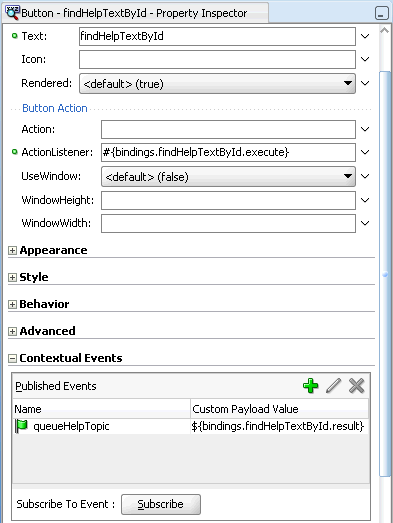
You can also use the Contextual Events page in the Property Inspector to create, publish, and subscribe to contextual events. The Contextual Events panel will only appear when you select eligible components in the page, as shown in Figure 28-8.
Contextual events are not the same as the business events that can be raised by ADF Business Components or the events raised by UI components. For a description of these types of events, see the Oracle Fusion Middleware Web User Interface Developer's Guide for Oracle Application Development Framework. Contextual events can be used in, however, in association with UI events. In this case, an action listener that is invoked due to a UI event can, in turn, invoke a method action binding that then raises the event.
28.7.1 How to Create Contextual Events Declaratively
You create contextual events by first creating and publishing the event on the producer based on a method action, action, value attribute, or list binding. On the consumer, you subscribe to the event and create a handler to process the event.
Note:
You can also publish an action contextual event from code (for example, from within a managed bean), using the call:getBindingContainer.raiseEvent(myEventName);
Decide on the type of component you want to use to raise the contextual event. If you plan to use a method action binding, you must have already created the method to be dropped onto the page.
Typically, you create a parent page with regions that contain task flows and view activities. You create contextual events in one region to be published for consumer event handlers in the other region. For more information about using task flows and regions, see Chapter 17, "Using Task Flows as Regions."
28.7.1.1 Creating Contextual Events in the Publisher
You use the overview editor for page definition files to create contextual events in the producer's page.
-
In the producer page, drag and drop a component from the Data Controls panel to the page that will trigger the event. It must have a method action, action, value attribute, or list binding. In the StoreFront module, the
setHelpId()method from the Data Controls panel was added to the page. -
In the overview editor for the producer page definition, select the Contextual Events tab.
-
In the Events section, click the Add icon.
-
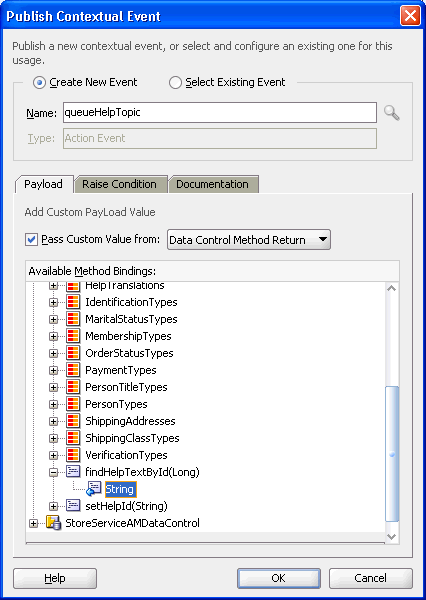
In the Publish Contextual Events dialog:
-
Select Create New Event.
-
Enter the name of the event.
-
Select Pass Custom Value From if you want to pass payLoad data to the consumer.
-
If you are passing payload data, select the type of data from the dropdown list.
For example, if you want to pass an attribute value from the producer page to the consumer page, you can select Page Data and select the attribute from the tree structure.
-
You can conditionally raise the event by entering an EL expression in the Raise Condition tab.
For instance, entering an expression such as
${bindings.LAST_NAME.inputValue == 'KING'}will cause the event to be raised only if the customer's last name is KING. -
Click OK.
The event is created on the page, but it is not ready for publishing until it is associated with the component binding.
-
-
In the producer page, select the component you want to trigger the event, open the Contextual Events pane in the Property Inspector, and click the Add icon
-
In the Publish Contextual Events dialog:
-
Choose Select Existing Event.
-
Click the Search icon next to the Name field.
-
In the Select Contextual Event dialog, select the event from the tree structure. The event should be the one you have created in Step 4.
-
Click OK and click OK again.
The event is now ready for publishing.
-
-
Alternatively, you can create and enable publishing an event in one gesture by accessing the Publish Contextual Events dialog via the Property Inspector for the component when you add the component to the page as described in Step 1. Creating the event in the page definition makes it available for components on that page to publish the event and for other pages to subscribe to that event.
28.7.1.2 Subscribing to and Consuming Events
You use the overview editor for page definition files on the parent page to subscribe to contextual events.
To subscribe and consume the event:
-
In the consuming page, add the components that may respond to the event.
In the StoreFront module, the
findHelpTextByIdmethod handler return String is dropped onto the page as anoutputTextcomponent to display the help information. -
Create a handler to process the event and its payLoad data. In the StoreFrontModule example, the
findHelpTextByIdhandler method was created in theLookupServiceAMDataControlmodule. You can add an EL expression to the handler to conditionally handle the page. -
In the overview editor for the consumer page definition's Bindings and Executables tab, click the Add icon in the Bindings section.
-
In the Insert Item dialog, select methodAction and click OK.
-
In the Create Action Binding dialog:
-
Select the data collection where you have created your handler.
-
From the Operation dropdown list, select the handler.
-
Click OK.
-
-
In the overview editor for the consumer page definition's Bindings and Executables tab, Click the Add icon in the Bindings section.
-
In the Insert Item dialog, select attributeValue and click OK.
-
In the Create Attribute Binding dialog:
-
From the Data Source dropdown list, select Variable.
-
Select the return value of the handler as the Attribute.
-
Click OK.
-
-
In the overview editor of the parent page definition (where both regions are located), navigate to the Contextual Events tab, and from the Events section click the Add icon.
-
In the Publish Contextual Events dialog, select Select Existing Event and click the Search icon.
-
In the Select Contextual Events dialog, select the event you want to publish from the tree and click OK.
-
In the Publish Contextual Events dialog, check the event parameters and click OK.
The event appears in the Events list in the overview editor for page definition file.
-
In the overview editor of the parent page definition, click Subscribers and click the Add icon in the Event Subscribers section.
-
In the Subscribe to Contextual Event dialog, click the Search icon.
-
In the Select Contextual Events dialog, select the event you want to subscribe to from the tree and click OK.
-
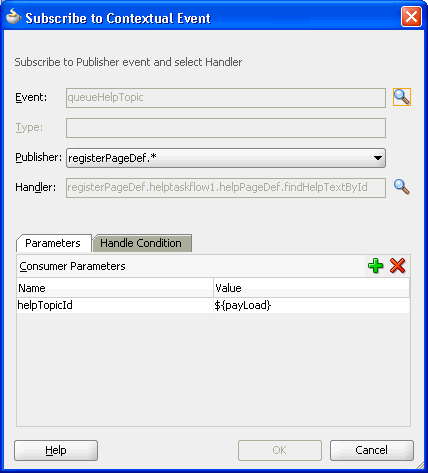
In the Subscribe to Contextual Event dialog:
-
Select the producer or <Any> from the Publisher dropdown list. A contextual event can have more than one publisher.
Selecting <Any> will allow the consumer to subscribe to any event. In the page definition file, the
producerattribute will be set to the wildcard "*". If your publisher is in a dynamic region, you should set this field to <Any> so that the subscriber can consume from any producer. -
Click the Search icon next to the Handler field.
-
In the Select Handler dialog, select the event handler from the tree and click OK.
-
If the handler requires parameters, select the Parameters tab, click Add, and enter name-value pair as parameters.
-
If you want to conditionally handle the event, select the Handle tab, and enter an EL Expression that determines the conditions under which the handler will process the event.
-
Click OK.
-
Note:
You can edit the event map by right-clicking the page definition in the Structure window and choosing Edit Event Map. You can also edit event attributes in the page definition file or in the Property Inspector.28.7.2 How to Create Contextual Events Manually
You create contextual events by first creating the event on the producer. You then determine the consumer of the event and map the producer and consumer.
Create a contextual event that has a method binding, action binding, value attribute binding, or list binding on the producer page. If you do not, you must create the binding first. For example, for a method binding, in the Structure window, right-click the binding and choose Insert inside bindings > Generic Bindings > methodAction and add the method action binding or use the overview editor for the page definition file to add the binding. For the other bindings, you may need to drop a component such as an input text, table, or tree to the page.
-
Open the page definition file that contains the binding for the producer of the event.
A producer must have an associated binding that will be used to raise the event. For example, if a method or operation will be the producer, the associated action binding or method action binding will contain the event.
-
In the Structure window, right-click the binding for the producer and choose Insert inside binding name > events or Insert inside binding name > Contextual Events > events.
-
In the Structure window, right-click the events element just created, and choose Insert inside events > event.
-
In the Insert event dialog, enter a name for the event in the name field, and click Finish.
The event is now created. By default, any return of the associated method or operation will be taken as the payload for the event and stored in the EL-accessible variable
${payLoad}. You now need to map the event to the consumer, and to configure any payload that needs to be passed to the consumer. -
Open the page definition that contains the binding for the consumer.
The binding container represented by this page provides access to the events from the current scope, including all contained binding containers (such as task flow regions). If regions or other nested containers need to be aware of the event, the event map should be in the page definition of the page in the consuming region.
-
In the Structure window, right-click the topmost node that represents the page definition, and choose Edit Event Map.
Note:
If the producer event comes from a page in an embedded dynamic region, you may not be able to edit the event map using the Event Map Editor. You can manually create the event map by editing the page definition file or use insert inside steps, as described in Section 28.7.5, "How to Manually Create the Event Map." -
In the Event Map Editor, click the Add icon to add an event entry.
-
In the Add New EventMap Entry dialog, do the following:
-
Use the Producer dropdown menu to choose the producer.
-
Use the Event Name dropdown menu to choose the event.
-
Use the Consumer dropdown menu to choose the consumer. This should be the actual method that will consume the event.
-
If the consuming method or operation requires parameters, click the Add icon.
In the Param Name field, enter the name of the parameter expected by the method. In the Param Value field, enter the value. If this is to be the payload from the event, you can access this value using the
${payLoad}expression. If the payload contains many parameters and you don't need them all, use the ellipses button to open the Expression Builder dialog. You can use this dialog to select specific parameters under the payload node.You can also click the Parameters ellipses button to launch the selection dialog.
-
Click OK.
-
-
In the Event Map Editor, click OK.
28.7.3 How to Create Contextual Event Using Managed Beans
You can publish an action contextual event from code such as from within a managed bean. You bind the producer component to the method in the managed bean, as shown in Example 28-18.
In this example, the producer is a command button that invokes an action binding and the consumer is an outputText component that displays a string. They are both on the same page.
Example 28-18 Event Producer and Event Consumer on the JSF
<af:form id="f1">
     <af:eventProducerButton value="eventProducerButton1" id="cb1"
                         action="#{MyBean.myActionPerformed}"
                         />
     <af:panelLabelAndMessage label="#{bindings.return.hints.label}"id="plam1">
          <af:outputText value="#{bindings.return.inputValue}" id="ot1"/>
     </af:panelLabelAndMessage>
</af:form>
The page definition file contains the method action bindings for the producer, the consumer, and the event map, as shown in Example 28-19.
Example 28-19 Page Definition with Event Producer, Event Consumer, and Event Map
<executables>
    <variableIterator id="variables">
      <variable Type="java.lang.String" Name="eventConsumer_return"
                IsQueriable="false" IsUpdateable="0"
                DefaultValue="${bindings.eventConsumer.result}"/>
    </variableIterator>
</executables>
<bindings>
     <methodAction id="eventProducer"
                  InstanceName="AppModuleDataControl.dataProvider"
                  DataControl="AppModuleDataControl" RequiresUpdateModel="true"
                  Action="invokeMethod" MethodName="eventProducer"
                  IsViewObjectMethod="false"
                  ReturnName="AppModuleDataControl.methodResults.eventProducer_
                       AppModuleDataControl_dataProvider_eventProducer_result">
            <events xmlns="http://xmlns.oracle.com/adfm/contextualEvent">
                  <event name="myEvent"/>
            </events>
     </methodAction>
     <methodAction id="eventConsumer" RequiresUpdateModel="true"
                  Action="invokeMethod" MethodName="eventConsumer"
                  IsViewObjectMethod="false" DataControl="AppModuleDataControl"
                  InstanceName="AppModuleDataControl.dataProvider"
                  ReturnName="AppModuleDataControl.methodResults.eventConsumer_
                        AppModuleDataControl_dataProvider_eventConsumer_result">
               <NamedData NDName="str" NDValue="test" NDType="java.lang.String"/>
    </methodAction>
    <attributeValues IterBinding="variables" id="return">
        <AttrNames>
             <Item Value="eventConsumer_return"/>
        </AttrNames>
    </attributeValues>
</bindings>
<eventMap xmlns="http://xmlns.oracle.com/adfm/contextualEvent">
    <event name="myEvent">
      <producer region="eventProducer">
        <consumer region="" handler="eventConsumer">
          <parameters>
            <parameter name="test" value="${payLoad}"/>
          </parameters>
        </consumer>
      </producer>
    </event>
</eventMap>
In the managed bean, create a method for the producer method action binding. This method will include code to publish the contextual event. Example 28-20 show the myBean managed bean and the myActionPerformed method that creates the eventProducer contextual event.
Example 28-20 Managed Bean Code to Generate Contextual Events
public class myBean {
    public myBean() {
    }

public Object myActionPerformed() {
        // Add event code here...
        FacesContext fc = FacesContext.getCurrentInstance();
        BindingContainer bc =
           (BindingContainer)fc.getApplication().evaluateExpressionGet(fc,
                "#{bindings}",
                 BindingContainer.class);
        JUCtrlActionBinding actionBnd =
                 (JUCtrlActionBinding)bc.getControlBinding("eventProducer");

        ((DCBindingContainer)bc).getEventDispatcher().queueEvent(actionBnd.
                 getEventProducer(),"myString");

        ((DCBindingContainer)bc).getEventDispatcher().processContextualEvents();
                 return null;
    }
}
When the button is pressed, the myActionPerformed method is invoked and calls the following methods to generate the contextual event:
        ((DCBindingContainer)bc).getEventDispatcher().queueEvent(actionBnd.
                 getEventProducer(),"myString");
        ((DCBindingContainer)bc).getEventDispatcher().processContextualEvents();
                 return null;
28.7.4 How to Create a Contextual Event from JavaScript
Every action and method binding that is accessible from a managed bean can be invoked from JavaScript. ADF Faces provides an af:serverListener operation component that can be used to call a managed bean method from client-side JavaScript. To invoke this component using the referenced managed bean method, use the BindingContext object to look up the current BindingContainer and to access the OperationBinding or a JUEventBinding binding. The af:serverListener component can also be used to send a message payload from the browser client to the managed bean method.
28.7.5 How to Manually Create the Event Map
Under most circumstances, you can create the event map using the Event Map Editor as described in Section 28.7.2, "How to Create Contextual Events Manually." However, in situations such as when the producer event is from a page in an embedded dynamic region, the Event Map Editor at design time cannot obtain the necessary information to create an event map.
To create the event map manually:
-
Open the page definition that contains the binding for the consumer.
-
In the Structure window, right-click the topmost node that represents the page definition, and choose Insert inside pagedef name > eventMap.
An eventMap node appears in the Structure window.
-
Select the eventMap node, right-click and choose Insert inside eventMap > event.
In the Insert Event dialog, enter the name of the event and click OK.
An event node appears under the eventMap node.
Repeat this step to add more events.
-
Select event, right-click and choose Insert inside event > producer.
The Insert Producer dialog appears. Enter the name of the binding that is producing this event. You can also enter the name of the producer region, in which case all the consumers specified under this tag can consume the event. You can also enter "*" to denote that this event is available for all consumers under this tag. Click OK.
A producer node appears under the event node.
-
Select producer, right-click and choose Insert inside producer > consumer.
The Insert Consumer dialog appears. Enter the name of the handler that will consume the event. Click OK.
A consumer node appears under the producer node.
Repeat this step to add more consumers.
-
If there are parameters being passed, add the parameter name and value. Select consumer, right-click and choose Insert inside consumer > parameters.
A parameters node appears under the consumer node.
Select parameters, right-click and choose Insert inside parameters > parameter.
The Insert parameter dialog appears. Enter the name of the parameter and the value of the parameter. The value can be an EL expression. Click OK.
Repeat Insert inside parameters > parameter to add more parameters
28.7.6 How to Register a Custom Event Dispatcher
By default, the contextual event framework uses EventDispatcherImpl to dispatch events that would traverse through the regions. You can create a custom event dispatcher to override the default event dispatcher to provide custom behaviors. After you have created the custom event dispatcher, you must register it in the Databindings.cpx file to override the default dispatcher.
To register a custom event dispatcher:
-
Create a custom event dispatcher Java class based on the
EventDispatcherclass. -
Register the custom event dispatcher in the
Databindings.cpxfile with a fully qualified name using the following format:EventDispatcher="package_name.CustomEventDispatcher_name"
Example 28-21 shows the code for a custom event dispatcher called
NewCustomEventDispatchercreated in packageNewPackage. -
Create the event in the producer's page definition.
-
Create the event map in the consumer region if the consumer is in a dynamic region. If the consumer is not in a dynamic region, you can also specify the event map in the parent page which holds both the producer and consumer regions.
28.7.7 What Happens When You Create Contextual Events
When you create an event for the producer, JDeveloper adds an events element to the page definition file. Each event name is added as a child. Example 28-22 shows the event on the setHelpId method action binding in the account_basicinformationPageDef page definition file of the StoreFront module. This is the page definition for the Basic Information view of the customer registration task flow.
Example 28-22 Event Definition for the Producer
<methodAction id="setHelpId"
                  InstanceName="LookupServiceAMDataControl.dataProvider"
                  DataControl="LookupServiceAMDataControl"
                  RequiresUpdateModel="true" Action="invokeMethod"
                  MethodName="setHelpId" IsViewObjectMethod="false"
                  ReturnName="LookupServiceAMDataControl.
                      methodResults.setHelpId_
                      LookupServiceAMDataControl_dataProvider_
                      setHelpId_result">
                  <NamedData NDName="usage" NDValue="CREATE_PROFILE"
                       NDType="java.lang.String"/>
 <events xmlns="http://xmlns.oracle.com/adfm/contextualEvent">
                  <event name="queueHelpTopic"/>
 </events>
When the method action binding is invoked, the event is broadcasted to its consumers.
When you configure an event map, JDeveloper creates an event map entry in the corresponding page definition file. Example 28-23 shows the event map on the registerPageDef page definition file that maps the queueHelpTopic event from the customerregistrationtaskflow1 region to the helptaskflow1 region. It also maps the helpPageDef.findHelpTextById handler method bindings that is defined in the helpPageDef page definition file. The consumer invokes a method that determine the information text to display based on the parameters that are passed into it. The mapping is in the registerPageDef page definition, as that is the parent container for both the customerregistrationtaskflow1 and the helptaskflow1 regions.
Example 28-23 Event Map in the Parent Page Definition File
<eventMap xmlns="http://xmlns.oracle.com/adfm/contextualEvent">
    <event name="queueHelpTopic">
      <producer region="*">
        <consumer region="helptaskflow1"
                  handler="helpPageDef.findHelpTextById">
         <parameters>
            <parameter name="helpTopicId" value="${payLoad}"/>
          </parameters>
        </consumer>
      </producer>
    </event>
</eventMap>
28.7.8 What Happens at Runtime: Contextual Events
If both the event producer and the consumer are defined in the same page definition file, then after the corresponding page is invoked and the binding container is created, the event is raised when:
-
The corresponding method or action binding is executed
-
A value binding is set successfully
-
A range binding currency is set successfully
For a method binding, the result of the method execution forms the payload of the event, and the event is queued. In the Invoke Application phase of the JSF lifecycle, all the queued events will be dispatched. The event dispatcher associated with the binding container checks the event map (also in the binding container, as it is part of the same page definition file) for a consumer interested in that event and delivers the event to the consumer. The payload is then removed from the queue.
When the producer and consumer are in different regions, the event is first dispatched to any consumer in the same container, and then the event propagation is delegated to the parent binding container. This process continues until the parent or the topmost binding container is reached. After the topmost binding container is reached, the event is again dispatched to child binding containers which have regions with pages that have producer set to wildcard "* ".
28.8 Adding ADF Model Layer Validation
In the model layer, ADF Model validation rules can be set for a binding's attribute on a particular page. When a user edits or enters data in a field and submits the form, the bound data is validated against any set rules and conditions. If validation fails, the application displays an error message.
Note that you don't need to add additional ADF Model validation if you have already set validation rules in the business domain layer of your entity objects. In an ADF Business Components-based Fusion web application, unless you use data controls other than your application module data controls, you won't need to use ADF Model validation.
You can set the skipValidation property to true to bypass the ADF Model validation. You can set skipValidation to skipDataControls to validate the bound objects without validating the transaction. For instance, set skipValidation to skipDataControls if you have a table action that opens a popup window to accept data entries and you want to allow the view layer to validate those entries before the commit on the table. The skipValidation property can be found in the Property Inspector after you have selected the root node of the page definition file in the Structure window.
28.8.1 How to Add Validation
You set ADF Model validation on the page definition file. You define the validation rule, and set an error message to display when the rule is broken.
Table 28-4 describes the ADF Model validation rules that you can configure for a binding's attributes.
Table 28-4 ADF Model Validation Rules
| Validator Rule Name | Description |
|---|---|
|
Compare |
Compares the attribute's value with a literal value |
|
List |
Validates whether or not the value is in a list of values |
|
Range |
Validates whether or not the value is within a range of values |
|
Length |
Validates the value's character or byte size against a size and operand (such as greater than or equal to) |
|
Regular Expression |
Validates the data using Java regular expression syntax |
|
Required |
Validates whether or not a value exists for the attribute |
Create a component on the page. The component must have binding attributes.
To create an ADF Model validation rule:
-
Open the page definition that contains the binding for which you want to create a rule.
-
In the Structure window, select the attribute, list, or table binding.
-
In the Property Inspector, select More and then Edit Validation Rule.
-
In the Edit Validation Rules dialog, expand the binding node, select the attribute name, and click New.
-
In the Add Validation Rule dialog, select a validation rule and configure the rule accordingly.
-
Select the Failure Handling tab and configure the message to display when the rule is broken.
28.8.2 What Happens at Runtime: Model Validation Rules
When a user submits data, as long as the submitted value is a non-null value or a string value of at least one character, then all validators on a component are called one at a time. Because the f:validator tag on the component is bound to the validator property on the binding, any validation routines set on the model are accessed and executed.
The process then continues to the next component. If all validations are successful, the Update Model Values phase starts and a local value is used to update the model. If any validation fails, the current page is redisplayed along with an error message.
28.9 Displaying Error Messages
When you use the Data Controls panel to create input components, JDeveloper inserts the af:messages tag at the top of the page. This tag can display all error messages in the queue for any validation that occurs on the server side, in a box offset by color. If you choose to turn off client-side validation for ADF Faces, those error messages are displayed along with any ADF Model error messages. ADF Model messages are shown first. Messages are shown within the af:messages tag, and with the associated components.
Figure 28-11 shows the error message for an ADF Model validation rule, which states that the value the user entered is not acceptable.
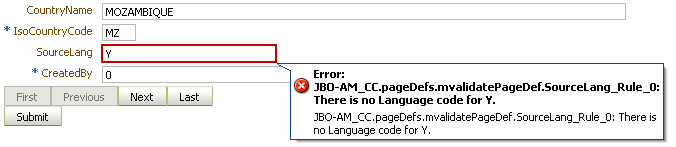
You can display server-side error messages in a box at the top of a page using the af:messages tag. When you drop any item from the Data Controls panel onto a page as an input component, JDeveloper automatically adds this tag for you.
To display error messages in an error box:
-
In the Structure window, select the af:messages tag.
This tag is created automatically whenever you drop an input widget from the Data Controls panel. However, if you need to insert the tag manually, simply add the code, as shown in Example 28-24, within the
af:documenttag. -
In the Property Inspector set the following attributes:
-
globalOnly: By default, ADF Faces displays global messages (that is, messages that are not associated with components), followed by individual component messages. If you wish to display only global messages in the box, set this attribute to
true. Component messages will continue to display with the associated component. -
Inline: Specify whether to render the message list inline with the page or in a popup window.
-
message: The main message text that displays just below the message box title, above the list of individual messages.
-
-
Ensure that client-side validation has been disabled. If you do not disable client-side validation, the alert dialog will display whenever there are any ADF Faces validation errors and prevent propagation of the error to the server.
To disable client-side validation, add an entry for
<client-validation-disable>and set it totruein thetrinidad-config.xmlfile, as shown in Example 28-25.Example 28-25 Disabling Client-Side Validation in the Trinidad-config.xml
<?xml version="1.0" encoding="windows-1252"?>
<trinidad-config xmlns="http://myfaces.apache.org/trinidad/config">
  <skin-family>blafplus-rich</skin-family>
  <client-validation-disabled>true</client-validation-disabled>
</trinidad-config>
28.10 Customizing Error Handling
You can report errors using a custom error handler that extends the default DCErrorHandlerImpl class. You are not required to write any code to register your custom exception handler class. Instead, you select the root node of the DataBindings.cpx file in the Structure window, and then use the Property Inspector to set the ErrorHandlerClass property to the fully qualified name of the error handler you want it to use.
Your custom error handler can contain the following overridable methods:
-
reportException(): Called to report any exception that occurs. It can be overridden to analyze reported exceptions. -
getDisplayMessage(): Returns the message that will be reported to JSF for each error that occurs. Returningnullis the way your custom error handler signals that a given exception should not be reported to the client. -
getDetailedDisplayMessage(): Returns the detail portion of the message as aStringobject or HTML that will be reported to JSF for each error that occurs. Returningnullis the way your custom error handler signals that a given exception should not be reported to the client. -
processMessage(): Called every time an exception is transformed into an ADF Faces message. It provides the ability to change the content of the message that will be displayed.
Example 28-26 illustrates a custom error handler that extends the DCErrorHandlerImpl class.
Example 28-26 Custom Error Handler
package view.controller.fwkext;
import java.util.ArrayList;
import java.util.List;
import oracle.adf.model.binding.DCBindingContainer;
import oracle.adf.model.binding.DCErrorHandlerImpl;
import oracle.jbo.CSMessageBundle;
import oracle.jbo.DMLConstraintException;
import oracle.jbo.JboException;
public class CustomErrorHandler extends DCErrorHandlerImpl {
 List<ExceptionMapper> exceptionMapperList = new
ArrayList<ExceptionMapper>();
 public CustomErrorHandler() {
   this(true);
 }
 public CustomErrorHandler(boolean setToThrow) {
 super(setToThrow);
  exceptionMapperList.add(new DisableJboExceptionCodesMapper());
 }
 public void reportException(DCBindingContainer bc, Exception ex) {
 for (ExceptionMapper mapper : exceptionMapperList) {
if (mapper.canMapException(ex)) {
   ex = mapper.mapException(ex);
 }
}
 super.reportException(bc, ex);
   }
You must change the constuctor to MyErrorHandler(). The exception error handler must have a default constructor, as shown in Example 28-27.
Example 28-27 Default Constructor
ErrorHandlerClass="viewcontroller.MyErrorHandler" public MyErrorHandler() { super(true); }
28.10.1 How to Customize the Detail Portion of a Message
If you plan to customize and use the detail portion of a message, you can create a custom error handler and implement the getDetailedDisplayMessage method to retrieve and process that message. The finalized message will be passed to the view layer to be integrated with other messages.
To customize the detail portion of a message:
-
Create a custom error handler class that extends the default
DCErrorHandlerImplclass. -
In that class, override the
getDetailedDisplayMessagemethod that returns aDCErrorMessageobject.Example 28-28 shows an implementation of the
getDetailedDisplayMessagemethod in the custom error handler class.Example 28-28 Custom Error Handler Class with getDetailDisplayMessage Method
public final class MyErrorMessageHandler extends DCErrorHandlerImpl { public MyErrorMessageHandler (){ super(false); } public DCErrorMessage getDetailedDisplayMessage(BindingContext ctx, RegionBinding ctr, Exception ex) { ... return new MyDCErrorMesssage(ctr, ex); } } -
Create a custom class that implements the
DCErrorMessageinterface. The class must implement thegetHTMLTextmethod and thegetTextmethod.You will add code to the
getHTMLTextmethod to perform the actual processing, but you must also implementgetTextto satisfy the interface requirements. -
In the
getHTMLTextimplementation, add code to create and process the error message.getHTMLTextofgetDetailedDisplayMessageshould return the finalized version of the error message as an HTML fragment that will be inserted into the HTML code of the page. For this reason, you should perform all necessary preprocessing on the text message before the message is returned bygetDetailedDisplayMessage. For instance, you may want to retrieve the localized version of the message or change the right-to-left ordering of the message before it is returned.Example 28-29 shows an implementation of this interface.
Example 28-29 Implementing the DCErrorMessage Interface
public final class MyDCErrorMesssage implements DCErrorMessage {
    RegionBinding m_regionBinding;
    Exception m_ex;
       public MyDCErrorMesssage(RegionBinding ctr, Exception ex) {
        super();
        this.m_regionBinding = ctr;
        this.m_ex = ex;
    }
    public String getText() {
        ...
        return "Message String";
    }
    public String getHTMLText() {
        ...
        /* Add code to process the message, including localization */
        /* and right-to-left directional requirements. */
        /* Return the message as the finalized HTML fragment.*/
        return "<b>error</b> message details";
    }
}
28.10.2 How to Write an Error Handler to Deal with Multiple Threads
Oracle ADF constructs an instance of the custom error handler for each BindingContext object that is created. Because Oracle ADF serializes simultaneous web requests from the same logical end-user session, multiple threads generally will not use the same error handler at the same time. However, to guarantee a thread-safe custom error handler, use the setProperty() API on JboException. This method stores in the exception objects themselves any hints you might need later during the phase when exceptions are translated to JSF FacesMessage objects for display.