| Skip Navigation Links | |
| Exit Print View | |

|
Sun Server X2-8 Product Documentation Sun Server X2-8 (formerly Sun Fire X4800 M2) Documentation Library |

Get Software and Firmware Downloads
Hardware Installation and Product Notes
Overview of the Sun Server X2-8 Product Notes
Supported Software and Firmware
Oracle Solaris Operating System Issues
Windows Operating System Issues
Oracle Hardware Installation Assistant
Front and Back Features and Components
Unpacking the Server and Identifying the Rack Mounting Hardware
How to Identify Your Rack Mounting Kit
Installing the Server In the Rack Using the Standard Rack Mounting Kit
Contents of the Standard Rack Mounting Kit
Location of the Rack Mounting Kit and the Shipping Bracket Kit
Installing the Server In a Rack Using the Standard Rack Mounting Kit
How to Remove Components to Reduce Weight
How to Replace the Components in the Server
How to Install the Standard Rack Mounting Hardware in a Rack
How to Insert the Server Into the Rack
Removing and Installing the Standard Rack Mounting Kit Shipping Brackets
How to Remove the Standard Rack Mounting Kit Shipping Brackets
How to Install the Standard Rack Mounting Kit Shipping Brackets
Installing the Server in the Rack Using the Universal Rack Mounting Kit
Contents of the Universal Rack Mounting Kit
Installing the Server in a Rack Using the Universal Rack Mounting Kit
How to Remove Components to Reduce Weight
How to Replace the Components in the Server
How to Install the Universal Rack Mounting Hardware in a Round-Hole Rack
How to Insert the Server Into the Rack
Installing and Removing the Universal Shipping Brackets
How to Install the Universal Shipping Brackets
How to Remove the Universal Shipping Brackets
Removing the Server from the Rack
How to Remove the Server from the Rack
How to Remove the Rackmounting Hardware from the Rack
Attaching Administration (SP) Cables
How to Cable the NEMs and PCIe EMs
Powering the Server On and Off
How to Apply Standby Power for Initial Service Processor Configuration
How to Power On All Server Components
Getting Service for Your Server
How to Find the Server's Serial Number
Determining Your Server Management Strategy
Oracle Integrated Lights Out Manager
Oracle Hardware Management Pack
Oracle Hardware Installation Assistant
Configuring the Preinstalled Solaris Operating System
Configuring the Preinstalled Oracle Solaris OS
How to Connect to the Server Using the Server's IP Address
(Optional) How to Redirect the Console Output to the Video Port
How to Connect to the Server Using a Serial Capture Program
Oracle Solaris OS Information Products and Training
Configuring the Preinstalled Oracle Linux Operating System
Oracle Linux Configuration Worksheet
Configure the Preinstalled Oracle Linux OS
Register and Update Your Oracle Linux OS
Configuring the Preinstalled Oracle VM Software
Oracle VM Server Configuration Worksheet
Oracle VM Manager Configuration Worksheet
Getting Started With Oracle VM
How to Configure the VM Network Interfaces
Communicating With Oracle ILOM and the System Console
About Oracle ILOM SP IP Addresses and the Oracle ILOM Interfaces
How to Get the SP IP Address by Using the BIOS Setup Utility
How to Get the SP IP Address by Using a Serial Connection and the CLI
How to Connect to Oracle ILOM CLI Using the Serial Management Port
How to Connect to the Oracle ILOM CLI Using SSH
How to Connect to the Oracle ILOM Web Interface
Connecting to the System Console
How to Connect to the Server Locally (Physical Console)
How to Connect to the Host's Serial Console Using the Oracle ILOM Command-Line Interface
How to Connect Remotely Using the Oracle ILOM Web Interface
I/O and Interrupt Resource Allocation
Option ROM and I/O Space Allocation
How to Determine Whether You Need to Allocate Option ROM and I/O Space
How to Configure Option ROM and I/O Space Allocation
Allocating MSI Interrupt Space (Oracle Solaris OS Only)
How to Identify and Fix Interrupt Resource Shortages
Sun Server X2-8 Specifications
Physical Specifications for the Sun Server X2-8
Power Specifications for the Sun Server X2-8
How to Request Physical Media Online
How To Request Physical Media by Phone
Oracle Solaris Operating System
Introduction to Oracle Solaris OS Installation
Oracle Hardware Installation Assistant (OHIA)
Selecting a Media Delivery Method
Installing Red Hat Enterprise Linux
Installing SUSE Linux Enterprise Server
Configuring a Linux Server to Support PXE Installation
Identifying Logical and Physical Network Interface Names for Linux OS Configuration
Windows Server 2008 OS Installation Planning
Preparing For Windows OS Installation
Oracle Hardware Installation Assistant (OHIA)
Installing Windows Server 2008 R2
Updating Critical Drivers and Installing Supplemental Software
Incorporating Device Drivers Into WIM Images for WDS
Identifying Network Interfaces in Windows
Introduction to Oracle VM Installation
Installing VMware ESXi 4.1 and ESXi 5 Installable
Booting From OS Distribution Media
Administration, Diagnostics, and Service
Determining Your Server Management Strategy
Server-Specific Oracle ILOM Features
Identifying and Clearing Faults
Recovering a Lost Oracle ILOM Password
Monitoring Hardware and Environmental Sensors
Overview of the Diagnostics Guide
Introduction to System Diagnostics
Using Oracle ILOM to Monitor the Host
Creating a Data Collector Snapshot
Using SunVTS Diagnostics Software
Performing Pc-Check Diagnostic Tests
U-Boot Diagnostic Start-Up Tests
Sun Server X2-8 Service Manual Overview
Removing and Installing Components
Sun Server X2-8 Service Procedures, and Information
The rack mounting kit consists of adapter brackets, rear braces, shelf rails, cage nuts, and screws.
![]() | Caution - The server weighs about 180 pounds (100 kg) when fully loaded with components. To reduce the risk of serious personal injury or equipment damage, use a mechanical lift to install the server into the rack. If a lift is not available, remove components as described in How to Remove Components to Reduce Weight. This reduces the weight of the server to 80 pounds (45 kg). Always load equipment into a rack from the bottom up so that it does not become top-heavy and tip over. Deploy your rack’s anti-tilt bar to prevent the rack from tipping during equipment installation. |
Note - To install rack mounting hardware in round-hole racks, see How to Install the Universal Rack Mounting Hardware in a Round-Hole Rack.
This task requires the following screws and connectors:
|
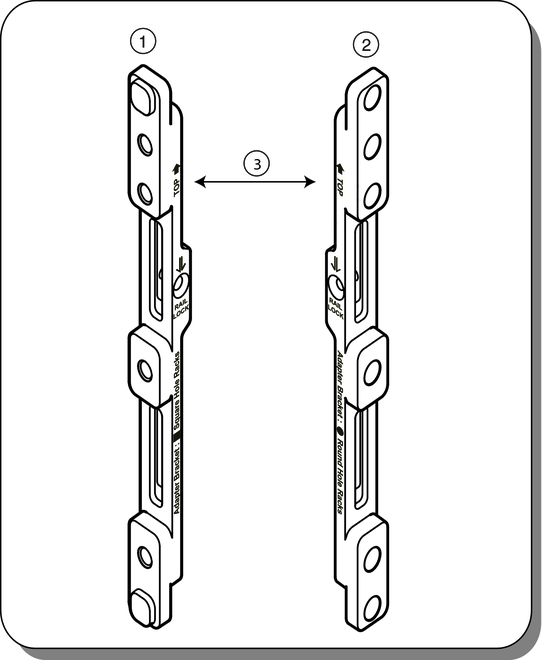
The server ships with two sets of adapter brackets: one for racks with square holes (1) and one for racks with round holes (2). The brackets for square-hole racks (1) have threads. See the following figure.
Note - Arrows on the brackets (3) indicate how the bracket should be oriented. Be sure to install all brackets with the “Top” arrow (3) pointing up.
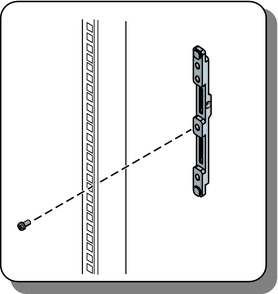
Place the brackets so that the bottom of the bracket is aligned with the bottom of the (5RU) space where the server will go, and that the arrow labeled “Top” points up.
Note - The accessory tray includes a printed template that you can use to help align the adapter brackets.
Use one M6 x 12 screw per side. Pass the screw from the outside of the rack, through the holes in the post, and into the threads on the adapter brackets.
The other two holes (per side) are used later, to attach the bezel of the server to the rack.
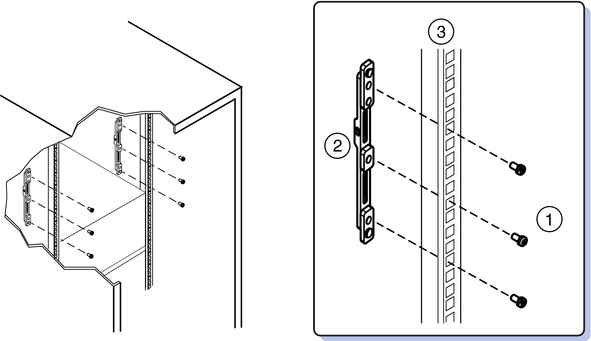
Place the brackets so that the bottom of the bracket is aligned with the bottom of the (5RU) space where the server will go, and that the arrow labeled “Top” points up.
Use three M6 X 12 screws per side (1) to fasten the bracket (2) to the posts (3).
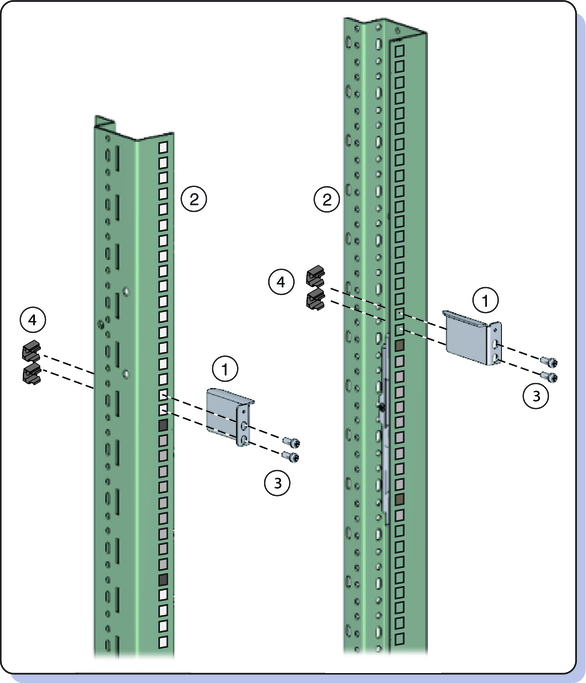
Install two M6 cage nuts (4) per side, and then use two M6 x 12 screws (3).
Before tightening the screws, slide the braces (1) up as far as they will go. The holes on the braces are oval shaped so they can move a little up and down when the screws are loose.
You must remove the shelf extenders before installing the server in the rack. They are used for other products.
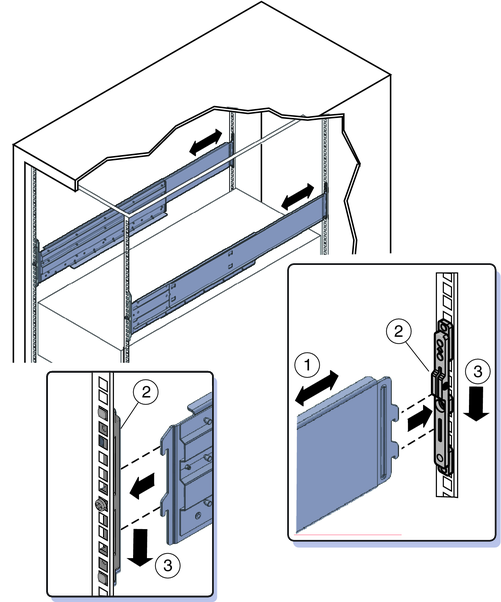
The shelf rails expand (1) to fit the rack, then slip into the slots on the adapter brackets (2), and drop into place (3).
Be certain to place the shelf rails in the proper orientation. They are labeled “FRONT LEFT” and “FRONT RIGHT.”
![]() | Caution - Drop Hazard! Be certain that the rails are firmly seated in the brackets before proceeding. |
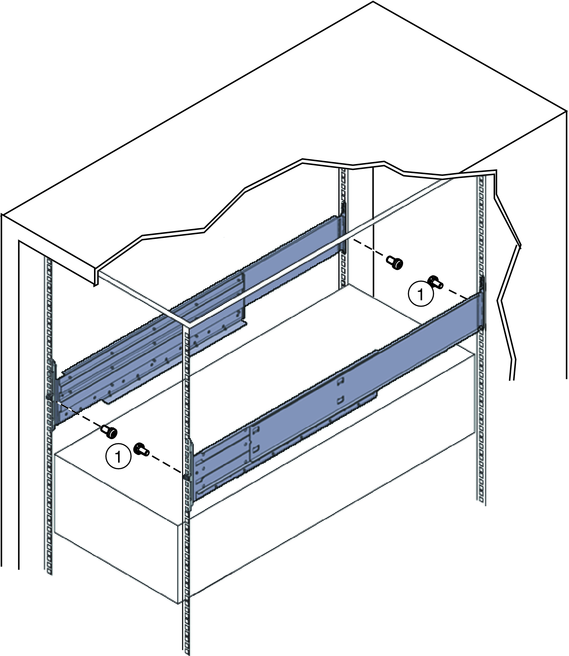
These prevent the shelf rails from accidentally lifting out of the adapter brackets.
Next Steps