2 Overview of the Upgrade Approaches Offered for Upgrading an Enterprise Manager System
Enterprise Manager has had many releases in the past, but Enterprise Manager Cloud Control is the latest release that has significant changes over all its earlier releases. Unlike the earlier releases that were called Enterprise Manager Grid Control, this release is called Enterprise Manager Cloud Control.
Enterprise Manager Cloud Control offers a variety of new features and enhancements, including improved user interface, stability, reliability, and performance. In addition, Enterprise Manager Cloud Control offers seamless access to My Oracle Support from within its console for managing service requests, deploying patches, and reviewing knowledge base articles.
This chapter describes how you can upgrade your existing, earlier releases of Enterprise Manager Grid Control or Enterprise Manager Cloud Control to 12c Release 5 (12.1.0.5).
Oracle understands that with the option of deploying Enterprise Manager across the enterprise and in any number of permutations, upgrading your entire environment becomes a very complex activity, particularly when it involves updating of software and configurations in different levels (tiers) located in different hosts. In addition, there are challenges of upgrading the environment with near-zero downtime or minimal monitoring loss.
Considering these challenges, Oracle provides upgrade options that offer the flexibility to select the approach that best suits your requirement. The upgrade options also aim at simplifying the entire upgrade operation with the intent of making it seamless and error-free.
This chapter provides an overview of the different upgrade approaches that are offered, the utilities to be used for each approach, and the overall process to be followed for each approach for upgrading your existing Enterprise Manager system. In particular, this chapter covers the following:
2.1 Upgrading Enterprise Manager Cloud Control 12c Release 2 (12.1.0.2), 12c Release 3 (12.1.0.3), 12c Release 4 (12.1.0.4) to 12c Release 5 (12.1.0.5)
This section describes the following:
Note:
-
If you have Oracle Management Service 12c Release 1 (12.1.0.1) [with or without Bundle Patch 1], then first upgrade it to either 12c Release 2 (12.1.0.2), 12c Release 3 (12.1.0.3), or 12c Release 4 (12.1.0.4), and then upgrade to 12c Release 5 (12.1.0.5).
For instructions to upgrade to 12c Release 2 (12.1.0.2), 12c Release 3 (12.1.0.3), or 12c Release 4 (12.1.0.4), refer to the Oracle Enterprise Manager Cloud Control Upgrade Guide for the respective release, available in the Enterprise Manager documentation library:
-
The Oracle Management Agent releases that are supported for Enterprise Manager Cloud Control 12c Release 5 (12.1.0.5) are 12c Release 5 (12.1.0.5), 12c Release 4 (12.1.0.4), 12c Release 3 (12.1.0.3), and 12c Release 2 (12.1.0.2). If you have any earlier releases of Oracle Management Agent, then before upgrading the Oracle Management Service to 12c Release 5 (12.1.0.5), make sure you upgrade your Oracle Management Agent to either 12c Release 4 (12.1.0.4), 12c Release 3 (12.1.0.3), or 12c Release 2 (12.1.0.2) using the Agent Upgrade Console present within the Enterprise Manager Cloud Control Console.
Note:
For information on the releases Enterprise Manager Cloud Control has had so far, refer to Oracle Enterprise Manager Cloud Control Advanced Installation and Configuration Guide.2.1.1 Overview of the Upgrade Approaches Offered for Upgrading Enterprise Manager Cloud Control 12c Release 2 (12.1.0.2), 12c Release 3 (12.1.0.3), 12c Release 4 (12.1.0.4) to 12c Release 5 (12.1.0.5)
Oracle offers only 1-system upgrade approach for upgrading 12c Release 2 (12.1.0.2), 12c Release 3 (12.1.0.3), 12c Release 4 (12.1.0.4) to 12c Release 5 (12.1.0.5). 2-system upgrade approach is NOT supported.
The 1-system upgrade approach upgrades your Enterprise Manager Cloud Control on the same host—upgrades Oracle Management Service (OMS) on the same host and Oracle Management Repository (Management Repository) in the existing database. Since the upgrade happens on the same host, there is a reasonable downtime involved.
In this upgrade approach, the Enterprise Manager system may be either a single instance or multi-OMS implementation (required by larger enterprises). In either case, the new OMS will be upgrading the original OMS on the same host, but only one system, the new or the original, can be active at any point.
Note:
The installer does NOT upgrade your existing Management Agents. After upgrading the OMS, you must upgrade the Management Agent separately using the Agent Upgrade Console. Agent Upgrade Console is a GUI-rich console that you see in the Enterprise Manager Cloud Control Console after you upgrade the OMS. For more information, refer to Section 2.1.2.2.Table 2-1 describes the compatibility between OMS and Management Agents across 12c releases.
Table 2-1 Compatibility Between OMS and Management Agents Across 12c Releases
|
Oracle Management Agent 12c Release 1 (12.1.0.1) + Bundle Patch 1 (Refers to agents and their plug-ins patched or upgraded to, or installed with Bundle Patch 1) |
Oracle Management Agent 12c Release 2 (12.1.0.2) |
Oracle Management Agent 12c Release 3 (12.1.0.3) |
Oracle Management Agent 12c Release 4 (12.1.0.4) |
Oracle Management Agent 12c Release 5 (12.1.0.5) |
|
|
Oracle Management Service 12c Release 1 (12.1.0.1) + Bundle Patch 1 |
Yes (includes Management Agents with and without Bundle Patch 1) |
No |
No |
No |
No |
|
Oracle Management Service 12c Release 2 (12.1.0.2) |
Yes (includes Management Agents with and without Bundle Patch 1) |
Yes |
No |
No |
No |
|
Oracle Management Service 12c Release 3 (12.1.0.3) |
Yes (Only Management Agents released in January 2012 [with Bundle Patch 1]) |
Yes |
Yes |
No |
No |
|
Oracle Management Service 12c Release 4 (12.1.0.4) |
No |
Yes |
Yes |
Yes |
No |
|
Oracle Management Service 12c Release 5 (12.1.0.5) |
No |
Yes |
Yes |
Yes |
Yes |
2.1.2 Overview of the Upgrade Utilities Offered for Upgrading Enterprise Manager Cloud Control 12c Release 2 (12.1.0.2), 12c Release 3 (12.1.0.3), 12c Release 4 (12.1.0.4) to 12c Release 5 (12.1.0.5)
This section describes the utilities to be used for upgrading 12c Release 2 (12.1.0.2), 12c Release 3 (12.1.0.3), 12c Release 4 (12.1.0.4) to 12c Release 5 (12.1.0.5). In particular, this section describes the following:
2.1.2.1 Overview of the Enterprise Manager Cloud Control Installation Wizard
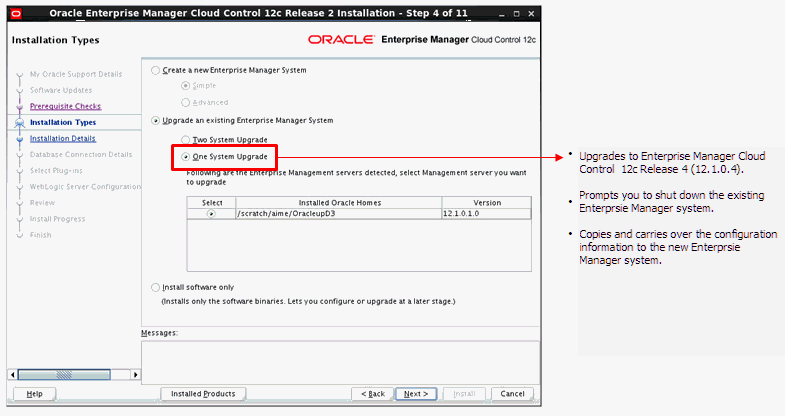
The Enterprise Manager Cloud Control Installation Wizard is the primary user interface that enables you to select the 1-system upgrade approach, and upgrade your existing OMS and Management Repository.
The following diagram clearly illustrates the features it offers.
2.1.2.2 Overview of the Agent Upgrade Console
The Agent Upgrade Console is a graphical user interface built into Enterprise Manager Cloud Control 12c. The console enables you to upgrade one or more Oracle Management Agents. To access the Agent Upgrade Console, from the Setup menu, click Manage Cloud Control, then select Upgrade Agents.
Note:
The Agent Upgrade Console was available with Enterprise Manager Cloud Control 12c Release 4 (12.1.0.4), 12c Release 3 (12.1.0.3) and 12c Release 2 (12.1.0.2). However, the console available with Enterprise Manager Cloud Control 12c Release 5 (12.1.0.5) upgrades only the Management Agent releases mentioned in this section.If you have any Oracle Management Agents of 12c Release 1 (12.1.0.1), then before upgrading the Oracle Management Service, make sure you upgrade those Oracle Management Agents to either 12c Release 4 (12.1.0.4), 12c Release 3 (12.1.0.3), or 12c Release 2 (12.1.0.2) using the Agent Upgrade Console. After that, you can upgrade to 12c Release 5 (12.1.0.5).
Note:
All OMS instances must be upgraded in a multi-OMS environment, before you can use the Agent Upgrade Console to upgrade your Management Agents.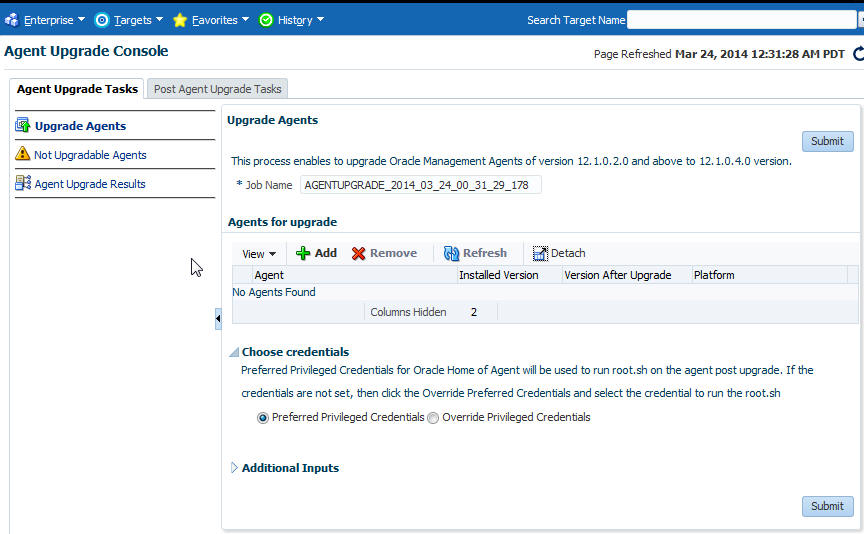
2.1.3 Overview of the 1-System Upgrade Approach Offered for Upgrading Enterprise Manager Cloud Control 12c Release 2 (12.1.0.2), 12c Release 3 (12.1.0.3), 12c Release 4 (12.1.0.4) to 12c Release 5 (12.1.0.5)
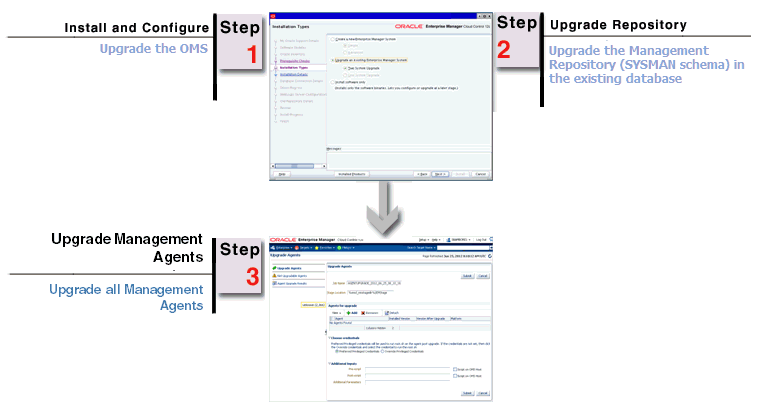
The following illustration describes the high-level flow or sequence of steps you must perform when you choose to upgrade 12c Release 4 (12.1.0.4), 12c Release 3 (12.1.0.3) or 12c Release 2 (12.1.0.2) to 12c Release 5 (12.1.0.5) using the 1-system upgrade approach:
Note:
Oracle Management Service 12c communicates only with Oracle Management Agent 12c (12.1.0.5, 12.1.0.4, 12.1.0.3, 12.1.0.2). Therefore, unlike the earlier releases, you must first upgrade the OMS and the Management Repository, and then upgrade the Management Agents using the Agent Upgrade Console. Agent Upgrade Console is a GUI-rich console that you see in the Enterprise Manager Cloud Control Console after you upgrade the OMS. For more information, refer to Section 2.1.2.2.When you upgrade the OMS and the Management Repository using the installer, the installer does the following by default:
-
Installs the following components in the Middleware home location you enter in the installer:
-
Java Development Kit (JDK) 1.6.0.43.0 and Oracle WebLogic Server 11g Release 1 (10.3.6) if they are not already available in the Middleware home you specify.
-
Oracle Management Service 12 c Release 5 (12.1.0.5).
-
Oracle JRF 11g Release (11.1.1.7.0), which includes
oracle_commondirectory. -
Oracle Web Tier 11g Release (11.1.1.7.0), which includes
Oracle_WTdirectory. -
Oracle BI Publisher 11g (11.1.1.7.0), which includes
Oracle_BI1directory.Note:
Although Oracle BI Publisher 11g (11.1.1.7) is installed by default, it is not configured. To configure it post installation or upgrade an earlier version, follow the instructions in Oracle Enterprise Manager Cloud Control Administrator's Guide. -
Upgrades or carries over the already deployed plug-ins:
-
Upgrades the deployed plug-ins if newer versions are available in the Enterprise Manager Cloud Control 12c Release 5 (12.1.0.5) software.
-
Carries over the deployed plug-ins without upgrading them in the following cases:
(a) If newer versions are not available in the Enterprise Manager Cloud Control 12c Release 5 (12.1.0.5) software.
(b) If the deployed plug-ins are already of the higher or same version as the ones in the Enterprise Manager Cloud Control 12c Release 5 (12.1.0.5) software.
-
Deploys new plug-ins when the plug-ins being upgraded have new dependencies, or when there are any new default plug-ins introduced with a release.
-
-
-
Creates a new Oracle WebLogic domain and Node Manager with the same Administration Server configuration details (same Administration Server, same port, and so on).
-
Creates an Oracle Management Service Instance Base directory
(gc_inst)for storing all configuration details related to Oracle Management Service 12c, outside the middleware home.For example, if the Middleware home is
/u01/app/Oracle/Middleware/, then the instance base location is/u01/app/Oracle/gc_inst. -
Upgrades the Management Repository in the existing certified database.
-
Runs the following configuration assistants to configure the installed or upgraded components:
-
Stopping APM Engines
-
Stop Admin Server
-
Plugins Prerequisites Check
-
Repository Upgrade
-
MDS Schema Configuration
-
OMS Configuration
-
Plugins Deployment and Configuration
-
Start Oracle Management Service
-
Oracle Configuration Manager Repeater Configuration
-
Note:
The installer does NOT upgrade your existing Management Agent that was installed with the OMS. You must upgrade it (and all other Management Agents) using the Agent Upgrade Console. For more information, see Section 2.1.2.2.2.2 Upgrading Enterprise Manager Cloud Control 10g Release 5 (10.2.0.5), 11g Release 1 (11.1.0.1) to 12c Release 5 (12.1.0.5)
This section provides an overview of the upgrade approaches, clearly differentiates the three upgrade approaches, and describes the utilities to be used and the overall process to be followed for upgrading 10g Release 5 (10.2.0.5) or 11g Release 1 (11.1.0.1) to 12c Release 5 (12.1.0.5).
In particular, this section covers the following:
Note:
For instructions to upgrade from 10g Release 5 (10.2.0.5) or 11g Release 1 (11.1.0.1) to 12c Release 5 (12.1.0.5), see Part I.2.2.1 Overview of the Upgrade Approaches Offered for Upgrading Enterprise Manager Cloud Control 10g Release 5 (10.2.0.5), 11g Release 1 (11.1.0.1) to 12c Release 5 (12.1.0.5)
Oracle offers the following upgrade approaches for upgrading 10g Release 5 (10.2.0.5) or 11g Release 1 (11.1.0.1) to 12c Release 5 (12.1.0.5):
-
1-System Upgrade Approach: This approach enables you to upgrade to Enterprise Manager Cloud Control on the same host where your earlier release of Enterprise Manager is running. This approach also upgrades the Oracle Management Repository (Management Repository) in the existing database. Since the upgrade happens on the same host, there is a reasonable downtime involved.
This approach refers to upgrading an Enterprise Manager system on the same host as the old one, and having only one Enterprise Manager system existing at any point. To learn about upgrading a multi-OMS environment, see Section 12.6.
-
2-System Upgrade Approach: This approach enables you to install Enterprise Manager Cloud Control on a host that is different from the host where your existing Enterprise Manager system is running.
This approach does not upgrade the Management Repository in the existing database, but upgrades the one in the backed up database, thus enabling two Enterprise Manager systems to exist. Since a new Enterprise Manager system coexists with the old one, there is no or near zero downtime involved.
-
1-System Upgrade Approach on a Different Host: This approach enables you to install Enterprise Manager Cloud Control on a host different from where the existing Enterprise Manager is running.
This approach is similar to the 2-System upgrade approach, but unlike the 2-System upgrade approach, this approach upgrades the Management Repository in the existing database itself. Since only one Enterprise Manager system exists at any point, there is a reasonable downtime involved.
2.2.2 Differences Between the Upgrade Approaches Offered for Upgrading Enterprise Manager Cloud Control 10g Release 5 (10.2.0.5), 11g Release 1 (11.1.0.1) to 12c Release 5 (12.1.0.5)
Table 2-2 lists the differences between the three upgrade approaches that are offered for upgrading 10g Release 5 (10.2.0.5) or 11g Release 1 (11.1.0.1) to 12c Release 5 (12.1.0.5). Understand the differences and select the approach that best suits your requirement.
Table 2-2 Differences Between the Upgrade Approaches
| 1-System Upgrade Approach | 2-System Upgrade Approach | 1-System Upgrade Approach on Different Host |
|---|---|---|
|
Involves predeployment and switch over of Management Agents prior to upgrading the OMS and the Management Repository, unlike the traditional approach that focussed on upgrading only the OMS and the Management Repository. |
Resembles fresh installation. |
Has the same impact as 1-system upgrade approach, but with a different host for Enterprise Manager Cloud Control 12c Release 5 (12.1.0.5). |
|
Requires a reasonable downtime. (Essentially, the downtime lasts from the time you start switching over the Management Agents till the time you upgrade the OMS.) |
Requires a reasonable downtime. (Essentially, the downtime lasts from the time you start switching over the Management Agents till the time you install the OMS.) |
|
|
Upgrades to Enterprise Manager Cloud Control on the same host where your earlier release of Enterprise Manager is running. |
Installs Enterprise Manager Cloud Control on a host that is different from the host where your existing Enterprise Manager system is running. |
Installs Enterprise Manager Cloud Control on a host different from where the existing Enterprise Manager is running, but upgrades the Management Repository in the existing database itself. |
|
Does not require an additional hardware resource because it upgrades on the same host. |
Requires an additional hardware resource because it installs on a different host. |
Requires an additional hardware resource because it installs on a different host. |
|
Existing Enterprise Manager system must be shut down so that the configuration information can be copied and carried over to the upgraded Enterprise Manager system. |
Existing Enterprise Manager system can continue to run until you switch over all your earlier releases of Management Agents to the newly upgraded environment. |
Existing Enterprise Manager system must be shut down so that the configuration information can be copied and carried over to the new system. |
|
Management Agents must be deployed and configured before upgrading the OMS and the Management Repository. |
Management Agents can be deployed and configured before or after upgrading the OMS and the Management Repository. |
Management Agents must be deployed and configured before upgrading the OMS and the Management Repository. |
|
Management Agents can be deployed and configured in an incremental or phased manner, that is, in groups. |
Management Agents can be deployed and configured in an incremental or phased manner, that is, in groups. |
Management Agents can be deployed in an incremental or phased manner, that is, in groups. |
|
Management Agents must be switched over before upgrading the OMS and the Management Repository. |
Management Agents must be switched over after upgrading the OMS and the Management Repository. |
Management Agents must be switched over before upgrading the OMS and the Management Repository. |
|
Upgrades the Management Repository in the existing, certified database. |
Upgrades the Management Repository in the backed up database. Therefore, as a prerequisite, you are required to back up your existing Oracle Database. |
Upgrades the Management Repository in the existing, certified database. |
|
Requires no changes to the ports and firewall settings. The upgraded Management Agents and the OMS use the same ports used earlier. |
Requires some changes to the ports and firewall settings. The upgraded Management Agents use the same ports used earlier. However, the Management Agent and the OMS installed on the remote host might use new ports. In a multi-OMS environment, if you have a Server Load Balancer (SLB), then you can either open up new ports for the new Management Agent and the OMS in the same SLB, or configure a completely new SLB for them. For more information, see Section 3.6. |
Requires some changes to the ports and firewall settings. The upgraded Management Agents use the same ports used earlier. However, the Management Agent and the OMS installed on the remote host might use new ports. In a multi-OMS environment, if you have a Server Load Balancer (SLB), then you can either open up new ports for the new Management Agent and the OMS in the same SLB, or configure a completely new SLB for them. For more information, see Section 3.6. |
|
All deployment procedures must be finished before the upgrade is started. Otherwise, the scheduled procedures will be canceled, and you will have to re-create them. |
All deployment procedures must be finished before the upgrade is started. Otherwise, the scheduled procedures will be canceled, and you will have to re-create them. |
All deployment procedures must be finished before the upgrade is started. Otherwise, the scheduled procedures will be canceled, and you will have to re-create them. |
|
Running jobs will continue to run on the existing Enterprise Manager system after the start of the backup. In Enterprise Manager Cloud Control, these jobs will appear to be aborted or failed. |
||
|
Scheduled jobs will run after the downtime is over if their grace period allows them. Otherwise, they will be skipped. |
Scheduled jobs will run on the existing Enterprise Manager system from the time of the backup until the point where the Management Agent for that target is migrated to Enterprise Manager Cloud Control. Once the Management Agent is migrated, the jobs will run in Enterprise Manager Cloud Control. |
Scheduled jobs will run after the downtime is over if their grace period allows them. Otherwise, they will be skipped. |
|
Repeating jobs will run at their next scheduled time after the downtime. If repeating jobs fall within the downtime, they may be skipped. |
Repeating jobs will continue to run according to their schedule in the existing Enterprise Manage system. Once the Management Agent is migrated, subsequent runs will be in Enterprise Manager Cloud Control. |
Repeating jobs will run at their next scheduled time after the downtime. If repeating jobs fall within the downtime, they may be skipped. |
Note:
Jobs run either in the existing Enterprise Manager system or in Enterprise Manager Cloud Control, and not on both systems. The true status of a job must be viewed only on the system where it actually ran. For more information, see Appendix D. Also, job executions with multiple targets will not run on either system unless all Management Agents for all targets are migrated at the same time.2.2.3 Overview of the Upgrade Utilities Offered for Upgrading Enterprise Manager Cloud Control 10g Release 5 (10.2.0.5), 11g Release 1 (11.1.0.1) to 12c Release 5 (12.1.0.5)
This section describes the utilities to be used for upgrading 10g Release 5 (10.2.0.5) or 11g Release 1 (11.1.0.1) to 12c Release 5 (12.1.0.5). These utilities enable you to select one of the upgrade approaches, orchestrate the entire upgrade operation seamlessly, and also track the post-upgrade activities.
In particular, this section describes the following:
2.2.3.1 Overview of the Preupgrade Console
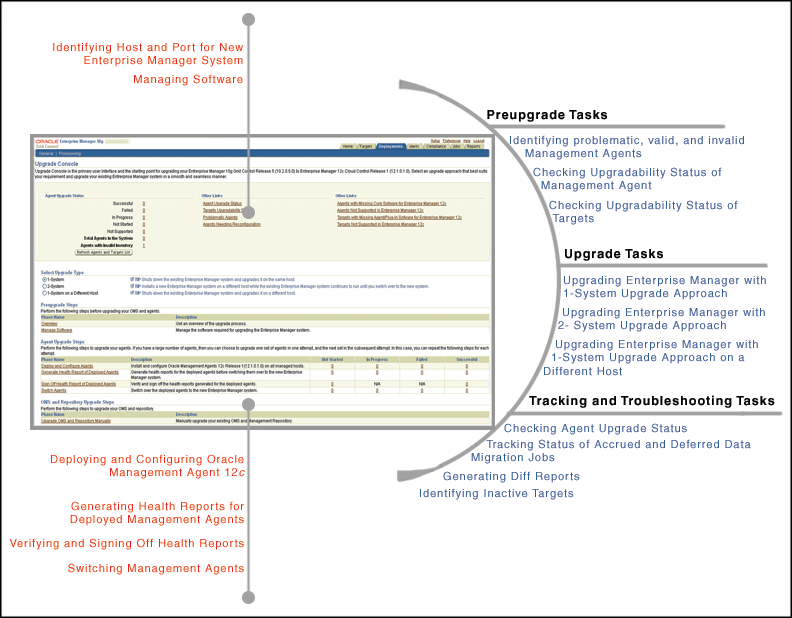
The Preupgrade Console acts as the primary user interface and is the starting point for upgrading your 10g Release 5 (10.2.0.5) and 11g Release 1 (11.1.0.1) to 12c Release 5 (12.1.0.5).
The Preupgrade Console enables you to select an appropriate upgrade approach, predeploy the Oracle Management Agent 12c software, and switch over the earlier releases of Management Agents to the newly predeployed Management Agents.
Note:
Oracle Management Service 12c communicates only with Oracle Management Agent 12c (12.1.0.5, 12.1.0.4, 12.1.0.3, 12.1.0.2). Therefore, unlike the earlier releases, you must first upgrade the Management Agents in your system before upgrading your existing OMS. Hence, the Preupgrade Console acts as a starting point to the upgrade process.To access the Preupgrade Console, do the following:
-
(Optional) Apply the latest PSU patches on your OMS as described in the My Oracle Support note 822485.1. To access My Oracle Support, access the following URL:
Note:
For 10g Release 5 (10.2.0.5), make sure you have at least PSU 3 (9282397) or later applied. For 11g Release 1 (11.1.0.1), make sure you have at least PSU 1 (10065631) or later applied. -
(Mandatory) Apply the preupgrade console patch on all your OMS instances. For information about the patch you need to download and apply for your platform, access the following URL:
http://www.oracle.com/technetwork/oem/grid-control/downloads/oem-upgrade-console-502238.htmlAfter downloading the patch, follow the instructions outlined in the ReadMe, which is provided with the patch. Ensure that you use the latest release of OPatch to apply the patch.
After applying the patch, log in to Enterprise Manager Grid Control with super administrator privileges, click the Deployments tab, then click Enterprise Manager 12c Upgrade Console.
IMPORTANT:
-
You must apply the preupgrade console patch on all the OMS instances.
-
You will have to shut down your OMS to apply the patch, and as a result, your Enterprise Manager system will be down until you complete the patching operation. In addition, you must apply the patch on all your OMS instances, and therefore, the downtime can be more.
-
Despite applying the patch, in the Enterprise Manager Grid Control console, in the Deployments tab, if you do not see the hyperlink Enterprise Manager 12c Upgrade Console, then do the following:
-
Move the
jsp_servletdirectory out of the following location:$<OMS_INSTANCE_BASE>/user_user_projects/domains/GCDomain/generated_classesHere,
<OMS_INSTANCE_BASE>is the OMS Instance Base Directory, which isgc_instby default, outside the middleware home. For example, if the middleware home is/u01/app/Oracle/Middleware/,then the instance base location is/u01/app/Oracle/gc_inst. -
Stop the OMS from the OMS home:
$<OMS_HOME>/bin/emctl stop oms -
Restart the OMS from the OMS home:
$<OMS_HOME>/bin/emctl start oms
-
The following diagram clearly illustrates the features it offers.
Note:
The supported earlier releases for upgrade include: Oracle Management Agent 10g Release 2 (10.2.x.x.x), Oracle Management Agent 11g Release 1 (11.1.0.1), Oracle Management Service 10g Release 5 (10.2.0.5), and Oracle Management Service 11g Release 1 (11.1.0.1).2.2.3.2 Overview of the Enterprise Manager Cloud Control Installation Wizard
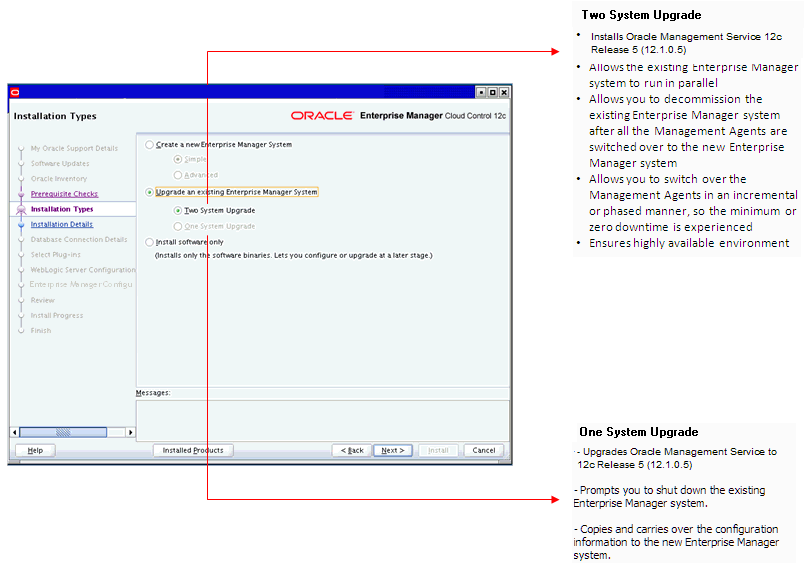
The Enterprise Manager Cloud Control Installation Wizard is the primary user interface that enables you to select the type of upgrade approach you want to perform, and upgrade your existing OMS and Management Repository.
The following diagram clearly illustrates the features it offers.
2.2.3.3 Overview of the Postupgrade Console
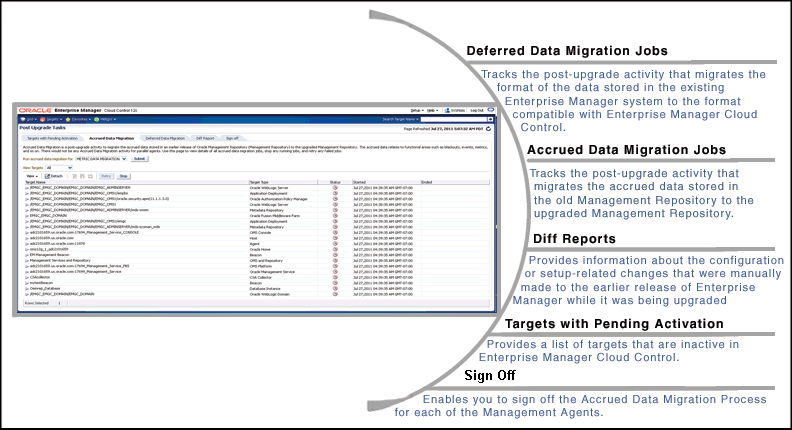
The Postupgrade Console is the primary user interface for tracking all post-upgrade activities, including accrued data migration jobs and deferred data migration jobs. In addition, you can generate diff reports and view a list of targets that are currently inactive in the upgraded Enterprise Manager system.
The following diagram clearly illustrates the features it offers.
Note:
For more information about these jobs, refer to Section 13.7, Section 13.8, Section 13.9, Section 13.10, and Section 13.11.2.2.4 Overview of the 1-System, 2-System, and 1-System on a Different Host Upgrade Processes Offered for Upgrading Enterprise Manager Cloud Control 10g Release 5 (10.2.0.5), 11g Release 1 (11.1.0.1) to 12c Release 5 (12.1.0.5)
This section describes the high-level flow or sequence of steps to be followed for each of the upgrade approaches. In particular, this section describes the following:
2.2.4.1 Overview of the 1-System Upgrade Process Offered for Upgrading Enterprise Manager Cloud Control 10g Release 5 (10.2.0.5), 11g Release 1 (11.1.0.1) to 12c Release 5 (12.1.0.5)
The following illustration describes the high-level flow or sequence of steps you must perform when you choose to upgrade using the 1-system upgrade approach:
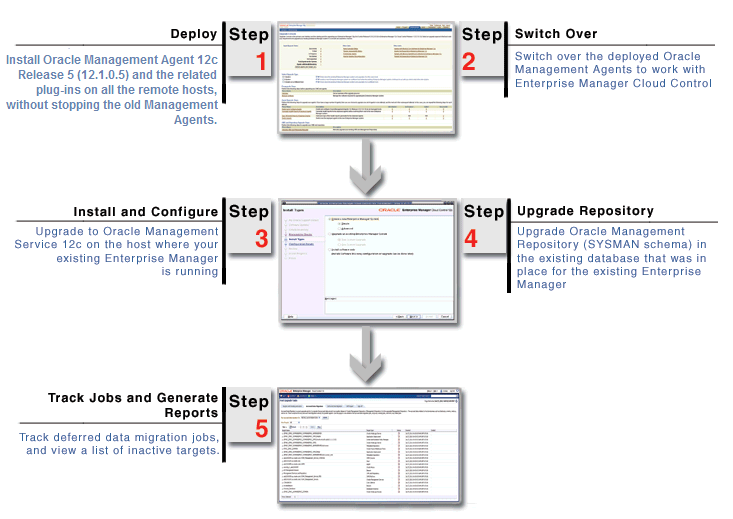
Using the Preupgrade Console, you can deploy the Oracle Management Agent 12c software and switch over the old Management Agents to the newly deployed Management Agents. You will notice that Deploy and Switch Over are two different operations, although they deal with installing and upgrading Management Agents.
Note:
As a best practice, Oracle recommends you to complete the Deploy operation well before you start the Switch Over operation.While the Deploy operation involves copying of software binaries of the Management Agent and configuring them on the hosts, the Switch Over operation involves stopping the old Management Agents and starting the new Management Agents to work with Enterprise Manager Cloud Control.
The two operations are separated and treated as different entities to ensure that your existing Enterprise Manager system is not shut down or disturbed in any way while the software binaries are copied and configured on the hosts. Once the software binaries are copied and configured, you can switch them over with much less time because the time taken is only for stopping the old Management Agents and starting the new Management Agents.
Once you have switched over the Management Agents, you can upgrade the OMS and the Management Repository.
Note:
As a best practice, Oracle also recommends you to upgrade all the OMS instances immediately after you complete the Switch Over operation. Note that the downtime in 1-system upgrade approach essentially lasts from the time you switch over the Management Agent till the time you upgrade all your OMS instances. So the more you delay your upgrade operation, the more the downtime. During this downtime, none of the targets are monitored and no monitoring data is uploaded to the OMS instances.When you upgrade to Enterprise Manager Cloud Control on the host using the installer, the installer does the following by default:
-
Installs the following components in the Middleware home location you enter in the installer:
-
Oracle Management Service 12c.
-
Oracle WebLogic Server 11g Release 1 (10.3.6) and Java Development Kit 1.6.0.43.0 (JDK).
Note:
Oracle WebLogic Server 11g Release 1 (10.3.6) and JDK 1.6.0.43.0 are installed only if you do not specify the use of existing installations. Oracle strongly recommends using the 12c installation process to install the JDK and Oracle WebLogic Server for use with Enterprise Manager 12c.If they already exist (supported version or higher version), then the installer detects them and displays the Middleware home where they are installed. In this case, you only need to validate the path to this Middleware home.
-
Oracle JRF 11g Release (11.1.1.7.0), which includes the
oracle_commondirectory, and Oracle Web Tier 11g Release (11.1.1.7.0), which includes theOracle_WTdirectory. -
Oracle BI Publisher 11g (11.1.1.7.0), which includes the
Oracle_BI1directory.Note:
Although Oracle BI Publisher 11g (11.1.1.7) is installed by default, it is not configured. To configure it post installation, follow the instructions in Oracle Enterprise Manager Cloud Control Administrator's Guide. -
Plug-ins:
-
Oracle Database Management Plug-In
-
Oracle Fusion Middleware Management Plug-In
-
Oracle My Oracle Support Management Plug-In
-
Oracle Exadata Management Plug-In
-
Oracle Cloud Framework Plug-In
-
Other plug-ins you installed while predeploying Oracle Management Agent 12c using the Preupgrade Console (that is, if these plug-ins are available in the software kit)
-
-
-
Creates or reuses the Oracle WebLogic domain, the Admin Server, the Node Manager, and the Managed Server, depending on the earlier release of the Enterprise Manager system from which you are upgrading.
-
If you are upgrading from Enterprise Manager 10g Grid Control Release 5 (10.2.0.5), then by default, the following are created:
-
An Oracle WebLogic domain called
GCDomainis automatically created during the configuration of Enterprise Manager Cloud Control. For this WebLogic Domain, a default user account,weblogic, is used as the administrative user. You can choose to change this, if you want, in the installer. -
A Node Manager user account called
nodemanageris automatically created during the configuration of Enterprise Manager Cloud Control. A Node Manager enables you to start, shut down, or restart an Oracle WebLogic Server instance remotely, and is recommended for applications with high availability requirements.
-
-
If you are upgrading from Enterprise Manager 11g Grid Control Release 1 (11.1.0.1), then a new Oracle WebLogic domain and Node Manager are created with the same Admin Server configuration (same Admin Server, same port, and so on).
-
-
Creates the OMS instance base directory (
gc_inst) outside the middleware home, and stores all configuration information related to the OMS.For example, if the Middleware home is
/u01/app/Oracle/Middleware/, then the instance base location is/u01/app/Oracle/gc_inst. -
Upgrades the Management Repository in the existing certified database.
-
For information about the configuration assistants that run to configure the installed or upgraded components, see Oracle Enterprise Manager Cloud Control Advanced Installation and Configuration Guide.
Note:
The installer does NOT upgrade your existing Management Agent because it is predeployed by the Preupgrade Console.2.2.4.2 Overview of the 2-System Upgrade Process Offered for Upgrading Enterprise Manager Cloud Control 10g Release 5 (10.2.0.5), 11g Release 1 (11.1.0.1) to 12c Release 5 (12.1.0.5)
The following illustration describes the high-level flow or sequence of steps you must perform when you choose to upgrade using the 2-System upgrade approach:
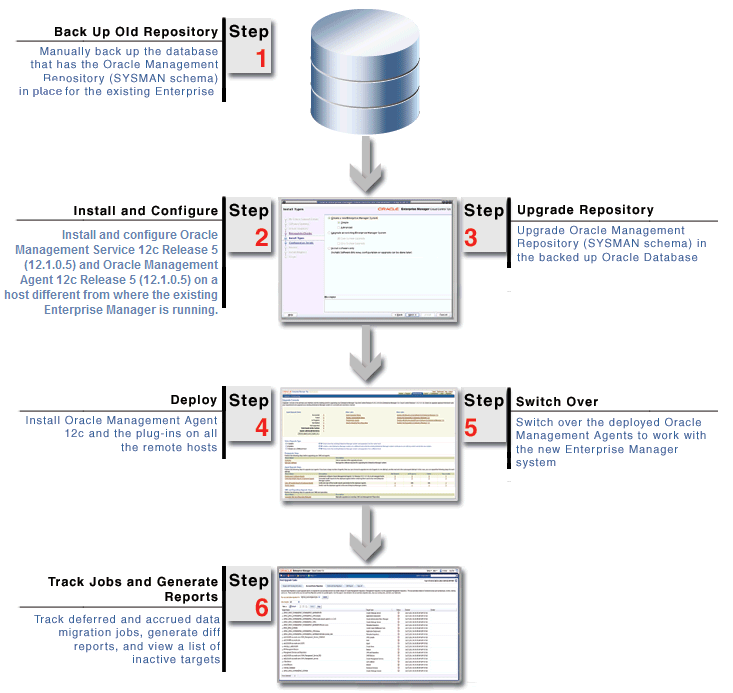
When you install and configure Enterprise Manager Cloud Control on the target host using the installer, the installer does the following by default:
-
Installs the following components in the Middleware home location you enter in the installer:
-
Oracle Management Service 12c
-
Oracle JRF 11g Release (11.1.1.7.0), which includes
oracle_commondirectory -
Oracle Web Tier 11g Release (11.1.1.7.0), which includes
Oracle_WTdirectory -
Oracle BI Publisher 11g (11.1.1.7.0), which includes
Oracle_BI1directory.Note:
Although Oracle BI Publisher 11g (11.1.1.7) is installed by default, it is not configured. To configure it post installation, follow the instructions in Oracle Enterprise Manager Cloud Control Administrator's Guide. -
-
Oracle Database Management Plug-In
-
Oracle Fusion Middleware Management Plug-In
-
Oracle My Oracle Support Management Plug-In
-
Oracle Exadata Management Plug-In
-
Oracle Cloud Framework Plug-In
-
Other plug-ins you installed while predeploying Oracle Management Agent 12c using the Preupgrade Console (that is, if these plug-ins are available in the software kit)
Note:
Oracle WebLogic Server 11g Release 1 (10.3.6) and JDK 1.6.0.43.0 are installed only if you do not specify the use of existing installations. Oracle strongly recommends using the 12c installation process to install the JDK and Oracle WebLogic Server for use with Enterprise Manager 12c.If they already exist (supported version or higher version), then the installer detects them and displays the Middleware home where they are installed. In this case, you only need to validate the path to this Middleware home.
-
-
Installs Oracle Management Agent 12c in the agent base directory you specify (outside the Middleware home).
-
Creates an Oracle WebLogic domain called
GCDomain. For this WebLogic Domain, a default user account,weblogic, is used as the administrative user. You can choose to change this, if you want, in the installer. -
Creates a Node Manager user account called
nodemanager. A Node Manager enables you to start, shut down, or restart an Oracle WebLogic Server instance remotely, and is recommended for applications with high availability requirements. -
Configures an OMS Instance Base location
(gc_inst)for storing all configuration details related to Oracle Management Service 12c, outside the middleware home.For example, if the Middleware home is
/u01/app/Oracle/Middleware/, then the instance base location is/u01/app/Oracle/gc_inst. -
For information about the configuration assistants that run to configure the installed or upgraded components, see Oracle Enterprise Manager Cloud Control Advanced Installation and Configuration Guide.
-
Secures the OMS by generating a password internally. This password is generated by the OMS Configuration Assistant, and the password expires in 30 days from the time it is generated.
If the OMS Configuration Assistant or the Plugins Deployment and Configuration Assistant fails, then ensure that you resolve the issue within the 30-day period. Otherwise, you will face an error in securing the Management Agent while running the Agent Configuration Assistant.
If you are unable to resolve the issue within the 30-day period, run the following command from the Management Agent home:
$<AGENT_HOME>/sysman/install/agentDeploy.sh OMS_HOST=<oms_host_name> EM_UPLOAD_PORT=<oms_upload_https_port> AGENT_REGISTRATION_PASSWORD=<agent_reg_password>
2.2.4.3 Overview of the 1-System on a Different Host Upgrade Process Offered for Upgrading Enterprise Manager Cloud Control 10g Release 5 (10.2.0.5), 11g Release 1 (11.1.0.1) to 12c Release 5 (12.1.0.5)
The following illustration describes the high-level flow or sequence of steps you must perform when you choose to upgrade using the 1-system upgrade approach on a different host:
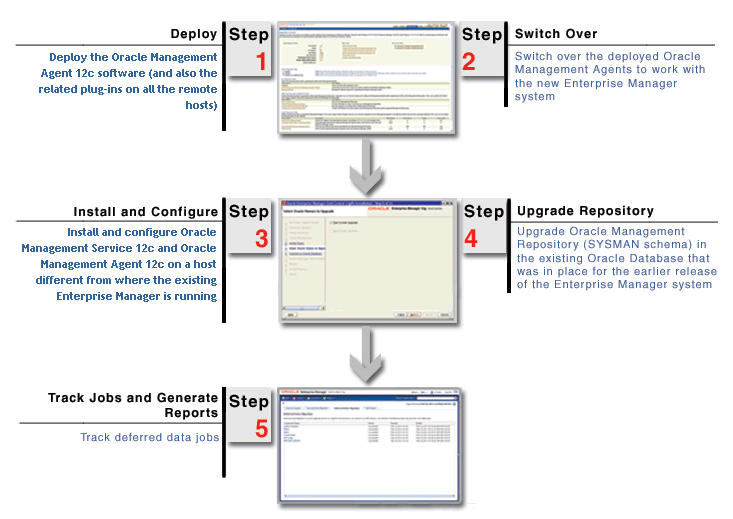
As you can see in the illustration, this approach is a combination of 1-system upgrade approach and 2-System upgrade approach. Much like 1-system upgrade approach, you start the upgrade process by predeploying and switching over the Management Agents. Then, like the 2-System upgrade approach, you install Enterprise Manager Cloud Control on a remote host. However, the difference is, you upgrade the same Management Repository that you have been using for the earlier release of the Enterprise Manager, and then decommission the earlier release. This way, only one Enterprise Manager system exists at a given time.
You install the software binaries of Enterprise Manager Cloud Control on the remote host, then upgrade the existing Management Repository, and then, configure the software binaries to complete the installation.
While installing the software binaries, the installer does the following:
-
Creates Oracle homes and install the following components in the Middleware home location:
-
Oracle Management Service 12c
-
Oracle JRF 11g Release (11.1.1.7.0), which includes
oracle_commondirectory -
Oracle Web Tier 11g Release (11.1.1.7.0), which includes
Oracle_WTdirectory -
Oracle BI Publisher 11g (11.1.1.7.0), which includes
Oracle_BI1directory.Note:
Although Oracle BI Publisher 11g (11.1.1.7) is installed by default, it is not configured. To configure it post installation, follow the instructions in Oracle Enterprise Manager Cloud Control Administrator's Guide. -
-
Oracle Database Management Plug-In
-
Oracle Fusion Middleware Management Plug-In
-
Oracle My Oracle Support Management Plug-In
-
Oracle Exadata Management Plug-In
-
Oracle Cloud Framework Plug-In
-
Other plug-ins you installed while predeploying Oracle Management Agent 12c using the Preupgrade Console (that is, if these plug-ins are available in the software kit)
-
-
Installs Oracle Management Agent 12c in the agent base directory you specify (outside the Middleware home).
While configuring the software binaries, the installer does the following:
-
Creates an Oracle WebLogic domain called
GCDomain. For this WebLogic Domain, a default user account,weblogic, is used as the administrative user. You can choose to change this, if you want, in the installer. -
Creates a Node Manager user account called
nodemanager. A Node Manager enables you to start, shut down, or restart an Oracle WebLogic Server instance remotely, and is recommended for applications with high availability requirements. -
Configures an Oracle Management Service Instance Base location (
gc_inst) for storing all configuration details related to Oracle Management Service 12c, outside the middleware home.For example, if the Middleware home is
/u01/app/Oracle/Middleware/, then the instance base location is/u01/app/Oracle/gc_inst. -
For information about the configuration assistants that run to configure the installed or upgraded components, see Oracle Enterprise Manager Cloud Control Advanced Installation and Configuration Guide.