Using OO4O Automation with Excel
To use OLE Automation with MS Excel to insert Oracle data into a worksheet,
perform the following steps:
- Start Excel and create a new worksheet.
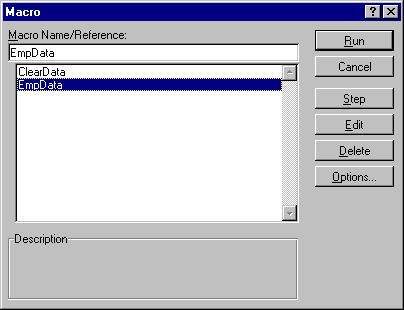
- Use the Macro options in the Tools menu to create and edit new macros for
manipulating the Oracle data.
 Enter the Visual Basic code for the macros to create and access an Oracle
dynaset. For example, see the EmpData() and ClearData() procedures (macros) that
follow:
Sub EmpData()
'Declare variables as objects
Dim OraSession As Object
Dim OraDatabase As Object
Dim EmpDynaset As Object
Dim flds() As Object
Dim fldcount As Integer
Set OraSession = CreateObject("OracleInProcServer.XOraSession")
Set OraDatabase = OraSession.OpenDatabase("ExampleDB",
"scott/tiger", 0&)
Set EmpDynaset = OraDatabase.CreateDynaset("select * from emp", 0&)
Range("A1:H15").Select
Selection.ClearContents
'Declare and create an object for each column.
'This will reduce objects references and speed
'up your application.
fldcount = EmpDynaset.Fields.Count
ReDim flds(0 To fldcount - 1)
For Colnum = 0 To fldcount - 1
Set flds(Colnum) = EmpDynaset.Fields(Colnum)
Next
'Insert Column Headings
For Colnum = 0 To EmpDynaset.Fields.Count - 1
ActiveSheet.Cells(1, Colnum + 1) = flds(Colnum).Name
Next
'Display Data
For Rownum = 2 To EmpDynaset.RecordCount + 1
For Colnum = 0 To fldcount - 1
ActiveSheet.Cells(Rownum, Colnum + 1) = flds(Colnum).Value
Next
EmpDynaset.MoveNext
Next
Range("A1:A1").Select
End Sub
Sub ClearData()
Range("A1:H15").Select
Selection.ClearContents
Range("A1:A1").Select
End Sub
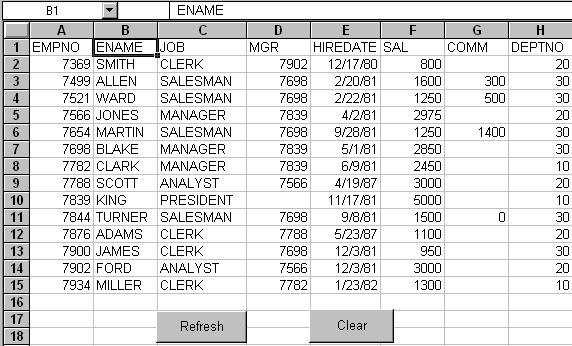
4. Assign the procedures (macros) that were created, such as EmpData() and
ClearData(), to command buttons in the Worksheet for easy access. When you select the
buttons, you can clear and refresh the data in the worksheet.
Enter the Visual Basic code for the macros to create and access an Oracle
dynaset. For example, see the EmpData() and ClearData() procedures (macros) that
follow:
Sub EmpData()
'Declare variables as objects
Dim OraSession As Object
Dim OraDatabase As Object
Dim EmpDynaset As Object
Dim flds() As Object
Dim fldcount As Integer
Set OraSession = CreateObject("OracleInProcServer.XOraSession")
Set OraDatabase = OraSession.OpenDatabase("ExampleDB",
"scott/tiger", 0&)
Set EmpDynaset = OraDatabase.CreateDynaset("select * from emp", 0&)
Range("A1:H15").Select
Selection.ClearContents
'Declare and create an object for each column.
'This will reduce objects references and speed
'up your application.
fldcount = EmpDynaset.Fields.Count
ReDim flds(0 To fldcount - 1)
For Colnum = 0 To fldcount - 1
Set flds(Colnum) = EmpDynaset.Fields(Colnum)
Next
'Insert Column Headings
For Colnum = 0 To EmpDynaset.Fields.Count - 1
ActiveSheet.Cells(1, Colnum + 1) = flds(Colnum).Name
Next
'Display Data
For Rownum = 2 To EmpDynaset.RecordCount + 1
For Colnum = 0 To fldcount - 1
ActiveSheet.Cells(Rownum, Colnum + 1) = flds(Colnum).Value
Next
EmpDynaset.MoveNext
Next
Range("A1:A1").Select
End Sub
Sub ClearData()
Range("A1:H15").Select
Selection.ClearContents
Range("A1:A1").Select
End Sub
4. Assign the procedures (macros) that were created, such as EmpData() and
ClearData(), to command buttons in the Worksheet for easy access. When you select the
buttons, you can clear and refresh the data in the worksheet.