JDeveloper provides the extended View Link feature to let you preserve the relationship between View Objects. In addition, by extending a View Link, you can access any new attributes that might have been added to the extended View Objects. Extending the View Objects and the Link between them preserves typesafe binding: any accessors written in the original View Objects will be inherited by the extended Views and will be able to traverse the original View Link.
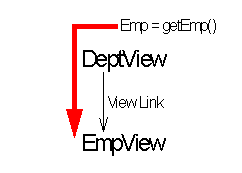
As illustrated in Figure 1, a View Link defines a relationship between View Objects based on common attributes. View Links have a designated source end and a destination end, and imply a master-detail relationship. The link can be navigated only in the source (master) to destination (detail) direction. That is, you can write a View Link accessor method in the source View Object to access a desired result set in the destination View Object. For example, assume you have a DeptView and an EmpView View Object, and that DeptView contains a getEmp() method that retrieves a row set of Emp objects.
Figure 1: Original Source and Destination View Objects
As illustrated in Figure 2, an extended View Link inherits the View Link and View Link accesors of its parent. The accessor in the extended View Object can still traverse the original View Link. If you extend the DeptView View Object, the getEmp() method will be inherited by NewDeptViewEx and will be able to retrieve data from EmpView.
Figure 2: Extending the View Link Source and Destination View Objects
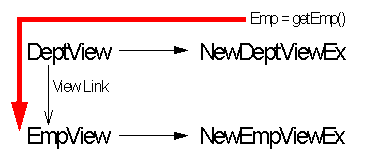
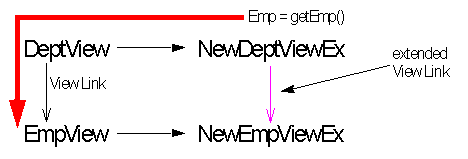
Notice, however that extending the View Objects does not extend the original View Link between them. You cannot call an accessor from NewDeptViewEx to NewEmpViewEx unless you extend the View Link. Extending the View Link allows the View Link to be updated to relate extended View Objects.
Extending the View Link between the extended View Objects gives you the flexibility of choosing:
any of the new attributes from the extended View Object as source and destination role attributes.
any of the pre-built associations on which to base the View Link.
Figure 3 illustrates extending the existing View Link from NewDeptViewEx to NewEmpViewEx.
Figure 3: Extending the Existing View Link
Right-click the package that will hold the customized View Link and select Create View Link. The View Link wizard opens.
In the Name panel, enter the name of the new View Link (NewViewLinkEx) in the Name field. To offer you greater flexibility, note that in this panel, the Name, Package, and Extends View Link fields are editable.
Click Browse to open the Parent dialog. Open the package of original components and select the name of the View Link that you want to extend. Click OK to close the dialog. Click Next in the Name panel to proceed to the Association Views panel.
In the Association Views panel, open the package containing the extended objects in the Select Source View Object list and select the extended View Object NewDeptViewEx. NewDeptViewEx will act as the source of the extended View Link. Next, open the package containing the extended objects in the Select Destination View Object list and select the extended View Object NewEmpEx. NewEmpEx will act as the destination of the extended View Link. Click Next to proceed to the Source Role Attributes panel.
In the Source Role Attributes panel, select the View Object attributes that define the relationship on the source end of the extended View Link. You must specify the same number of attributes for each View Object, in the proper order, on both the source and destination ends. Notice that any new attributes added to the extended View Object are also available. In this example, ensure that Deptno appears in the Selected Attributes list.
You can optionally specify all attributes that define a key from the Available Associations list. When you shuttle a key to the Selected Attributes list, the attributes associated with that key automatically appear. Also, if you select a key in the Source Role Attributes panel, the matching key (if applicable) will be included by default in the Destination Role Attributes panel. Click Next to proceed to the Destination Role Attributes panel.
In the Destination Role Attributes panel, select the View Object attributes that define the relationship on the destination end of the extended View Object. You must specify the same number of attributes for each View Object, in the proper order, on both the source and destination ends. Click Next to proceed to the Association SQL panel.
In the Association SQL panel, you can review, and if necessary, edit the generated SQL code.
|
Note: |
If you want to use bind parameters (? or :) in the WHERE clause, you will need to adhere to the style defined for the linked View Object's query definition. |
Click Finish to accept the code without changes. The Business Components for Java framework generates code to implement the extended View Link.
In the Navigation pane, notice that JDeveloper adds a new View Link, NewViewLinkEx, to the package of extended components.
The NewFKLinkEx View Link is created by extending the functionality of the EmpForeignKeyLink View Link without any source code modification. JDeveloper creates a .xml file for NewFKLinkEx which can be seamlessly integrated into the packaged application. The NewFKLinkEx View Link can now be used at runtime. You can also substitute it for all instances of EmpForeignKeyLink in the original application. For information on how to substitute NewFKLinkEx for all instances of EmpForeignKeyLink in your application, see Substituting Business Components.
The following is a code sample of NewFKLinkEx.xml.
1   <?xml version="1.0" encoding='WINDOWS-1252'?>
2   <!DOCTYPE ViewLink SYSTEM "jbo_03_01.dtd">
3   <ViewLink
4      Name="NewViewLinkEx"
5      Extends="package27.EmpForeignKeyLink"
6      EntityAssociation="Extender.EmpForeignKeyAssoc"
7      Where=":1 = Emp.DEPTNO" >
8      <DesignTime>
9         <Attr Name="_isCodegen" Value="true" />
10     </DesignTime>
11     <ViewLinkDefEnd
12        Name="NewDeptViewEx"
13        Owner="Extender.NewDeptViewEx"
14        Source="true" >
15        <AttrArray Name="Attributes">
16          <Item Value="package27.DeptView.Deptno" />
17        </AttrArray>
18     </ViewLinkDefEnd>
19     <ViewLinkDefEnd
20        Name="NewEmpViewEx"
21        Owner="Extender.NewEmpViewEx" >
22        <AttrArray Name="Attributes">
23           <Item Value="package27.EmpView.Deptno" />
24        </AttrArray>
25        <DesignTime>
26           <Attr Name="_finderName" Value="NewEmpViewEx" />
27        </DesignTime>
28     </ViewLinkDefEnd>
29  </ViewLink>
Lines 4-7: The Business Components for Java framework adds the Name, Extends and EntityAssociation fields to the ViewLink tag to identify the name of the new View Link (NewViewLinkEx), the name of the original View Link which it extends (package27.EmpForeignKeyLink) and the name of the Entity Association which underlies it (Extender.EmpForeignKeyAssoc).
The framework uses the WHERE clause in line 7 to define the View Link. If the WHERE clause is not specified, the framework builds the WHERE clause from the association specified in EntityAssociation (line 6). If there is neither a WHERE clause nor an Entity Association, the framework performs an equi-join between the package.ViewObject.attribute values listed in the Item Value fields in the ViewLinkDefEnd tags (see line 16 and line 23).
Lines 12-16: The framework uses the Name, Owner, Source and Item Value fields within the ViewLinkDefEnd tag to identify the name of the source end of the original association (Dept), the new owner of the View Link source end (Extender.NewDeptViewEx), whether the end is a source (Source="true"), and the adds the name of the foreign key to the ItemValue tag in the AttrArray section (package27.DeptView.Deptno).
Lines 20-23: Similarly, the framework uses the Name, Owner, and Item Value fields within the ViewLinkDefEnd tag to identify the name of the opposite end of the original ViewLink (Emp), the new owner of the association end (Extender.NewEmpViewEx), and the adds the name of the foreign key to the ItemValue tag in the AttrArray section (package27.EmpView.Deptno).