|
Oracle® Application Server Single Sign-On Administrator's Guide
10g (9.0.4) Part No. B13791-01 |
|


|

|
|
Oracle® Application Server Single Sign-On Administrator's Guide
10g (9.0.4) Part No. B13791-01 |
|
|
|
|
This chapter describes how to configure external applications for single sign-on support. These are generally older Web applications that cannot be modified to delegate authentication to the single sign-on server. For this reason, they are also known as legacy applications. For a complete definition of these applications, see "External Applications" in Chapter 1.
The chapter contains the following topics:
The Administer External Applications page, accessible as a link on the SSO Server Administration page, is used to add, edit, or delete external applications. Once you add these applications, users can access them in the External Applications portlet of OracleAS Portal.
This section covers the following topics:
Clicking the Add External Application link takes you to the Create External Application page. This page contains the following headings and fields:
Table 5-1 External Application Login
| Field | Description |
|---|---|
| Application Name | Enter a name that identifies the external application. This is the default name for the external application. |
| Login URL | Enter the URL to which the HTML login page for the external application is submitted for authentication. This, for example, is the login URL for Yahoo! Mail:
http://login.yahoo.com/config/login?6p4f5s403j3h0 |
| Username/ID Field Name | Enter the term that identifies the user name or user ID field of the HTML login form for the application. You find this term by viewing the HTML source of the form. (See the example after the steps immediately following). This field is not applicable if you are using basic authentication. |
| Password Field Name | Enter the term that identifies the password field of the HTML login form for the application. You find this term by viewing the HTML source of the form. (See the example after the steps immediately following). This field is not applicable if you are using basic authentication. |
Table 5-2 Authentication Method
Table 5-3 Additional Fields
| Field | Description |
|---|---|
| Field Name | Enter the name of any additional fields on the HTML login form that may require user input to log in. This field is not applicable if you are using basic authentication. |
| Field Value | Enter a default value for a corresponding field name value, if applicable. This field is not applicable if you are using basic authentication. |
Use the following steps to add an external application:
From the Administer External Applications page, select Add External Application.
The Create External Application page appears.
In the External Application Login field, enter the name of the external application and the URL to which the HTML login form is submitted. If you are using basic authentication, enter the protected URL.
If the application uses HTTP POST or HTTP GET authentication, in the User Name/ID Field Name field, enter the term that identifies the user name or user ID field of the HTML login form. You can find the name by viewing the HTML source of the login form.
If the application uses the basic authentication method, the User Name/ID Field Name field should be empty.
If the application uses HTTP POST or HTTP GET authentication, in the Password Field Name field, enter the term that identifies the password field of the application. See the HTML source of the login form.
If the application uses the basic authentication method, the Password Field Name field should be empty.
In the Additional Fields field, enter the name and default values for any additional fields on the HTML login form that may require user input.
If the application uses the basic authentication method, these fields should be empty.
Select the Display to User check box to allow the default value of an additional field to be changed by the user on the HTML login form.
Click OK. The new external application appears under the Edit/Delete External Application heading on the Administer External Applications page, along with the other external applications.
Click the application link to test the login.
The following example shows the source of the values that are used for Yahoo! Mail.
<form method=post action="http://login.yahoo.com/config/login?6p4f5s403j3h0" autocomplete=off name=a>
...
<td><input name=login size=20 maxlength=32></td>
....
<td><input name=passwd type=password size=20 maxlength=32></td>
...
<input type=checkbox name=".persistent" value="Y" >Remember my ID & password
...
</form>
The source provides values for the following:
Clicking the pencil icon next to an application takes you to the Edit External Application page, where you can edit the values that you entered when you added the application. When you are finished editing, click Apply to enter the changes and to redisplay the page with the updated values.
Each external application expects to receive a user name and password each time the user logs in to the application. To enable single sign-on to these applications, users are given the option of storing their credentials in the single sign-on database when they log in.
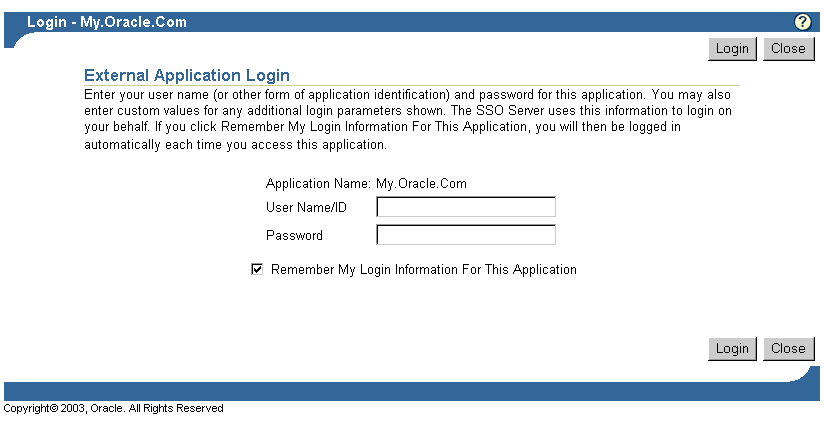
If single sign-on users are logging in to an external application for the first time, they are presented with the External Application Login page. After entering credentials, they can select the check box Remember My Login Information for This Application. If they choose this option, the next time they access the application, the single sign-on server logs in on their behalf.
Figure 5-1 reproduces the External Application Login page.
The standard way to access external applications enabled by single sign-on is through the External Applications portlet of OracleAS Portal, an SDK-enabled partner application. Applications accessed in this way can be configured for GET, POST, or basic authentication.
An alternative method is to use the Oracle HTTP Server as a secure proxy for applications that reside on a separate Web server. This method involves configuring the modules mod_osso and mod_proxy to support single-sign-on-enabled basic authentication. The advantage of the proxy approach is that it eliminates the brief screen flicker that occurs when external applications are accessed in the standard way.
This section contains the following topics:
Configured correctly, authentication to mod_osso-enabled external applications is similar to what it is for partner applications: mod_osso intercepts a URL request and redirects it to the single sign-on server. Figure 5–2 illustrates the process.
Figure 5-2 Authentication Flow Using mod_osso/mod_proxy
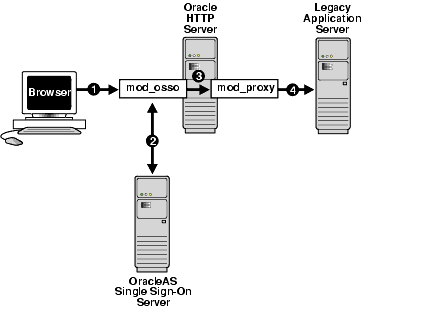
The single sign-on user requests an external application by selecting a bookmark or by entering a virtual URL. This URL enables the Oracle HTTP Server to intercept the request.
mod_osso adds an authentication header to the intercepted request and retrieves the user's credentials from the single sign-on server.
mod_osso sets the header value with the user's credentials, retrieved from the single sign-on server. mod_osso then passes this header to mod_proxy.
mod_proxy passes the user's credentials—in the form of a basic authentication header—to the real URL. mod_proxy does this by using directives that map the virtual URL to the real URL.
The following criteria must be met before the Oracle HTTP Server can be configured for basic authentication to legacy applications:
The application to be proxied must be registered as a basic authentication application with the single sign-on server. See "Adding an External Application" for instructions.
The Oracle HTTP Server must have mod_osso installed and enabled.
The Oracle HTTP Server must have the default mod_proxy installed and enabled.
If the Web server that hosts the external application uses the Oracle HTTP Server as a proxy, the Web server must not have mod_osso enabled.
To configure the Oracle HTTP Server for basic authentication to external applications, add the following section to mod_osso.conf.
<IfModule mod_proxy.c>
<Location /application_virtual_path>
   require valid user
   AuthType Basic
   OssoLegacyApp on | off
</Location>

ProxyPass /application_virtual_path/ http://host:port/application_real_ path/
ProxyPassReverse /application_virtual_path/ http://host:port/application_real_path/
</IfModule>
The OssoLegacyApp directive indicates whether the protected URL is a legacy application. If the directive is missing or is set to off, the code that retrieves the application user name and password from the single sign-on database is not executed. The two mod_proxy directives ProxyPass and ProxyPassReverse map the virtual URL to the real URL.
Add the following line to httpd.conf:
Listen 5000
This parameter instructs mod_osso to use the non-SSL port 5000 to access information about external applications.