|
Oracle® Application Server Portal Configuration Guide
10g (9.0.4) Part No. B13675-01 |
|


|

|
|
Oracle® Application Server Portal Configuration Guide
10g (9.0.4) Part No. B13675-01 |
|
|
|
|
This chapter provides information on setting up the search capabilities in OracleAS Portal. This includes how to set up Oracle Text.
This chapter contains the following sections:
OracleAS Portal offers powerful search capabilities that you can customize according to your needs. A robust set of built-in search portlets enables you to perform searches on the portlet repository, portal pages and external sites.
Furthermore, you can perform searches against more than 100 document types including HTML, XML, PDF, word processing formats, spreadsheets formats, presentation formats, and other common business formats.
This section introduces the search options that are available in OracleAS Portal and gives some guidance on how you can choose which option is best for you:
OracleAS Portal includes a set of built-in features tuned for searching content stored and managed within the OracleAS Portal Repository. These features are incorporated within these four search portlets that can be configured in a variety of ways:
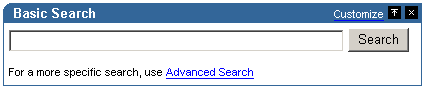
Basic Search -- this portlet allows simple keyword searches.
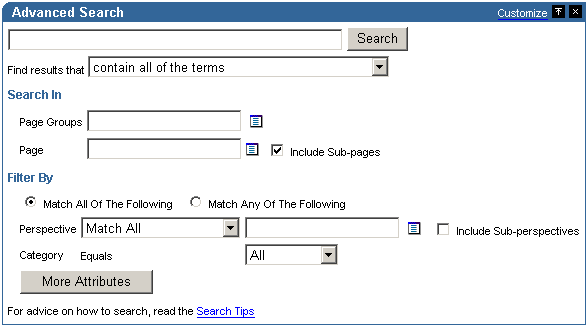
Advanced Search -- this portlet enables you to enter more detailed search criteria, including operators on multiple attributes values.
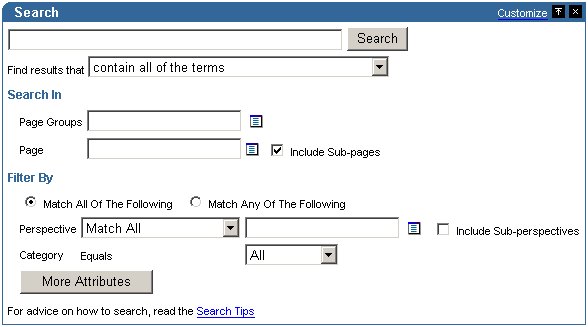
Custom Search -- this portlet is fully customizable and enables you to design a search portlet to suit your needs, including pre-defined searches that display results in place.
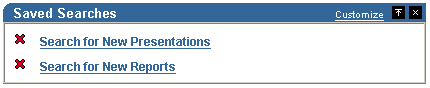
Saved Searches -- this portlet enables you to repeat saved searches.
This form of search indexes metadata associated with content in the OracleAS Portal Repository, for example, display name, keyword, description, and similar attributes.
|
Note: The following metadata is indexed: item attributes (Display Name, Description, Keywords, Author), page attributes (Display Name, Description, Keywords) and category/perspective attributes (Display Name, Description). |
When full text indexing of the content within the OracleAS Portal Repository is required, these search features can be extended by enabling Oracle Text.
You can extend the searching capabilities of OracleAS Portal using Oracle Text. When Oracle Text is enabled, all text-type attributes are indexed and in addition the following content is indexed:
Files -- files in binary format can be indexed providing the file format is filterable by Oracle Text.
Web pages that URLs (in URL attributes) point to -- the content must be plain text or HTML.
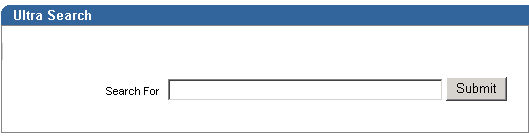
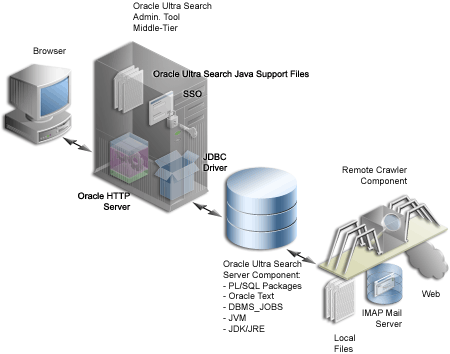
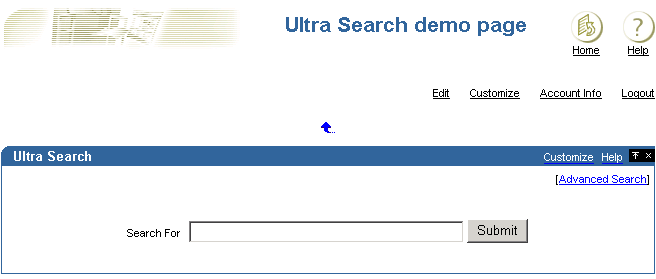
Oracle Ultra Search is an application built on Oracle Text that provides an enterprise search capability over a variety of content repositories and data sources, including the OracleAS Portal Repository. Oracle Ultra Search is installed and pre configured for use within OracleAS Portal and includes a search portlet that can be embedded in OracleAS Portal pages.
From this portlet, a user can enter a search term and launch a search that returns a single result set that includes content from all configured data sources. When OracleAS Portal is configured as one of the data sources, the search can return only public OracleAS Portal content.
After a standard OracleAS Portal installation you can start using the search features in OracleAS Portal right away. Without any additional configuration, you can place one of the built-in, OracleAS Portal search portlets on a page and use it to search portal content.
During installation, Oracle Text indexes are created and synchronized and Oracle Text searching is enabled in OracleAS Portal. However, it is important to note that new or modified content (items, pages, categories, perspectives) is not returned in search results until the Oracle Text indexes are synchronized again. To synchronize Oracle Text indexes, or to set up a regular synchronization schedule, see Section 8.3.5.1, "Synchronizing Oracle Text Indexes" and Section 8.3.5.2, "Scheduling Index Synchronization".
|
Note: If you do not want to make use of the additional features provided by Oracle Text, you can disable this feature. See Section 8.2.2.1, "Enabling and Disabling Oracle Text in OracleAS Portal". |
Table 8-1 shows some other default search settings. For information how to change these values, see Section 8.2.1, "Configuring OracleAS Portal Search Portlets".
Table 8-1 Default Search Settings
| Search Setting Option | Default |
|---|---|
| Basic Search Portlets and Basic Search Box Items | Basic Search Results Page |
| Advanced, Custom and Saved Search Portlets | Search Results Page |
| Advanced Search Link | Advanced Search Page |
| Internet Search Engine Link | None |
| Hits per Page | 20 |
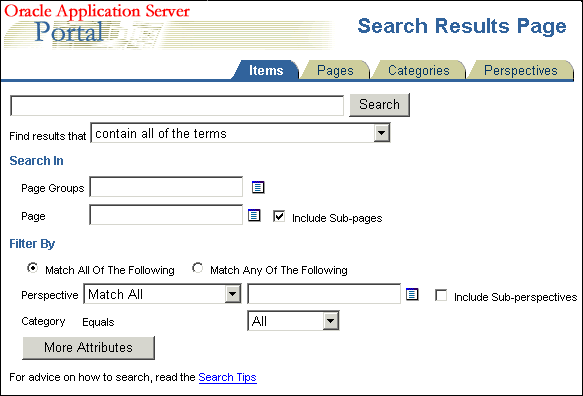
The following images show default search portlets and pages:
Figure 8-2 OracleAS Portal Basic Search Results Page

Figure 8-6 OracleAS Portal Saved Searches Portlet
Choosing how to configure searching within OracleAS Portal begins with a careful examination of your goals for the search experience and understanding of your portal content. Some key questions include:
Searching 'breadth' - do you wish to limit the results returned from your portal search to content managed within the OracleAS Portal Repository, or do you want to return results from other repositories?
Searching 'depth' - is full text indexing of document content a key requirement, or is a metadata only index sufficient?
Content security policies and portal user profiles - is your search experience targeted at primarily public, unauthenticated users searching public content or is it more targeted at individual users who have various levels of access privileges to the content?
Advanced searching features - is the ability to order results by relevancy, view document themes and gists and other features of Oracle Text important capabilities to offer your users?
Administration - how much time are you willing to invest in administering and maintaining indexes, data sources, and so on?
Use Table 8-2 to help match your search requirements to the most appropriate search configuration:
Table 8-2 OracleAS Portal Search Options
|
|
OracleAS Portal (Oracle Text disabled) | OracleAS Portal (Oracle Text enabled) |
Oracle Ultra Search
|
|---|---|---|---|
| Searching 'Breadth' | OracleAS Portal Repository only | OracleAS Portal Repository only | OracleAS Portal Repository and other repositories |
| Searching 'Depth' | OracleAS Portal metadata only | Full text index | Full text index. For OracleAS Portal, public content only. |
| Content security and user profiles | Returns secure and public content in search results | Returns secure and public content in search results | Returns public content only |
| Advanced searching features | No | Yes | Yes |
| Administration | Minimal | Maintain full text indexes | Maintain full text indexes and configure data sources |
This section highlights the main differences between Oracle Ultra Search and OracleAS Portal Search.
Oracle Ultra Search only crawls public content
OracleAS Portal is exposed to Oracle Ultra Search as a file system, and in order to see content in a folder, the folder must be public. If it is not public, none of the content from the folder or the sub-folder hierarchy is crawled. If you create a piece of content and make it public, it is only indexed if all the containing folders are also public.
Oracle Ultra Search returns a single list of pages and items
To Oracle Ultra Search, both OracleAS Portal pages and items are resources with metadata and content, or a visual representation that can be crawled, indexed, and returned in search results. This means that, Oracle Ultra Search can return a search result list that contains both pages and items. OracleAS Portal Search searches for distinct types of data (pages, items, categories and perspectives) and only one type of data can be searched at a time. Whilst Oracle Ultra Search does not treat categories and perspectives as separate searchable entities, it can (like OracleAS Portal Search), search for items and pages that have a particular perspective or category.
Oracle Ultra Search searches content of displayed pages in addition to metadata
OracleAS Portal Search searches page and item metadata. The Oracle Ultra Search crawler sees the rendered content plus the metadata. This means that Oracle Ultra Search can return results when OracleAS Portal search does not.
OracleAS Portal Search excludes some item types
OracleAS Portal Search can only return items of the following base item types:
<None> that is, no base item type
Base File
Base URL
Base Text
Base PL/SQL
Base Page Link
Base Image
Base Image Map
Simple Portlet Instance
Oracle Ultra Search indexes the visualization of any item type that appears on a page, irrespective of the base item type since it is the page rendition that is indexed. This means that all the content on the page, static and dynamic, is indexed by Oracle Ultra Search including banners and template items, login/logout links and so on.
Oracle Text and scoring systems
Both Oracle Ultra Search and OracleAS Portal Search use Oracle Text to index their content, however their implementations are different. Furthermore, Oracle Ultra Search uses a different scoring system to OracleAS Portal Search. In particular, a search term hits in the title section scores more highly than hits in the document content. For more information and details of how this can be customized, see Oracle Ultra Search User's Guide. OracleAS Portal Search treats all metadata and content with equal weighting.
To configure OracleAS Portal search portlets for use in OracleAS Portal, see Section 8.2.1, "Configuring OracleAS Portal Search Portlets".
You’ll find additional information on using these search portlets to add search functionality to OracleAS Portal pages, in the Oracle Application Server Portal User's Guide.
To enable, disable and configure Oracle Text for use in OracleAS Portal, see Section 8.2.2, "Configuring Oracle Text Options in OracleAS Portal".
For more information about Oracle Text, how to maintain Oracle Text indexes and troubleshooting information, see Section 8.3, "Oracle Text".
To check that Oracle Text is installed and working correctly, see Appendix H, " Using TEXTTEST to Check Oracle Text Installation".
To set up Oracle Ultra Search and make the Ultra Search portlet available for use in OracleAS Portal, see Section 8.2.3, "Configuring Oracle Ultra Search Options in OracleAS Portal".
For more information about Oracle Ultra Search, see Section 8.4, "Oracle Ultra Search".
The OracleAS Portal search feature is installed with defaults so you can start using the search features right away. These initial defaults are described in Section 8.1.3, "Default Search Functionality".
This section describes how you, the portal administrator, can configure aspects of the search feature that affect all search portlets:
This section describes how to configure aspects of the search feature that affect all OracleAS Portal search portlets:
Choosing an Advanced Search Link (Basic/Custom Search Portlets)
Choosing an Internet Search Engine (Advanced/Custom Search Portlets)
You can determine the pages used to display search results from all:
Basic Search portlets and Basic Search Box items
Advanced, Custom and Saved Searches portlets
If you choose a new search result page, it is applied to both new and existing search portlets.
|
Note: If page caching is enabled, the change may not be seen in existing search portlets immediately. The cache is cleared automatically every 24 hours for all search portlets. Alternatively, clear the cache manually using the OracleAS Web Cache Manager (accessible though the OracleAS Web Cache Administration link in the Services portlet). |
You can override this setting for a particular Custom Search portlet, if required. A Custom Search portlet only uses the result page specified here, if the Where should the search results be displayed? option is set to the Default Search Results Page. For more information on how to set Custom Search portlet options, refer to the Oracle Application Server Portal User's Guide.
To specify a search result page for your search portlets:
In the Services portlet, click Search Settings.
By default, the Services portlet is on the Portal sub-tab of the Administer tab on the Portal Builder page.
In the Search Results Pages section, for Basic Search Portlets and Basic Search Box Items, choose a suitable search results page.
You can choose any portal page that contains a search portlet. If you select a page without a search portlet, no results are displayed. The default is the Basic Search Results Page.
For Advanced, Custom and Saved Search Portlets, choose a suitable search results page.
You can choose any portal page that contains a search portlet. If you select a page without a search portlet, no results are displayed. The default is the Search Results Page.
Select OK.
If a page you select is subsequently deleted, the associated Page field is empty. Choose another page and then click OK. If you click Cancel, you will see Page Not Found errors after search operations.
You can limit the number of search results that are displayed on all search result pages. The limit is applied to results from Basic, Advanced and Custom Search portlets.
If the number of results returned by a search exceeds this number, the search results pages include Next and Previous icons that enable users to view all the results. See Figure 8-8.
Figure 8-8 Hits per Page Setting on Search Portlets

For example, if you specify Hits Per Page to be 10, the first 10 results are displayed on the first search results page, the next 10 on the second page, and so on.
|
Note: If you change the limit, the new value does not effect existing search portlets, only new ones. |
To specify the number of search results for every page:
In the Services portlet, click Search Settings.
By default, the Services portlet is on the Portal sub-tab of the Administer tab on the Portal Builder page.
In the Search Properties section, for Hits Per Page, enter the number of search results to display on a page.
Click OK.
You cannot change this value for individual Basic or Advanced Search Portlets.
You can override this setting for a Custom Search portlet, if required. You can also hide the Next and Previous icons. For more information on how to set Custom Search portlet options, refer to the Oracle Application Server Portal User's Guide.
An advanced search link is displayed on Basic Search portlets. Typically, the advanced search allows the user to specify additional search criteria. See Figure 8-9.
Figure 8-9 Advanced Search Link on Basic/Custom Search Portlets

The advanced search link can be to an external site, another portal page, or a package call within OracleAS Portal.
Optionally, this link can be displayed on Custom Search portlets. For more information on how to set Custom Search portlet options, refer to the Oracle Application Server Portal User's Guide.
You can determine the destination of the Advanced Search Link, for all Basic/Custom Search portlet instances. When you specify a new Advanced Search Link, it is applied to both new and existing search portlets that display an Advanced Search link.
|
Note: If page caching is enabled, the change may not be seen in existing search portlets immediately. The cache is cleared automatically every 24 hours for all search portlets. Alternatively, clear the cache manually using the OracleAS Web Cache Manager (accessible though the OracleAS Web Cache Administration link in the Services portlet). |
To enter advanced search link details:
In the Services portlet, click Search Settings.
By default, the Services portlet is on the Portal sub-tab of the Administer tab on the Portal Builder page.
In the Advanced Search Link section, do one of the following:
Specify a destination Page for the Advanced Search link.
The default is the Advanced Search Page, which contains the built-in OracleAS Portal Advanced Search portlet. However, you can select any portal page displaying advanced search options, the page does not have to contain one of the OracleAS Portal search portlets. For example, you can use a JSP page containing advanced search options if one existed in your portal.
If the page you select is subsequently deleted, this field is empty. Choose another page and then OK. If you click Cancel, the advanced search links will all still point to the deleted page.
Specify a URL for the Advanced Search link.
Enter the URL you want to use. If you have created a customized search engine that you want to use for advanced searches throughout the portal, you can specify its link here.
You can specify an absolute URL, or a relative URL. For example, http://www.myfavoritesearchengine.com creates a link directly to this Internet search site.
If you enter a relative URL (that is, a portal package), the value specified here is appended to the Portal schema URL and this results in a call to the portal package. Note how the value is appended, depending on whether the value specified begins with '/':
/value results in this URL: http://<webserver>:<port>/<value>
value results in this URL: http://<webserver>:<port>/pls/<dad>/<value>
Select OK.
An Internet search engine link is displayed on Advanced Search portlets. So, if users do not find the information they need when they search OracleAS Portal, they can extend their search using an Internet Search Engine. See Figure 8-10.
Figure 8-10 Internet Search Engine Link on Advanced/Custom Search Portlets

Optionally, this link can be displayed on Custom Search portlets. For more information on how to set Custom Search portlet options, refer to the Oracle Application Server Portal User's Guide.
When you set the URL of an Internet search engine and the link text that users click to access the specified Internet search engine, it applies to all new and existing Advanced/Custom Search portlet instances that display an Internet search link.
|
Note: If page caching is enabled, the change may not be seen in existing search portlets immediately. The cache is cleared automatically every 24 hours for all search portlets. Alternatively, clear the cache manually using the OracleAS Web Cache Manager (accessible though the OracleAS Web Cache Administration link in the Services portlet). |
In the Services portlet, click Search Settings.
By default, the Services portlet is on the Portal sub-tab of the Administer tab on the Portal Builder page.
In the Internet Search Engine section, for URL, enter the URL of an Internet search engine. For example, http://www.yahoo.com.
The URL must be fully formed, and include any associated parameters.
For Link Text, enter the text that users click to access the specified Internet search engine. For example: YAHOO
If you enter YAHOO, this text is displayed as a link in Advanced Search portlets and optionally in Custom Search portlets. See Figure 8-10.
Select OK.
If the Internet Search Engine properties (URL and Link Text) are not specified, no Advanced or Custom Search portlets will display a link to an Internet search engine.
This section describes how to configure Oracle Text features in OracleAS Portal:
|
Note: If page caching is enabled, changes to Oracle Text search settings may not be seen in existing search portlets immediately. The cache is cleared automatically every 24 hours for all search portlets. Alternatively, clear the cache manually using the OracleAS Web Cache Manager (accessible though the OracleAS Web Cache Administration link in the Services portlet). |
You can enable and disable the use of Oracle Text when searching in OracleAS Portal. For more information, see Section 8.3, "Oracle Text".
In the Services portlet, click Search Settings.
By default, the Services portlet is on the Portal sub-tab of the Administer tab on the Portal Builder page.
Select Enable Oracle Text Searching to make use of Oracle Text when searching OracleAS Portal.
Deselect this option at any time to disable the use of Oracle Text.
|
Note: If you see the messageOracle Text is not installed, Oracle Text is not installed in the database and is not available in OracleAS Portal. Arrange with your database administrator to have Oracle Text installed. Once installed, you must run the following command in SQL*Plus to create the Oracle Text role:
This file is located in the directory Log on using the user name and password for the PORTAL schema. You must also create Oracle Text indexes, see Section 8.3.4, "Creating and Dropping Oracle Text Indexes". |
Click OK.
When Oracle Text is enabled, you can display additional information for items (documents/files) when they are returned as search results. For each item returned you can:
View major themes in a chart. A theme shows the nouns and verbs that occur most frequently.
View a short summary about the content (gist). Gists are derived from how frequently those nouns and verbs appear.
View an HTML version
View an HTML version of the file with search terms highlighted in a specific color and font
Themes and gists are optional and HTML highlighting can be customized as follows:
In the Services portlet, click Search Settings.
By default, the Services portlet is on the Portal sub-tab of the Administer tab on the Portal Builder page.
Select Enable Themes And Gists to create a theme and gist for each item returned by the search.
|
Note: Themes and gists are not available for all languages. |
For Highlight Text Color, choose the color to highlight search terms found in the HTML version of items returned by the search.
For Highlight Text Style, choose the style to apply to search terms found in the HTML version of the items returned by the search.
Click OK.
Oracle Text needs a base URL to resolve relative URLs into fully qualified absolute URLs. For more information, see Section 8.3.6.1, "Relative URLs".
To specify the Base URL for Oracle Text:
In the Services portlet, click Search Settings.
By default, the Services portlet is on the Portal sub-tab of the Administer tab on the Portal Builder page.
Enter the Oracle Text Base URL in the format: http://<host>:<port>/pls/<dad>
For example: http://myportal.com:4000/pls/design
If no value is specified, no relative URLs are indexed and therefore, any URL content that relative URLs points to, cannot be searched.
Click OK.
Oracle Text uses OracleAS Portal proxy server settings to access URL content. This is necessary when OracleAS Portal lies behind a firewall and URL items point to content beyond this firewall. For more information, see Section 8.3.6.4, "URL Index Proxy Settings".
To configure the global proxy settings for OracleAS Portal, see Section 5.5, "Configuring OracleAS Portal to Use a Proxy Server".
This section describes how to set up Oracle Ultra Search for use in OracleAS Portal. You must complete the tasks in this section, before you can add the Ultra Search portlet to a portal page and use this feature:
Registering the Ultra Search provider with OracleAS Portal
|
Note: Before using Oracle Ultra Search features in OracleAS Portal, also ensure that all necessary database and middle-tier configuration is complete. For detailed information, see Section 8.4, "Oracle Ultra Search". |

You’ll find additional information in the paper "Setting Up Oracle Ultra Search for OracleAS Portal 10g (9.0.4)" located on Portal Center, http://portalcenter.oracle.com.
Click Ultra Search Administration in the Services portlet.
By default, the Services portlet is on the Portal sub-tab of the Administer tab on the Portal Builder page.
Log in.
Access the Oracle Ultra Search administration tool as described in Section 8.2.3.1, "Accessing the Oracle Ultra Search Administration Tool".
On the Instances tab, click Apply to set the instance.
If you have more than one instance make sure to select the instance you want to manage first.
On the Crawler tab, enter the Cache Directory Location and the Crawler Log File Directory.
These directory locations are on the machine where Oracle Application Server middle-tier is installed. For example, /tmp for the Cache Directory Location and /tmp for the Crawler Log File Directory.
On the Sources tab, click the Oracle Source sub-tab, choose Oracle Portal (Crawlable) from the Create Source drop-down list and click Go.
Enter OracleAS Portal registration details:
Enter the Portal Name.
For URL base, enter the base URL for the portal.
Use the format: http://<hostname>:<port>/pls/<portal_DAD>/<portal_schema>
For example, http://myserver.abc.com:7778/pls/portal/portal
Click Register Portal.
Select the page groups that you would like to create data sources for and then click Create portal data sources.
You can optionally edit each of the portal data sources to add content types for processing. For example, you can add the MS Word Doc, MS Excel Doc, PDF Doc types.
|
Note: A page group is available as a crawlable data source, when either:
See Oracle Application Server Portal User's Guide for more information. |
Finally, on the Schedules tab, schedule the indexing of the portal data sources:
Click Create New Schedule and enter a Name for the schedule.
Click Proceed to Step 2 and specify synchronization schedule details.
Click Proceed to Step 3, select Portal from the drop down list and then click Get Sources.
Move the sources over to the Assigned Sources box and click Finish.
Clicking the Status link for the source enables you to optionally run the synchronization immediately.
OracleAS Portal comes with a pre-built sample portlet for Oracle Ultra Search. To access the portlet the provider must first be registered with OracleAS Portal.
In the Remote Providers portlet, click Register a Provider.
By default, the Remote Providers portlet is on the Portlet sub-tab of the Administer tab on the Portal Builder page.
Fill in all the fields on the first step of the wizard.
Your Timeout setting effects how long pages take to render if the portlet is not responding, so do not set it too high.
Leave Implementation Style set to Web.
Click Next to continue.
Enter the URL for the Ultra Search provider.
By default this is:
http://machine.domain:7778/provider/ultrasearch/servlet/soaprouter
Set the Service ID to be 'ultrasearch'.
Change the Login Frequency to Once per User Session and then click Next.
Click the Browse Groups icon, select AUTHENTICATED_USERS and grant Execute privileges.
Finally, click Finish.
Now, the Ultra Search portlet can be added to a portal page.
Oracle Text adds powerful text search and intelligent text management to the Oracle database. OracleAS Portal uses the Oracle Text functionality to extend its search capabilities.
Use of Oracle Text with OracleAS Portal is an optional feature that can be enabled and disabled by the portal administrator. See Section 8.2.2.1, "Enabling and Disabling Oracle Text in OracleAS Portal".
The use of Oracle Text with OracleAS Portal is described in the following sections:
Understanding OracleAS Portal Searches with Oracle Text Enabled
Updating Oracle Text Indexes When Upgrading to Oracle Database 10g

You’ll find additional information in the Oracle Text documentation on the Oracle Technology Network, http://otn.oracle.com/documentation.
If Oracle Text is disabled and you perform a basic search, that is, enter a search term only, the item attributes Display Name, Description, Keywords and Author and the page attributes Display Name, Description and Keywords are searched. General searches such as these do not match against custom attributes.
Searches that specify criteria against selected attributes, that is, an advanced search, matches against the selected attributes. If the attribute is a file attribute, the file name is searched. If the attribute is a URL attribute, the URL HREF is searched, that is, the literal string http://www.google.com.
If Oracle Text is enabled when you perform a basic search, all text-type attributes, including custom text attributes are searched. Furthermore, the content of files are searched. Files in binary format can be searched providing the file format is filterable by Oracle Text.
Likewise, when Oracle Text is enabled, the content of pages that URLs point to are also searched. This content must be plain text or HTML to be searchable.
Oracle Text is a standard component of the Oracle9i Database Server. If you want to use the Oracle Text functionality in OracleAS Portal, it is essential that the Oracle Text component is correctly installed and functioning properly.
Ensure that:
Oracle Text is installed in the OracleAS Portal Repository database. Since OracleAS Portal 9.0.2.2 and from the 3.0.9.8.4 patchset onwards, the Oracle Text component is required to be in the OracleAS Portal Repository database before the OracleAS Portal Repository can be installed. This is because some OracleAS Portal packages make reference to the ctx_ddl packages in the CTXSYS schema in which the Oracle Text component resides.
Oracle Text upgrade steps are complete. In particular, during database upgrades, it is essential that any manual steps that pertain to Oracle Text are completed correctly.
Library path for Oracle Text INSO filters is set correctly. For the Oracle Text INSO filters to function correctly, the ctxhx executable (called during indexing) needs to be able to load the appropriate shared libraries.
For UNIX platforms, ensure that the library path used by ld includes ORACLE_HOME/ctx/lib for both the TNS listener and the environment where the database is started. The library path environment variable for the different UNIX platforms are as follows:
Solaris, Tru64 UNIX, Linux -> $LD_LIBRARY_PATH
HP/UX -> $SHLIB_PATH and $LD_LIBRARY_PATH
IBM AIX -> $LIBPATH
For more, detailed information, see About Inso Filtering Technology in the Oracle Text Reference.
Whenever you change the library path you must restart both the database and the listener for Oracle Text indexing operations to work. If one or both environment variables are not set, documents are not indexed as expected and the table ctx_user_index_errors may be full of DRG-11207, status 137 errors. See Also Section 8.3.11.1, "Common Document Indexing Errors".
On Windows platforms, ensure that the appropriate DLLs are located in ORACLE_HOME\bin and that this path is included in the PATH environment variable, that is, in the environment from where the Oracle server is started.
You can use the TEXTTEST utility to check that Oracle Text functionality is installed and working correctly. The TEXTTEST utility is located at ORACLE_HOME/portal/admin/texttest/textest. For more information, see Appendix H, " Using TEXTTEST to Check Oracle Text Installation".
If you want to use the Oracle Text functionality in OracleAS Portal, several Oracle Text indexes are required in the OracleAS Portal schema. Details of these indexes are described in the following sections:
All required Oracle Text indexes are built automatically during OracleAS Portal installation by procedures in the package wwv_context.
Procedures in this package can also be used after portal installation to manage the indexes, including removing or creating them. For more information, see Section 8.3.4.3, "Dropping All Oracle Text Indexes Using ctxdrind.sql" and Section 8.3.4.1, "Creating All Oracle Text Indexes Using ctxcrind.sql".
|
Note: Oracle Text can be disabled, even when Oracle Text indexes are present. See Section 8.2.2.1, "Enabling and Disabling Oracle Text in OracleAS Portal". |
Table 8-3 describes the Oracle Text indexes that are required.
Table 8-3 Oracle Text Indexes In the OracleAS Portal Schema
| Index | Table.column | Purpose | Datastore type | Filter Type |
|---|---|---|---|---|
| WWSBR_CORNER_CTX_INDX | wwpob_page$.ctxtxt
|
Index page metadata | user datastore | Null |
| WWSBR_DOC_CTX_INDX | wwdoc_document$.blob_content | Index document content | direct datastore | INSO |
| WWSBR_PERSP_CTX_INDX | wwv_perspectives.ctxtxt | Index perspective metadata | user datastore | Null |
| WWSBR_THING_CTX_INDX | wwv_things.ctxtxt | Index item metadata | user datastore | Null |
| WWSBR_TOPIC_CTX_INDX | wwv_topics.ctxtxt | Index category metadata | user datastore | Null |
| WWSBR_URL_CTX_INDX | wwsbr_url$.absolute_url | Index URL content | URL datastore | Null |
Most of the Oracle Text indexes use a user datastore, that is, for each row that needs to be indexed, a PL/SQL procedure is called which produces a document that gets indexed for that row.
The exceptions are the indexes WWSBR_DOC_CTX_INDX (Document index) and WWSBR_URL_CTX_INDX (URL index):
Document index: Uses a direct datastore, that is, it indexes the document content held directly in the BLOB type blob_content column of the wwdoc_document$ table.
URL index: Fetches the content to be indexed for each row in the wwsbr_url$ table from the location pointed to by the absolute_url$ column.
Only the Document index uses filters. This index uses the INSO filter to convert documents into a plain text format. No document is excluded from filtering, that is, the INSO filter processes all documents, including those which are in plain text or HTML.
You’ll find additional information in the Oracle Text documentation on the Oracle Technology Network, http://otn.oracle.com/documentation.
Preferences are used to configure the Oracle Text indexes used by OracleAS Portal. The preferences are created and owned by the OracleAS Portal schema, that is, they are created using the ctx_ddl package, which resides in the CTXSYS schema, and the data representing the preferences is actually stored in relational tables in the CTXSYS schema.
The Oracle Text index preferences must exist before the indexes are created. Subsequent changes to these preferences do not take affect until the Oracle Text indexes are dropped and re-created.
The Oracle Text index preferences that are used during OracleAS Portal installation to create Oracle Text indexes can be re-created using the package wwv_context. Some Oracle Text index preferences can also be configured by you, the portal administrator. For example, when you set the global OracleAS Portal proxy settings they are used by Oracle Text to populate the proxy preferences used in Oracle Text indexes.
In addition, the Oracle Text indexes use a number of Lexer preferences to control the linguistic aspects of the indexing. The Lexer preferences are created by the script sbrimtlx.sql. You can run this script at any time to re-create the Lexer preferences. The script is located in the directory ORACLE_HOME/portal/admin/plsql/wws.
You’ll find additional information in the Oracle Text documentation on the Oracle Technology Network, http://otn.oracle.com/documentation.
For each of the Oracle Text indexes that use user datastores, a procedure is created in the CTXSYS schema where Oracle Text is installed. The procedures are called for each row that is to be indexed for the given index. These procedures in turn call procedures in the OracleAS Portal schema.
The datastore procedures are named:
WWSBR_THING_CTX_<user_id>
WWSBR_CORNER_CTX_<user_id>
WWSBR_PERSP_CTX_<user_id>
WWSBR_TOPIC_CTX_<user_id>
Where <user_id> is the user_id (as found in the ALL_USERS view) of the OracleAS Portal Repository schema. This postfix is required so that the procedure names do not clash, if multiple OracleAS Portal repositories exist in the same database.
If for any reason these procedures do not exist, Oracle Text functionality will not work. This might happen, for example, if the CTXSYS schema is dropped and re-installed. In this situation, the procedures can be re-installed by running the script inctxgrn.sql as the OracleAS Portal schema owner:
SQL> @inctxgrn.sql
This script also grants the CTXAPP role to the OracleAS Portal schema. See Section 8.3.3.4, "Granting CTXAPP Role to the OracleAS Portal Schema". The script is located in the directory ORACLE_HOME/portal/admin/plsql/wws.
To use Oracle Text functionality, the role CTXAPP must be granted to the OracleAS Portal schema. This is done automatically during OracleAS Portal Repository installation and normally no further action is required.
If for any reason this grant is revoked, Oracle Text functionality will not work. For example, this may occur if the CTXAPP role is dropped when the CTXSYS schema is re-installed.
To restore the necessary grants, run the script inctxgrn.sql as the OracleAS Portal schema owner:
SQL> @inctxgrn.sql
This script also creates the OracleAS Portal user datastore procedures, which are required in the CTXSYS schema. See Section 8.3.3.3, "Datastore Procedures". The script is located in the directory ORACLE_HOME/portal/admin/plsql/wws.
OracleAS Portal uses the Oracle Text Multilexer to enable language-specific searching in OracleAS Portal. The Multilexer:
Controls the way that the linguistic aspects of searching are carried out.
Allows content, items, pages, categories and perspectives and their translations, to be treated in a way that is appropriate to their language.
Lexer preferences are used to configure the Multilexer used for all the Oracle Text indexes. The lexer preferences are created by the script file sbrimtlx.sql. You can modify these preferences if required, but if you do, you must drop and re-create the Oracle Text indexes for the changes to take a effect.
For more information on the Multilexer, refer to Oracle Text documentation on the Oracle Technology Network, http://otn.oracle.com/documentation.
By default, STEM searching is used when Oracle Text is enabled in OracleAS Portal. STEM searching enables you to search for words that have the same root as the specified term. For example, a stem of $sing expands into a query on the words sang, sung, sing.
However, STEM searching is used only when logged in to OracleAS Portal in one of the languages where STEM searching is supported in Oracle Text, that is, the following languages:
AMERICAN ENGLISH
CANADIAN FRENCH
DUTCH
UK ENGLISH
FRENCH
GERMAN DIN
GERMAN
ITALIAN
LATIN AMERICAN SPANISH
MEXICAN SPANISH
SPANISH
In all other languages, the STEM operator is not used.
All the required Oracle Text indexes are created automatically during OracleAS Portal Repository installation. However, if the indexes are subsequently dropped, it may be necessary to re-create them.
Creating and dropping indexes is a very time-consuming and resource-intensive operation, so plan this task during non-business hours.
|
Note: Dropping and re-creating Oracle Text indexes changes search results. It also changes the operators that are shown in the submission form, and the result attributes that are shown (The attributes score, view as HTML, view as HTML with highlight themes, and gist are only shown if you use Oracle Text).Dropping or creating the Oracle Text indexes does not invalidate OracleAS Web Cache, so autoquery portlet results, and search submission forms will still be returned until they expire from the cache, or until you go into the Edit Defaults screen of the portlet. |
These sections describe how to create and drop Oracle Text indexes:
You can re-create all the Oracle Text indexes using scripts and packages provided with OracleAS Portal. The primary script for creating the Oracle Text indexes is ctxcrind.sql and it is located in the directory ORACLE_HOME/portal/admin/plsql/wws.
When you run the script ctxcrind.sql as the OracleAS Portal Repository schema owner:
All the required Oracle Text indexes and preferences are created. For more information, see Section 8.3.3, "Oracle Text Indexes".
If there are existing Oracle Text indexes, all existing preferences and valid indexes are dropped and re-created. Indexes are judged to be valid if:
The row in view user_indexes for the relevant index has index_status, domidx_status, and domidx_opstatus all set as 'VALID'.
The index has an entry in ctx_user_indexes with the idx_status set to 'INDEXED'.
Any indexes that are not present are also created.
This process can take several hours.
Navigate to the directory ORACLE_HOME/portal/admin/plsql/wws.
In SQL*Plus, log on using the user name and password for the PORTAL schema.
In SQL*Plus, enter this command:
ctxcrind.sql
If the operation is successful, all the Oracle Text indexes and preferences are created in the OracleAS Portal Repository schema. If it fails, check that your system has met all the requirements in Section 8.3.2, "Oracle Text Prerequisites".
|
Note: The time it takes to create the Oracle Text indexes, depends on how many items and page groups exist in your portal. |
The script ctxcrind.sql makes a call to the procedure:
wwv_context.createindex( p_message => l_message );
Where p_message is an out parameter that passes a completion message. The call wwv_context.createindex() is in turn equivalent to:
wwv_context.drop_prefs;  /* Drop all Oracle Text preferences for the indexes, except Lexer preferences */
wwv_context.drop_invalid_indexes; /* Drop all valid indexes */
wwv_context.create_prefs; /* Create all Oracle Text preferences,except Lexer preferences */
wwv_context.create_missing_indexes(l_indexes);  /* Create missing indexes and record them in l_indexes */
wwv_context.touch_index(l_indexes); /* Mark all rows for created indexes as requiring synchronization */
wwv_context.sync;     /* Synchronize indexes */
wwv_context.optimize; /* Optimize indexes */
If you want to create a specific index, use the procedure wwv_context.create_index(p_index).
Use p_index to specify which index you want to create, that is, one of the following:
wwv_context.PAGE_TEXT_INDEX
wwv_context.DOC_TEXT_INDEX
wwv_context.PERSPECTIVE_TEXT_INDEX
wwv_context.ITEM_TEXT_INDEX
wwv_context.CATEGPRY_TEXT_INDEX
wwv_context.URL_TEXT_INDEX
This procedure creates an empty index, that is, it contains no content and therefore no search results can be returned from it. For information on how to mark an index for update and to synchronize an index, see Section 8.3.5.4, "Synchronizing All the Index Content".
You can drop all of the Oracle Text indexes and preferences (except for the Lexer preferences), using the script ctxdrind.sql. This script is located in the directory ORACLE_HOME/portal/admin/plsql/wws.
Navigate to the directory ORACLE_HOME/portal/admin/plsql/wws.
In SQL*Plus, log on using the user name and password for the PORTAL schema.
In SQL*Plus, enter this command:
ctxdrind.sql
This script makes a call to:
wwv_context.dropindex(p_message =>l_message);
Where p_message is an out parameter that passes a completion message.
|
Note: When the Oracle Text indexes are dropped, any views and packages that reference tables on which the indexes were created will become invalid.These views and packages are automatically validated when they are next accessed. Alternatively, it is possible to validate the views and packages manually. |
If may want to drop a specific Oracle Text index. For example, you may want to drop the URL index so that it can be re-created with a different proxy setting, without having to drop and re-create all the other indexes.
To do this, drop the index directly using the command:
SQL> drop index <index_name> force;
For example, to drop the URL index, enter:
SQL> drop index WWSBR_URL_CTX_INDX force;
Oracle Text indexes must be maintained to ensure that search results are returned accurately and efficiently. There are two aspects to consider when maintaining Oracle Text indexes, synchronization and optimization:
Synchronization Updates an Oracle Text index based on a queue.
Optimization Compacts fragmented rows and removes old data in an Oracle Text index. As an index is synchronized, it grows in such a way as to consume more disk space than necessary and this reduces the efficiency of queries.
Oracle Text gives you full control over how often each index is synchronized and optimized. For example, you can choose to synchronize every five seconds, if it is important to reflect text changes quickly in the index. Alternatively, you can choose to synchronize once a day, for more efficient use of computing resources and a more optimal index.
For more information about synchronization, see:
For more information about optimization, see:
When new content is added to an Oracle Text index it must be indexed before it can be searched. Furthermore, when any row in a table on which the indexes are created are updated, that row is marked as needing synchronization. These are referred to as pending rows and they are not returned in search results until the index is synchronized.
In OracleAS Portal this means that any content (items, pages, categories, perspectives) that is added or modified is not searchable until the indexes are synchronized, that is, the new content is not returned in search results.
You can see which rows are marked pending, using the view ctx_user_pending. You can also use the script textstat.sql to see the number of rows that need to be synchronized for each index. For more information, see Section 8.3.7, "Viewing the Status of Oracle Text Indexes".
To keep your indexes up to date so you can search on new content, use the procedure wwv_context.sync(). This procedure synchronizes all the Oracle Text indexes, indexing all pending rows.
Execute this procedure as the Portal schema owner from SQL*Plus, using the command:
exec wwv_context.sync();
This procedure operates across all virtual private portal subscribers.
In most installations, it is desirable to schedule index synchronization to run automatically at regular intervals so that newly added or updated content gets indexed periodically. You can schedule a job using the script textjsub.sql. This uses dbms_job to call wwv_context.sync at regular intervals.
The script takes three parameters and it can also be used to alter or remove a synchronization job:
start_time        - a valid date or 'START' or 'STOP’
start_time_fmt    - start time format mask.
                    Ignored if start_time is 'START' or 'STOP'
interval_minutes  - minutes between each run. Ignored if 'STOP'
If you set start_time to 'START', the second argument is ignored and the next job is scheduled to run immediately. Subsequent jobs are run after the interval specified.
If you set start_time to 'STOP', the job is removed and other arguments are ignored.
Run the script textjsub.sql. For example, to schedule index synchronization every 60 minutes, enter:
SQL> @textjsub.sql START NOW 60
The appropriate interval between index synchronization jobs depends on:
How often new content is added to your portal site.
Whether it matters that newly added or altered content is not searchable immediately.
How long is it reasonable to have to wait before added or updated content is searchable.
Depending on your requirements, the synchronization interval could be anything from a few minutes to several days.
When OracleAS Portal is initially installed, a job is set up that synchronizes the Oracle Text indexes every hour, starting immediately at the time of installation.
It is more efficient to synchronize a larger number of rows on a single occasion than to repeatedly synchronize a smaller number of rows, as the index becomes less fragmented. If an index is less fragmented, then it needs to be optimized less frequently. For more information, see Section 8.3.5.5, "Optimizing Oracle Text Indexes".
However, indexing a larger number of rows at once places a heavier load on the server. Synchronizing more frequently increases the total amount of work but spreads the load on the server. The job only synchronizes the rows that are pending, however, there is always some overhead, however small, in starting up the synchronization job.
You can synchronize all the content for a particular Oracle Text index by marking all the rows for that index as requiring synchronization.
For example, when an index is initially created it is empty, so you would need to update the entire index content. This involves performing an update for the column that the index is created on. For every row in the indexed table use the procedure wvv_context.touch_index(p_index) to update the column.
After running this procedure, there is an entry in the table ctx_user_index_pending for every row in the table upon which the index was created.
Note also that this procedure works across all virtual private portal subscribers.
Use the procedure wvv_context.touch_index(p_index). Where p_index enables you to specify one of these index names:
wwv_context.PAGE_TEXT_INDEX
wwv_context.DOC_TEXT_INDEX
wwv_context.PERSPECTIVE_TEXT_INDEX
wwv_context.ITEM_TEXT_INDEX
wwv_context.CATEGPRY_TEXT_INDEX
wwv_context.URL_TEXT_INDEX
Use the procedure wvv_context.touch_index(p_indexes). Where p_indexes enables you to specify a varray of index names to be synchronized (wwsbr_array).
Synchronizing Oracle Text indexes causes them to become fragmented. Each Oracle Text index is an inverted index where search terms are listed in a form that is efficient to look up. Each search term references the location of the term.
When new terms are added during synchronization, duplicate terms are not removed, so the index may contain the same term several times. This inflates the size of the index and causes the performance of search queries to deteriorate.
The solution is to optimize the Oracle Text indexes. This process compacts the indexes and (optionally) removes old data.
To optimize all of the Oracle Text indexes, use the procedure wwv_context.optimize(). This procedure takes the following parameters:
wwv_context.optimize
(
  p_optlevel in varchar2 default CTX_DDL.OPTLEVEL_FULL, -- FULL, FAST, TOKEN
  p_maxtime in number default null,  -- Maximum time for full optimization, in minutes
  p_token in varchar2 default null -- Token to optimize (when TOKEN)
);
Internally this procedure calls the Oracle Text procedure ctx_ddl.optimize_index for each Oracle Text index and passes these parameters. It performs full index optimization as opposed to fast or token optimization.
You’ll find additional information in the Oracle Text documentation on the Oracle Technology Network, http://otn.oracle.com/documentation.
|
Note: If no Oracle Text indexes exist, the procedurewwv_context.optimize has no affect.
|
wwv_optimize only optimizes an Oracle Text index if it is sufficiently fragmented to require optimization. The measure of the fragmentation used is the average number of times a token that appears more than once, is found in the index. If this average is greater than 10, the index is judged to require optimization. The fragmentation query used is as follows:
SELECT AVG(COUNT(*)) FROM DR$<index_name>$I
GROUP BY TOKEN_TEXT HAVING COUNT(*) > 1
Where <index_name> is the name of the index to be measured.
In most installations it is desirable to schedule the index optimization process to run automatically at regular intervals. You can schedule a job using the script optjsub.sql. This uses dbms_job to call wwv_context.optimize at regular intervals.
This script optjsub.sql takes three parameters and it can also be used to alter or remove an optimization job:
start_time       - A valid date or 'START' or 'STOP’
start_time_fmt   - Start time format mask.
                   Ignored if start_time is 'START' or 'STOP'
interval_minutes - Minutes between each run. Ignored if 'STOP'
If you set start_time to 'START', the second argument is ignored and the next job is scheduled to run immediately. Subsequent jobs are run after the interval specified.
If you set start_time to 'STOP', the job is removed and other arguments are ignored.
Run the script optjsub.sql. For example, to schedule index optimization very 60 minutes, enter:
SQL> @optjsub.sql START NOW 60
This script is located in the directory ORACLE_HOME/portal/admin/plsql/wws. If there are no Oracle Text indexes present when you run this optimization job, the procedure has no affect.
It is difficult to predict how often Oracle Text indexes need to be optimized as the frequency depends on the amount of content that is being loaded, the type of content being loaded, the synchronization schedule and many other factors.
However, if you measure the index fragmentation at regular intervals, you can determine how rapidly it is becoming fragmented. Using this information, you can set an appropriate optimization interval.
The procedure wwv_context.optimize only optimizes the index if it is judged to be fragmented. So, other than the minimal overhead of calling the job, it is quite safe to run this job more often than perhaps is required.
During OracleAS Portal installation, a job is set up to optimize all of the Oracle Text indexes, every 24 hours.
If Oracle Text is enabled in OracleAS Portal, the content of URL attributes attached to items or pages are indexed. Once this URL content is indexed, it is searchable. When you enter search criteria for URL attributes, it is this URL content that is searched.
In OracleAS Portal you can enter a relative URL for an URL attribute. When these URLs are rendered as links on a portal page they are relative to the base HREF that is set in the HTML <head> section for a portal page. The format of the base HREF is:
<protocol>://<server>:<port>/pls/<dad>/
For example, in the HTML <head> section you might see:
<base href="http://myserver.abc.com/pls/portal/">
In this example:
The relative URL /help/index.html is resolved by the browser to:
http://myserver.abc.com/help/index.html
The relative URL!PORTAL.mypackage.proc (with no leading /) is resolved by the browser to:
http://myserver.abc.com/pls/portal/!PORTAL.mypackage.proc
The base HREF on a page is dependent on the URL used to request the page. As it is possible to use more than one URL to access the page, the base HREF reflects the URL used to access the page.
When indexing URL content, Oracle Text needs to know how to resolve relative URLs into fully qualified absolute URLs. As Oracle Text does not have the context of an initial request from which to determine the correct base HREF, you must specify the base HREF that is used. You set this option, by specifying the Oracle Text Base URL property on the Search Settings page. See Section 8.2.2.3, "Setting a Base URL for Oracle Text".
During OracleAS Portal installation, this option is set automatically.
The format of the Oracle Text Base URL is:
<protocol>://<server>:<port>/pls/<dad>/
For example: http://myserver.abc.com/pls/portal/
|
Note: Do not specify an Oracle Text Base URL beginning with https, as https URLs are not indexed by Oracle Text. |
If you change the Oracle Text Base URL, it does not take affect immediately. When a URL is edited, it is marked as requiring synchronization and Oracle Text will use the new preference the next time the index is synchronized. If you want to force all URLs to immediately use a new Oracle Text Base URL value, you can mark the entire content of the URL Index as requiring synchronization, using the procedure:
SQL> wwv_context.touch_index(wwv_context.URL_TEXT_INDEX);
This procedure acts across all subscribers. In a single virtual private portal subscriber, this is equivalent to:
SQL> update wwsbr_url$ set absolute_url = null;
...
SQL> commit;
Oracle Text cannot index URLs that use these protocols:
https
javascript
If a URL item specifies one of these protocols it is not indexed. You will not see a corresponding error in the Oracle Text error logs.
Also, since Oracle Text cannot index https URLs, you should not enter an https URL for the Oracle Text Base URL option. If you do this, no relative URLs are indexed.
Oracle Text can index URLs that use these protocols:
http
file - File URLs must be accessible from the database server.
ftp - FTP URLs must point to locations that do not require authentication as Oracle Text is not able to authenticate — even as an anonymous user.
When indexing URL content, Oracle Text can use proxy servers to access URLs. This may be necessary when OracleAS Portal lies behind a firewall and URLs items point to content beyond this firewall. As indexing takes place from the OracleAS Portal Repository server, it is the proxy settings required on this machine that are important.
The URL index uses the same proxy settings that are used globally for OracleAS Portal. These are set on the Proxy Settings page, available from the Services portlet. See Section 8.2.2.4, "Configuring Proxy Settings for Oracle Text".
The proxy settings are used when Oracle Text indexes are created. So, if you change the proxy settings the indexes must be re-created. If you need to drop all your indexes and re-create them, use the scripts ctxdrind.sql (drop indexes) and ctxcrind.sql (create indexes), For more information, see Section 8.3.4, "Creating and Dropping Oracle Text Indexes":
SQL> @ctxdrind.sql
...
SQL> @ctxcrind.sql
...
These scripts drop and re-create all of the indexes and this can take a long time if your indexes are large. Alternatively, you can drop and re-create the Oracle Text preferences and URL index only:
begin
   -- Drop and recreate the Oracle Text preferences
   -- to pick up the new proxy settings.
   wwv_context.drop_prefs();
   wwv_context.create_prefs();
end;
/
-- Check that the proxy settings used by the index are correct
select prv_attribute attribute, prv_value value
  from ctx_user_preference_values
  where prv_attribute in ('TIMEOUT','HTTP_PROXY','NO_PROXY')
/

begin
   -- Drop and recreate the URL index
   wwv_context.drop_index(wwv_context.URL_TEXT_INDEX);
   wwv_context.create_index(wwv_context.URL_TEXT_INDEX);

   -- Mark all of the rows for the index as pending
   wwv_context.touch_index(wwv_context.URL_TEXT_INDEX);

   -- Syncronize and optimize
   wwv_context.sync();
   wwv_context.optimize();
end;
/
You can determine the status of Oracle Text indexes from several tables and views accessible from the OracleAS Portal schema.
You’ll find additional information in the Oracle Text reference documentation on the Oracle Technology Network, http://otn.oracle.com/documentation.
To view a status report for Oracle Text indexes, use the script textstat.sql:
SQL> @textstat.sql
This script is located in the directory ORACLE_HOME/portal/admin/plsql/wws. Here is an example of the information that is generated by this script:
SQL> @textstat
Oracle Text Indexes (there should be 6):

INDEX_NAME            STATUS   DOMIDX_STATUS DOMIDX_OPSTATUS IDX_STATUS
--------------------- -------- ------------- --------------- ------------
WWSBR_CORNER_CTX_INDX VALID    VALID         VALID           INDEXED
WWSBR_DOC_CTX_INDX    VALID    VALID         VALID           INDEXED
WWSBR_PERSP_CTX_INDX  VALID    VALID         VALID           INDEXED
WWSBR_THING_CTX_INDX  VALID    VALID         VALID           INDEXED
WWSBR_TOPIC_CTX_INDX  VALID    VALID         VALID           INDEXED
WWSBR_URL_CTX_INDX    VALID    VALID         VALID           INDEXED

6 rows selected.

Indexes with rows waiting to be indexed:

Index                     Rows to Index
-----------------------   -------------
WWSBR_CORNER_CTX_INDX        2677

PL/SQL procedure successfully completed.

Scheduled Text Jobs:

LAST_DATE LAST_SEC  NEXT_DATE NEXT_SEC  B  FAILURES INTERVAL            WHAT
--------- --------- --------- ---------- - ------ -------------------------
25-MAR-03 04:57:32  26-MAR-03 04:57:32  N   0     SYSDATE + 24/24 wwsbr_stats.gather_stale;
25-MAR-03 04:57:32  26-MAR-03 04:57:32  N   0     SYSDATE + 1440/(24*60) wwv_context.optimize(CTX_DDL.OPTLEVEL_FULL,1440,null);
25-MAR-03 06:59:30  25-MAR-03 07:59:30  N   0     SYSDATE + 60/(24*60)  wwv_context.sync;

Running Text Jobs:
no rows selected

SQL>
From this script you can view the following status information:
Oracle Text Index Status - The first section in the status report shows whether all of the Oracle Text indexes exist and their current status. All working, valid indexes display 'VALID' for the first three status columns and 'INDEXED' for the final column as shown in this example. All six indexes should be listed.
Number of Pending Rows Per Index - The next section lists any indexes that are waiting to be indexed. An entry is listed for every index that has rows waiting to be indexed, or are pending. The number of pending rows is also shown.
Scheduled Oracle Text Job Details - The scheduled text job section lists any jobs that are scheduled for Oracle Text index maintenance. The report shows the last date and time that the job was run and the next date when the job is due to be run. The column labeled B shows whether the job is broken or not, that is, if the job is marked Y it is broken and is not run. The Interval column indicates the next time that a job will run and finally the What column indicates the procedure that will be run for each job.
Active Oracle Text Job Details - The final section details any jobs that are running when the textstat.sql report is run.
Oracle Text logs information to a file when indexes are created and populated. This enables you to monitor the progress of indexing operations, keep track of indexes and troubleshoot any problems that may arise.
You can use the ctx_output.start_log (filename) command to log output from the indexing process. In the subsequent example, the log file is named textindex.log.
ctx_output.start_log('textindex.log');
ctx_output.add_event(ctx_output.event_index_print_rowid);
...
-- Create or syncronize the indexes
...
ctx_output.end_log;
You can determine the location of the log file using the LOG_DIRECTORY parameter in ctx_adm.set_parameter. In the subsequent example, the log output directory is set to /tmp. Once the directory is set, all subsequent Oracle Text logs are output log files to this directory.:
ctxsys.ctx_adm.set_parameter('LOG_DIRECTORY', '/tmp');
You can use the script logcrind.sql (instead of ctxcrind.sql) to create the Oracle Text indexes with logging enabled. The script takes one parameter which is the name of the log file, for example:
SQL> @logcrind.sql textindex.log
This script sets the LOG_DIRECTORY to be the same as the database udump directory, as specified by the user_dump_dest initialization parameter.
The add_event call (used in the preceding example) is also used in the script logcrind.sql and this outputs the rowid of every row indexed to the log. This logging allows indexing operations to be tracked and also indicates whether the indexing of each row is successful or not.
Here is a sample from an Oracle Text indexing log:
13:53:27 05/06/03 begin logging
13:53:27 05/06/03 event
13:53:42 05/06/03 log
13:53:42 05/06/03 event
13:53:48 05/06/03 Creating Oracle index "RCLEWLEY2"."DR$WWSBR_CORNER_CTX_INDX$X"
13:53:48 05/06/03 Oracle index "RCLEWLEY2"."DR$WWSBR_CORNER_CTX_INDX$X" created
13:53:49 05/06/03 Creating Oracle index "RCLEWLEY2"."DR$WWSBR_DOC_CTX_INDX$X"
13:53:49 05/06/03 Oracle index "RCLEWLEY2"."DR$WWSBR_DOC_CTX_INDX$X" created
13:53:49 05/06/03 Creating Oracle index "RCLEWLEY2"."DR$WWSBR_PERSP_CTX_INDX$X"
13:53:49 05/06/03 Oracle index "RCLEWLEY2"."DR$WWSBR_PERSP_CTX_INDX$X" created
13:53:50 05/06/03 Creating Oracle index "RCLEWLEY2"."DR$WWSBR_THING_CTX_INDX$X"
13:53:50 05/06/03 Oracle index "RCLEWLEY2"."DR$WWSBR_THING_CTX_INDX$X" created
13:53:51 05/06/03 Creating Oracle index "RCLEWLEY2"."DR$WWSBR_TOPIC_CTX_INDX$X"
13:53:51 05/06/03 Oracle index "RCLEWLEY2"."DR$WWSBR_TOPIC_CTX_INDX$X" created
13:53:51 05/06/03 Creating Oracle index "RCLEWLEY2"."DR$WWSBR_URL_CTX_INDX$X"
13:53:51 05/06/03 Oracle index "RCLEWLEY2"."DR$WWSBR_URL_CTX_INDX$X" created
13:54:16 05/06/03 sync index: RCLEWLEY2.WWSBR_CORNER_CTX_INDX
13:54:17 05/06/03 Begin document indexing
13:54:17 05/06/03 INDEXING ROWID AAAUUcAAJAAAlhMAAA
13:54:17 05/06/03 INDEXING ROWID AAAUUcAAJAAAlhMAAI
..
13:54:18 05/06/03 INDEXING ROWID AAAUUcAAJAAAlhQAAk
13:54:18 05/06/03 Errors reading documents: 0
13:54:18 05/06/03 Index data for 159 documents to be written to database
13:54:18 05/06/03    memory use: 225971
13:54:18 05/06/03 Begin sorting the inverted list.
13:54:18 05/06/03 End sorting the inverted list.
13:54:18 05/06/03 Writing index data to database.
13:54:18 05/06/03    index data written to database.
13:54:18 05/06/03 End of document indexing. 159 documents indexed.
Any errors that occur when an index is created or synchronized are logged in the view CTX_USER_INDEX_ERRORS. You can see details for these errors, using the command:
SQL> desc ctx_user_index_errors;
 Name                   Null?    Type
 ---------------------- -------- ---------------
 ERR_INDEX_NAME         NOT NULL VARCHAR2(30)
 ERR_TIMESTAMP                   DATE
 ERR_TEXTKEY                     VARCHAR2(18)
 ERR_TEXT                        VARCHAR2(4000)

SQL>
This view gives the index name, the rowid (ERR_TEXTKEY column) corresponding to the row in the indexed table and an error message that indicates the cause of the failure. Furthermore, the error log file indicates the rowid for the row in the table that is being indexed and a success or failure message.
Typically, you do not see errors for the item (WWSB_THING_CTX_INDX), page (WWSBR_CORNER_CTX_INDX), category (WWSBR_TOPIC_CTX_INDX) or the perspective (WWSBR_PERSP_CTX_INDX) indexes as these index content that is produced by OracleAS Portal which is easy to index. It is more common to see errors when indexing document and URL content.
For the Document index, the content may have to be filtered in order to turn a binary document into plain text for indexing. There are a number of reasons this may fail. For example, the document format may not be supported by the Oracle Text filter.
For the URL index, the URL content has to be fetched and this could fail for a number of reasons. For example, the URL may indicate a location that is not accessible as the OracleAS Portal server is behind a firewall and the proxy settings are not set correctly. Or, maybe the URL is incorrect, or perhaps the site that is being access is down.
The indexing errors shown in the view CTX_USER_INDEX_ERRORS or the Text indexing logs, show the rowid of the row in the table being indexed when the error occurred. You can use this information to determine which row is causing an indexing problem and you can also determine exactly which portal item or page this row corresponds to.
The rowid gives the row in the items table that caused problems. You can use a direct query to find out more information about that row. For example:
select i.name, i.title,          -- item title
       p.name page_name,         -- page name
       p.title page_title,       -- page display name
       pg.name page_group,       -- page group name
       sl.title page_group_title -- page group display name (default language)
  from wwv_things i,
       wwpob_page$ p,
       wwpob_item$ pi,
       wwsbr_sites$ pg,
       wwsbr_site_languages$ sl
 where i.masterthingid = pi.master_thing_id
   and i.siteid = pi.site_id
   and pi.page_id = p.id
   and sl.siteid = pg.id
   and sl.language = pg.defaultlanguage
   and pi.page_site_id = p.siteid
   and pg.id = i.siteid
   and i.rowid = 'AAAOwMAAJAAAWISAAF
The rowid gives the row in the pages table. You can use a direct query to find out more information about the page that was being indexed. For example:
select p.name page_name,
       p.title page_title,
       pg.name page_group,
       sl.title page_group_title
  from wwpob_page$ p,
       wwsbr_sites$ pg,
       wwsbr_site_languages$ sl
 where sl.siteid = pg.id
   and sl.language = pg.defaultlanguage
   and pg.id = p.siteid
   and p.rowid = 'AAAOv/AAJAAAaSSAAB'
You can use a direct query against the category table to determine faulty categories. You can also use a join to show the page group. This query shows the category name and display name, and the page group name and display name.
select c.title, c.name, pg.name, sl.title
  from wwv_topics c,
       wwsbr_sites$ pg,
       wwsbr_site_languages$ sl
 where sl.siteid = pg.id
   and sl.language = pg.defaultlanguage
   and pg.id = c.siteid
   and rowid='AAAOv/AAJAAAaSSAAB'
These are similar to categories. If you use a direct query against the perspective table will illustrate the faulty perspectives. You can also use a join to show the page group.
select p.title, p.name, pg.name, sl.title
  from wwv_perspectives p,
       wwsbr_sites$ pg,
       wwsbr_site_languages$ sl
 where sl.siteid = pg.id
   and sl.language = pg.defaultlanguage
   and pg.id = p.siteid
   and p.rowid = 'AAAOv/AAJAAAaSSAAB'
You are more likely to see errors with the Document index. In this case the index is on the table where the documents are actually stored. Therefore, you have to join back to the item table to determine the associated item.
The following query gives the document filename and item’s Name and Display Name that a document query is associated with. select d.filename, i.name, i.title
  from wwv_things i,
       wwdoc_document$ d,
       wwv_docinfo di
 where
    d.name = di.name(+)
    and di.thingid = i.id(+)
    and di.masterthingid = i.masterthingid(+)
    and di.siteid = i.siteid(+)
    and d.rowid = 'AAAOYyAAJAAAWAaAAF'
Note that not all documents are necessarily associated with items, in which case the query would need to be modified to join in a similar way to the page table.
Like the Document index, you have to join back to the item table to determine the associated item.
The following query shows the URL, and item Name and Display Name.
select u.url, u.absolute_url, i.name, i.title
  from wwv_things i,
       wwsbr_url$ u
 where u.object_id = i.id
   and u.object_siteid = i.siteid
   and u.object_type = 'ITEM'
   and u.rowid = 'AAAOYyAAKAAAWAaAAB'
Note that the URL may not be attached to an item, it may be attached to a page, in which case the query must be modified to join in a similar way to the page table.
The subsequent sections provide information about some common indexing errors.
Typically, document indexing errors are in the format:
DRG-11207: user filter command exited with status n
The actual exit status indicates the cause of the problem. For a description of common exit status values and their meanings, log on to Oracle Metalink, at http://metalink.oracle.com and read the article Troubleshooting DRG-11207 errors. This article has DocId 210319.1.
Here are some common URL indexing errors. The list is not exhaustive but it highlights some of the more common errors you may see:
DRG-11604 URL store: access to %(1)s is denied
Access to the document is denied to the indexing user agent. The crawler is not capable of authenticating or managing cookies returned by the site. Check that the URL can be accessed. If it is protected, it may not be possible to index the content.
DRG-11609 URL store: unable to open local file specified by %(1)s
DRG-11610 URL store: unable to read local file specified by %(1)s
These occur for file:// URLs where the file indicated cannot be opened or read. Remember that the file needs to be accessible from the machine on which the OracleAS Portal repository database is running. Check that the file exists and that it is accessible from the database machine as the database user.
DRG-11611 URL store: unknown protocol specified in %1)s
The protocol specified in the URL is not one that the Oracle Text user agent recognizes. This can happen if no protocol is specified. A common cause of this problem is that a relative URL is specified but the Oracle Text Base URL option is not set to fully qualify the URL. Also, Oracle Text can only index http, file and ftp URLs. Look at the URL that has failed and make sure that it is in a supported fully qualified format, including a valid protocol.
DRG-11612 URL store: unknown host specified in %(1)s
The URL specified a host in the URL that cannot be resolved from the OracleAS Portal repository database server. It may be that a firewall lies between the OracleAS Portal repository server and the location specified by the URL. In this case it might be necessary to use a proxy server to access the URL. Check that the URL is correct and that the host is accessible from the OracleAS Portal database server. Also check that the OracleAS Portal proxy settings are correct and that the index is using the proxy settings. See Section 8.2.2.4, "Configuring Proxy Settings for Oracle Text".
DRG-11613 URL store: connection refused to host specified by %(1)s
This means that the host specified in the URL was resolved but the http request was refused. Check that the URL is correct and that it is accessible.
DRG-11614 URL store: communication with host specified in %(1)s timed out
The request timed out. Check that the URL is correct and accessible.
DRG-11616 URL store: too many redirections trying to access %(1)s
When accessed, a URL can cause a redirect to another URL. This in turn can cause a redirect and so on. If a large number of redirects occur, this error will result. This can occur if a redirection loop is found.
DRG-11622 URL store: unknown HTTP error getting %(1)s
An HTTP error that is not explicitly handled by Oracle Text has occurred. The HTTP error is reported in the error message.
If for any reason a document or URL cannot be indexed, an error is logged. This situation should not prevent the indexing operation completing normally. However, any content that fails to be indexed is not searchable.
Sometimes an indexing operation can fail catastrophically, that is, the index operation is terminated before the indexes are properly populated. In most cases, such problems should be reported to Oracle Support. However, in some instances you may be able to work around the problem temporarily, that is, create the indexes but exclude any content causing failure. For more information, see Section 8.3.12.2, "Preventing Indexes From Hanging and Crashing".
Rarely, an indexing operation causes a disastrous failure, that is, the server process performing the indexing is terminated. When this happens, this message is displayed in the client running the indexing operation:
ORA-03113 End of file on communication channel
|
Note: If you are unsure whether an indexing operation completed successfully, repeat the operation from SQL Plus where end of file errors are clearly reported. |
If the server process is terminated, the event should also be recorded in the database logs. Use the database alert log to determine the location of any trace files that are written. The trace files may indicate errors such as ORA-0600 or ORA-7445. For example, this trace file shows errors that occurred when creating Oracle Text indexes using the script logcrind.sql:
ksedmp: internal or fatal error
ORA-7445: exception encountered: core dump [drsfdatam()+308] [SIGSEGV]
[Address not mapped to object] [0x0] [
] []
Current SQL statement for this session:
declare
l_dump_dest varchar2(512);
p_logfile varchar2(100) := 'sync_2012.log';
begin
dbms_output.enable(10000);
select value into l_dump_dest from v$parameter
where name = 'user_dump_dest';
ctxsys.ctx_adm.set_parameter('LOG_DIRECTORY',l_dump_dest);
ctx_output.start_log(p_logfile);
ctx_output.add_event(ctx_output.event_index_print_rowid);
dbms_output.put_line('Log file is: '||ctx_output.logfilename);
wwv_context.sync();
ctx_output.end_log;
end;
----- PL/SQL Call Stack -----
object line object
handle number name
8198f83c 244 package body CTXSYS.DRIDISP
8198f83c 377 package body CTXSYS.DRIDISP
8198f83c 334 package body CTXSYS.DRIDISP
8178acc8 403 package body CTXSYS.DRIDML
827124b0 2033 package body CTXSYS.DRIDDL
827124b0 2090 package body CTXSYS.DRIDDL
817ea0f0 1324 package body CTXSYS.CTX_DDL
8185a488 828 package body TOOLS.WWV_CONTEXT
82d83ed8 18 anonymous block
----- Call Stack Trace -----
The easiest way to determine if an indexing operation is hanging is to run the indexing operation with Oracle Text logging enabled. For more information, see Section 8.3.8, "Monitoring Oracle Text Indexing Operations".
With logging enabled, the rowid of each row is recorded when it is indexed and you can see when an indexing operation hangs on the same row for a prolonged period. It may be normal for some rows to take a few minutes to process but if an operation takes much longer than expected, this could indicate a problem.
In general, looking in view CTX_USER_INDEX_ERRORS is not useful when trying to find out why an indexing process is hanging or crashing. This is because information is only visible in this view after it is committed and a commit will not occur whilst an indexing operation is hanging and may not occur at all if the operation crashes.
Operations such as URL indexing and document filtering can take quite a long time to process. Both of these operations are subject to timeout mechanisms to avoid lengthening this process even further:
URL indexing timeout -The default timeout for fetching URL content is 30 seconds. If URL content is not retrieved within 30 seconds, the attempt is abandoned, a failure error is reported in the view CTX_USER_INDEX_ERRORS and the indexing process continues to the next row. In most cases, 30 seconds is sufficient time to fetch URL content. However, once the content is retrieved it must be indexed, so the total time can be slightly more than the URL timeout value.
Document filtering timeout - The timeout for document filtering operations is not a hard timeout limit. The timeout setting, which by default is 120 seconds, is the time that is waited while no output is produced by the INSO filter. If the timeout is exceeded the current filtering operation is terminated, the content for the current document is not indexed and the indexing process proceeds to the next document. If the INSO filter output file is still growing after 120 seconds, the filtering operation is allowed to continue.
These timeout mechanisms help to avoid problems with URL and document indexing, two areas where issues are likely to arise. However, you may still encounter situations where an indexing operation hangs indefinitely.
If certain content is causing indexing operations to fail, you can exclude the content from the indexing process. First, you must identify the row that is causing the problem. This section describes how to do this and the additional steps required to exclude such content.
You can do this using the Oracle Text logging facility, with print rowid event enabled. If you look at the generated log file you can determine the rowid (of the row being processed) when failure occurred. In most cases it is this rowid that is causing indexing problems.
However, in some cases the actual rowid being processed may not be written to the log file when the failure occurs. In this case you must determine the next rowid:
If the entire table is being synchronized, for example, when an index is first created, the rowid is the next rowid from the table. To determine the rowid, select from the table without an order by clause.
When only a few pending rows are being updated, look at the view ctx_user_pending to determine the next rowid.
When you have identified which row is causing your indexing problems, you should verify that it is the correct row. You do this by reproducing the failure while synchronizing that row only.
If the Oracle Text indexes do not exist, create the indexes (but do not populate them) using these command:
SQL> exec wwv_context.drop_prefs;
PL/SQL procedure successfully completed.
SQL> exec wwv_context.create_prefs;
PL/SQL procedure successfully completed.
SQL> declare
  2      l_indexes wwsbr_array;
  3  begin
  4      wwv_context.create_missing_indexes(l_indexes);
  5  end;
  6  /
PL/SQL procedure successfully completed.
SQL>
This creates all of the indexes, with no rows pending.
The next step is to mark the row suspected of causing indexing problems as pending. The column you need to update depends on which index you are updating. The names of these columns are indicated in the subsequent examples. You must replace the rowid given in these examples, with the rowid you wish to verify:
URL index (WWSBR_URL_CTX_INDX) The absolute_url column is populated by a trigger, so set it here to null:
update wwsbr_url$ set absolute_url=null where rowid = 'AAAOwQAAJAAAU0+AAL';
Document index (WWSBR_DOC_CTX_INDX) Update the blob_content column, but preserve the original blob_content value:
update wwdoc_document$ set blob_content = blob_content where rowid = 'AAAOYyAAJAAAWAaAAF'
Item index (WWSBR_THING_CTX_INDX) This index uses a user datastore created on the ctxtxt column. The value of this column is irrelevant and in OracleAS Portal is always 1.
update wwv_things set ctxtxt = '1' where rowid = 'AAAOwMAAJAAAU0eAAB'
Page index (WWSBR_FOLDER_CTX_INDX) Similar to the item index.
update wwpob_page$ set ctxtxt = 1 where rowid = 'AAAOwMAAJAAAWITAAA'
Category index (WWSBR_TOPIC_CTX_INDX) Similar to the item index.
update wwv_topics set ctxtxt = 1 where rowid = 'AAAOwMAAJAAAWITAAA'
Perspective index (WWSBR_PERSP_CTX_INDX) Similar to the item index.
update wwv_perspectives set ctxtxt = 1 where rowid = 'AAAOwMAAJAAAWITAAA'
If you have a site with several subscribers installed then you may need to switch subscriber before you can see the row that you are interested in. To change subscribers, use the following procedure to set the session context for a lightweight user:
     wwctx_api.set_context
     (
            p_user_name     IN varchar2,
            p_password      IN varchar2 default null,
            p_company       IN varchar2 default null
      );
The package wwctx_api is a public API package.
You’ll find additional information on Portal Center, http://portalcenter.oracle.com. Click the Search icon in the upper right corner of any Portal Center page.
After the column update, the suspect row is placed in the pending queue.
Now you can synchronize the index and see if the same problem occurs, using the command:
SQL> exec wwv_context.sync();
This command synchronizes the suspect row only as it is the only row in the pending queue. The row can be updated again to repeat the test.
You can prevent the indexing operation from hanging or crashing in the future, by modifying, or even removing the row causing indexing problems. For example, if it is a document, you can edit the associated item in OracleAS Portal and remove the document.
|
Note: Contact Oracle Support if your system hangs or crashes during indexing operations. If you can provide specific detail relating to the content causing the problem, it will help them to reproduce the problem more readily. |
If the INSO filter hangs for some reason, it can cause a document filtering operation to hang. A timeout mechanism is supposed to prevent this from happening but sometimes the INSO filter hangs before any output is logged.
In this case you can prevent the filter operation from hanging, by terminating the INSO filter process. When you do this, the document being indexed at the time is not indexed and therefore the content of this document is not searchable. However, the indexing operation can resume.
When documents are filtered a separate INSO filter executable ctxhx is called (by the Oracle server) to filter each document:
On UNIX: ORACLE_HOME/ctx/bin/ctxhx
On Windows: ORACLE_HOME\bin\ctxhx
Here, ORACLE_HOME relates to the database home for the database where the OracleAS Portal repository is installed.
The commands used to terminate the INSO filter process depends on your database platform. For example, on most UNIX platforms, you can use ps to find the process ID of the hung ctxhx process and then the kill command to terminate the ctxhx process.
|
Note: This is not a supported procedure. Only take this action when investigating indexing problems. |
You can call the INSO filter ctxhx directly from the operating system. If you are having a problem filtering documents, you can use ctxhx to:
Verify the problem, that is, by isolating and testing the filtering stage directly.
Determine whether the document filtering operation is exiting abnormally, or is hanging.
For this to work, ensure that ctxhx can link with any dependent shared libraries at run time:
For UNIX platforms, ensure that the library path used by ld includes ORACLE_HOME/ctx/lib for both the TNS listener and the environment where the database is started. The library path environment variable for the different UNIX platforms are as follows:
Solaris, Tru64 UNIX, Linux -> $LD_LIBRARY_PATH
HP/UX -> $SHLIB_PATH and $LD_LIBRARY_PATH
IBM AIX -> $LIBPATH
For more, detailed information, see About Inso Filtering Technology in the Oracle Text Reference.
On Windows, ensure that ORACLE_HOME\bin is included in the PATH environment variable.
The INSO filter ctxhx is located:
On UNIX platforms ORACLE_HOME/ctx/bin/ctxhx
On Windows ORACLE_HOME\bin\ctxhx
When you run this command with no arguments, some help information is displayed. However, typically, run the command as follows:
ctxhx infile.doc outfile.out ascii8 unicode
The last parameter must be the characterset of the OracleAS Portal repository database, that is, unicode in this example.
If you are experiencing Oracle Text-related problems, use the TEXTTEST utility to check that Oracle Text functionality is installed and setup correctly. See Appendix H, " Using TEXTTEST to Check Oracle Text Installation".
If a database containing an OracleAS Portal Repository schema is upgraded to Oracle Database 10g, some modifications are required before Oracle Text functionality works correctly in OracleAS Portal. This is because, in an Oracle9i database the datastore procedures are created in the CTXSYS schema, whereas in Oracle Database 10g they must be created in the index owning schema.
New OracleAS Portal Repository installations into Oracle Database 10g will work correctly with no additional modification.
To make the required modifications, run the following, as the OracleAS Portal schema owner, for each pre-existing OracleAS Portal schema in the upgraded Oracle Database 10g:
begin
    wwv_context_util.drop_context_procs();
    wwv_context.drop_prefs();
    wwv_context.create_prefs();
    wwv_context.update_index_prefs();
end;
This code drops the datastore procedures from the CTXSYS schema and re-creates the Oracle Text preferences used by OracleAS Portal. If any Oracle Text indexes exist, the re-created preferences are used to update the settings used by these Oracle Text indexes. The Oracle Text functionality will now work correctly.
This section provides information about Oracle Ultra Search and how to perform the required database and middle-tier configuration. Specific topics in this section include:
This section covers the following topics:
Oracle Ultra Search is built on the Oracle database server and Oracle Text technology that provides uniform search-and-locate capabilities over multiple repositories: Oracle databases, other ODBC compliant databases, IMAP mail servers, HTML documents served up by a Web server, files on disk, and more.
Oracle Ultra Search uses a crawler to collect documents. You can schedule the crawler to suit the Web sites that you want to search. The documents stay in their own repositories, and the crawled information is used to build an index that stays within your firewall in a designated Oracle database. Oracle Ultra Search also provides APIs for building content management solutions.
In addition, Oracle Ultra Search offers the following:
A complete text query language for text search inside the database
Full integration with the Oracle database server and the SQL query language
Advanced features like concept searching and theme analysis
Attribute mapping to facilitate attribute search across disparate repositories
Indexing of all popular file formats (150+)
Full globalization, including support for Chinese, Japanese and Korean (CJK), and Unicode
Oracle Ultra Search is made up of these components:
Ultra Search Crawler
Ultra Search Server Component
Ultra Search Administration Tool
Ultra Search APIs and Sample Applications
You’ll find additional information in:
The paper "Setting Up Oracle Ultra Search for OracleAS Portal 10g (9.0.4)?" located on Portal Center, http://portalcenter.oracle.com.
The Oracle Ultra Search papers and presentations on the Oracle Technology Network, http://otn.oracle.com/documentation.
Oracle Ultra Search is integrated with OracleAS Portal. This allows OracleAS Portal users to add a powerful multi repository search to their portal pages. It also has the capability to crawl OracleAS Portal’s own repository and search public content.
Figure 8-11 shows an overview of the Oracle Ultra Search architecture:
Oracle Ultra Search includes fully functional sample query applications to query and display search results. The query applications are written as J2EE-compliant Web applications.
The sample query applications also includes the Ultra Search portlet, shown in Figure 8-12.
The Oracle Ultra Search portlet demonstrates how to write a search portlet for use in OracleAS Portal.
When the user issues a query in any of the query applications, a hit list containing query results is returned. The user can select a document to view from the hit list. A hit list can include HTML documents, files, database table content, archived e-mails, or other items as shown in Figure 8-13. The Oracle Ultra Search sample query applications also incorporate an E-mail browser for reading and browsing e-mails.
To use the Oracle Ultra Search portlet in OracleAS Portal, see Section 8.2.3, "Configuring Oracle Ultra Search Options in OracleAS Portal".
Figure 8-13 Example of Query Results in the Oracle Ultra Search Portlet
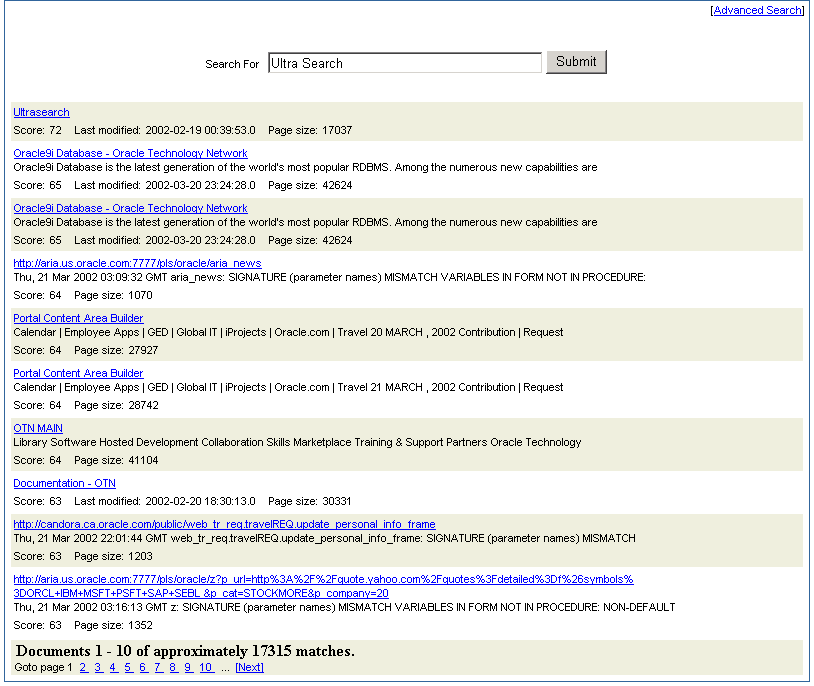
If you do not want to use the Oracle Ultra Search sample query applications, you can build your own query application by directly invoking the Oracle Ultra Search Java query API. Because the API is coded in Java, you can invoke the API methods from any Java-based application, such as from a Java servlet or a JavaServer page (as in the case of the provided sample query applications). For rendering e-mails that have been crawled and indexed, you can also directly invoke the Oracle Ultra Search Java Mail API methods.
|
See Also:
|
The Oracle Ultra Search administration tool is a Web application that lets you manage Ultra Search instances. It allows user management operations on either database users or SSO users. Authenticated SSO users never see the Oracle Ultra Search login screen. Instead, they can immediately choose an Oracle Ultra Search instance.
From the Oracle Ultra Search administration tool you can:
Define Oracle Ultra Search instances
Manage administrative users
Define data sources and assign them to data groups
Configure and schedule the Oracle Ultra Search crawler
Set query options
The Oracle Ultra Search administration tool and the Oracle Ultra Search sample query applications are part of the Oracle Ultra Search middle-tier components module. However, the Oracle Ultra Search administration tool is independent from the Oracle Ultra Search sample query applications. Therefore, they can be hosted on different machines to enhance security or scalability.
You can access the Oracle Ultra Search administration tool through OracleAS Portal. In the Services portlet, go to the Ultra Search Administration page. See Section 8.2.3.1, "Accessing the Oracle Ultra Search Administration Tool".
The Oracle Ultra Search server tier is installed with the Oracle Application Server infrastructure. By default, the following activity occurs during this process:
All Oracle Ultra Search server component files are copied into a directory named ultrasearch. This directory resides immediately under the ORACLE_HOME of the designated database installation.
The database user WKSYS is created, with password wksys. You should change this password immediately for security purposes. All Oracle Ultra Search database objects are installed in this user's schema. After the infrastructure database is installed, all user schema passwords are randomized. To change the password, log on as user WKSYS (or WKPROXY), change the WKSYS (or WKPROXY) schema password by following the link Change Schema Password from the Oracle Enterprise Manager Infrastructure page.
Various PL/SQL scripts are run against the database as user WKSYS. These scripts install and create various database objects.
|
See Also: Your installation guide for information on setting necessary environment variables. |
To configure the database for Oracle Ultra Search, follow the steps outlined in the "Post-Installation Information" chapter of the Oracle Ultra Search User's Guide.
If you checked the OracleAS Portal option on the Configuration Options Oracle Installer screen, the OracleAS Portal Configuration Assistant automatically configures Oracle HTTP Server and Oracle Application Server Containers for J2EE with Ultra Search. If not, then you must manually perform the steps under "Configuring Oracle Ultra Search Middle Tier Component with Oracle HTTP Server and OC4J" in the Oracle Ultra Search User's Guide to configure your existing Web server.
In addition, you must edit data-sources.xml to add the UltraSearchDS datasource, and then unlock the WK_TEST schema and reset its password to WK_TEST. This is described in Section 8.4.4.1, "Editing the data-sources.xml File" subsequently.
You do not need to configure the ultrasearch.properties file, containing configuration information used by the Oracle Ultra Search middle-tier component. This is automatically configured by the Oracle installer. For more information, see Section 8.4.4.2, "Editing the ultrasearch.properties File".
|
Caution: Storing clear text passwords indata-sources.xml poses a security risk. Avoid this by using password indirection to specify the password. This lets you enter the password in jazn-data.xml, which automatically gets encrypted, and point to it from data-sources.xml. For more information, see Oracle Application Server Containers for J2EE Services Guide.
|
The Oracle Ultra Search query API uses the data source functionality of the J2EE container. Under directory ORACLE_HOME/j2ee/OC4J_Portal/config, edit the file data-sources.xml. Under tag <data-sources> add the following:
<data-source
   class="oracle.jdbc.pool.OracleConnectionCacheImpl"
   name="UltraSearchDS"
   location="jdbc/UltraSearchPooledDS"
   username="<username>"
   password="<password>"
   url="jdbc:oracle:thin:@<database_host>:<oracle_port>:<oracle_sid>"
/>
Where username and password are the Oracle Ultra Search instance owner's database user name and password, database_host is the host name of the back-end database machine, oracle_port is the port to the user's Oracle database, and oracle_sid is the SID of the user's Oracle database. In addition to user name, password, and JDBC URL, data-sources.xml also allows configuration of the connection cache size, as well as the cache scheme. The following tag specifies the minimum and maximum limits of the cache size, the inactivity time out interval, and the cache scheme.
<data-source
   class="oracle.jdbc.pool.OracleConnectionCacheImpl"
   name="UltraSearchDS"
   location="jdbc/UltraSearchPooledDS"
   username="wk_test"
   password="wk_test"
   url="jdbc:oracle:thin:@<database_host>:<oracle_port>:<oracle_sid>"
   min-connections="3"
   max-connections="30"
   inactivity-timeout="30">
 <property name="cacheScheme"  value="1"/>
</data-source>
For security purposes, WK_TEST is locked after the installation. The administrator should login to the database, and unlock the WK_TEST user account. To do this, run the following statement as the SYSTEM or SYS database user:
ALTER USER WK_TEST ACCOUNT UNLOCK;
After that, set the password to be WK_TEST. (The password expires after the installation.) If the password is changed to anything other than WK_TEST, then you must also update the cached schema password using the administration tool Edit Instance page after you change the password in the database.
There are three types of caching schemes:
DYNAMIC_SCHEME = 1
FIXED_WAIT_SCHEME = 2
FIXED_RETURN_NULL_SCHEME = 3
The ORACLE_HOME/ultrasearch/webapp/config/ultrasearch.properties file contains configuration information used by Oracle Ultra Search middle-tier component. You do not need to edit this file, as it is automatically configured by the Oracle installer.
Here is an example of the ultrasearch.properties file:
connection.driver=oracle.jdbc.driver.OracleDriver
connection.url=jdbc:oracle:thin:@ldap://dlsn8888.cn.oracle.com:3060/iasdb,cn=oraclecontext
oracle.net.encryption_client=REQUESTED
oracle.net.encryption_types_client=(RC4_56,DES56C,RC4_40,DES40C)
oracle.net.crypto_checksum_client=REQUESTED
oracle.net.crypto_checksum_types_client=(MD5)
oid.app_entity_cn=m16bi.sgtcnsn03.cn.oracle.com
domain=us.oracle.com
Where:
connection.driver specifies the JDBC driver you are using.
connection.url specifies the database to which the middle-tier connects. Ultra Search supports following formats:
host:port:SID (where host is the full host name of the Oracle base instance running Ultra Search, port is the listener port number for the Oracle Database instance, and SID is the Oracle Database instance ID)
HA-aware string (for example, TNS keyword-value syntax) Here is an example connection.url string:
connection.url=jdbc:oracle.thin:@ultrasearch.us.oracle.com:1521:myInstance
oracle.net.encryption_client, oracle.net.encryption_types_client, oracle.net.crypto_checksum_client, and oracle.net.crypto_checksum_types_client control the properties of the secure JDBC connection made to the database.
oid.app_entity_cn specifies the Oracle Ultra Search middle-tier application entity name.
domain specifies the common domain for the identity management machine and the Oracle Ultra Search middle-tier machine. This enables Oracle Delegated Administration Services (DAS) lists of values to work with Internet Explorer. For example, if the Oracle Ultra Search middle-tier is us.company.com and the identity management machine is uk.company.com, then the common domain is company.com. In this case, you would add the following line in ultrasearch.properties:
domain=company.com
Restart the OC4J_Portal instance using Oracle Enterprise Manager 10g Application Server Control Console.
To restart the OC4J_Portal instance:
Access the Application Server Control Console. See Section 7.2.1, "Accessing the Application Server Control Console" for details.
If there is more than one standalone application server instance, your start page for the Application Server Control Console is the Oracle Application Server Farm home page.
Click an Oracle Application Server instance to go to its home page.
Select OC4J_Portal in the System Components area.
Click Restart.
When prompted to confirm the restarting of OC4J_Portal, click Yes.
You can test your changes by attempting to log on to the Oracle Ultra Search administration tool at:
http://<hostname>.<domainname>:<port>/ultrasearch/admin/index.jsp
Where hostname.domainname is the full name of the host where you have just installed the Oracle Ultra Search middle-tier component, and port is the default Web server port.
During the installation of the Oracle Ultra Search server component, you should have created a new Oracle Ultra Search instance owner. Log on to the Oracle Ultra Search administration tool by entering the Oracle Ultra Search instance owner's database username and password.
If you log on to the Oracle Ultra Search administration tool successfully, then you have completed the Oracle Ultra Search administration tool configuration process.
You can also access the Oracle Ultra Search administrative interface through OracleAS Portal. In the Services portlet, go to the Ultra Search Administration page. See Section 8.2.3.1, "Accessing the Oracle Ultra Search Administration Tool".
After you verify that the Oracle Ultra Search administration tool is working, you should be able to run the Oracle Ultra Search sample query applications. Refer to the section "Testing the Ultra Search Sample Query Applications" in the chapter "Installing and Configuring Ultra Search" of the Oracle Ultra Search User's Guide for more information on how to run the Oracle Ultra Search sample query applications.
The Oracle Ultra Search remote crawler functionality allows multiple crawlers to run in parallel on different hosts. All remote crawler hosts must share common resources, such as common directories and a common Oracle Ultra Search database.
Oracle Ultra Search provides a search portlet that can be embedded in OracleAS Portal pages. It is implemented as a JavaServer Page (JSP) application and called the Oracle Ultra Search Portlet Sample. The Oracle Ultra Search Portlet Sample is a Web application that complies with the OracleAS Portal portlet interface. By complying with the portlet interface, OracleAS Portal users can create pages and embed Oracle Ultra Search portlets within those pages.
You’ll find additional information about Oracle Application Server Portal Developer Kit and the OracleAS Portal portlet interface, on Portal Center, http://portalcenter.oracle.com. Click the Search icon in the upper right corner of any Portal Center page.
The portlet sample implements a provider that contains exactly one portlet. The provider name is Ultra Search Provider and it belongs to the Oracle Application Server Providers provider group. The portlet contained within the Ultra Search provider is also called Ultra Search.
Note that Web providers are not registered with OracleAS Portal as part of the Oracle Application Server installation, as the provider must be up and running for registration to take place. This is not possible since the very last step performed during the installation is the starting of OC4J.
To register the Ultra Search provider, see Section 8.2.3.3, "Registering the Ultra Search provider with OracleAS Portal".
The Oracle Ultra Search portlet enables you to add Oracle Ultra Search functionality to portal pages. However, remember that Oracle Ultra Search does not support any security model for search end-users. This means that all data crawled and indexed by Oracle Ultra Search is accessible to all users of a particular Oracle Ultra Search instance. There is no way to specify that a particular portal user has access to a subset of search results returned by Oracle Ultra Search.
Oracle Ultra Search supports the creation of multiple Oracle Ultra Search instances. Each Oracle Ultra Search instance contains its own distinct index that can be queried against by the Oracle Ultra Search portlet. Each Oracle Ultra Search index requires its own database schema and the Oracle Ultra Search portlet must be configured to query against a specific Oracle Ultra Search instance schema.
To do this, you must configure the file ORACLE_HOME/j2ee/home/config/data-sources.xml as follows:
<data-source
               class="oracle.jdbc.pool.OracleConnectionCacheImpl"
               name="UltraSearchDS"
               location="jdbc/UltraSearchPooledDS"
               username="<ultrasearch_instance_schema>"
               password="<ultrasearch_instance_schema_password>"
               url="jdbc:oracle:thin:@<hostname>:<port>:<sid>"
/>
The parameters are listed and described in Table 8-4.
Table 8-4 Oracle Ultra Search Connection Parameters
| Parameter | Description |
|---|---|
| ultrasearch_instance_schema | name of the schema |
| ultrasearch_instance_schema | password of the schema |
| hostname | Oracle Ultra Search database host name |
| port | Oracle Ultra Search database listener port |
| sid | Oracle Ultra Search database instance identifier |
Note that the sample portlet shares the same data source entry as the Complete Sample Application.
OracleAS Portal users should only embed Oracle Ultra Search portlets that are hosted on the same OC4J instance as OracleAS Portal.
If OracleAS Portal is installed on host A, Oracle Ultra Search is installed on host A and the Oracle Ultra Search provider is also hosted as a Web application on host A.
It is possible that the Oracle Ultra Search provider running on host A is registered with a second OracleAS Portal instance running on host B. However, if the Oracle Ultra Search portlet hosted on A is embedded within pages created in Portal B, the pop-up list-of-values will not work correctly. This is because of a security bug inherent in JavaScript.
Portal pages created within Portal A should only embed the Oracle Ultra Search portlet from the provider running on host A and not from host B or any other host.
The portlet sample files are located in the following file:
ORACLE_HOME/ultrasearch/sample.ear
When the application server first deploys sample.ear, the content of this file is expanded into the following directory:
ORACLE_HOME/ultrasearch/sample/query
You can view the source code using your preferred text editor.
|
See Also: The fileORACLE_HOME/ultrasearch/sample/query/portlet/README.html for a complete list and description of all the files used by the Portlet Sample, as well as a full description of how the portlet sample works.
|