|
Oracle® Application Server TopLink Getting Started Guide
10g (9.0.4.5) for Microsoft Windows (64-Bit) on Intel Itanium Part No. B15848-01 |
|


 Previous |
 Next |
|
Oracle® Application Server TopLink Getting Started Guide
10g (9.0.4.5) for Microsoft Windows (64-Bit) on Intel Itanium Part No. B15848-01 |
|
|
Previous |
Next |
This chapter contains information about installing OracleAS TopLink. It contains the following topics:
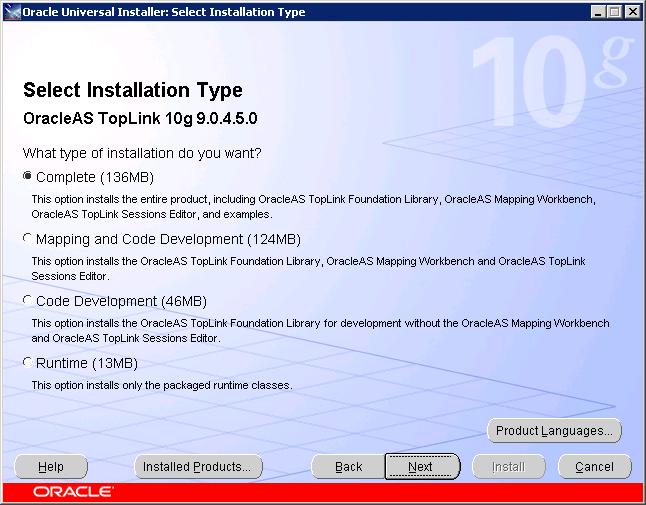
The Oracle Universal Installer (OUI) for OracleAS TopLink provides four different installation types. Each installation type is a predefined component set within the OUI that automatically selects the components to install. The installation types that appear on the OUI screen depend on the list that the installation developer specifies for the product.
The four installation types are as follows:
Complete: This option installs the entire product, including OracleAS TopLink Foundation Library, OracleAS TopLink Mapping Workbench, OracleAS TopLink Sessions Editor, and OracleAS TopLink Examples.
Mapping and Code Development: This option installs the OracleAS TopLink Foundation Library, OracleAS TopLink Mapping Workbench, and OracleAS TopLink Sessions Editor.
Code Development: This option installs the OracleAS TopLink Foundation Library for development without the OracleAS TopLink Mapping Workbench and OracleAS TopLink Sessions Editor.
Runtime: This option installs only the packaged run-time classes.
This section describes the procedures to install OracleAS TopLink including the OracleAS TopLink Foundation Library and OracleAS TopLink Mapping Workbench.
This section contains the following topics:
Installing OracleAS TopLink on Microsoft Windows Operating System
Performing Silent Installation on Microsoft Windows Operating System
|
Note: Before installing OracleAS TopLink, back up the existing project data. |
To start the OUI and install OracleAS TopLink:
Ensure that you are logged in to the computer as a member of the Microsoft Windows Administrators group.
|
Note: When you configure OracleAS TopLink for use with (Java 2 Platform, Enterprise Edition) J2EE containers, you need to modify the system variables, not the User Variables.Java package names are case-sensitive. When you install them on Microsoft Windows, ensure that case sensitivity is turned on. For more information, refer to the Microsoft Windows documentation. |
Insert the OracleAS TopLink installation disk into the CD-ROM drive to launch OUI.
If your computer supports the auto-run feature, then the installer will automatically launch on your computer.
If your computer does not support the auto-run feature, then perform the following steps to launch the installer:
Locate the following file:
G:\setup.exe, where G is the letter for your CD-ROM drive
Launch the setup.exe program to start the installer.
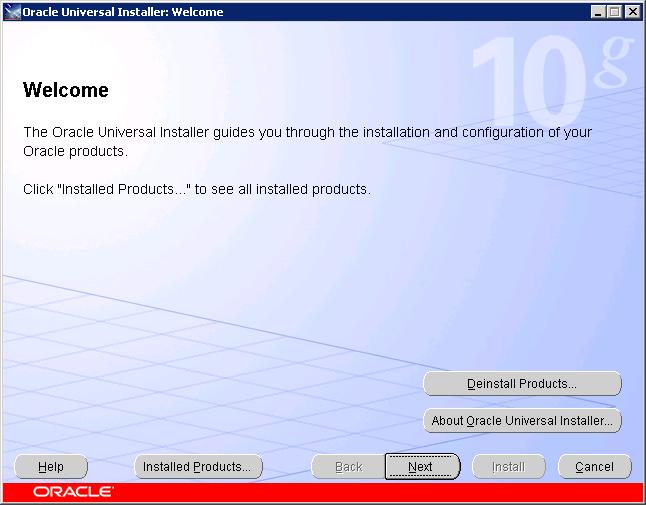
The Oracle Universal Installer Welcome screen is displayed as shown in Figure 2-1. It provides information about the OUI.
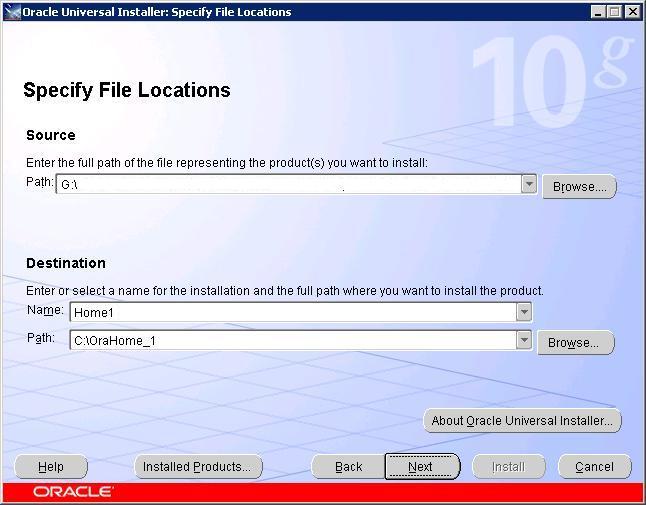
Click Next. The Specify File Locations screen is displayed as shown in Figure 2-2.
Enter the following information in the fields provided:
Source Path: The default value is displayed. Do not change this value.
Destination Name: Enter the required Oracle home name.
Destination Path: Browse or enter the path to the directory where you want to install the Oracle Application Server Middle Tier.
Click Next. The Select Installation Type screen is displayed as shown in Figure 2-3.
Select Complete to install the entire package. The other options available on the screen allow you to perform a partial install. The products that can be installed are mentioned with the options.
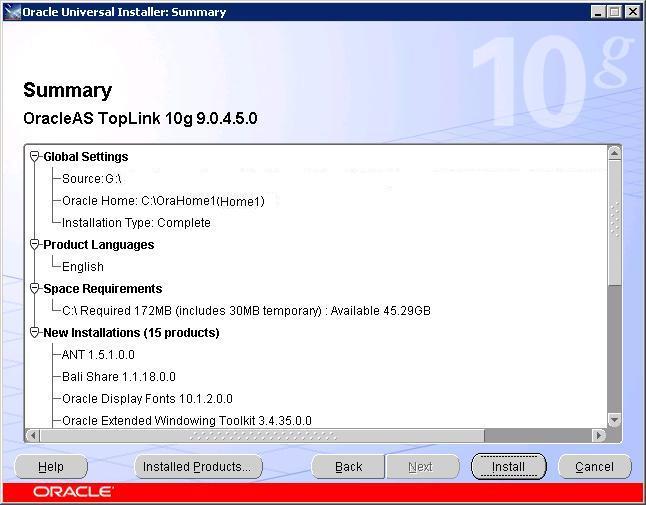
Click Next. The Summary screen is displayed as shown in Figure 2-4.
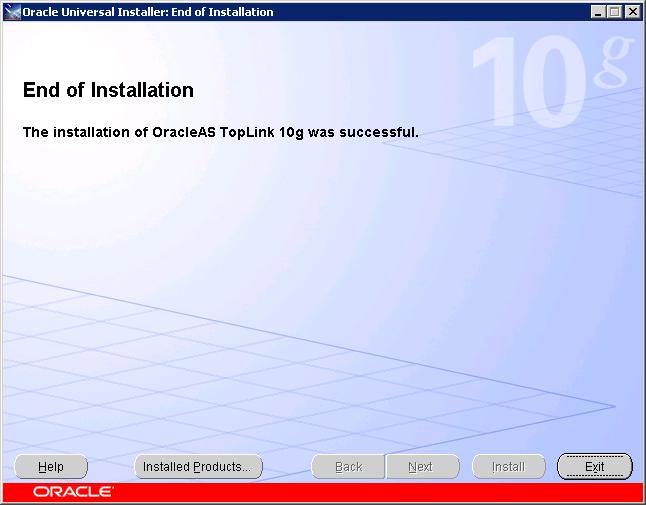
After reviewing the Summary screen, click Install. This completes the installation and displaying the End of Installation screen as shown in Figure 2-5.
Click Exit and then click Yes. This completes the installation.
When the installation is complete, verify and if necessary, edit the JDBC_CLASSPATH variable in the ORACLE_HOME\toplink\bin\setenv.cmd file. The JDBC_CLASSPATH variable must specify the path to the preferred JDBC drivers.
|
Note: TheJDBC_CLASSPATH variable must not include any Java classes for your persistent business objects that are specified in an OracleAS TopLink Mapping Workbench project. Paths for persistent business objects are set within an OracleAS TopLink Mapping Workbench project.
For more information on how to set up a path for a project, refer to Oracle Application Server TopLink Mapping Workbench User's Guide. |
|
See Also: Refer toORACLE_HOME\toplink\doc\index.htm for the latest OracleAS TopLink Release Notes
|
The silent installation mode is available for all installation types. You can make use of the silent installation when you wish to make multiple installations simultaneously or when you perform installations from a remote location. Silent installation eliminates the need to monitor the installation because there is no graphical output and no input by the user.
To perform a silent installation:
Insert the OracleAS TopLink installation disc into the CD-ROM drive.
Open the \Stage\Response directory and select the oracle.toplink.Installation_Type.rsp response file. For example, if you select the Complete installation type, then the response file would be complete.rsp.
Copy the oracle.toplink.Installation_Type.rsp file to a temp folder.
Edit the following parameters in the oracle.toplink.Installation_Type.rsp file:
ORACLE_HOME
ORACLE_HOME_NAME
Open a command prompt window and run the following commands:
setup.exe -responseFile C:\temp\oracle.toplink.complete.rsp -silent and press Enter.
If your installation is successful, then the log file for the silent installation will contain the following line:
The installation of OracleAS TopLink was successful.
The complete OracleAS TopLink installation includes the OracleAS TopLink examples. These examples help you explore and learn how to use the OracleAS TopLink features with different architectures and different technologies. They are designed to be as simple as possible while still effectively demonstrating the target architecture, technology, or feature.
There are two types of examples, Oracle Application Server and OracleAS TopLink Foundation Library (non-server) examples.
Oracle Application Server examples vary from server to server, depending on the server-specific features. Although OracleAS TopLink provides instructions for certain servers, you can run many of the examples (for example, the Session Bean and Servlet JSP examples) on other application servers with some configuration changes.
OracleAS TopLink Foundation Library (non-server) examples are configured to run in a simple Java Virtual Machine (JVM), but the features and technologies they demonstrate can also be used in an application server environment.
When you run the examples, useful information is written to standard output, including details about what the example is doing and what SQL is generated. You may find it useful to redirect standard output to a file when you run an example.
Although the OracleAS TopLink examples require little configuration, ensure that you read and verify the configuration details included in the Configuring the Examples document before you run the examples.
|
See Also: Configuring the Examples document, which can be accessed atORACLE_HOME\toplink\doc\examples\config\config.htm
|
When the configuration is complete, each of the OracleAS TopLink examples has a readme file with specific information on how to build and run the example.
On a Microsoft Windows-based platform, OracleAS TopLink includes the Java Runtime Environment (JRE) 1.4.2. OracleAS TopLink is certified with Sun JDK 1.4.2_05 version on Itanium 2 computers from Sun Microsystems for use by the OracleAS TopLink Mapping Workbench.
To configure OracleAS TopLink for a different version of the JRE, change the setenv.cmd file to point JRE_HOME to the alternate directory.
At run time, the OracleAS TopLink Foundation Library requires a JVM compatible with JDK 1.4.2 or later.
To compile and run the OracleAS TopLink Examples, you must have a Java 2 SDK installed.
|
See Also: Section 2.3, "Configuring the OracleAS TopLink Examples" for more information about how to configure and run the OracleAS TopLink Examples |
JCE
The OracleAS TopLink Mapping Workbench and OracleAS TopLink Sessions Editor use Java Cryptography Extension (JCE) to encrypt database login information. JCE is included with JDK 1.4.2. If you use JDK 1.4.2 or higher, then select one of the following options:
Download and install the Sun JCE plug-in from http://java.sun.com/products/jce/
Do not store password information in OracleAS TopLink Mapping Workbench or OracleAS TopLink Sessions Editor. Instead, manually add the password in the code or edit the generated project file.
After you install OracleAS TopLink, if you encounter problems either starting the application or connecting to a database, then try the following solutions:
Ensure that the driver class name is correct. Many vendors have several driver classes to choose from.
Check your login information.
Ensure that your path includes all the.dll files that your driver requires.
Check with your database administrator that:
drivers that require special setup in the database server have been set correctly.
drivers that require special permissions in the database server have been set up correctly.
You are not exceeding the number of available concurrent connections to your database. This may occur during development time, when many people are testing connections.
Check with your vendor to ensure that you are using the latest version of both your JDBC driver and the database to which it is connecting.