|
Oracle® Application Server Installation Guide
10g Release 2 (10.1.2) for Microsoft Windows (64-Bit) on Intel Itanium Part No. B15847-01 |
|


 Previous |
 Next |
|
Oracle® Application Server Installation Guide
10g Release 2 (10.1.2) for Microsoft Windows (64-Bit) on Intel Itanium Part No. B15847-01 |
|
|
Previous |
Next |
This chapter explains the procedure to install Oracle Application Server Middle Tier, and contains the following topics:
Oracle Application Server Middle Tier provides components for deploying and running applications. The J2EE and Web Cache type of installation provides a framework for developing JavaServer Pages, servlets, and Enterprise JavaBeans applications. It contains the following components:
Oracle HTTP Server
Oracle Application Server Containers for J2EE
Oracle Application Server Web Cache
To install Oracle Application Server Middle Tier J2EE and Web Cache instance, perform the following steps:
Insert the Oracle Application Server CD-ROM in your CD-ROM drive.
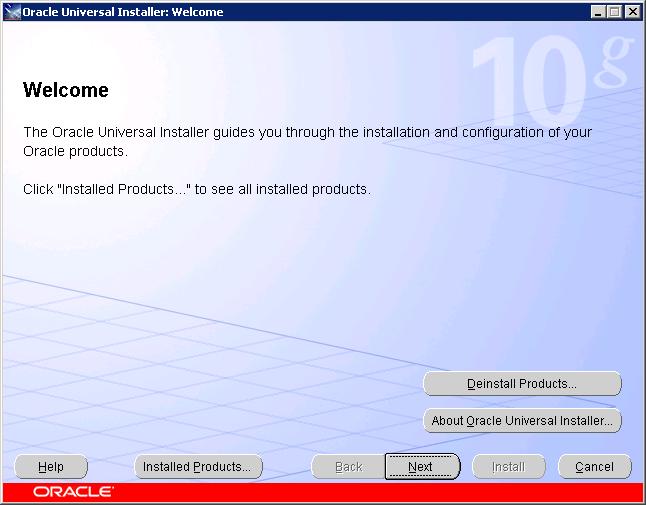
Double-click setup.exe. The Oracle Universal Installer Welcome screen is displayed as shown in Figure 4-1. It provides information about the Oracle Universal Installer (OUI).
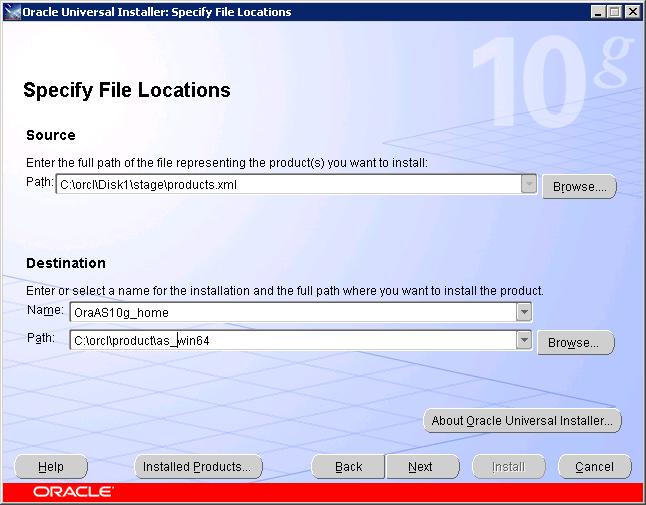
Click Next. The Specify File Locations screen is displayed as shown in Figure 4-2.
Enter the following information in the fields provided:
Source Path: The default value is displayed. Do not change this value.
Destination Name: Enter the desired Oracle home name.
Destination Path: Browse or enter the path to the directory where you want to install the Oracle Application Server Middle Tier.
If you need to specify the inventory location, then Click Back. The Welcome screen will be displayed again.
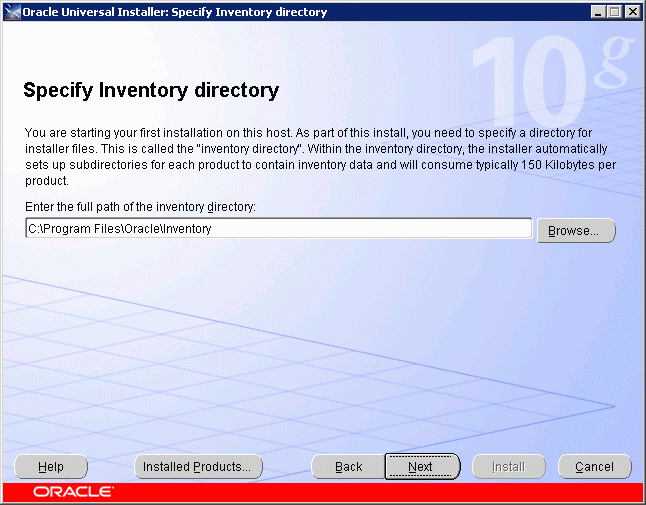
On the Welcome screen, click Next again. The Specify Inventory Directory screen is displayed as shown in Figure 4-3
Figure 4-3 Specify Inventory Directory Screen
|
Note: The Specify Inventory Directory screen is displayed only during a fresh installation of Oracle Application Server. If you want to reinstall the product on the same computer, then remove the value ofinst_loc in the key HKLM\Software\Oracle and then remove the c:\program files\oracle folder.
|
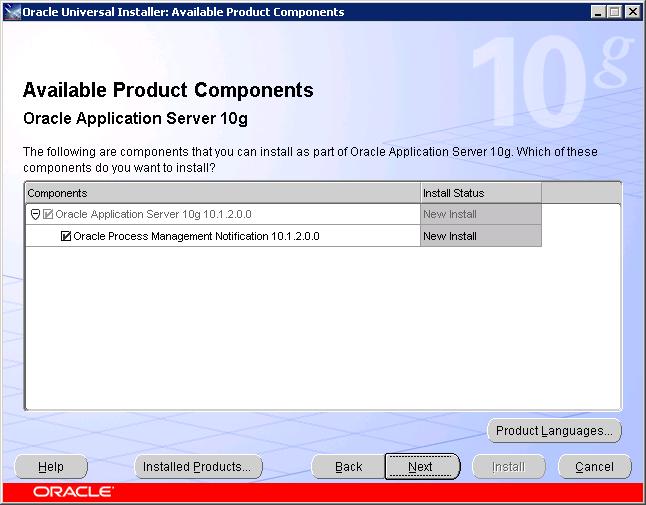
Click Next. The Available Product Components screen will be displayed as shown in Figure 4-4
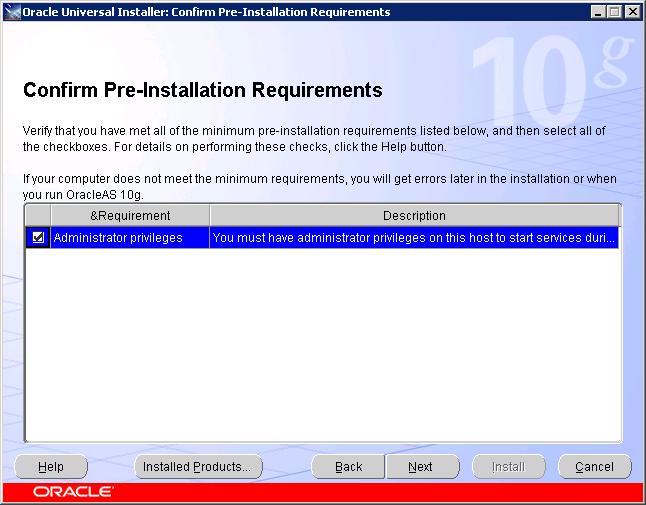
Click Next. The Confirm Pre-Installation Requirements screen is displayed as shown in Figure 4-5.
Verify that you meet all the requirements listed, and select the checkboxes.
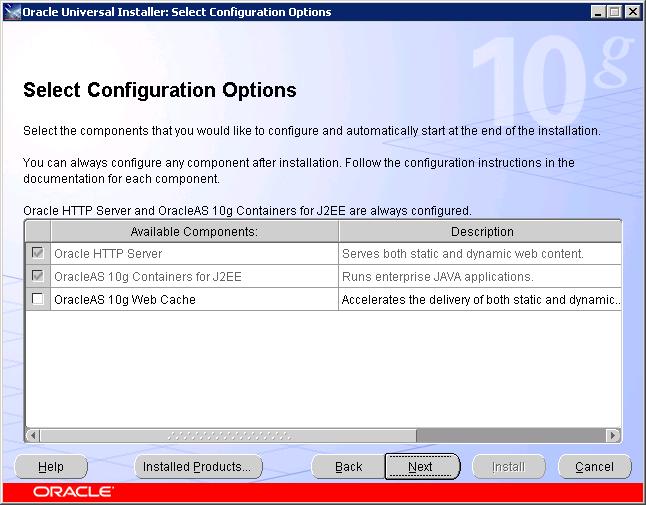
Click Next. The Select Configuration Options screen is displayed as shown in Figure 4-6.
Select OracleAS 10g Web Cache and click Next.
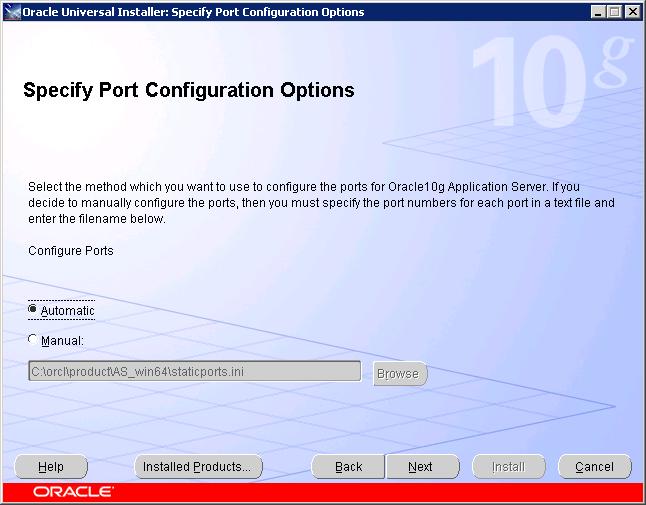
The Specify Port Configuration Options screen is displayed as shown in Figure 4-7.
If you want to use default ports for the components, then select Automatic.
If you do not want to use the default ports, and you have created a staticports.ini file, then select Manual and enter the fullpath to your staticports.ini file in the field provided.
Click Next. The Specify Instance Name and ias_admin Password screen is displayed as shown in Figure 4-8.
Figure 4-8 Specify Instance Name and ias_admin Password Screen
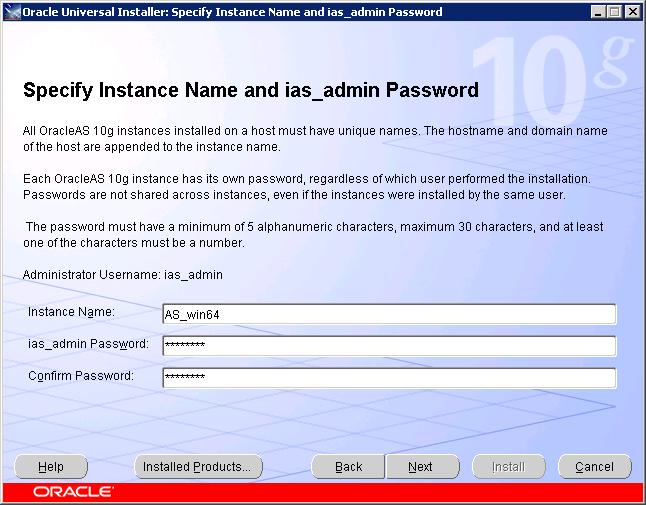
Enter the following information in the fields provided:
Instance Name: Enter a name for this instance. Instance names can contain alphanumeric characters and the _ (underscore) character.
ias_admin Password and Confirm Password: Set the password for the ias_admin user. This is the administrative user for the instance.
|
See Also: Section 3.4, "The ias_admin User and Restrictions on its Password" for more information about the password restrictions. |
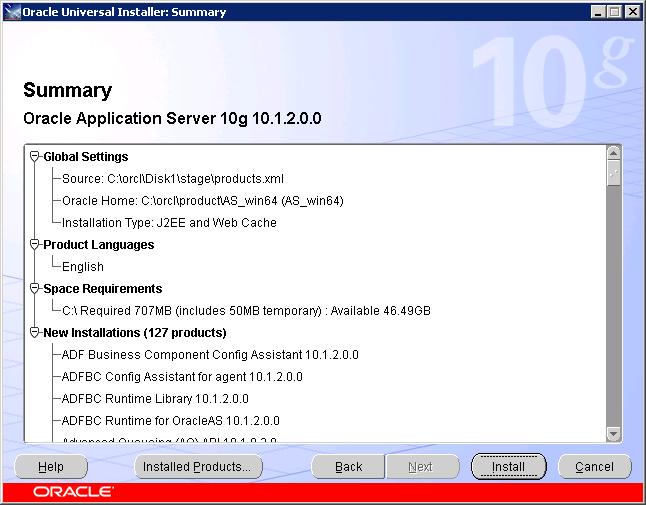
Click Next. The Summary screen is displayed as shown in Figure 4-9. Review the selections made on previous screens, and click Install.
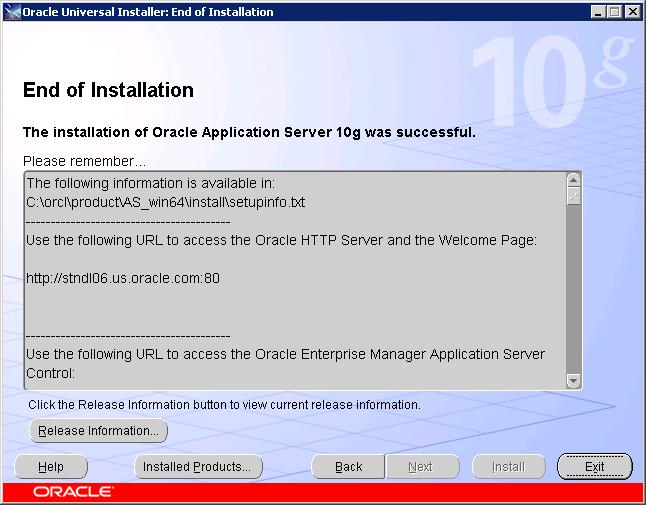
The End of Installation screen is displayed as shown in Figure 4-10, indicating that the installation has completed. Click Exit to exit the installer.
After installation, you might need to know port numbers used by certain components.
To get a list of port numbers look in the ORACLE_HOME\install\portlist.ini file. ORACLE_HOME refers to the directory containing the Oracle Application Server installation.
|
Note: If you change the port number for a component after installation, thenportlist.ini will not be updated.
|