 Understanding the Data Load Process
This chapter provides an overview of the data load process and discusses how to:
Define application-specific initial data load options.
Run the initial data load process.
Understanding the Data Load ProcessThis section discusses:
The initial data load.
Data objects for dimensions.
Summary table data.
Data deletion plans.
Note. To view a list of the plans, alerts and reports that PeopleSoft delivers to facilitate data loads, refer to the appendix for the dashboard application that you are using.
 The Initial Data Load
PeopleSoft CRM provides the CRM Initial Data Load (RBD_INIT_DRV) Application Engine process to perform the initial load of CRM data into the dashboard system. The initial data load ensures that dashboard reports accurately reflect the current state of business operations. By running the initial data load, you give dashboard users access to meaningful reports right away.
Note. If you implementing dashboards for PeopleSoft Order Capture, you must run the Hold Predictions and Business Project Predictions Application Engine programs before you do an initial data load.
See Setting Up Hold and Business Project Predictions for PeopleSoft Order Capture.
Data Loads for Facts and Dimensions
For performance reasons, it is critical that the initial load process load dimension data before fact data. This sequence optimizes performance because the dashboard system does not have to perform the complex lookups that would be required if, for example, a case arrived in the dashboard system before the arrival of the customer that the case references.
To ensure that dimension data is loaded first, you must perform the initial data load in three phases:
Run the initial data load process with settings for loading dimension data.
The initial data settings include mutually exclusive options for processing dimensions and facts.
Verify that all dimension data has been successfully loaded.
After the initial data load finishes sending the dimension data, Oracle BAM still requires time to process the incoming messages and save the data to the Active Data Cache (ADC). To ensure that all Oracle BAM processing completed successfully, you must access the Active Data Cache (ADC) directly and individually inspect each of the dimension data objects to verify that the data is loaded. These data objects are listed in the next section of this chapter.
For any dimension that fails to load, use the Batch Data Load process (part of the dashboard integration framework) to load just the object that corresponds to the missing dimension.
Run the initial data load process with settings for loading facts.
The option to load facts for a particular dashboard is not available until that dashboard's dimensions and the common dimensions have been loaded.
When loading either dimensions or facts, you can choose which dashboard applications to load: Contact Center Dashboards, the Sales Dashboard, and the Order Capture Dashboard. (Contact Center Dashboards includes the dashboards for PeopleSoft Support, HelpDesk, and HelpDesk for Human Resources.)
When loading dimensions, you have an additional option: common dimensions. These are tables such as product and customer that are shared by multiple dashboard applications.
This diagram illustrates the three phases of the initial load and the subsets of data for each phase:
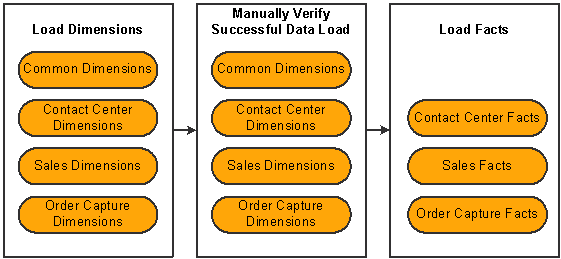
Initial load phases
Note. For purposes of the initial data load, the separation of data into dimensions and facts ensures that tables load in the proper sequence. There are a few dimensions that are actually loaded with facts because the dimensions have dependencies on other dimensions.
The main process for the CRM initial data load is the RBD_INIT_DRV Application Engine process. This process does not actually perform the data load; instead, it schedules an instance of the RBD_INIT_APP Application Engine process for each subset of data that you've included in the data load.
If any of the RBD_INIT_APP processes error out, resolve the issue and restart the instance of the process that had the error. Do not schedule a new instance of the RBD_INIT_DRV process. Restarting the RDB_INIT_APP process improves performance because the system doesn't have to start at the beginning of the initial load but can instead pick up right at the point where the error occurred.
Because of the high volume of data involved in the initial data load, PeopleSoft CRM strongly recommends that customers with multiple dashboard applications set up parallel processing at installation time. Parallel processing enables the system to load data for multiple applications at once.
Message Suppression During the Initial Data Load
Before the initial data load begins sending data to the dashboard system, it activates a setting that suppresses messaging. Any online changes that are made during the initial load process are still queued, but the queue contents are not sent to the dashboard system. Messaging is reactivated only after the process finishes loading both dimensions and facts.
Suppressing messaging during the data load offers significant performance benefits because data arrives in the dashboard system in the right order. Essentially, the initial load sends a data snapshot from a specific point in time, and any changes that users make after that point in time get held up in the queue until all data from that snapshot has arrived.
Because the initial data load includes all data as of the time the initial load process starts, dimension queuing and fact queueing begin at different times. Dimension queuing starts when you start the dimension data load, but fact queueing doesn't start until you begin the fact data load.
This diagram illustrates how messaging and queuing work during the initial data load:
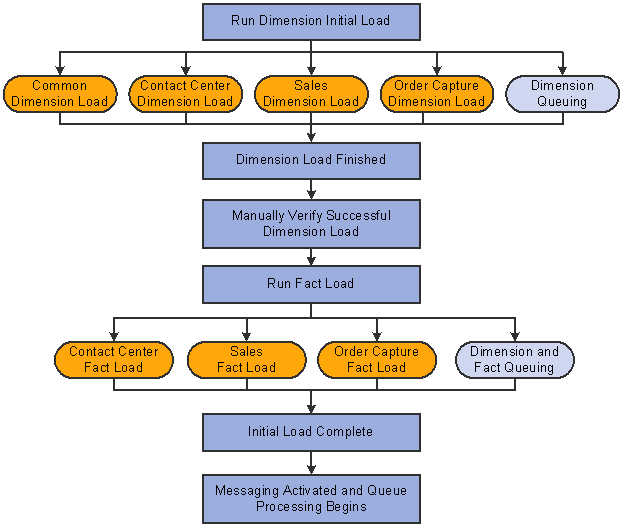
Messaging during the initial data load
Errors while loading data for one dashboard application do not affect the data loads for the other dashboard applications, but they will prevent the process from switching the message suppression setting. This means that if there is an error during one application's load, messaging will remain suppressed for all applications until you resolve the error and rerun the initial data load for the application that had the error.
Note. The installation documentation for CRM dashboard applications describes how to run a delivered script that switches the message suppression setting. You might use this script if, for example, you are doing a phased implementation and you don't want your already-active contact center dashboard to stop receiving messages while you perform the initial data load for your sales dashboard. However, overriding message suppression can significantly degrade the performance of the initial data load and is not recommended.
See Also
Oracle BAM Installation Guide
Data Objects for Dimensions
After you run the process to load dimension data, you must manually access the ADC and verify that the dimension data is completely loaded before you then load fact data. This section lists the dashboard data objects that you must manually verify.
These data objects are all under Data Objects/Common:
Business Unit
Contact
Country
Currency
Currency Rate
Current Currency Rate
Customer
Department
Email Template
Installation Options
Location
Partner
Person
Product Group
Product Item
Provider Group
Region
Set ID Indirection
State
Task Priority
Task Type
Unit of Measure
Provider Agent
Contact Center Dimensions: Cases
These data objects are all under Data Objects/Services:
Agreement
Case Impact
Case Priority
Case Relationship
Case Severity
Case Source
Case Status
Case Subtype
Case Type
Case Vertical
Category
Specialty Type
Detail
Problem Type
SLA Response Indicator
SLA Restore Indicator
Contact Center Dimensions: Emails
These data objects are all under Data Objects/Services:
Email and Interaction Status
Email Detail Status
Email Mood
Email Priority
Email Process State
Email Queue
Email System Definition
Email Template Category
Email Template Type
Email Work list
Email Work list Member
Language
Mail Box
Package Definition
Contact Center Dimensions: Interactions
These data objects are all under Data Objects/Services:
Interaction Type
Sub Interaction Type
Except where otherwise noted, these data objects are under Data Objects/Sales Setup Tables.
Account
Account Plan Status
Account Plan Type
Account Team
Account Activity Flags
This data object is located under Data Objects/Sales
Fallout Reason
Forecast Type
Industry
Lead Rating
Lead Reject Reason
Lead Source
Lead Status
Marketing Campaign
Opportunity Status
Pipeline Segment
Revenue Type
Sales Priority
Sales Stage
Sales User
Task Status
Territory
Timeframes Annual
Timeframes Quarterly
These data objects are under Data Objects/Order Capture:
Activity Definition
Business Project
Capture Type
Carrier
Header Status
Hold Definition
Hold Status
Line Status
Order Source
Task
Summary Table DataThe dashboard system uses separate data objects to store summary and detailed information about transactional objects. The messaging framework moves data from the PeopleSoft system into detail tables in the dashboard system. Enterprise Link plans read information from the detail tables and populate the summary tables.
Summary tables are loaded from data that already exists into the active data cache (ADC). Depending on the type of summary data involved, the plan that populates the summary table is scheduled to run daily, weekly, or monthly. The source for the daily plan is the transaction fact table. The daily fact table is the source for the weekly and monthly plan. All summary facts are available for all CRM data sources.
Since the daily plan retrieves data for the previous day, it should be scheduled to run sometime after midnight so your dashboards receive data for the entire day. Likewise, the weekly plan retrieves data for the previous week and the monthly plan retrieves data for the previous month.
Weekly and monthly plans must run after the daily plan since as they use the daily fact table as their source of information. These plans use a report as the data source. The report is used to filter only the data desired for each plan.
Data Deletion PlansDuring your initial data load, you can load data for a specific period of time-for example, you can load 3 months of case data into the ADC. As the dashboard is used, data builds up over time. To purge the ADC of old data, you need to run deletion plans on a regular basis. For example, in PeopleSoft Support (Services) to maintain a rolling three months of case data, use the deletion plan for cases to delete anything older than three months.
Deletion plans use a report as the source. The reports filters the data that needs to be deleted. PeopleSoft CRM delivers deletion plans with time frames that correspond to the default settings for the initial data load. If you change the initial setting, then you need to make a parallel change in the appropriate deletion plan.
To change the number of days on a report that a deletion plan uses to delete data:
Launch Oracle BAM Active Studio (the report- and alert-building tool within Oracle BAM) .
Click Shared Reports, Cross Release, Hidden.
Select the report that you want to edit (for example System - Help Desk Case Weekly).
Click Edit, Edit View, Filter.
Click the Filter Expression that you want to edit (for example, Week is equal to field ReportWeek).
Alerts allow the scheduling of the plans. PeopleSoft, however, delivers these plans as disabled. It is important to note that there is no initial load for these fact tables. The end-user interface does not have a page for setting up alerts. To define alerts, use Oracle BAM Active Studio.
Note. To view a list of the plans, alerts and reports that PeopleSoft delivers to facilitate the deletion of data, refer to the appendix in this PeopleBook for the dashboard application that you are using. Initial load pages are explained in the documentation for dashboard integration framework.
See Also
Oracle BAM Active Studio User's Guide
Contact Center Dashboard Objects
Order Capture Dashboard Objects
Defining Application-Specific Data Load OptionsTo define application-specific data load options, use the Initial Load Options (RBD_LOAD_OPTIONS) component.
This section discusses how to:
Define initial data loads options for the PeopleSoft Contact Center.
Define initial data load options for PeopleSoft Order Capture.
Define initial data load options for PeopleSoft Sales.
Note. You must define your initial data load options before running the initial load.
Pages Used to Define Initial Data Load Options
|
Page Name |
Object Name |
Navigation |
Usage |
|
Dashboard Initial Load - Contact Center |
Set Up CRM, Product Related, Dashboard, Initial Load Options, Contact Center |
Define initial data load options for cases, interactions, and emails data from the PeopleSoft CRM database. |
|
|
Dashboard Initial Load - Order Capture |
Set Up CRM, Product Related, Dashboard, Initial Load Options, Order Capture |
Define initial data load options for order data from the PeopleSoft CRM database. |
|
|
Dashboard Initial Load - Sales |
Set Up CRM, Product Related, Dashboard, Initial Load Options, Sales |
Define initial data load options for leads, opportunities, forecasts and tasks from the PeopleSoft CRM database. |
Defining Initial Data Load Options for the PeopleSoft Contact CenterAccess the Dashboard Initial Load - Contact Center page.
|
All open Cases will be loaded |
Display only field that shows that the initial load will include all open cases. PeopleSoft delivers this field as display only to make sure you load all open cases into the ADC. |
|
Cases Closed in the last period (Days) |
Select this check box to load all cases that were closed within a specified time period into the ADC. Indicate the number of days in the unlabeled field to the right. |
|
Interactions created in the last period (Days) |
Select this check box to load all interactions from a specified time period into the ADC. Indicate the number of days in the unlabeled field to the right. |
|
All open Emails will be loaded |
Display only field that shows that the initial load will include all open emails. PeopleSoft delivers this field as display only to make sure you load all open emails into the ADC. |
|
Emails closed in the last period (Days) |
Select this check box to load closed emails from a specified time period into the ADC. Indicate the number of days in the unlabeled field to the right. |
Defining Initial Data Load Options for PeopleSoft Order CaptureAccess the Dashboard Initial Load - Order Capture page.
|
Load all orders in the Business Process |
Display only field that shows that the initial load will include all orders that are in the process of being completed. PeopleSoft delivers this field as display only to make sure you load all incomplete orders into the ADC. |
|
Load completed orders (in days) |
Select this check box to load completed orders into the ADC. In the unlabeled field to the right, indicate the number of days, going backwards, from which you want to load completed order information. |
Defining Initial Data Load Options for PeopleSoft SalesAccess the Dashboard Initial Load - Sales page.
Note. The defaulted fields on this page will load all leads, opportunities, and tasks for the timeframes that you have in your system.
The system loads all open opportunities with an estimated close date, even if there is no estimated revenue. It also loads
all leads regardless of the fact that there may be no estimated revenue attached to the lead.
If you have a large number of timeframes (over 2 years worth) within your current PeopleSoft Sales application, use the second
option to limit the amount of data that the system will pass to the dashboard application. Enter the number of days in the
corresponding fields for each type of data. To help improve performance, PeopleSoft CRM suggests that you load no more than
1 year's worth of data (365 days) using this page.
|
All Leads that are not closed or converted will be loaded |
Display only field that shows that the initial load will include all leads that are not closed or converted. PeopleSoft delivers this field as display only to make sure you load all open leads into the ADC. |
|
Leads created in the last period (Days) |
Select this check box to load all leads that were created within a specified time period into the ADC. Indicate the number of days in the unlabeled field to the right. |
|
All open Opportunities will be loaded |
Display only field that shows that the initial load will include all open opportunities. PeopleSoft delivers this field as display only to make sure you load all open opportunities into the ADC. |
|
Opportunities created in the last period (Days) |
Select this check box to load all opportunities that were created within a specified time period into the ADC. Indicate the number of days in the unlabeled field to the right. |
|
Forecast created in same timeframe of the last period (Days) |
Select this check box to load all forecasts that were created within a specified time period into the ADC. Indicate the number of days in the unlabeled field to the right. |
|
All open and in progress Tasks will be loaded |
Display only field that shows that the initial load will include all open and in progress tasks. PeopleSoft delivers this field as display only to make sure you load all open and in progress tasks into the ADC. |
|
Task created in the last period (Days) |
Select this check box to load all tasks that were created within a specified time period into the ADC. Indicate the number of days in the unlabeled field to the right. |
Running the Initial Data Load ProcessThis section discusses how to run the initial data load process.
Prerequisite
Before running the initial data load process, you must complete the Installation Options page.
Page Used to Run the Initial Data Load
|
Page Name |
Object Name |
Navigation |
Usage |
|
Sequential Initial Load |
Set Up CRM, Product Related, Dashboard, CRM Initial Data Load, CRM Initial Data Load |
Run the initial load process for CRM dashboard applications |
Running the Initial Data Load ProcessAccess the CRM Initial Data Load page.
|
Run Now and Advance Schedule |
Click one of these buttons to run the CRM Initial Data Load (RBD_INIT_DRV) Application Engine process. This process loads data for the selected applications. |
|
Select this option to load dimension data for the dashboards that you select from the related Dashboard Application Codes grid. Select one or more of these dashboards: Order Capture Dashboard, Common Dashboard, Contact Center Dashboards, and Sales Dashboard. The Contact Center Dashboards includes the dashboards for PeopleSoft Support (Services), HelpDesk, and HelpDesk for Human Resources. You must load dimensions for the common dashboard as well as for the specific dashboard applications you use before you can load the facts for the application dashboards. This means that you should always select Common Dashboard unless you have loaded the common dashboard dimensions during a previous run of the initial data load process. For example, you can omit the common dashboard dimensions if you are adding an additional dashboard application to an existing dashboard installation, or if the common objects were successfully loaded but one or more applications failed during a previous attempt to perform the initial data load. |
|
|
Select this option to load fact data for the dashboards that you select from the related Dashboard Application Codes grid. Select one or more of these dashboards: Order Capture Dashboard, Contact Center Dashboards, and Sales Dashboard. |