A workbook is an easily viewed, easily manipulated multidimensional framework that is used to perform interactive business functions in the configured solution. To present data, a workbook can contain any number of multidimensional spreadsheets, called worksheets, as well as graphical charts and related reports. All these components work together to allow you to view and analyze business functions.
The Workbook Designer allows for the creation selection, and integration of the various components of a workbook template, which is a pre-designed workbook that is formatted for RPAS users to view and manipulate data. It contains workbook tabs, worksheets, rule groups, wizards, and workflow processes.
Take the time to design a well-planned workbook. Workbooks must be laid out in a logical format and must be easy to navigate. When configuring a workbook, think about how the workbook will be used by the users in the RPAS Client. Understand the business process flow and what end users will need to access most. Most likely, this information must be contained in the first workbook tab and worksheet.
The names of all of the workbook components must be intuitive to an end user.
Note: The internal RPAS names need to be unique across all workbook components in a project. This includes workbook, tab, worksheet, wizard, and custom menu names.
A workbook tab is a major subdivision of a workbook. Each workbook contains at least one workbook tab by default, but additional tabs can be added for organizing workbooks to support business needs. The workbook designer allows you to define and name tabs and to specify their order in the workbook.
Worksheets are multidimensional spreadsheets that are used to display workbook-specific information. Workbooks can include one or many worksheets. Worksheets can present data in the form of numbers in a grid, or the numeric data values can be converted to a graphical chart.
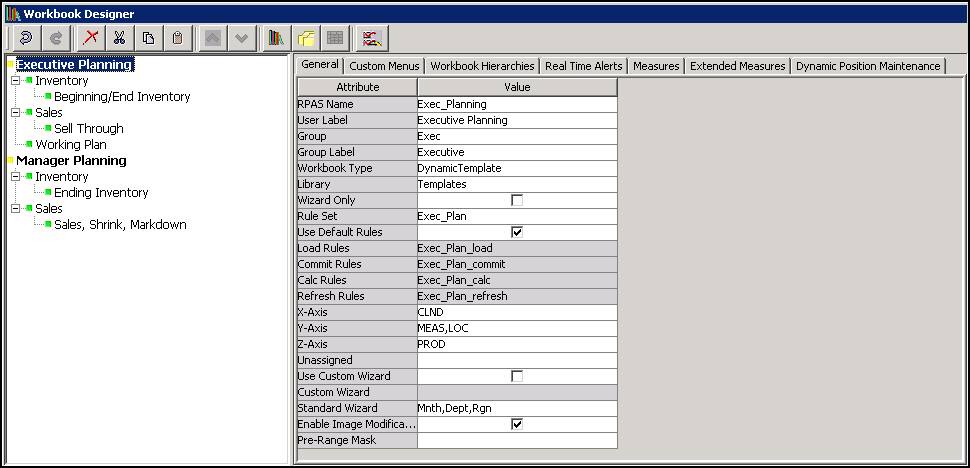
The Workbook Designer provides a visual represent of your workbooks, workbook tabs, and worksheets.
Example of Workbook Designer Window
The Workbook Designer contains the following areas:
Workbook Tree - The workbook tree provides a visual representation of the workbooks, workbook tabs, and worksheets. In the example provided, Executive Planning and Manager Planning are workbooks. Inventory and Sales are workbook tabs. Beginning/Ending Inventory and Sell Through are worksheets, which are contained in the Inventory and Sales workbook tabs.
Workbook Toolbar - This toolbar is used to perform common tasks. The buttons available depend on the item selected in the Workbook Designer window.
Workbook Tabs - The workbook tabs are used to define property at the workbook level. The tabs displayed depend on whether a workbook, workbook tab, or worksheet is selected from the Workbook tree. In the example above, Executive Planning (a workbook) is selected. The seven workbook tabs displayed are available to define specific properties for your workbook. For information on these tabs, refer to the Workbook Tabs section.
RPAS uses a series of wizards to obtain information in order to build a workbook. The workbook contains a subset of the entire data available in the system; so think about the most logical flow for the wizards. The main purpose of a wizard is to allow the end user to make choices regarding the scope of the workbook. The workbook designer allows you to specify which wizards will be used to build the workbooks.