| Oracle® Retail Item Planning Operations Guide Release 14.1 E55313-01 |
|

 Previous |
This chapter provides information on integration and batch processing specifically for Item Planning when it is configured for COE.
For information on installing COE, see the Oracle Retail Item Planning Configured for COE (IP COE) documentation.
This section describes the flow of data between IP COE and COE. The retailer can define one server for both COE and IP or define separate servers.
Optimized forecasts are extracted from COE into pipe-delimited flat files (with the exception of Pricing Group Mapping, which is tab-delimited). The data is extracted at the optimization level, which is the style-color/price zone level. The input files are not in RPAS load-ready format and need to be transformed as explained below for each file.
The following data is exported from COE to IP COE.
The recommended markdowns file, mdo-rpas-markdown-act.txt, markdown pricing recommendation by start date for the merchandise-location as an individual item or as part of a pricing group. Table 8-1 describes the layout of this file.
Table 8-1 Layout of the Markdown Recommendations File
| Field Name | Data Type | Maximum Length | Nullable? | Field Description |
|---|---|---|---|---|
|
Merchandise Key |
String |
25 |
No |
Client merchandise identifier in the product hierarchy. |
|
Location Key |
String |
25 |
No |
Client location identified in the location hierarchy. |
|
Markdown Date |
Date in format YYYY-MM-DD |
10 |
No |
Recommended start date of markdown. |
|
Item Price Type |
String |
2 |
No |
Recommended markdown price type as member of a pricing group. |
|
Item Markdown Price |
Decimal |
22,2 |
Yes |
Recommended markdown (ticket) price. |
|
Item Percent Off |
Decimal |
3,2 |
Yes |
Percent of previous time period's price. |
|
Pricing Group Price Type |
String |
2 |
No |
Recommended markdown price type as member of a pricing group. |
|
Pricing Group Markdown Price |
Decimal |
22,2 |
Yes |
Recommended markdown ticket price as member of a pricing group. |
|
Pricing Group Percent Off |
Decimal |
3,2 |
Yes |
Percent of previous time period's ticket price as member of a pricing group. |
The following is an example of the content of the Markdown Recommendations file:
10104005429885212 |102 |2004-10-11|PP|36.00 |0.25 | | | 10104005429885212 |102 |2004-11-15| | | |PP|31.20 |0.35
In order to load this file into RPAS, the file needs to be transformed into a CSV file. The transformation includes ordering of the hierarchy information, formatting of the calendar position and creating one file per measure. The order of the hierarchy positions should be calendar, product, and then location. The calendar position in the export file is a specific date. This corresponds to a specific day position in the calendar hierarchy. The export format is YYYY-MM-DD and is transformed to the format of YYYYMMDD in the input file. Since the measures are based at week in Item Planning, the day level information id aggregated during the load process. Table 8-2 provides details on the files.
In the example, it appears that certain values are blank. In these cases, the output file will not contain a record for the corresponding week/style-color/price zone that has blank input.
Table 8-2 Markdown Recommendations File After Transformation
| Measure Name | Measure Label | File Name | Notes |
|---|---|---|---|
|
IpWpCoeRCMdPDV |
COE Recommended Item Clearance Markdown Retail Price |
coeitmmkdprc.csv.rpl |
Aggregation Type of average_pop |
|
IpWpCoeRCMdPDU |
COE Recommended Pricing Group Clearance Markdown Retail Price |
coepgmkdprc |
The following is an example of the content of the file after transformation:
coeitmmkdprc.csv.rpl
20041011,10104005429885212,102,36.00
The forecast summaries file, mdo-rpas-forecast-summ.txt, contains forecasted opportunity costs for the individual style-colors or price groups. Table 8-3 describes the layout of this file.
Table 8-3 Layout of the Forecast Summaries File
| Field Name | Data Type | Maximum Length | Nullable? | Field Description |
|---|---|---|---|---|
|
Merchandise Key |
String |
25 |
No |
Client merchandise identifier in the product hierarchy. |
|
Location Key |
String |
25 |
No |
Client location identified in the location hierarchy. |
|
Item Opportunity Cost |
Decimal |
22,2 |
Yes |
Forecasted opportunity cost as an item. |
|
Pricing Group Opportunity Cost |
Decimal |
22,2 |
Yes |
Forecasted opportunity cost as a member of a pricing group. |
|
Item Full Price |
Decimal |
22,2 |
Yes |
Original item retail price as configured in COE. |
The following is an example of the content of the Forecast Summaries file:
10104005429885492 |711 |0.00 |0.00 |48.00 10104005429885492 |713 |0.00 |0.00 |48.00
In order to load this file into RPAS, the file needs to be transformed into a CSV file. Since all of the measures are not going to be loaded into the Item Planning domain, the transformation is more than just replacing the pipe delimiter with the comma delimiter. Each measure listed above is put into a separate CSV file in the format of merchandise key, location key, measure value. Table 8-4 provides details on the file.
Table 8-4 Forecast Summaries File After Transformation
| Measure Name | Measure Label | File Name |
|---|---|---|
|
IPWPCORCOPCOV (COE Recommended Opportunity Cost (measure 94 - Measure Analysis) |
COE Forecasted Item Opportunity Cost |
coeitmoppcost.csv.rpl |
|
IPWPCORCOPOU (COE Recommended Pricing Group Opportunity Cost) |
COE Forecasted Pricing Group Opportunity Cost |
coepgoppcost.csv.rpl |
The following is an example of the content of the file after transformation:
coeitemoppcost.csv.rpl
10104005429885492,711,0.00
10104005429885492,713,0.00
The forecast activities file, mdo-rpas-forecast-act.txt, contains forecast units and prices by fiscal week for the style-color/price zone as an individual item or as part of a pricing group. Table 8-5 describes the layout of this file.
Table 8-5 Layout of the Forecast Activities File
| Field Name | Data Type | Maximum Length | Nullable? | Field Description |
|---|---|---|---|---|
|
Merchandise Key |
String |
25 |
No |
Client merchandise identifier in the product hierarchy. |
|
Location Key |
String |
25 |
No |
Client location identified in the location hierarchy. |
|
Forecast Date |
Date in format YYYY-MM-DD |
10 |
No |
Start date of the fiscal week for which forecast is applicable. |
|
Forecasted Item Sales Units |
Integer |
22 |
Yes |
Forecasted sales units for the time period. |
|
Forecasted Item Sales Price |
Decimal |
22,2 |
Yes |
Forecasted price per unit for the time period. |
|
Forecasted Item Inventory Units |
Integer |
22 |
Yes |
Forecasted inventory at the end of the time period. |
|
Forecasted Item Ticket Price |
Decimal |
22,2 |
Yes |
Forecasted ticket price per unit for the time period. |
|
Forecasted Pricing Group Sales Units |
Integer |
22 |
Yes |
Forecasted sales units for the time period as member of a pricing group. |
|
Forecasted Pricing Group Sales Price |
Decimal |
22,2 |
Yes |
Forecasted price per unit for the time period as member of a pricing group. |
|
Forecasted Pricing Group Inventory Units |
Integer |
22 |
Yes |
Forecasted inventory at the end of the time period as member of a pricing group. |
|
Forecasted Pricing Group Ticket Price |
Decimal |
22,2 |
Yes |
Forecasted ticket price per unit for the time period as member of a pricing group. |
The following is an example of the content of the Forecast Activities file:
10100004769639001 |629 |2004-10-09|1 |89.97 |0 |149.95 |1 |89.97 |0 |149.95 10100004769639001 |629 |2004-10-16|0 |149.95 |0 |149.95 |0 |149.95 |0 |149.95
In order to load this file into RPAS, the file needs to be transformed into a CSV file. The transformation includes ordering of the hierarchy information, formatting of the calendar position and creating one file per measure. The order of the hierarchy positions should be calendar, product, and then location. The calendar position in the export file is the week ending date. This also corresponds to the week position in the calendar hierarchy. The export format is YYYY-MM-DD and is transformed to the format of YYYYMMDD in the input file.
Table 8-6 provides details on the files.
Table 8-6 Forecast Activities File After Transformation
| Measure Name | Measure Label | File Name |
|---|---|---|
|
IpWpCoRcFcSULV |
COE Recommended Forecasted Item Sales Unit |
coeitmslsu.csv.rpl |
|
IpWpCoPrSlsArV |
COE Forecasted Item Sales Price |
coeitmslsprc.csv.rpl |
|
IPWPCOPEOPIUV |
COE Forecasted Item Inventory Units |
coeitminvu.csv.rpl |
|
IPWPCORCMDPPV |
COE Forecasted Clearance Markdown Retail Price Plan |
coeitmtkdprc.csv.rpl |
|
IpWpCoRcFcSULU |
COE Recommended Forecasted Pricing Group Sales Units Loaded |
oepgslsu.csv.rpl |
|
IpWpCoPrSlsArU |
COE Forecasted Pricing Group Sales Price |
coepgslsprc.csv.rpl |
|
IPWPCOPEOPIUU |
COE Forecasted Pricing Group EOP Inventory Units |
coepginvu.csv.rpl |
|
IPWPCORCMDPPU |
COE Forecasted Pricing Group Clearance Markdown Retail Price Plan |
coepgtkdprc.csv.rpl |
The following is an example of the content of the file after transformation:
coeitmslsu.csv.rpl
20041009,10100004769639001,629,1
20041016,10100004769639001,629,0
coeitmslsprc.csv.rpl
20041009,10100004769639001,629,89.97
20041016,10100004769639001,629,149.95
coeitminvu.csv.rpl
20041009,10100004769639001,629,0
20041016,10100004769639001,629,0
coeitmtkdprc.csv.rpl
20041009,10100004769639001,629,149.95
20041016,10100004769639001,629,149.95
coepgslsu.csv.rpl
20041009,10100004769639001,U#C1,149.95
20041016,10100004769639001,U#21,149.95
coepgslsprc.csv.rpl
20041009,10100004769639001,U#C1,149.95
20041016,10100004769639001,U#21,149.95
coepginvu.csv.rpl
20041009,10100004769639001,U#C1,149.95
20041016,10100004769639001,U#21,149.95
coepgtkdprc.csv.rpl
20041009,10100004769639001,U#C1,149.95
20041016,10100004769639001,U#21,149.95
The pricing group mapping file, pg.txt, contains the product/location to pricing group mapping information.
|
Note: This file is tab-delimited. |
Table 8-7 describes the layout of this file.
Table 8-7 Layout of the Pricing Group Mapping File
| Field Name | Data Type | Maximum Length | Nullable? | Field Description |
|---|---|---|---|---|
|
Merchandise Key |
String |
25 |
No |
Client merchandise identifier in the product hierarchy. |
|
Location Key |
String |
25 |
No |
Client location identified in the location hierarchy. |
|
Pricing Group ID |
String |
80 |
No |
Client pricing group unique identifier. |
|
Pricing Group Collection |
String |
80 |
No |
Client pricing group description. |
|
Pricing Group First Effective Date |
Date |
9 |
No |
Starting date at which pricing group is effective. |
|
Pricing Group Last Effective Date |
Date |
9 |
Yes |
Ending data until which the pricing group is valid. Null means no last date defined. |
The following is an example of the content of the Pricing Group Mapping file:
01001049885337 U#U3 01001049885 FU_1_26 U ACME TAHOE DOWN VEST FU_1_26 18-FEB-10 01001049885492 U#U3 01001049885 FU_1_26 U ACME TAHOE DOWN VEST FU_1_26 18-FEB-10 01001049885212 U#U3 01001049885 FU_1_19 U ACME TAHOE DOWN VEST FU_1_19 18-FEB-10
To load this file into RPAS, the file needs to be transformed into a CSV file. The order of the hierarchy positions is product followed by location. The effective date of the mapping is ignored at this time.
The following measure is loaded from the resulting CSV file.
Table 8-8 Pricing Group Mapping File After Transformation
| Measure Name | Measure Label | File Name | Notes |
|---|---|---|---|
|
IpWppginfotx |
Pricing Group |
ipwppginfotx.csv.rpl |
Two-dimensional string measure at skup/pzon |
The following is an example of the content of the file after transformation:
ipwppginfotx.csv.rpl
01001049885337,U#U3,ACME TAHOE DOWN VEST/FU_1_26
01001049885492,U#U3,ACME TAHOE DOWN VEST/FU_1_26
Business rules are exported from Item Planning on RPAS to COE.
COE supports the setting of business rules that drive the optimization process. Within the Item Planning environment, three of the business rules are set and eventually exported to COE for optimization.
The following business rules are used with COE. In these rules, EOL is an abbreviation for End of Life.
All business rules are managed and maintained in COE through the COE Business Rule Manager screen.
The percent off the current ticketed retail price that is used to determine the salvage value price for any remaining inventory at the exit date.
Also known as Out Date, this is the date when the retailer no longer wants to sell the item or carry it in stores.
This is the desired percentage of the total inventory to be sold at the EOL exit week (which calculates ending inventory).
This is an example of using the business rules.
Item 123456
COE Initial EOL Salvage Value % Off = 100%
COE Initial EOL Exit Week = 02/20/09
COE Initial EOL Sell Thru % = 95%
The goal is to sell 95% of the inventory by February 20, 2009. In order to maintain the best possible gross margin, a weekly forecast and recommended markdowns for the item are obtained from COE. The initial business rules are needed. These are the solid driving factors, or goals, to produce a forecast and markdown recommendations.
The business rules are set in the workbook for Item Planning Configured for COE. The measures for the rules are set at the Style/Color/Price Zone level. They have to be set in order for the initial forecasts to run within COE. The three measures are exported for import into COE.
The first step is to translate the COE Initial EOL Exit Week to a week ending date. The value that is stored for this measure is the position ID for the week that was selected. An internal measure is required to support this translation. The new internal measure (Initial EOL Exit Date) is a date measure. A rule in the workbook will use the End of Week Date measure to translate the position ID for the week in the COE Initial EOL Exit Week measure into a date in the Initial EOL Exit Date measure. The following is the expression for the date measure:
lookup(End of Week Date, [clnd].[week], COE Initial EOL Exit Week)
The second step is to extract an individual file for each measure (Initial EOL Exit Date, COE Initial EOL Sell Thru %, and COE Initial EOL Salvage Value % Off) in csv format. The date format needs to be YYYY-MM-DD format. The output is in the following format:
STYLE_COLOR_ID,PRICE_ZONE_ID,MEASURE_VALUE
The following is an example for the Initial Exit Date file:10120012373841242,60,2002-01-01
This output needs to be translated into a loadable format for COE. Table 8-9 describes the specification for the ash_brm_instance_tbl.dat COE file.
Table 8-9 COE Load File Description
| Attribute | Type | Maximum Length | Nullable | Description |
|---|---|---|---|---|
|
Merchandise_Key |
String |
50 |
No |
Key for this level of the hierarchy |
|
Merchandise_Level |
String |
50 |
No |
ID for this level of the hierarchy |
|
Location_Key |
String |
50 |
No |
Key for this level of the hierarchy |
|
Location_Level |
String |
50 |
No |
ID for this level of the hierarchy |
|
Rule_Name |
String |
64 |
No |
The name of the business rule associated with the item |
|
Rule_Value |
String Note: Values less than one are expressed as 0.n |
100 |
No |
The business rule value assigned to the item |
|
Attrib1_Value |
String |
100 |
Yes |
The specific value associated with the item for custom attribute 1 |
|
Attrib2_Value |
String |
100 |
Yes |
The specific value associated with the item for custom attribute 2 |
|
Delete_Flag |
Integer |
1 |
No |
A flag to indicate whether the instance is to be deleted or inserted 0 = insert (the default) |
The following is an example of the COE load file:
10120012373841242|PRODUCT KEY|60|STORE|PLANNED_START_DT|2002-01-01|||0|
10120012373841305|PRODUCT KEY|63|STORE|PLANNED_START_DT|2002-01-01|||0|
10120012373841305|PRODUCT KEY|60|STORE|PLANNED_START_DT|2002-01-01|||0|
For the measures exported from Item Planning, the following shows the definition of the Rule_Name:
OUT_DT = Initial EOL Exit Date
INVENTORY_TARGET = COE Initial EOL Sell Thru %
SALVAGE_ABOVE_TARGET = COE Initial EOL Salvage Value % Off
Each exported file needs to be translated into the load format as shown above. In summary, the following are the load file requirements:
The file must become pipe (|) delimited.
The first field is equal to the style-color ID that is exported.
The second field is equal to style-color.
The third field is equal to the price zone ID that is exported.
The fourth field is equal to price zone.
The fifth field is equal to the corresponding Rule_Name.
The sixth field is the measure value that is exported.
The seventh and eighth fields is null at this point.
The ninth field is set to zero.
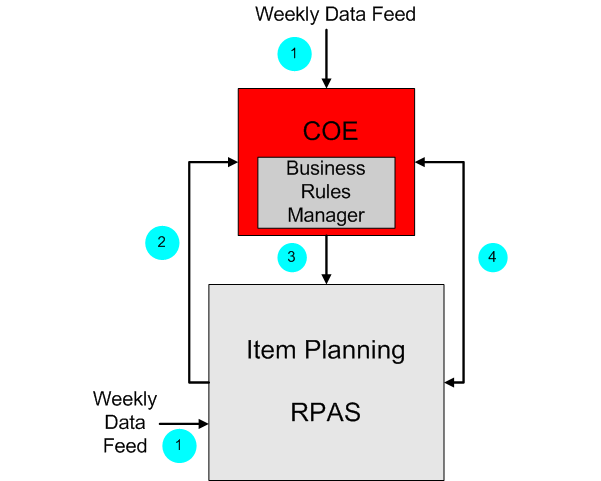
Figure 8-1 illustrates the flow of data between COE and IP COE. For an explanation of each numbered item on the diagram, see the Data Flow Description below.
The following scripts are provided:
rpas2coe.sh: RPAS provides this script for exporting and transforming data sent to COE.
coe2rpas_initial.sh: RPAS provides this script to transform and load initial business rules that are present in the COE extracts to IP COE. Retailers are responsible for ensuring that the files are placed in the $IP_HOME/bin/fromCOE folder at domain build time.
This utility is typically run at build time; therefore it is part of the build script. After the initial business rules are loaded, they are typically modified in IP COE and sent to COE using rpas2coe.sh script.
The following steps explain the data flow:
On a weekly basis, the retailer provides historical sales data and hierarchy updates to COE and IP COE. The weekly feeds into COE and IP COE are not necessarily the same. The retailer generates the files to provide the data and saves the files in the correct location for each server. A schedule for the data feed needs to be set up.
COE is responsible for loading the business rules extracts from IP COE on a nightly or weekly basis. Transformation of the files is done.
IP COE has the responsibility to load the data from COE. It expects files in be in a specific directory. The retailer defines the directory and places any necessary files in that directory. The data sent from COE to IP COE is not historical or transactional. It is forecast information obtained by running optimization, that is, forecasted sales, inventory, and markdowns.
For information on whether a business rule can be edited, see the Oracle Retail Clearance Optimization Engine documentation.
The extract from COE is not loadable. Transformation of the file only involves minor changes like reorganizing fields and changing separators.
Within IP COE, a user can enter in What-If information. This information is sent to COE through the COE special expression for optimization. COE returns revised optimization information like forecasted sales, inventory, and markdowns. This is all real-time interaction.
For information on handling errors that occurs when accessing the What-If engine service, see .
The communication between IP COE and COE is accomplished through the use of an RPAS special expression. This special expression sends data from RPAS to COE for optimization. COE returns the data back to RPAS for review in the Item Planning process.
The expression is implemented in Java using the RPAS Java Special Expression API. This special expression is not a part of the core RPAS functionality, but is layered on top of RPAS. It behaves, from the point of view of the RPAS Calculation Engine, in a manner identical to that of other special expressions.
When data is imported from COE into RPAS, either as part of a workbook load or refresh or as part of the execution of a custom menu, the RPAS Calculation Engine evaluates the COE special expression. The COE expression object provides the values, some configured and some specified at run time through measure values, necessary to initiate and perform a transaction with the COE data source.
After the required information has been passed to the RPAS Java Special Expression API, the COE expression object initiates a transaction with the COE service web service. Communication between RPAS and the COE service is encoded as an XML message.
After the COE service has received the request, it unpacks the communication and uses the request information to retrieve the desired data from the COE application. This data is encoded in a response that is returned to the COE expression that, in turn, supplies the data to the RPAS Calculation Engine.
The following environment requirements should be considered:
In the input arguments, svcurl specifies the measure that holds the COE Service URL string. This measure should be called MDO_URL to be consistent with other RPAS meta measure names. It should be configured in the domain configuration during implementation. The measure must be scalar with a persistent database and its value type must be string.The COE Service URL string that this measure stores should be fairly static and not accessible to an end user. It is recommended that the basestate and writestate are set to read-only and that insertable is set to false.The MDO_URL measure must be included in any workbook that invokes the COE expression. Workbooks that have this measure may not include it in any worksheet because the measure should not be viewed by the end user. However, the workbook's load rule group and refresh rule group must include a rule like the following so that the measure can be loaded correctly into the workbook:MDO_URL=MDO_URL.masterThere is no need to create a calc rule and commit rule for this measure. To populate the MDO_URL initially with the correct COE Service URL string, a system administrator can run a mace call from a console window after the domain is built:mace -d [PathToDomain] -run -expression "MDO_URL=\"XXX\""In the above expression, XXX is the COE Service URL. All other arguments are values defined within the COE application.
The COE special expression implements the WS-Security standard for authentication, encryption, and authorization of webservice calls made from RPAS to COE. The special expression supports the Oracle WebLogic Server (OWL), version 10.3.2.
The security policy in the Oracle WebLogic Server (OWL) is specified as part of the webservice schema. The client supports several security scenarios which are described below. The client supports Java keystore for storing private keys and trusted certificates. The Sun keytool utility can be used to maintain keystores and generate keys and certificates. The special expression will need the location and admin credentials of the keystore. Two additional measures, keystore_file and keystore_adm, are configured in the RPAS domain to achieve this. These are string scalar measures and have the same configuration properties as that of the MDO_URL measure.
An auto login wallet file is created using Credential Store Manager (CSM) framework. Secret store entries are added to this wallet file for keystore, private key(s) and COE user.
csmwallet_mapname Measure
This measure stores the auto login wallet map name. Run the following mace command to set the measure value to auto login wallet map name:
mace -d [PathToDomain] -run -expression " csmwallet_mapname =\"XXX\""
In the above expression, XXX is the map name of the auto login wallet. All other arguments are values defined within the COE application.
csmwallet_file Measure
This measure stores the auto login wallet file name. Run the following mace command to set the measure value to auto login wallet file name:
mace -d [PathToDomain] -run -expression "csmwallet_file =\"XXX\""
In the above expression, XXX is the file name of the auto login wallet file. All other arguments are values defined within the COE application.
Keystore_file Measure
This measure stores the location of the Java keystore file. Run the following mace command to set the measure value to keystore location:mace -d [PathToDomain] -run -expression "keystore_file=\"XXX\""In the above expression, XXX is the location of the keystore file. All other arguments are values defined within the COE application.
Keystore_adm Measure
This measure stores the username for the keystore admin account. To configure the keystore admin user in RPAS domain, perform the following:
Use save_credential.sh script to create a wallet entry keyadm:
save_credential.sh -a keyadm -u keyadm -p csmwallet_mapname -l csmwallet_file password
Replace the credentials in italics with actual csmwallet_mapname and csmwallet_file, keystore admin name and password. You can choose any legal username, however the password must be the same as the keystore password.
Populate the keystore_adm measure with the newly created username:
mace -d [PathToDomain] -run -expression "keystore_adm=\"keyadm\""
In the above expression replace keyadm with the actual username.
An IP COE system user account will be created on both the IP domain and COE webserver. The account will have the same username and password credentials in both places. All the webservice calls made from IP will pass the IP COE system user credentials in the security header. It is advisable to encrypt the security header. The system user account is used to avoid the overhead of syncing multiple accounts on COE and RPAS. This will not be needed after the single sign-on functionality is implemented. To configure the IP COE system user in RPAS domain, perform the following:
Use save_credential.sh script to create a wallet entry for system user:
save_credential.sh -a coe_system_user -u coe_system_user -p csmwallet_mapname -l csmwallet_file password
Replace the credentials in italics with actual csmwallet_mapname, csmwallet_file, system user name and password. The username and password should be identical to the ones configured on COE side.
Populate the mdo_suser measure with the newly created username:
mace -d [PathToDomain] -run -expression "mdo_suser=\"coe_system_user\""
In the above expression replace coe_system_user with the actual username. The configuration properties of the mdo_suser measure are identical to the MDO_URL measure mentioned earlier.
The confidentiality policy is configured through the WSDL. The security administrator can configure encryption and keywrapping algorithms to be used for encryption. The message parts that need to be encrypted can also be configured. X509 certificates are used for encryption. The measure keyalias_enc needs to be configured in Item Planning. This measure stores the keystore alias that will be used for providing certificates for client side encryption. The alias must be registered in the keystore specified by the keystore_file measure.
To configure keyalias_enc user in RPAS domain, perform the following:
Use save_credential.sh script to create a wallet entry for keyalias_enc :
save_credential.sh -a keyalias_enc -u keyalias_enc -p csmwallet_mapname -l csmwallet_file password
Replace the credentials in italics with actual csmwallet_mapname, csmwallet_file, keyalias_enc user name and password. The password for the alias should be identical in keystore and in wallet.
Populate the keyalias_enc measure with the newly created username:
mace -d [PathToDomain] -run -expression "keyalias_enc=\"keyalias_enc\""
In the above expression replace keyalias_enc with the actual username.
The identity policy is also configured through the WSDL. The security administrator can configure signature and digest algorithms and message parts to be signed. X509 certificates are used for signing. A measure keyalias_sig needs to be configured in Item Planning. This measure stores the keystore alias that will be used for providing certificates for client side signing. The alias must be registered in the kesytore specified by the keystore_file measure. To configure keyalias_sig user in RPAS domain, perform the following:
Use save_credential.sh script to create a wallet entry for keyalias_sig:
save_credential.sh -a keyalias_sig -u keyalias_sig -p csmwallet_mapname -l csmwallet_file password
Replace the credentials in italics with actual csmwallet_mapname, csmwallet_file, keyalias_sig user name and password. The password should be identical in keystore and in wallet.
Populate the keyalias_sig measure with the newly created username:
mace -d [PathToDomain] -run -expression "keyalias_sig=\"keyalias_sig\""In the above expression replace keyalias_sig with the actual username.
The COE special expression extends the RPAS Java Expression class. The RpasJavaExpression library should be registered with the domain at build or patch time.The RPAS_JAVA_CLASSPATH environment variable is used to provide the classpath for the classes used by the java special expression.
Calls to OWL require the following jar files in the given order:
$RPAS_HOME/lib/oracleRpasUtils.jar
$IP_HOME/java/lib/coeexpression_owl.jar
$IP_HOME/java/lib/ant.jar
$IP_HOME/retailpublicsecurityapi/lib/retail-public-security-api.jar
com.bea.core.descriptor.wl.binding_1.3.0.0.jar
com.bea.core.descriptor.wl_1.3.0.0.jar
com.bea.core.xml.beaxmlbeans_1.1.0.0_2-4-1.jar
com.bea.core.xml.staxb.buildtime_1.4.1.0.jar
com.bea.core.xml.xmlbeans_1.1.0.0_2-4-1.jar
glassfish.jaxws.rt_1.1.0.0_2-1-4.jar
javax.xml.bind_2.1.1.jar
javax.xml.ws_2.1.1.jar
weblogic.jar
webservices.jar
wlfullclient.jar
xqrl.jar
com.bea.core.xml.weblogic.xpath_1.4.0.0.jar
Java libraries 4-16 should be obtained from Weblogic server.
Libraries 5,6,7,8,9,10,11,12 and17 can be obtained when you do unzip the $WEBLOGIC_HOME/server/lib/wseeclient.zip file.
Libraries 13, 14 and 16 can be copied from $WEBLOGIC_HOME/server/lib/ directory.
Libraries wlfullclient.jar should be built from $WEBLOGIC_HOME/server/lib directory using "java -jar wljarbuilder.jar" command.
The Weblogic Java libraries (5~17) would typically be copied into $IP_HOME/javatools/lib directory.
This can be set on Unix as follows:
export RPAS_JAVA_CLASSPATH="$RPAS_HOME/lib/oracleRpasUtils.jar;$IP_
HOME/java/lib/coeexpression_owl.jar;$IP_
HOME/javatools/lib/com.bea.core.descriptor.wl.binding_1.4.0.0.jar;$IP_
HOME/javatools/lib/com.bea.core.descriptor.wl_1.4.0.0.jar;$IP_
HOME/javatools/lib/com.bea.core.xml.beaxmlbeans_2.5.0.0_2-5-1.jar;$IP_
HOME/javatools/lib/com.bea.core.xml.staxb.buildtime_1.6.0.0.jar;$IP_
HOME/javatools/lib/com.bea.core.xml.xmlbeans_2.2.0.0_2-5-1.jar;$IP_
HOME/javatools/lib/glassfish.jaxws.rt_1.3.0.0_2-1-5.jar;$IP_
HOME/javatools/lib/javax.xml.bind_2.1.1.jar;$IP_HOME/javatools/lib/javax.xml.ws_
2.1.1.jar;$JAVA_HOME/lib/tools.jar;$IP_HOME/javatools/lib/weblogic.jar;$IP_
HOME/javatools/lib/webservices.jar;$IP_HOME/javatools/lib/wlfullclient.jar;$IP_
HOME/javatools/lib/xqrl.jar;$IP_
HOME/javatools/lib/com.bea.core.xml.weblogic.xpath_1.5.0.0.jar;$IP_
HOME/retailpublicsecurityapi/lib/retail-public-security-api.jar;$IP_
HOME/java/lib/ant.jar;$RPAS_JAVA_CLASSPATH"
The COE expression requires arguments to hold the information necessary to establish the connection with the COE service, provide the desired results, and return the results of the COE service call back to Item Planning. The COE expression makes use of labeled arguments. As a result, the ordering of the arguments is not fixed. However, each argument must be associated with the appropriate label in the following format:
Label:Argument, Label:Argument, …
The input and output arguments are described in Table 8-10 and Table 8-11. Many of these arguments are either constant values or scalar measure references. Some are dimensional measure references. For dimensional measure references, additional care must be taken to ensure that the measure used conforms to an appropriate intersection.
Table 8-10 describes the input arguments for the COE special expression. Note the following about BaseIntx:
OptIntx for the dimensional measures is the intersection over which optimization is being performed, as defined by the COE implementation that is acting as the data source for RPAS for this domain.
BaseIntx is identical to OptIntx, with the addition of a dimension from the Calendar (CLND) hierarchy.
OptClnd is the dimension from the CLND hierarchy that has been added to the OptIntx to form the BaseIntx.
Table 8-10 COE Special Expression Input Arguments
| Name | Type | BaseIntx | COE Semantics | Description |
|---|---|---|---|---|
|
cntry |
String |
Scalar |
forecastRequest.locale.country |
Name of the country. |
|
curinv |
Double |
Opt Intx |
forecastRequest.scenario.currentInventory |
Current inventory units. Must be greater than or equal to 1. |
|
flgtyp |
String |
Scalar |
forecastRequest.outputFlags.flagType |
One of the following optimization types: |
|
ladild |
Int |
Base Intx |
forecastRequest.scenarioMkdn.ladderId |
Ladder ID. This is the selected price ladder in the markdown week. |
|
ladval |
Double |
Base Intx |
forecastRequest.scenarioMkdn.ladderValue |
Ladder value. Depending on the What-If price type, one of the following values: |
|
lang |
String |
Scalar |
forecastRequest.locale.language |
Name of the language used. |
|
logmsg |
Boolean |
Scalar |
forecastRequest.logOptMsg |
Flag to enable the logging of optimization messages (both input and output XML objects) for the current What–If scenario. |
|
mask |
Boolean |
Opt Intx |
NA. This is used by RPAS to determine the product/location combination to be passed to the COE Service. |
Determines the combination of product and location passed in the call to the COE Service. |
|
outDate |
Date |
Opt Intx |
forecastRequest.scenario.outDate |
Internal out date. |
|
salval |
Double |
Opt Intx |
forecastRequest.scenario.salvageValue |
Salvage value percent off. |
|
selthrpct |
Double |
Opt Intx |
forecastRequest.scenario.sellThruPct |
Sell thru percent. |
|
svcurl |
String |
Scalar |
NA. This is used by RPAS to retrieve the COE Service URL string. |
Specifies the measure that holds the COE Service URL. |
|
ver |
String |
Scalar |
forecastRequest.locale.version |
Version string. |
Table 8-11 describes the output arguments for the COE special expression.
Table 8-11 COE Special Expression Output Arguments
| Name | Type | BaseIntx | COE Semantics | Description |
|---|---|---|---|---|
|
desc |
String |
Opt Intx |
forecastResponse.operationStatus.description |
Service call description. |
|
err |
String |
Opt Intx |
COEServiceError, exception returned by the COE Service. |
Error message returned by the COE Service. |
|
frcst |
Int |
Base Intx |
forecastResponse.forecasts.recForecast.forecastSales |
Revised forecasted sales. |
|
itmcurinv |
Double |
Opt Intx |
forecastResponse.forecasts.scenario.currentInventory |
Revised current inventory units. |
|
itmoutDate |
Date |
Opt Intx |
forecastResponse.forecasts.scenario.outDate |
Revised internal out date. |
|
itmsalval |
Double |
Opt Intx |
forecastResponse.forecasts.scenario.salvageValue |
Revised end-of-life (EOL) salvage value percent off. |
|
itemselthrpct |
Double |
Opt Intx |
forecastResponse.forecasts.scenario.sellThruPct |
Revised EOL sell thru percent. |
|
prctype |
String |
Base Intx |
forecastResponse.forecasts.mkdnRec.priceType |
Revised price type. |
|
recprc |
Double |
Base Intx |
forecastResponse.forecasts.mkdnRec.recPrice |
Revised clearance markdown retail price plan. |
|
recperoff |
Double |
Base Intx |
forecastResponse.forecasts.mkdnRec.recPerOff |
Revised recommended price percent off original price. |
|
saleprc |
Double |
Base Intx |
forecastResponse.forecasts.recForecast.salesPrice |
Revised sales average unit retail (AUR). |
|
statcod |
Opt Intx |
Scalar |
forecastResponse.operationStatus.statusCode |
Service call status code. |
|
stattyp |
Opt Intx |
Scalar |
forecastResponse.operationStatus.statusType |
Service call status type. |
|
tickprc |
Double |
Base Intx |
forecastResponse.forecasts.recForecast.ticketPrice |
Revised clearance markdown retail price plan. |
The following directories are used by the batch scripts. These directories are subdirectories of the $IP_HOME directory. The extracted files are pipe-delimited flat files.
Table 8-12 Directories Used by Batch Scripts
| Directory Name | Content of the Directory |
|---|---|
|
bin |
Batch scripts |
|
config |
Item Planning template configuration |
|
domain |
Domains |
|
input |
Input files for building the domain |
|
logs |
Log files from running any of the batch scripts A system administrator can scan the logs for any errors, exceptions, or failures. If there are none, the batch completed successfully. |
|
temp |
Temporary files used by the batch scripts. |
There are two scripts used for transforming data across COE and Item Planning. Both scripts reside in the $IP_HOME/bin directory. There are no arguments for the scripts.
coe2rpas.sh is used for transforming COE data into IP COE data. The COE files that are present in the $IP_HOME/bin/fromCOE directory are transformed and put into the input directory of the IP COE domain.
rpas2coe.sh is used for exporting and transforming IP COE data into COE compatible data. The IP COE files are exported into the $IP_HOME/bin/toCOE directory and transformed into the output directory of the IP COE domain.
Scheduling of the batch scripts are in the following categories:
The following information is included in the tables for each batch script:
A short description of the script
The name of the script
The subdirectory in the $IP_HOME/bin directory where the batch script resides
Dependencies on other batch scripts
These scripts are run every day. They are run before executing the weekly batch scripts.
Table 8-13 lists information on the daily batch scripts.
The daily batch scripts are run before executing the weekly batch scripts.
Table 8-14 lists information on the weekly batch scripts.
Table 8-14 Weekly Batch Scripts
| Description | Script Name | Batch Directory | Dependency |
|---|---|---|---|
|
Backup |
NA |
NA |
NA |
|
Export data to MFP |
exportToMFP.ksh |
bin |
Backup |
|
Export and Transformation of COE Initial Parameters |
rpas2coe.sh |
bin |
Backup |
|
Formalize DPM Positions Note: This script is optional. For more information see, Oracle Retail Predictive Application Server Administration Guide. |
informalPositionMgr (RPAS utility) |
$RPAS_HOME/bin |
Backup |
|
Calendar Hierarchy Load |
loadhier.ksh |
loadhier |
Backup |
|
Product Hierarchy Load |
loadhier.ksh |
loadhier |
Backup, Formalize DPM Positions (if run) |
|
Location Hierarchy Load |
loadhier.ksh |
loadhier |
Backup |
|
Load on order data |
loadActuals.ksh |
bin |
Calendar Hierarchy Load, Product Hierarchy Load, Location Hierarchy Load |
|
Load MFP data |
loadActuals.ksh |
bin |
Calendar hierarchy load, Product hierarchy load, Location hierarchy load |
|
Load Actuals data |
loadActuals.ksh |
bin |
Calendar hierarchy load, Product hierarchy load, Location hierarchy load |
|
Load AP data |
loadActuals.ksh |
bin |
Calendar hierarchy load, Product hierarchy load, Location hierarchy load |
|
Transform COE Batch Files |
coe2rpas.sh |
bin |
Backup |
|
Load COE Batch |
loadActuals.ksh |
bin |
Calendar hierarchy load, Product hierarchy load, Location hierarchy load |
|
Propagate inventory and aggregate data for all planning levels |
processactuals.ksh |
actualize |
Load on order data, Load MFP data |
|
Generate sales forecast |
runforecast.ksh |
forecast |
Load on order data, Load MFP data |
|
Refresh existing workbooks Note: This script is optional. |
refresh.ksh |
workbook |
runforecast |
|
Auto build workbooks placed on queue Note: This script is optional. |
autobuild.ksh |
workbook |
None |
The following script is not part of a normal batch schedule. This script is run only to perform the specified activity.
Table 8-15 lists information on the unscheduled administration script. This script is located in the $IP_HOME/bin directory.
These scripts are included in the other batch scripts to control logging and set environment variables. These batch scripts are only supported for Item Planning Configured for COE.
The first script, message.ksh, controls the overall logging. The script writes batch script details to a daily log file. The daily log file is created in the $IP_HOME/logs directory. The format of the file name is MnthID_Day.log, for example, Apr_02.log.
The second script, environment.ksh, is called at the beginning of every batch script. This script sets the following environment variables:
export ITEM_CONFIGNAME=itemplan
export ITEM_DOMAINHOME=$IP_HOME/domain
export ITEM_MASTERDOMAIN=$ITEM_DOMAINHOME/itemplan
export ITEM_CONFIGHOME=$IP_HOME/config
export ITEM_EXPORT=$IP_HOME/export
export ITEM_INPUTHOME=$IP_HOME/input
export ITEM _LOG_DIR=$IP_HOME/logs
export ITEM _LIB=$IP_HOME/bin
export ITEM _TEMP=$IP_HOME/temp
export ITEM _BATCH=$IP_HOME/bin
export LOGLEVEL=all
export RECORDLOGLEVEL=warning
The LOGLEVEL and RECORDLOGLEVEL parameters can be set to any of the RPAS supported logging levels—all, profile, debug, audit, information, warning, error, and none.
This section contains detailed information on the following batch script:
For information on the following scripts, see Transformation Scripts:
Export and Transformation of COE Initial Parameters
Transform COE Batch Files
For a detailed description of the other scripts, see Batch Designs in Chapter 7.
Script
loadActuals.ksh
Usage
loadActuals.ksh <measurelist> <maxprocesses>
Table 8-16 Load COE Batch Usage
| Argument | Description | Notes |
|---|---|---|
|
measurelist |
Sets the location of the file which contains the list of measures to be exported. |
By default, these files are provided with the package in the |
|
maxprocesses |
Sets the maximum number of export processes to run in parallel. |
The default is 1. |
Control File
LoadCOEBatch.txt: Contains the following list of measures that can be loaded as part of this script:
ipwpcorcmdppv
ipwpcopeopiuv
ipwpcorcfcsuv
ipwpcorcopcov
ipwpcoprslsarv
coewiprcldid
Example
loadActuals.ksh LoadCOEBatch.txt 1
Error Information
Table 8-17 Load Actuals Data Error Information
| Task Name | Error Code | Abort Required? | Description of Error |
|---|---|---|---|
|
loadactuals |
40 |
yes |
One or more arguments are missing. |
|
loadactuals |
41 |
yes |
Domain does not exist. |
|
loadactuals |
42 |
no |
Data file does not exist. |
|
loadactuals |
43 |
yes |
All measure input files are empty or missing. |
|
loadactuals |
44 |
yes |
Configuration file does not exist. |
|
loadactuals |
45 |
yes |
Errors occurred during the load of one or more measures. |
Notes
This script uses the RPAS loadmeasure utility. See the Oracle Retail Predictive Application Server Administration Guide for details on this utility.
The script ignores any missing or empty measure load files.
All measure files are placed into the domain's input folder.
If there were no errors during the loading of all measures, the input file is archived into the domain's input/processed directory. A date stamp is appended to the end of the measure file name.
The script does not produce an error when records are rejected from the loaded files. These rejected records are logged in the log output of the load process.
This section contains information to help troubleshoot errors that may occur while attempting to call the What-If engine service in IP. The possible error messages are listed along with the resolutions.
This error indicates that the Web Service call from the IPCOE does not happen. Check the webservices.jar during the installation. For more information on the jars, see the Oracle Retail Item Planning for COE Installation Guide.
IP throws this exception when the base intersection of the sales measure passes to the special expression, which must not be below the base intersection of the mask measure. In the GA configuration, the sales price measure is IpWpCoRSlArV (COE Revised Sales AUR), which has the base intersection of week/skup/pzon, and the mask measure is IpWpInCoOpWiCV (Initiate COE Optimization What-If Call), which has the base intersection of skup/pzon.In the GA case, week/skup/pzon is below skup/pzon; therefore, no exception is thrown.
Check the rule that runs the special expression. In the GA configuration, the rule is Ipln_wimkd001 in the IplnIn_wiMkd rule group in the IPlnIn rule set. For example:
saleprc:IpWpCoRSlArV,
tickprc:IpWpCoRCMRPPV ,
frcst:IpWpCoRvFcSUV,
prctype:IpWpCoRvPrTpV,
recprc:IpWpCoRCMRPPV,
recperoff:IpWpCoRRPPOOPV ,
itmoutdate:IpWpRvInOuDV,
itmsalval:IpWpCoRElSVPOV,
itmcurinv:IpWpCoRCInUV,
itmselthrpct:IpWpCoRElStPV,
stattyp:IpWpWiSClStV,
statcod:IpWpWiSClStCV,
desc:IpWpWiSClDpV,
err:IpWpWiSClInV,
txn: IpWpTxnTx<- javaexpression(class:"com/oracle/retail/ipcoe/expr/COEExpression".
mask:IpWpInCoOpWiCV,
outdate:IpWpWiInOuDV,
salval: IpWpWiScSVPOV,
curinv: IpWpWiScCuInUV,
selthrpct: IpWpWiScStPV,
logmsg: mdo_logmsg,
flgtyp: mdo_flagtyp,
ladid:  IpWpWiLdIdV,
ladval: IpWpWiLdVlV,
lang:"english",
cntry:"usa",
ver:"1.0",
svcurl:mdo_url,
uname: mdo_suser,
clientenc:keyalias_enc,
clientsig:keyalias_sig,
keystore:keystore_file,
keyadm:keystore_adm,
csmwalletmapname:csmwallet_mapname,
csmwalletfile:csmwallet_file)
IP is unable to reach COE. This error can be caused by an incorrect key store setup, wallet setup, or the measures setup. Check your setup. The following are the high-level steps:
Add the encryption key (clientenc) and signing key (clientsig) to the key store.
Following is an example for adding clientenc and clientsig to the key store. Use your values in these commands:
keytool -selfcert -genkeypair -alias clientenc -keypass <keypass> -keystore
/u01/ipcoe/keystore/client.jks -storepass <storepass> -dname "cn=Company,
ou=Company, o=Company, c=US" -validity 3500
keytool -selfcert -genkeypair -alias clientsig -keypass <keypass> -keystore
/u01/ipcoe/keystore/client.jks -storepass <storepass> -dname "cn=Company,
ou=Company, o=Company, c=US" -validity 3500
For information on setting up a key store, see the Oracle Retail Predictive Application Server Installation Guide.
For information on the keytool utility on Windows, see the following web site: http://docs.oracle.com/javase/7/docs/technotes/tools/windows/keytool.html.
For information on the keytool utility on Solaris and Linux, see the following web site:
http://docs.oracle.com/javase/7/docs/technotes/tools/solaris/keytool.html.
Add the keyadm, clientenc, clientsig, and the coe values to the wallet using the save_credential.sh file which is located in the $IP_HOME/retailpublicsecurityapi/bin folder.
The following is an example for setting up the wallet:
Go to the $IP_HOME/retailpublicsecurityapi/bin folder.
Run save_credential.sh:
save_credential.sh -a alias name -u <user name> -p <partition name> -l <wallet dir>. The wallet file should have entries for keyadm, clientenc, clientsig, and the coe. The following example assumes partition name = IPCOE:
./save_credential.sh -a keyadm -u keyadm -p IPCOE -l <wallet dir> [password should be keystore file password]
./save_credential.sh -a clientenc -u clientenc -p IPCOE -l <wallet dir> [password should be keystore private key clientenc password]
./save_credential.sh -a clientsig -u clientsig -p IPCOE -l <wallet dir> [password should be keystore private key clientsig password]
./save_credential.sh -a coe -u coe -p IPCOE -l <wallet dir> [password should be COE user coe password]
|
Note: The coe is a user created in COE which has the WHAT_IF_SERVICE_ADMIN and WHAT_IF_SERVICE_USER roles. To create this user, log in to COE as root and create the user. For more information, see the Oracle Retail Clearance Optimization Engine Administration Guide. |
Populate the measures in IP using the build_item.ksh file located in $IP_HOME/bin folder:
Check the values in the script shown in the following example:
url="http://<server>:<port>/clearance/optimization/V3/ClearanceOptimizationService"
flagtype="forecastAndMkdwnAndScenario"
suser="coe"
keystore_adm="keyadm"
keystore_file="/u01/ipcoe/keystore/client.jks"
keyalias_enc="clientenc"
keyalias_sig="clientsig"
csmwallet_mapname="IPCOE"
csmwallet_file="/u01/ipcoe/CSMWallets"
Go to the $IP_HOME/bin folder and run build_item.ksh after setting the variables shown in .
|
Note: Note the following:
|
Check the following measures in IP:
printMeasure -d . -m mdo_url -allPopulatedCells
printMeasure -d . -m mdo_suser -allPopulatedCells
printMeasure -d . -m keyalias_enc -allPopulatedCells
printMeasure -d . -m keyalias_sig -allPopulatedCells
printMeasure -d . -m keystore_file -allPopulatedCells
printMeasure -d . -m keystore_adm -allPopulatedCells
printMeasure -d . -m csmwallet_mapname -allPopulatedCells
printMeasure -d . -m csmwallet_file -allPopulatedCells
|
Note: All values must be spelled consistently everywhere, otherwise, a Menu error occurs. |