| Oracle® Application Server Administrator's Guide 10g Release 3 (10.1.3.4) Part Number E10403-01 |
|


|
View PDF |
| Oracle® Application Server Administrator's Guide 10g Release 3 (10.1.3.4) Part Number E10403-01 |
|
|
View PDF |
When you installed Oracle Application Server, you chose an installation type and specified if the instance should be part of a cluster. After installation, you may want to add additional Oracle Application Server instances, add or delete OC4J instances, cluster instances, use OracleAS Web Cache as a reverse proxy, or use Identity Management with your middle-tier installation. This chapter describes how to make these types of changes.
It contains the following topics:
Configuring Oracle Application Server 10.1.2 with Oracle Application Server 10.1.3
Configuring Instances to Use 10.1.4 or 10.1.2 Oracle Identity Management
If you have disabled anonymous binds in Oracle Internet Directory, you must enable them before you make configuration changes. See Section 6.8, "Disabling and Enabling Anonymous Binds" for more information.
This section provides instructions for creating using additional application server instances and includes the following topics:
Installing the Script to Create Application Server Instances
Starting and Stopping Processes On Application Server Instances
Discovering Application Server Instances in Enterprise Manager Grid Control
By default, when you install Oracle Application Server, an ORACLE_HOME is installed and configured and an application server instance is created within the ORACLE_HOME.
Using a single Oracle Application Server installation (ORACLE_HOME), you can create multiple application server instances. The instances can be local to ORACLE_HOME, in a different directory on the same host as ORACLE_HOME, or distributed across hosts on the network.
An application server instance uses the binary files of ORACLE_HOME, but contains configuration files that are specific to the instance. For this reason, an application server instance is also referred to as a configuration home (CONFIG_HOME). Each CONFIG_HOME can contain an HTTP server instance, and any number of OC4J instances including a default OC4J instance. In addition, Oracle Process Manager and Notification (OPMN) server support is also included in each CONFIG_HOME to start and stop an instance's processes.
Figure 6-1 shows a conceptual view of application server instances and shows the relationship between ORACLE_HOME and CONFIG_HOME.
Figure 6-1 Conceptual View of Multiple Application Server Instances
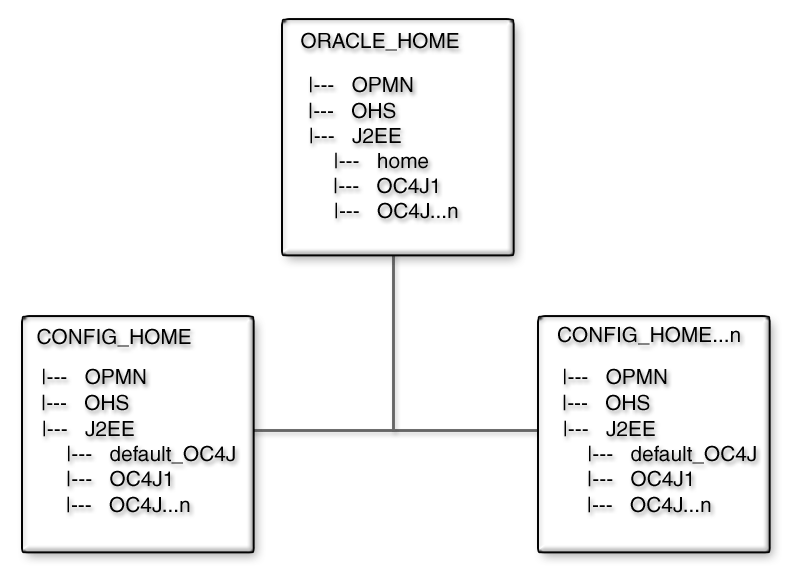
Application server instances offer a flexible deployment model and can support many possible deployment scenarios. Application server instances are also easier to administer and install, because each instance is not dependent on its own ORACLE_HOME.
You can create additional application server instances using an automation script. The script copies all the configuration files required for an application server instance, including OPMN, Oracle HTTP Server, and OC4J configuration files. Then, the script updates configuration files as required (for example, assigning port values and environment variables). Lastly, the script provides support for managing application server instances using Application Server Control and Enterprise Manager Grid Control.
Before you can create application server instances, you must run the installPatch script.
Take the following steps:
Change to the following directory:
$ORACLE_HOME/confighomes/bin
Run the installPatch script. For example:
./installPatch ORACLE_HOME
The script copies needed files to your Oracle home.
To create additional application server instances, you use the createASinstance script. The script is located in the ORACLE_HOME/confighomes/bin directory and automates the tasks required to create application server instances. Those tasks include:
Copying OPMN, Oracle HTTP Server, and OC4J configuration files, as required
Configuring preselected fixed ports
Updating environment variables and configuration files
Creating the default OC4J instance, as required
Instantiating the Oracle HTTP Server instance, as required
Adding support for Enterprise Manager Grid Control-based management
After you run the script, you can add additional OC4J instances to an application server instance, using the createinstance script as described in Section 6.2.
Note:
ThecreateASinstance script uses a password to create the default OC4J instance. The password is defined in the ORACLE_HOME/confighomes/conf/defpwd file and must be the same as the password that was used to create ORACLE_HOME during installation. If the password for ORACLE_HOME is different than the password defined in the defpwd file, update the defpwd file before running the createASinstance script.The createASinstance script's usage is as follows:
createASinstance ORACLE_HOME ORACLE_CONFIG_HOME PORT_POOL_INDEX command
The following command options are available:
-full [-isNotAdmin] [-oc4jName name] [-apacheRoot path] [-repository path]
      [-startall] [-opmnSnippet file]
-oc4j [-isNotAdmin] [-oc4jName name] [-repository path] [-startall]
      [-opmnSnippet file]
-ohs  [-apacheRoot path] [-repository path] [-startall]
-opmn [-repository path] [-startall]
Table 6-1 describes the arguments. Examples are included after the table.
Table 6-1 Arguments for createASinstance Script
| Argument | Description |
|---|---|
|
|
The location where the Oracle Application Server binary files are installed. |
|
|
The location where the application server instance will be installed. The application server instance can be installed at any location and does not have to be located within the If the location is on a remote host, you must have permission to read and write to the directory. |
|
|
A port pool index number, which determines what port numbers are used for the instance's OPMN local, remote, and request ports as well as HTTP ports (if applicable). Valid pool index values can be any number from 1-100. Each application server instance should be associated with a different port pool index. The index value specified is added to the base port values listed in the |
|
|
Creates an application server instance that contains an OPMN instance, an Oracle HTTP Server instance, and a default OC4J instance. The OC4J default setup uses the AJP protocol, has the Application Server Control started, and is Oracle HTTP Server routable unless these items are overridden by their respective command arguments. |
|
|
Creates an application server instance that contains an OPMN instance and a default OC4J instance. The OC4J default setup uses the HTTP protocol, has the Application Server Control started, but is not Oracle HTTP Server routable. |
|
|
Creates an application server instance that contains an OPMN instance and an Oracle HTTP Server instance. |
|
|
Creates an application server instance that contains only an OPMN instance. |
|
|
Indicates that the default OC4J instance should not start Application Server Control. See Section A.6 for information about managing the active Application Server Control. |
|
|
The name for the default OC4J instance. The default name, if no name is provided, is |
|
|
Creates an Oracle HTTP Server 2.0 instance. Oracle HTTP Server 2.0 is available from the Companion CD and must already be installed. The value of this argument is the path to the top-level directory where Oracle HTTP Server 2.0 is installed. The Oracle HTTP Server bundled with the application server is used by default if this argument is not specified. |
|
|
Optional. An alternate directory path where the repository file ( See Section 6.1.7, "Discovering Application Server Instances in Enterprise Manager Grid Control" for more information on using the repository file. |
|
|
Optional. Starts OPMN and its managed processes after creating the application server instance. OPMN must be manually started if this argument is not specified. See Section 6.1.4, "Starting and Stopping Processes On Application Server Instances" for more information about manually starting OPMN. |
|
|
Optional. Specifies a different OPMN snippet file that will be used to create the default OC4J instance. The The snippet file can be edited to change many default OC4J preferences before the instance is created. See Section 6.1.6, "Changing the Default OC4J Setup" for more information. |
Examples for Creating Application Server Instances
The examples in this section demonstrate some common uses of the createASinstance script.
The following example uses the Application Server installation at /shiphomes/10131_PROD/ to create a new AS instance under the /as_instance/cfghomes/home1 directory. A default OC4J instance is created with the default name default_oc4j and contains an Application Server Control instance. The application server instance's ports are assigned based on the port pool index number 1.
cd $ORACLE_HOME/confighomes/bin
./createASinstance /shiphomes/10131_PROD/ /as_instance/cfghomes/home1 1 -oc4j
The next example uses the Application Server installation at /shiphomes/10131_PROD/to create a new AS instance under the /as_instance/cfghomes/home2 directory. A default OC4J instance is created with the default name default_oc4j and contains an Application Server Control instance. An Oracle HTTP Server instance is created and is routable to the OC4J instance using the AJP protocol. Ports are assigned based on the port pool index number 2. Lastly, all processes on the application server instance are automatically started.
cd $ORACLE_HOME/confighomes/bin
./createASinstance /shiphomes/10131_PROD/ /as_instance/cfghomes/home2 2 -full -startall
OPMN must be used to manually start and stop processes on each application server instance using the instance's opmn/bin/opmnctl script. The script acts as a wrapper for the opmnctl script located in the ORACLE_HOME instance and uses the same arguments. Refer to the "Using OPMN" chapter of the Oracle Process Manager and Notification Server Administrator's Guide for more information on starting and stopping processes using the opmnctl script.
To use OPMN to start managed processes on application server instances, issue the following command on each instance:
(UNIX) ORACLE_CONFIG_HOME/opmn/bin/opmnctl startall
(Windows) ORACLE_CONFIG_HOME\opmn\bin\opmnctl.bat startall
On Windows, the following items must be completed before starting processes on each application server instance. In addition, the ORACLE_HOME OPMN instance must be manually started.
The Oracle Process Manager Service must be stopped. If the service is currently started, use the Windows Services Administrative tool to stop the service (Start -> Control Panel -> Administrator Tools -> Services).
Note:
Multiple application server instances cannot be used if the Oracle Process Manager service is used. Make sure the service is stopped and configured not to start automatically in the future.An ORACLE_HOME environment variable must be set to the location of the product installation directory. The environment variable is used when manually starting OPMN in ORACLE_HOME. For example:
set ORACLE_HOME=c:\product\shiphomes\oc4j\10131_PROD\
ORACLE_HOME\opmn\bin\opmnctl.bat startall
To remove application server instances, use the removeASinstance script. The script is located in the ORACLE_HOME/confighomes/bin directory. The script removes all files associated with CONFIG_HOME and removes the instance from the Enterprise Manager Grid Control repository file.
The scripts usage is as follows:
removeASinstance ORACLE_HOME ORACLE_CONFIG_HOME [-repository path][-force]
Table 6-2 describes the arguments. Examples are included after the table.
Table 6-2 Arguments for the removeASinstance Script
| Argument | Description |
|---|---|
|
|
The location where the Oracle Application Server binary files are installed. |
|
|
The application server instance to be removed. |
|
|
Optional. The directory path where the repository file ( See Section 6.1.7, "Discovering Application Server Instances in Enterprise Manager Grid Control" for more information on using the repository file. |
|
|
Optional. Shuts down OPMN and its managed processes. If this argument is not specified, OPMN must be manually stopped before using the |
Example for Removing Application Server Instances
The following example demonstrates how to remove an application server instance located at /as_instance/cfghomes/home1. All processes on the instance are fist manually stopped:
cd/as_instance/cfghomes/home1/opmn/bin
./opmnctl stopall
cd $ORACLE_HOME/confighomes/bin
./removeASinstance /shiphomes/10131_PROD/ /as_instance/cfghomes/home1
The createASinstance script uses an OPMN snippet file to create the default OC4J instance's <process-type> node in the opmn.xml file of the application server instance. The default OPMN snippet files is named oc4j_home.xml and is located in the ORACLE_HOME/confighomes/templates/config/ directory.
A new snippet file can be created and specified as the value of the -opmnSnippet argument when using the script. This allows the default OC4J instance to be preconfigured for a specific environment and minimizes the amount of configuration required after the default OC4J instance is created. Refer to the Oracle Process Manager and Notification Server Administrator's Guide for more information on the elements allowed in the opmn.xml file. The default OC4J setup is shown in the following example.
<opmn xmlns="http://www.oracle.com/ias-instance">
   <process-type id="home" module-id="OC4J" status="enabled">
      <module-data>
         <category id="start-parameters">
            <data id="java-options" value="-server -XX:MaxPermSize=128M -ms512M
               -mx1024M -XX:AppendRatio=3 -Djava.security.policy=
               $ORACLE_HOME/j2ee/home/config/java2.policy -Djava.awt.headless=true
               -Dhttp.webdir.enable=false"/>
         </category>
         <category id="stop-parameters">
            <data id="java-options" value="-Djava.security.policy=
               $ORACLE_HOME/j2ee/home/config/java2.policy -Djava.awt.headless=true
               -Dhttp.webdir.enable=false"/>
         </category>
      </module-data>
      <start timeout="600" retry="2"/>
      <stop timeout="120"/>
      <restart timeout="720" retry="2"/>
      <port id="default-web-site" range="12501-12600" protocol="ajp"/>
      <port id="rmi" range="12401-12500"/>
      <port id="rmis" range="12701-12800"/>
      <port id="jms" range="12601-12700"/>
      <process-set id="default_group" numprocs="1"/>
   </process-type>
</opmn>
Note:
The snippet file is only used if the-full or -oc4j arguments are used to create a default OC4J instance.By default, you manage Oracle Application Server instances with Application Server Control. With additional Application Server instances, you manage them with Enterprise Manager Grid Control. The instances must first be discovered using Enterprise Manager Grid Control.
Note:
An Enterprise Manager Grid Control Deployment Procedure can be implemented to create and discover application server instances at the same time. For detailed information, refer to the Enterprise Manager Grid Control documentation:To discover application server instances:
Log in to Enterprise Manager Grid Control.
Navigate to the Application Servers tab.
Click Add Application Servers.
Select the Enterprise Manager Agent (must be 10.2.0.4 or higher) associated with the host where the application server instances are located.
Application server instances that are not collocated on the same computer as ORACLE_HOME must be registered before the instances can be discovered in Enterprise Manager Grid Control. The registry is a list of each application server instance's repository file. The repository files are generated when the application server instance is created. See Section 6.1.3 for more information on specifying a repository file for an application server instance. The following procedure is also required if a repository file location other than the default location is specified when creating an application server instance.
To discover distributed application server instances:
Create a file named confighomeslst.add and save it to the EM Agent's /sysman/config/ directory on the host where the application server instances are located.
In the confighomeslst.add file, add the full path to each application server instance's repository file (confighomes.lst). For example:
/shared/confighomes1/confighomes.lst
/shared/confighomes2/confighomes.lst
If multiple users have created application server instances on the host, then the confighomeslst.add file will contain additional entries. If multiple instances use the same confighomes.lst file, than only a single entry is used and the application server instances are listed within the confighomes.lst file. For example:
# ConfigHome, <host>, OracleHome
/local/confighomes/user1/cfghome_1,  myHost1, /shared/oraclehomes/10131_PROD
/local/confighomes/user2/cfghome_1,  myHost2, /shared/oraclehomes/10131_PROD
Note:
For each host,ORACLE_HOME may be visible through a different mount point.Save and close the file. Repeat this procedures on additional hosts if required.
Follow the previous Enterprise Manager Grid Control steps to discover the application server instances.
You can add or delete OC4J instances in an application server instance, as described in the following sections:
You can add OC4J instances to an application server instance in the following ways:
For example, you can add an additional OC4J instance to an Oracle WebCenter Framework installation. In Figure 6-2, a second OC4J instance named crm is added to the installation.
The createinstance script is used to create additional OC4J instances. The script is located in the ORACLE_HOME/bin directory.
Note:
As part of the creation process, you are asked to enter a password. This password will be tied to theoc4jadmin user for this instance. For consistency, you may want to enter the same password used to access the default OC4J instance with the oc4jadmin user.The scripts usage is as follows:
createinstance -instanceName OC4J_instanceName [-configHome path] [-groupName groupname] [-httpPort port] [-protocol protocol] [numProcs number] [-startASControl] [-ASControlIsRoutable]
The arguments are described in Table 6-3.
Table 6-3 Arguments for createinstance Script
After creating an OC4J instance, start the new OC4J instance using OPMN. For example:
(UNIX) ORACLE_HOME/opmn/bin/opmnctl startproc process-type=oc4J_instanceName
(Windows) ORACLE_HOME\opmn\bin\opmnctl startproc process-type=oc4J_instanceName
If the OC4J instance is located on an application server instance other than the ORACLE_HOME instance, use the opmnctl script for the specific instance. For example:
(UNIX) ORACLE_CONFIG_HOME/opmn/bin/opmnctl startproc process-type=oc4J_instanceName
(Windows) ORACLE_CONFIG_HOME\opmn\bin\opmnctl.bat startproc process-type=oc4J_instanceName
Application Server Control can be used to add additional OC4J instances to an application server instance.
To add an OC4J instance using Application Server Control:
Navigate to the Application Server instance_name page.
Click Create OC4J Instance.
On the Create OC4J Instance page, enter the following information:
OC4J Instance Name: Enter a name for the instance.
Select one of the following:
Add to an existing group with name: Select a group from Existing Group Name.
Add to a new group with name: In the New Group Name field, enter a name for the new group.
Select Start this OC4J instance after creation.
Click Create.
A confirmation screen is displayed after the instance has been created.
Note that the password used for this OC4J instance is the same password used for the oc4jadmin user for the installation.
Figure 6-2 shows part of the Cluster Topology page, which displays the additional OC4J instance added to the cluster.
Figure 6-2 OC4J Instance Added to Cluster
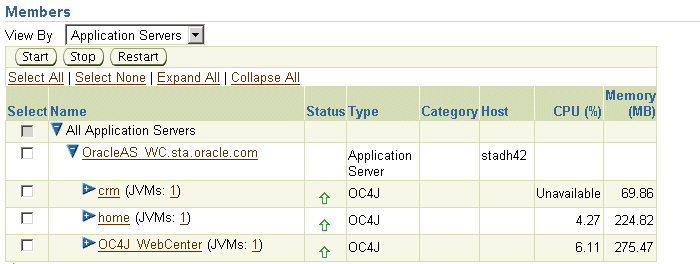
You can also verify that the instance was added by using the opmnctl command:
ORACLE_HOME\opmn\bin\opmnctl status
Processes in Instance: OracleAS_WC.sta.oracle.com
---------------------------------+--------------------+---------+---------
ias-component                    | process-type       |     pid | status
---------------------------------+--------------------+---------+---------
OC4JGroup:default_group          | OC4J:crm           |    9228 | Alive
OC4JGroup:default_group          | OC4J:OC4J_WebCent~ |    8616 | Alive
OC4JGroup:default_group          | OC4J:home          |    8615 | Alive
ASG                              | ASG                |     N/A | Down
Note:
If you have configured Remote Management Interface (RMI) to use Secure Socket Layer (SSL), you must add the appropriate <ssl-config> element to thermi.xml file for each OC4J instance you create. Otherwise, management connections to the OC4J instance from Application Server Control will either fail or use the non-secure RMI protocol, depending upon the value of the connection protocol property in the opmn.xml file for the administration OC4J instance. See Section A.3, "Configuring Security for Application Server Control" for more information.See Also:
The chapter, "Creating and Managing Additional OC4J Instances" in the Oracle Containers for J2EE Configuration and Administration GuideYou can delete an OC4J instance from an application server instance in the following ways:
Both methods delete the directory created for the OC4J instance and remove configuration data for the instance from opmn.xml. Note the following guidelines for deleting OC4J instances:
You cannot delete the OC4J home instance that was created in ORACLE_HOME during installation.
You can delete an OC4J home instance that is created in application server instances other than the ORACLE_HOME instance.
You can delete OC4J instances that were created after installation.
The removeinstance script is used to remove OC4J instances. The script is located in the ORACLE_HOME/bin directory.
To delete an OC4J instance:
Stop the instance:
(UNIX) ORACLE_HOME/opmn/bin/opmnctl stopproc process-type=oc4J_instanceName
(Windows) ORACLE_HOME\opmn\bin\opmnctl stopproc process-type=oc4J_instanceName
If the OC4J instance is located on an application server instance other than the ORACLE_HOME instance, use the opmnctl script for the specific instance. For example:
(UNIX) ORACLE_CONFIG_HOME/opmn/bin/opmnctl stopproc process-type=oc4J_instanceName
(Windows) ORACLE_CONFIG_HOME\opmn\bin\opmnctl.bat stopproc process-type=oc4J_instanceName
Delete the instance:
(UNIX) ORACLE_HOME/bin/removeinstance -instanceName oc4J_instanceName
(Windows) ORACLE_HOME\bin\removeinstance.bat -instanceName oc4J_instanceName
If the OC4J instance is located on an application server instance other than the ORACLE_HOME instance, specify the location of the application server instance using the -configHome argument. For example:
(UNIX) ORACLE_HOME/bin/removeinstance -instanceName oc4J_instanceName -ConfigHome as_instance_location
(Windows) ORACLE_HOME\bin\removeinstance.bat -instanceName oc4J_instanceName -ConfigHome as_instance_location
Application Server Control can be used to delete OC4J instances from an application server instance.
To delete an OC4J instance with Application Server Control, take the following steps:
Navigate to the Application Server instance_name page.
Click the Delete icon for the instance you want to delete.
On the confirmation page, click Yes.
A confirmation screen is displayed after the instance has been deleted.
A cluster topology is defined as two or more connected Oracle Application Server nodes.
Some reasons for creating a cluster include:
Using a single instance of Application Server Control (the Administration OC4J instance) to manage all the instances in the cluster.
Providing high availability of J2EE servers by installing multiple J2EE instances on multiple hosts. Oracle HTTP Server can route requests to the J2EE container, and the J2EE container can dynamically notify Oracle HTTP Server of new application bindings when an application is deployed. This scenario is described in Section 6.3.2.
Perform some common administrative tasks automatically across multiple OC4J instances, by the use of groups. A group is a collection of OC4J instances that belong to the same cluster topology. Configuration operations can be executed simultaneously on all running OC4J instances in the group. See Section 2.3.3.2 for more information about groups and Section 6.3.3 for information about creating additional groups.
With this release, you can create the following types of cluster topologies:
Dynamic node discovery: The cluster topology map for each node is automatically updated as nodes are added or removed, enabling the cluster to be self-managing.
Static hubs as discovery servers: Specific nodes within a cluster are configured to serve as discovery servers, which maintain the topology map for the cluster; the remaining nodes then connect with one another through this server. Hubs in one topology can be connected to those in another.
Connection of isolated topologies through gateways: This configuration is used to connect topologies that are separated by firewalls or on different subnets using specified "gateway" nodes.
Manual node configuration: The host address and port for each node in the cluster are manually specified in the configuration. This is the same clustering mechanism supported in Oracle Application Server Release 2 (10.1.2) and is supported primarily to provide backward compatibility.
You can configure a cluster topology in the following ways:
During installation, by checking the Configure this instance to be part of an Oracle Application Server cluster option in the Cluster Topology Configuration page. This method creates a dynamic node discovery cluster topology.
See the Oracle Application Server Installation Guide for more information.
After installation, by using Application Server Control:
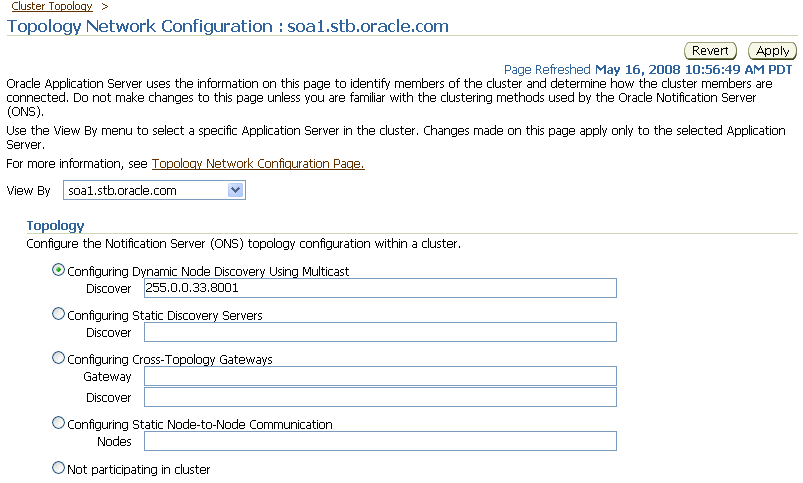
From the Cluster Topology page, click Topology Network Configuration.
In the Topology section, select one of the following configurations:
Configuring Dynamic Node Discovery Using Multicast: For dynamic node discovery, enter the multicast address and port. For example:
225.0.0.33:8001
The multicast address must be in the range 224.0.1.0 - 239.255.255.255.
Configuring Static Discovery Servers: For static discovery, enter the hostname or IP address and the OPMN remote port of the static discovery servers, separating the entries with commas.
Configuring Cross-Topology Gateways: For each source node and target node, specify the host name or IP address of the server and its OPMN remote port. Separate the data for each node with an ampersand (&).
In addition, specify the multicast address and port, which will be used for dynamic discovery within the node's own cluster.
Configuring Static Node-to-Node Communication: List the IP address and OPMN remote node of all the nodes you want to include in the cluster.
Figure 6-3 shows the Topology Network Configuration page:
Figure 6-3 Topology Network Configuration Page
Click Apply.
After installation, by using one of the following Oracle Process Manager and Notification Server (OPMN) commands:
opmnctl: This utility includes commands for updating opmn.xml with the multicast port:address and Web site configuration data needed to add an instance to a cluster. The syntax is:
opmnctl config topology update discover=*multicastAddress:multicastPort
opmnassociate: This utility provides a one-step solution for adding an instance to a cluster. The syntax is:
opmnassociate *multicastAddress:multicastPort -restart
See Also:
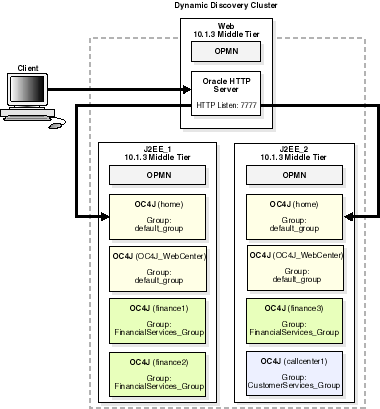
The chapter, "Configuring and Managing Clusters" in the Oracle Containers for J2EE Configuration and Administration Guide for detailed information about configuring cluster topologiesIn the following sections, you create a cluster with three nodes, create two groups for OC4J instances, add OC4J instances to two nodes and add them to the groups, and specify multiple JVMs for the OC4J instances you create.
Figure 6-4 shows this configuration:
Figure 6-4 Multiple OC4J Middle Tiers, Additional OC4J Instances, and a Web Server Middle Tier in a Cluster
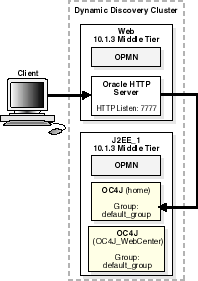
In this example, you install a Web server, Oracle HTTP Server, on one host, and install Oracle WebCenter Framework, which includes Oracle Containers for J2EE (OC4J), on another host. Then, you cluster the instances using dynamic node discovery. This enables Oracle HTTP Server to route requests to the OC4J, and OC4J to dynamically notify Oracle HTTP Server of new application bindings when an application is deployed.
Figure 6-5 shows this environment.
Figure 6-5 Web Server Middle Tier and Oracle WebCenter Framework Middle Tier on Separate Hosts in a Cluster
For this scenario, install the following Oracle Application Server middle-tier instances on separate hosts. (For this scenario, do not configure the cluster during installation.)
Oracle HTTP Server (referred to in this procedure as Web), which includes Oracle HTTP Server and OPMN
When you install Oracle HTTP Server, accept the defaults on the Cluster Topology Configuration page.
Oracle WebCenter Framework only (referred to in this procedure as J2EE_1), which includes OC4J, Oracle WebCenter Framework, and OPMN
When you install Oracle WebCenter Framework, on the Administration Settings page, select Start Oracle Enterprise Manager 10g ASControl in this instance. This sets the OC4J instance to be the Administration OC4J instance.
On the Cluster Topology Configuration page, accept the defaults. You will add the instances to the cluster later.
Note the following points:
When you select an OC4J instance to be the Administration OC4J instance, the Application Server Control that is hosted within that instance administers the local OC4J instance and any other instances in the cluster that are not designated as Administration OC4J instances.
If you did not choose this option, you can configure it later, by starting the ascontrol application in the instance:
(UNIX) ORACLE_HOME/opmn/bin/opmnctl startproc application=ascontrol
(Windows) ORACLE_HOME\opmn\bin\opmnctl startproc application=ascontrol
For those instances that are not specified as the Administration OC4J instance, Application Server Control is deployed in the instance, but not started.
Oracle recommends that only one OC4J instance in the cluster be configured as the Administration OC4J instance.
After you install the middle-tier instances, configure the instances for dynamic node discovery, by taking the following steps:
To configure the Oracle HTTP Server instance for dynamic node discovery, set the OPMN multicast discovery address using the opmnctl config topology command. (You cannot use Application Server Control because it is not running on this instance; you cannot use opmnassociate because you used a name other than home for the default OC4J instance.)
For example, to associate the Oracle HTTP Server instance on UNIX to the multicast address 225.0.0.33, use the following commands:
ORACLE_HOME/opmn/bin/opmnctl config topology update discover=*225.0.0.33:8001
ORACLE_HOME/opmn/bin/opmnctl reload
To configure the Oracle WebCenter Framework instance for dynamic node discovery, you can use the opmnctl config topology command or Application Server Control. For this example, use Application Server Control and take the following steps:
From the Cluster Topology page of Application Server Control, click Topology Network Configuration.
In the Topology section, select Configuring Dynamic Node Discovery Using Multicast. Then, enter the same multicast address and port that you used for the Oracle HTTP Server instance. For example:
225.0.0.33:8001
Click Apply.
Now, both instances are part of the same cluster topology.
Verify the configuration in one of the following ways:
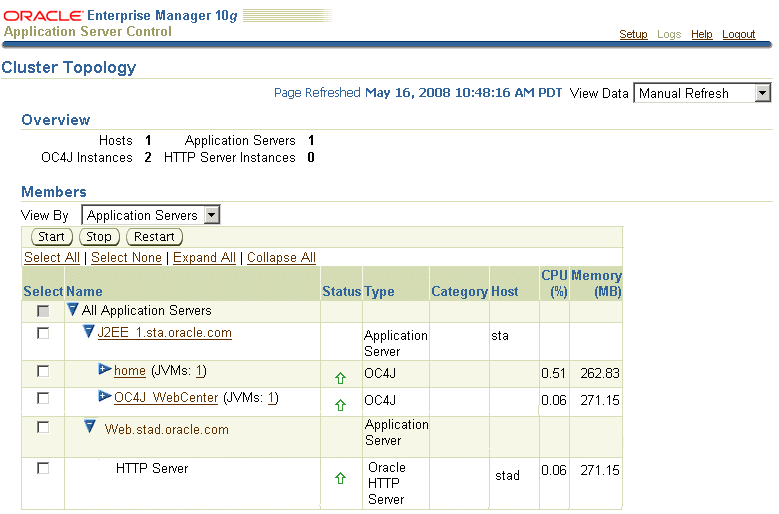
Using Application Server Control: Navigate to the Cluster Topology page. The page displays both instances, as shown in Figure 6-6:
Figure 6-6 Verifying the Cluster Topology
Using the opmnctl command with the @cluster option. The following example shows the output:
ORACLE_HOME/opmn/bin/opmnctl @cluster status
Processes in Instance: J2EE_1.sta.oracle.com
---------------------------------+--------------------+---------+---------
ias-component                    | process-type       |     pid | status
---------------------------------+--------------------+---------+---------
OC4JGroup:default_group          | OC4J:OC4J_WebCent~ |    8616 | Alive
OC4JGroup:default_group          | OC4J:home          |    8615 | Alive
ASG                              | ASG                |     N/A | Down

Processes in Instance: Web.stad.oracle.com
---------------------------------+--------------------+---------+---------
ias-component                    | process-type       |     pid | status
---------------------------------+--------------------+---------+---------
HTTP_Server                      | HTTP_Server        |   25118 | Alive
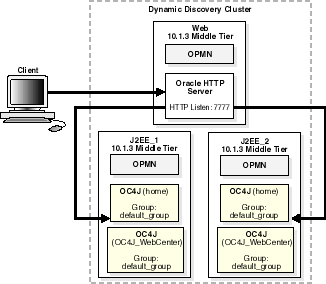
The example in this section builds upon the example in the previous section, Section 6.3.1. It adds an additional J2EE server middle tier (Oracle WebCenter Framework installation) to the cluster topology, to support a highly available environment for testing or production purposes.
Figure 6-7 shows this environment.
Figure 6-7 Multiple J2EE Server Middle Tiers and a Web Server Middle Tier in a Cluster
For this scenario:
Install and configure instances as described in Section 6.3.1.
Install an additional Oracle WebCenter Framework instance (referred to in this procedure as J2EE_2).
During installation, do not select Start Oracle Enterprise Manager 10g ASControl in this instance. in the Administration Settings page. This instance will be managed by the Administration OC4J instance in J2EE_1 after you add it to the cluster.
Then, configure this instance for dynamic node discovery, adding it to the same cluster as the previous instances, using the opmnctl command.
For example, to associate the J2EE_2 instance on UNIX to the multicast address 225.0.0.33, use the following command:
ORACLE_HOME/opmn/bin/opmnctl config topology update discover=*225.0.0.33:8001
ORACLE_HOME/opmn/bin/opmnctl reload
Now, this instance is part of the cluster topology and is managed by the Administration OC4J instance in J2EE_1. This OC4J instance uses Apache JServ Protocol (AJP) to receive and respond to requests from Oracle HTTP Server.
Verify the configuration using Application Server Control or the opmnctl @cluster status command. For example, to verify it using Application Server Control, navigate to the Cluster Topology page. The page displays all three instances in the Members section, as shown in Figure 6-8.
Figure 6-8 Verifying the Updated Cluster Topology
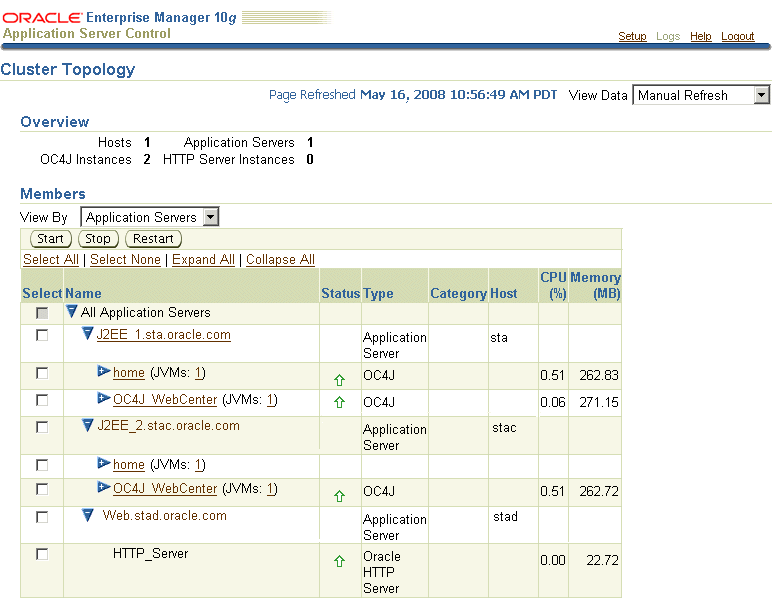
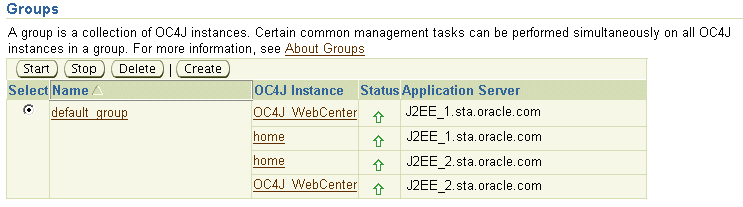
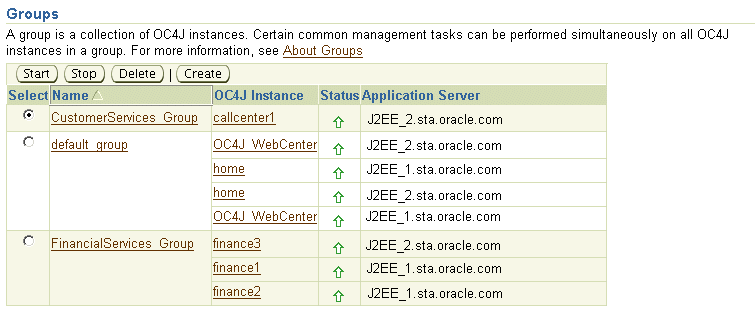
The default OC4J instance, home, and the OC4J_WebCenter instance are part of the group default_group. Figure 6-9 shows the Groups section of the Cluster Topology page.
A group is a collection of OC4J instances that belong to the same cluster topology. Configuration operations can be executed simultaneously on all running OC4J instances in the group.
You can create additional groups. For this scenario, create two empty groups:
FinancialServices_Group
CustomerServices_Group
Take the following steps for each group:
From the Groups section of Cluster Topology page, click Create.
For Group Name, enter FinancialServices_Group.
Click Create.
Repeat steps 1 through 3, entering CustomerServices_Group as the Group Name.
In the next section, you will create new OC4J instances and add them to the groups.
As described in Section 6.2, you can add OC4J instances to an existing Oracle home. In this section, you add the instances and add them to the groups created in Section 6.3.3, as shown in the following table:
| Application Server Instance | OC4J Instance Name | Group Name |
|---|---|---|
| J2EE_1 | finance1 | FinancialServices_Group |
| J2EE_1 | finance2 | FinancialServices_Group |
| J2EE_2 | finance3 | FinancialServices_Group |
| J2EE_2 | callcenter1 | CustomerServices_Group |
Take the following steps for each of the four OC4J instances you create, using the information in the preceding table:
Navigate to the Application Server instance_name page, for example, Application Server J2EE_1.hostname.
Click Create OC4J Instance.
On the Create OC4J Instance page, enter the following information:
OC4J Instance Name: Enter a name for the instance. For example, for the J2EE_1 instance, enter finance1.
Select Add to an existing group with name, then select the appropriate group from Existing Group Name.
Select Start this OC4J instance after creation.
Click Create.
A confirmation screen is displayed after the instance has been created.
Figure 6-10 shows the Members section of the Cluster Topology page, with the new OC4J instances displayed.
Figure 6-10 New OC4J Instances Displayed in Cluster Topology Page
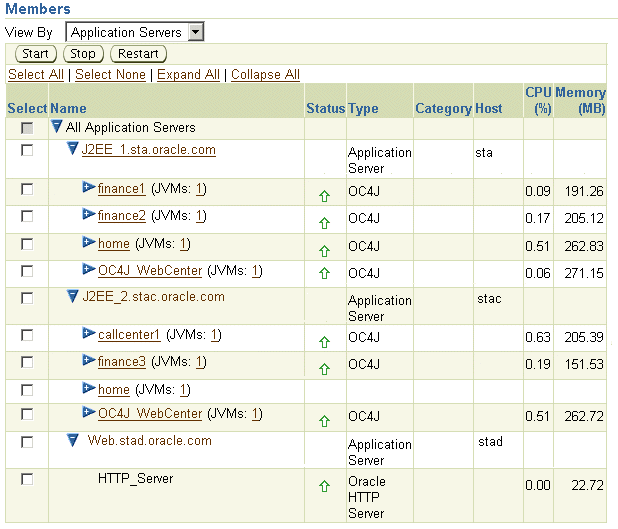
Figure 6-11 shows the Groups section of the Cluster Topology page, with the new groups and their members.
Figure 6-11 New Groups Displayed in Cluster Topology Page
Now, the cluster is configured as depicted in Figure 6-4 in Section 6.3.
OC4J executes on the Java Virtual Machine (JVM) of the standard Java Development Kit (JDK). By default, each OC4J instance uses one JVM. However, you can configure an OC4J instance so it runs on multiple JVMs.
In this case, the OC4J instance is essentially running on multiple processes. This can improve performance and provide a level of fault tolerance for your deployed applications. However, multiple JVMs also require additional hardware resources to run efficiently.
Note:
You cannot configure the OC4J instance that is hosting the active Application Server Control (represented by theascontrol application) to run multiple JVMs.In this example, you create an additional JVM for each OC4J instance you created in Section 6.3.4. Take the following steps for each of these OC4J instances:
Navigate to the Home page for the OC4J instance.
Click Administration.
If necessary, expand the Properties section of the table by clicking the Expand icon. Then, click the Go to Task icon in the Server Properties row.
In the Number of VM Processes field, enter the number of JVMs to configure.
Click Apply.
Navigate to the Cluster Topology page, select the OC4J instance that you modified, and click Restart. On the Confirmation page, click Yes.
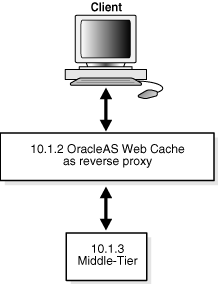
You can use Release 2 (10.1.2) OracleAS Web Cache as a reverse proxy for your 10g Release 3 (10.1.3.4) middle-tier instance. As a reverse proxy server, OracleAS Web Cache acts a gateway to the middle-tier servers.
The following topics describe how to configure OracleAS Web Cache Release 2 (10.1.2) as a reverse proxy for your 10g Release 3 (10.1.3.4) middle-tier instance:
Configuring an OracleAS Web Cache Instance as a Reverse Proxy
Configuring an OracleAS Web Cache Cluster as a Reverse Proxy
See Also:
For complete information about using OracleAS Web Cache as a reverse proxy, and about OracleAS Web Cache clusters, see the Release 2 (10.1.2) Oracle Application Server Web Cache Administrator's Guide.You can use Release 2 (10.1.2) OracleAS Web Cache as a reverse proxy for your middle-tier instance. The procedure in this section makes the following assumptions:
You have installed a Release 2 (10.1.2) OracleAS Web Cache standalone kit. The kit is part of the Oracle Application Server Companion CD, which is available on OTN.
You have configured OracleAS Web Cache, as described in the Oracle Application Server Web Cache Administrator's Guide.
You have installed a 10g Release 3 (10.1.3.4) middle-tier instance.
Figure 6-12 depicts the scenario described in this section.
Figure 6-12 OracleAS Web Cache as Reverse Proxy
From the Release 2 (10.1.2) standalone OracleAS Web Cache instance, take the following steps:
Log into OracleAS Web Cache Manager, using the OracleAS Web Cache username and password. By default, the username is ias_admin and the password is the one you specified during installation. Use the following URL, where port is the OracleAS Web Cache administration port:
http://hostname:port/webcacheadmin
By default, the port is 9400. The administration port number for a OracleAS Web Cache standalone installation is listed in the Oracle_Home/webcache/webcache.xml file. To find the port number for OracleAS Web Cache that is part of an Oracle Application Server installation, click the Ports link in Application Server Control.
In the navigator frame, select Origin Servers, Sites, and Load Balancing > Origin Servers.
In the Origin Servers page, click Add in the Application Web Servers section.
In the Add Application Web Server dialog box, enter the following information:
In the Hostname field, enter the host name of the origin server (Oracle HTTP Server) in the 10g Release 3 (10.1.3.4) middle-tier instance.
In the Port field, enter the listening port from which the origin server will receive OracleAS Web Cache requests.
In the Routing field, select ENABLED to permit OracleAS Web Cache to route requests to the origin server.
For information about other fields in the dialog box, refer to the online Help or the Oracle Application Server Web Cache Administrator's Guide.
Click Submit.
Optionally, you can add a new site to map to the origin server or you can use an existing site. To add a new site, in the navigator frame, select Origin Servers, Sites, and Load Balancing > Site Definitions.
For more information about adding a site, refer to the online Help or the Oracle Application Server Web Cache Administrator's Guide.
In the navigator frame, select Origin Servers, Sites, and Load Balancing > Site-to-Server Mapping to map the site to the origin server in the 10g Release 3 (10.1.3.4) middle-tier instance.
In the Site-to-Server Mapping page, select a mapping and click Insert Above or Insert Below.
In the Edit/Add Site-to-Server Mapping dialog box:
Select Select from Site definitions to select the site definition you want to use.
In the Select Application Web Servers field, select the application Web server from 10g Release 3 (10.1.3.4) middle-tier instance.
You can use a cluster of Release 2 (10.1.2) OracleAS Web Cache instances as a reverse proxy for your 10g Release 3 (10.1.3.4) middle-tier instance.
The procedure in this section makes the following assumptions:
You have installed more than one instance of Release 2 (10.1.2) OracleAS Web Cache standalone kit. The kit is part of the Oracle Application Server Companion CD, which is available on OTN.
You have configured OracleAS Web Cache, as described in the Oracle Application Server Web Cache Administrator's Guide.
You have installed a 10g Release 3 (10.1.3.4) middle-tier instance.
Figure 6-13 depicts the scenario described in this section.
Figure 6-13 OracleAS Web Cache Cluster as Reverse Proxy
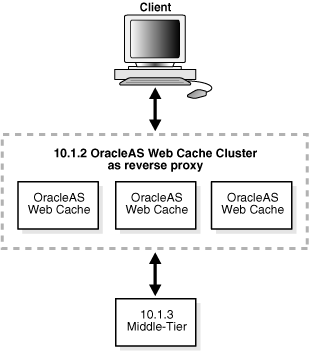
To configure an OracleAS Web Cache cluster as a reverse proxy, take the following steps:
Set up one OracleAS Web Cache instance as a reverse proxy, as described in Section 6.4.1.
Log into OracleAS Web Cache Manager for that instance, using the OracleAS Web Cache username and password. By default, the username is ias_admin and the password is the one you specified during installation. Use the following URL, where port is the OracleAS Web Cache administration port:
http://hostname:port/webcacheadmin
Configure the properties of the cache cluster, by taking the following steps:
In the OracleAS Web Cache Manager navigator frame, select Properties > Clustering.
In the General Cluster Information section of the Clustering page, click Edit.
Follow the directions in the online Help or Chapter 10 of the Oracle Application Server Web Cache Administrator's Guide.
Add other caches to the cluster, by taking the following steps for each instance you want to place in the cluster:
In the OracleAS Web Cache Manager navigator frame, select Properties > Clustering.
In the Cluster Members section of the Clustering page, click Add.
Follow the directions in the online Help or Chapter 10 of the Oracle Application Server Web Cache Administrator's Guide.
After you have added all the caches to the cluster, propagate the cluster configuration to the cluster members by taking the following steps:
In the OracleAS Web Cache Manager navigator frame, select Operations > Cache Operations.
Select All Caches, and click Propagate.
Restart all caches by selecting All Caches and clicking Restart.
To use the latest J2EE features of Oracle Application Server, 10g Release 3 (10.1.3.4), with existing Oracle Application Server, Release 2 (10.1.2), components and applications, you can use the Oracle HTTP Server from an Oracle Application Server, Release 2 (10.1.2), middle tier as the front-end for your Oracle Application Server, 10g Release 3 (10.1.3.4), middle tier. This section provides instructions on installing and configuring Oracle Application Server, 10g Release 3 (10.1.3.4), and Oracle HTTP Server, Release 2 (10.1.2), for interoperability.
On your farm or cluster, either install or locate the following:
Server 1—An Oracle Application Server, Release 2 (10.1.2), J2EE and Web Cache type middle tier or other Oracle Application Server, Release 2 (10.1.2), middle tier with Oracle HTTP Server.
Server 2—An Oracle Application Server, 10g Release 3 (10.1.3.4), Oracle WebCenter Framework middle tier. For instructions on installing Oracle Application Server, 10g Release 3 (10.1.3.4) refer to the 10g Release 3 (10.1.3.4), Oracle Application Server Installation Guide for your platform. This instance must use AJP protocol. If you are using HTTP protocol, run the following commands to change to AJP protocol:
ORACLE_HOME_SERVER2/opmn/bin/opmnctl config port update ias-component=default_group process-type=instance name portid=default-web-site protocol=ajp range=12501-12600
ORACLE_HOME_SERVER2/opmn/bin/opmnctl reload
ORACLE_HOME_SERVER2/opmn/bin/opmnctl restartproc ias-component=default_group process-type=instance name
For Release 2 (10.1.2) middle tiers that are associated with an Infrastructure, start with Step 3 in the following procedure because the ons.conf file on the Release 2 (10.1.2) middle tier is not updated in this configuration. For this configuration, the Oracle Application Server, 10g Release 3 (10.1.3.4), initiates the connections between the two instances. For middle tiers that are not associated with an Infrastructure (a J2EE and Web Cache type middle tier may or may not be associated with an Infrastructure), start with Step 1.
Configuration Procedure
Perform the following steps to configure the two servers:
On Server 1, add Server 2 using DCM:
ORACLE_HOME/dcm/bin/dcmctl addOPMNLink server2_ip:server2_ons_remote_port
In the example:
server2_ip is the IP address of Server 2. To find the IP address, you can use the ping command:
ping server_name
server2_ons_remote_port is the remote ONS port for the server. The port number is located in the opmn.xml file. In the following example, the remote port is 6200.
<notification-server interface="ipv4">
      <port local="6100" remote="6200" request="6003"/>
Verify that Server 2 is added by inspecting the contents of ons.conf in the ORACLE_HOME/opmn/conf directory. The file should contain a list of comma-separated hostname/ip:ons_remote_port entries. The remote port is the port on Server 2 that OPMN on Server 1 uses to communicate with Server 2. An example of an entry in the list would be:
127.2.148.142:6200
On Server 2, add Server 1 to the cluster using static node-to-node communication by editing the topology section in ORACLE_HOME/opmn/conf/opmn.xml:
<notification-server>
...
   <topology>
      <nodes list="server1_ip:remote_port,server2_ip:remote_port"/>
   </topology>
</notification-server>
In the example, server*_ip is the IP address of Server 1 or Server 2 and remote_port is the port number through which other servers can communicate with the server, for example:
127.2.148.142:6200
To configure ONS in opmn.xml, all Oracle RAC instance nodes must be listed, not only the master. For an Oracle RAC with host1, host2, host3, host4, the list would be:
list="host1:ONSRemotePort,host2:ONSRemotePort,host3:ONSRemotePort,host4:ONSRemotePort"
In an Oracle RAC environment, the SSL setting must be the same on all nodes: enabled or disabled.
On Server 2, reload OPMN:
ORACLE_HOME_SERVER2/opmn/bin/opmnctl reload
Verify that both servers can communicate with each other by running the following commands:
On Server 1:
ORACLE_HOME_SERVER1/opmn/bin/opmnctl @farm status
On Server 2:
ORACLE_HOME_SERVER2/opmn/bin/opmnctl @cluster status
These commands produce a list of servers that are part of the farm or cluster.
On Server 1, set the OC4J mount directive in the ORACLE_HOME/Apache/Apache/conf/mod_oc4j.conf file:
Oc4jMount /MyApp instance://server2_instance_name:oc4j_instance_name
Oc4jMount /MyApp/* instance://server2_instance_name:oc4j_instance_name
A mount point must be added for each J2EE application deployed on 10g Release 3 (10.1.3.4). As new applications are added, you must add a new mount point.
On Server 1, update the configuration. (You must update the configuration any time you manually edit mod_oc4J.conf.)
ORACLE_HOME/dcm/bin/dcmctl updateConfig
If the Oracle Application Server 10g Release 3 (10.1.3.4) instance contains Oracle Content DB, you must change Oracle Content DB properties to refer to the 10.1.2.0.2 Oracle HTTP Server host name and port number.
You change the properties using Application Server Control:
Navigate to the OC4J_Content home page, and select Applications.
Click content, then click Content DB Extension.
Select the Administration tab.
In the Domain Properties row, click the Go to Task icon.
Click IFS.DOMAIN.APPLICATION.ApplicationHost. Change the host name in the Value field. Then, click OK.
Click IFS.DOMAIN.APPLICATION.ApplicationPort. Change the port number in the Value field. Then, click OK.
If the Oracle Application Server 10g Release 3 (10.1.3.4) instance uses OracleAS Single Sign-On, take the following steps:
On Server 1, perform Steps 1 and 2 in "Task 1: Enable SSO Authentication (Optional)" in Section 6.7.
Copy the newly created osso configuration file to the following location in the Server 2, 10g Release 3 (10.1.3.4), instance:
(UNIX) ORACLE_HOME/Apache/Apache/conf/osso
(Windows) ORACLE_HOME\Apache\Apache\conf\osso
In the httpd.conf file, remove the comment character (#) from the line that includes mod_osso.conf.
In the mod_oc4j.conf file, add an entry for the osso configuration file:
OssoConfig new_osso.conf_file_path
On Server 1, update the configuration:
ORACLE_HOME/dcm/bin/dcmctl updateConfig
Associate Server 2 with Oracle Internet Directory, as described in "Task 2: Configure the Middle-Tier Instance for Identity Management" of Section 6.7.
Restart Oracle HTTP Server on Server 1:
ORACLE_HOME_SERVER1/opmn/bin/opmnctl restartproc ias-component=HTTP_Server
A browser pointing to appserverInstance on Server 1 can now access an OC4J application in appserverInstance on Server 2.
Caution:
For Release 2 (10.1.2) middle-tier installations other than a J2EE and Web Cache type middle tier, start the Oracle Application Server, Release 2 (10.1.2), middle tier before starting the Oracle Application Server, 10g Release 3 (10.1.3.4), middle tier, or a delay of up to two minutes can occur.In this configuration, the application stop functionality in the J2EE 10g Release 3 (10.1.3.4) instance should not be used because errors can occur when the Oracle HTTP Server Release 2 (10.1.2) routes to the J2EE 10g Release 3 (10.1.3.4) instance with the stopped application.
Note:
You cannot manage Release 2 (10.1.2) from the 10g Release 3 (10.1.3.4) Application Server Control. The 10.1.2 instance will appear on the Cluster Topology page for Application Server Control, 10g Release 3 (10.1.3.4), but some of the information about the 10.1.2 instance will be either unavailable or incorrect. For example:In the Ports page, the ports for the 10.1.2 instance may not be listed or the type of port may be listed as NA.
In the Groups section of the topology page, if a group contains a 10.1.2 instance, the status of the instance may be incorrect.
You can configure instances to use OC4J Java Single Sign-On (Java SSO), a lighter-weight single sign-on solution supplied with OC4J that does not require additional infrastructure (such as OracleAS Single Sign-On and Oracle Access Manager single sign-on do) and decouples OC4J from any identity management system that you use.
Note that for a Basic Installation, Java SSO is automatically deployed, configured, and started. For an Advanced Installation, it is deployed, but not configured or started.
For information about configuring instances to use Java SSO, see the section, "Java SSO Setup and Configuration" in the Oracle Containers for J2EE Security Guide.
For information about configuring Java SSO to use Oracle Internet Directory, see the section "Associate Oracle Internet Directory with OC4J" in the Oracle Containers for J2EE Security Guide.
For information about configuring Oracle WebCenter Framework to use Java SSO, see the section "Configuring a WebCenter Application to Use Java Single Sign-On" in the Oracle WebCenter Framework Developer's Guide.
You can configure 10.1.3 middle-tier instances to use Release 10.1.4 or Release 2 (10.1.2) Oracle Identity Management.
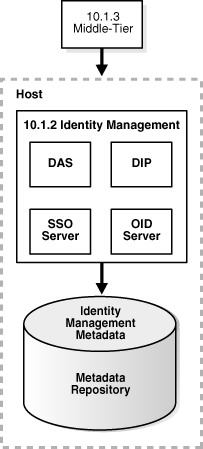
This section describes how to configure a 10.1.3 middle-tier instance to use Oracle Identity Management, Release 10.1.4 or Release 2 (10.1.2). Figure 6-14 shows the middle-tier instance configured with Oracle Identity Management, Release 2 (10.1.2).
Figure 6-14 Middle Tier Using 10.1.2 Identity Management
Before you start, make sure that:
The Oracle Identity Management instance is started (status is Up).
You know the Oracle Internet Directory host and port numbers.
You know the password for cn=orcladmin, or another user who is a member of the iASAdmins group.
For information about configuring Oracle WebCenter Framework to use Oracle Internet Directory and OracleAS Single Sign-On, see the section "Configuring a WebCenter Application to use LDAP and Single Sign-On" in the Oracle WebCenter Framework Developer's Guide.
Task 1: Enable SSO Authentication (Optional)
If you want to enable OracleAS Single Sign-On authentication for deployed applications, you must take the following steps before you use the Identity Management wizard described in "Task 2: Configure the Middle-Tier Instance for Identity Management".
Note:
OracleAS Single Sign-On is available only if you have installed an Oracle Application Server installation type that includes Oracle HTTP Server. For other installation types, Java SSO is available. See Section 6.6.On the Identity Management host, set the environment variables ORACLE_HOME and ORACLE_SID.
On the Identity Management host, run the ssoreg script, using the -remote_midtier option. The file is located at:
(UNIX) ORACLE_HOME/sso/bin/ssoreg.sh
(Windows)ORACLE_HOME\sso\bin\ssoreg.bat
For example, on LINUX:
$ORACLE_HOME/sso/bin/ssoreg.sh -oracle_home_path $ORACLE_HOME
 -config_mod_osso TRUE
 -site_name myhost.com:7778
 -remote_midtier
 -config_file $ORACLE_HOME/Apache/Apache/conf/osso/myosso.conf
 -mod_osso_url http://myhost.com:7778
The resulting configuration file (mysso.conf in the example) is an obfuscated osso configuration file.
Copy the obfuscated osso configuration file to the 10g Release 3 (10.1.3.4) middle-tier instance.
On the middle-tier host, run the following script to complete the registration:
(UNIX) ORACLE_HOME/Apache/Apache/bin/osso1013 config_file
(Windows) perl ORACLE_HOME\Apache\Apache\bin\osso1013 config_file
Task 2: Configure the Middle-Tier Instance for Identity Management
To configure the middle-tier instance to use Identity Management, take the following steps:
Using Application Server Control, navigate to the OC4J Home page for the middle-tier instance.
Click Administration.
In the Task Name column of the table, expand Security if it is not already expanded. Then, in the Identity Management row, click the Go to Task icon.
On the Identity Management page, click Configure.
On the Configure Identity Management: Connect Information page:
Oracle Internet Directory Host: Enter the fully qualified name of the Oracle Internet Directory host.
Oracle Internet Directory User DN: Enter the distinguished name of a user, such as cn=orcladmin, in the iASAdmins group.
Password: Enter the password for the user.
This password will be used as the default password for the oc4jadmin user created in Oracle Internet Directory.
Use only SSL connections to the Internet Directory: Select this option if you want middle-tier components to connect to Oracle Internet Directory using only SSL.
Then, in the Oracle Internet Directory SSL Port field, enter the Oracle Internet Directory SSL port number.
Use non-SSL connections to the Internet Directory: Select this option if you want middle-tier components to connect to Oracle Internet Directory using non-SSL connections.
Then, in the Oracle Internet Directory Port field, enter the Oracle Internet Directory non-SSL port number.
Click Next.
On the Configure Identity Management: Application Server Control page, you can specify if you want to configure Application Server Control to use Identity Management as its security provider, for authentication and authorization of administrative users. If you do, select Use Oracle Identity Management Security Provider.
Note the following:
Any Application Server Control administrator users created for the current security provider will not be able to access Application Server Control after you make this change. Only users and groups defined in Oracle Internet Directory will be able to access Application Server Control.
You can change the Application Server Control security provider later by clicking Setup, then Security Provider.
On the Configure Identity Management: Deployed Applications page, you can specify security options for applications deployed in this OC4J instance. For each application:
Use OID Security Provider: Select this option to configure applications to use Identity Management as its security provider for authentication and authorization.
Note that you cannot change the security provider for the default application.
Enable SSO Authentication: If you selected Use OID Security Provider, you can select this option to use Single Sign-On authentication. Note, however, that you must have first registered your instance of Oracle Application Server with the OracleAS Single Sign-On server. See "Task 1: Enable SSO Authentication (Optional)" for more information.
Click Configure.
When the operation completes, you must restart the OC4J instance. Do not click Restart on the Confirmation page. Instead, navigate to the Cluster Topology page, select the OC4J instance, and click Restart.
Your middle tier is now configured to use Oracle Identity Management services.
See Also:
Oracle Identity Management Concepts and Deployment Planning Guide, Release 2 (10.1.2)Beginning with Release 2 (10.1.2.0.2), you can enable and disable anonymous binds (anonymous authentication) in Oracle Internet Directory. By default, anonymous binds are enabled.
Although disabling anonymous binds is useful in many run-time environments, most configuration changes, such as the following, require that anonymous binds are enabled:
Installing new components with Oracle Universal Installer
Configuring components with Application Server Control
Changing the host name, domain name, or IP address of a host on which you have installed Oracle Application Server
To disable anonymous binds, take the following steps:
Shut down all middle tiers that are connected to the OracleAS Infrastructure, as described in Section 3.2.2.
Shut down OracleAS Infrastructure, in all Infrastructure Oracle homes:
(UNIX) ORACLE_HOME/opmn/bin/opmnctl stopall
(Windows) ORACLE_HOME\opmn\bin\opmnctl stopall
Start Oracle Internet Directory, because it must be started while you perform the procedure:
(UNIX) ORACLE_HOME/bin/oidmon connect=db_connect_string start
(Windows) ORACLE_HOME\bin\oidmon connect=db_connect_string start
Edit the ias.properties file for each middle tier connected to the OracleAS Infrastructure and for the Infrastructure Oracle home that contains OracleAS Single Sign-On and Oracle Delegated Administration Services. The ias.properties file is located in the following directory:
(UNIX) ORACLE_HOME/config
(Windows) ORACLE_HOME\config
In the ias.properties file, add the OIDAnonymousDisabled property to the file and set it to true:
OIDAnonymousDisabled=true
Edit the dads.conf file for each middle tier connected to the OracleAS Infrastructure and for the Infrastructure Oracle home that contains OracleAS Single Sign-On and Oracle Delegated Administration Services. The dads.conf file is located in the following directory:
(UNIX) ORACLE_HOME/Apache/modplsql/conf
(Windows) ORACLE_HOME\Apache\modplsql\conf
By default, the PlsqlDatabaseConnectString parameter contains a value that uses the LDAP name resolution format, for example:
PlsqlDatabaseConnectString cn=orcl, cn=oraclecontext NetServiceNameFormat
Comment out this line. (Do not delete it because you will need to revert to it if you want to enable anonymous binds in the future.)
Add the following line, which changes the value of the PlsqlDatabaseConnectString parameter to use the host:port:service format instead of LDAP name resolution:
PlsqlDatabaseConnectString db_host:db_hostdb_listener_port:db_service_name
In the example, db_host is the name of the host on which the OracleAS Metadata Repository for OracleAS Single Sign-On is installed, db_listener_port is the listener port for that OracleAS Metadata Repository, and db_service_name is the service name for the OracleAS Metadata Repository.
Use the ldapmodify command to disable anonymous binds. Use the command on the Oracle home that contains Oracle Internet Directory.
Take the following steps:
Create a text file with the following lines:
dn:
changetype: modify
replace: orclanonymousbindsflag
orclanonymousbindsflag: 0
Use the ldapmodify command, calling the text file created in the previous step as input. In the following example, the text file is named anon_off.ldif:
(UNIX) ORACLE_HOME/bin/ldapmodify -h host -p port -D cn=orcladmin -w password -v -f anon_off.ldif
(Windows) ORACLE_HOME\bin\ldapmodify -h host -p port -D cn=orcladmin -w password -v -f anon_off.ldif
Stop Oracle Internet Directory:
(UNIX) ORACLE_HOME/bin/oidmon connect=db_connect_string stop
(Windows) ORACLE_HOME\bin\oidmon connect=db_connect_string stop
Start OracleAS Infrastructure, including Oracle Internet Directory, in the Oracle Internet Directory Oracle home, then in any other OracleAS Infrastructure Oracle homes:
(UNIX) ORACLE_HOME/opmn/bin/opmnctl startall
(Windows) ORACLE_HOME\opmn\bin\opmnctl startall
Start all middle tiers that are connected to the Infrastructure, as described in Section 3.2.1.
If you have disabled anonymous binds, you must take the following steps to enable anonymous binds before you can make configuration changes to Oracle Application Server middle tiers or OracleAS Infrastructure:
Shut down all middle tiers that are connected to the OracleAS Infrastructure, as described in Section 3.2.2.
Shut down OracleAS Infrastructure, in all Infrastructure Oracle homes:
(UNIX) ORACLE_HOME/opmn/bin/opmnctl stopall
(Windows) ORACLE_HOME\opmn\bin\opmnctl stopall
Start Oracle Internet Directory, because it must be started while you perform the procedure:
(UNIX) ORACLE_HOME/bin/oidmon connect=db_connect_string start
(Windows) ORACLE_HOME\bin\oidmon connect=db_connect_string start
Edit the ias.properties file for each middle tier connected to the OracleAS Infrastructure and for the Infrastructure Oracle home that contains OracleAS Single Sign-On and Oracle Delegated Administration Services. The ias.properties file is located in the following directory:
(UNIX) ORACLE_HOME/config
(Windows) ORACLE_HOME\config
In the ias.properties file, set the OIDAnonymousDisabled property to false:
OIDAnonymousDisabled=false
If the property does not exist in the file, or if it is set to false, anonymous binds are enabled.
Edit the dads.conf file for each middle tier connected to the OracleAS Infrastructure and for the Infrastructure Oracle home that contains OracleAS Single Sign-On and Oracle Delegated Administration Services. The dads.conf file is located in the following directory:
(UNIX) ORACLE_HOME/Apache/modplsql/conf
(Windows) ORACLE_HOME\Apache\modplsql\conf
If you previously commented out the line that contains the PlsqlDatabaseConnectString parameter with a value that uses the LDAP name resolution format, uncomment out that line. If you deleted the line, add a line using the following format:
PlsqlDatabaseConnectString cn=orcl, cn=oraclecontext NetServiceNameFormat
If you previously added a line similar to the following, which contains the PlsqlDatabaseConnectString parameter with a value that use host:port:service format, comment out the line:
PlsqlDatabaseConnectString db_host:db_hostdb_listener_port:db_service_name
Use the ldapmodify command to enable anonymous binds. Use the command on the Oracle home that contains Oracle Internet Directory.
Take the following steps:
Create a text file with the following lines:
dn:
changetype: modify
replace: orclanonymousbindsflag
orclanonymousbindsflag: 1
Use the ldapmodify command, calling the text file created in the previous step as input. In the following example, the text file is named anon_on.ldif:
(UNIX) ORACLE_HOME/bin/ldapmodify -h host -p port -D cn=orcladmin -w password -v -f anon_on.ldif
(Windows) ORACLE_HOME\bin\ldapmodify -h host -p port -D cn=orcladmin -w password -v -f anon_on.ldif
Stop Oracle Internet Directory:
(UNIX) ORACLE_HOME/bin/oidmon connect=db_connect_string stop
(Windows) ORACLE_HOME\bin\oidmon connect=db_connect_string stop
Start OracleAS Infrastructure, including Oracle Internet Directory, in the Oracle Internet Directory Oracle home, then in any other OracleAS Infrastructure Oracle homes:
(UNIX) ORACLE_HOME/opmn/bin/opmnctl startall
(Windows) ORACLE_HOME\opmn\bin\opmnctl startall
Start all middle tiers that are connected to the Infrastructure, using the following command:
(UNIX) ORACLE_HOME/opmn/bin/opmnctl startall
(Windows) ORACLE_HOME\opmn\bin\opmnctl startall