10g (10.1.3.4.0)
Part Number E10536-01

Contents

Previous

Next
| Oracle Application Server Adapter for Oracle Applications User's Guide 10g (10.1.3.4.0) Part Number E10536-01 | Contents | Previous | Next |
This appendix covers the following topics:
Web Service Definition Language (WSDL) is generated by the JDeveloper BPEL Designer during design time. The WSDL file generated by the Adapter Wizard is the adapter service definition. In addition, it specifies various operations exposed by the service. The operations are based on user input to the Adapter Wizard. An operation either retrieves or inserts data to Oracle Applications and is represented by a JCA activation or interaction spec.
Example of a WSDL File
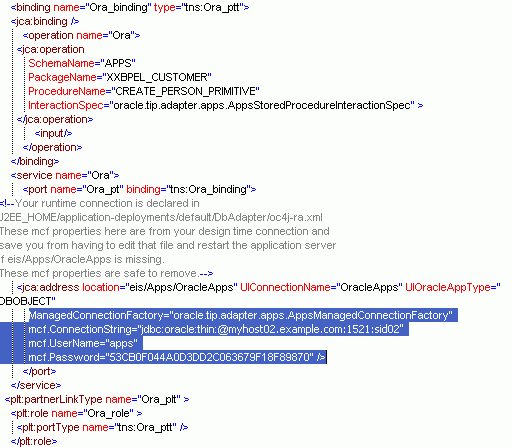
OracleAS Adapter for Oracle Applications is deployed as J2CA 1.5 resource adapters within the same OC4J container as BPEL Process Manager during installation.
Although OracleAS Adapter for Oracle Applications is physically deployed as J2CA 1.5 resource adapters, the logical deployment of the Adapter involves creating the connection entries for the J2CA 1.0 resource adapter. This connection information is for tying up the database connection information provided when you create a partner link or service and is used by iAS at run time in the background.
Use Enterprise Manager to modify the connection configuration so that the proper information is inserted into oc4j-ra.xml automatically.
Note: The oc4j-ra.xml is the file that is administered through the Enterprise Manager console.
The following example of connection configuration for OracleAS Adapter for Oracle Applications can be used with the Oracle Applications adapter tutorials packaged with the product. For the logical deployment changes to take effect, the OC4J container process must be restarted.
To configure the connection information:
Log into Enterprise manager at the URL for your web server host machine:
http://servername:port/emNote: The default port number is 8888. The default login user ID and password are oc4jadmin and welcome1 respectively.
Create a connection pool and a data source:
Click Home, then Administration.
Click the Go To Task icon for Services/JDBC Resources.
Under Connection Pools, click the Create button.
Accept the defaults, and click Continue.
Enter the following values (leave defaults for the rest):
| Field | Value |
|---|---|
| Name | appsSample_pool |
| JDBC URL | The URL for your database. For example:
|
| Username | apps |
| Password | apps |
Click Finish, then click the Test Connection icon for your new connection pool.
On the page that appears, click Test.
Back on the main page, a successful connection message is displayed. If you see an error message, check the URL and credentials to ensure you've entered the right information.
Click Finish.
Under Data Sources, click Create.
Accept the defaults and click Continue.
Enter the following values (leave defaults for the rest):
| Field | Value |
|---|---|
| Name | appsDemoDS |
| JNDI Location | jdbc/appsSampleDataSource |
| Connection Pool | appsSample_pool |
Click Finish.
Create an Oracle Applications adapter connection:
At the top of the page, click the OC4J:home breadcrumb link, then the Applications link.
In the tree of applications, click the default link.
Under Modules, click the AppsAdapter link, then the Connection Factories link.
Under Connection Factories, click Create.
Note: Use the Create button near the top of the screen, not the one in the Shared Connection Pools section.
Accept all the defaults and click Continue.
For JNDI Location, enter eis/Apps/appsSample.
Under Configuration Properties, for xADataSourceName, enter jdbc/appsSampleDataSource. Keep the default entries for all of the other fields.
Click Finish.
OracleAS Adapter for Oracle Applications uses a new mechanism to authenticate users at run time and get the connection to Oracle Applications databases through the use of J2EE data sources. Since J2EE data sources are defined in OC4J container that runs the BPEL processes, this approach is native to Oracle E-Business Suite in defining the connection pool to access the application database.
With this new mechanism, account details information including application login user name and password that was required as part of the configuration for database connection is now added together with the dbc file location as input parameters during the J2EE data source creation.
To accomplish this process, the following steps are used to define J2EE data source connection to the Oracle E-Business Suite database:
Register your Service-Oriented Architecture (SOA) suite middle tier node on the E-Business Suite environment and generate the dbc file used by the data source implementation to instantiate the connections.
Copy the dbc file to the middle tier server where your SOA suite server runs, and place it on a location in the file system to which the SOA suite owner has access.
Create a connection pool where you need to enter the application login user name, password, and dbc file location as the connection factory properties.
Create an application data source. This is the step that you associate the application data source with the Java Naming and Directory Interface (JNDI) name for the application database connection for OracleAS Adapter for Oracle Applications.
Note: To have this feature available, you must apply necessary patches to enable the connectivity between Oracle E-Business Suite and an external Oracle Application Server at run time for Oracle E-Business Suite Release 12 and Release 11i10. See "Oracle Application Sever Adapter for Oracle Applications Documentation Update, Release 10g" OracleMetaLink Document 464164.1 for details.

Copyright © 2005, 2008, Oracle and/or its affiliates. All rights reserved.