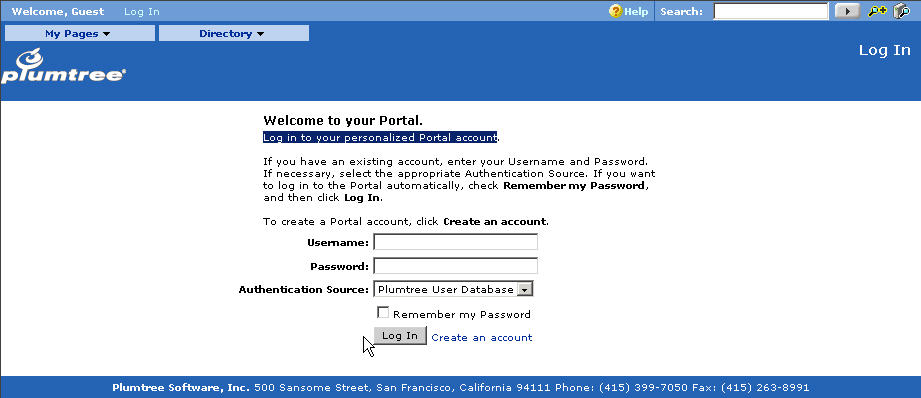
This example shows how to replace the login instructions on the main login page, shown in the image below.
|
|
In your browser window, copy the string you want to search for: "Log in to your personalized Portal account" (select the string and hit Ctrl/c).
Navigate to the \en language folder in the \i18n directory.
Right-click on the language folder and select Search....
Paste the string into the Containing text field (hit Ctrl/v) and click Search Now.
|
|
Open the ptmsgs_portalcommonmsgs.xml file in a text editor (in 5.0.3J deployments, the folder will be named 5.0j). The editor seen in the following images is TextPad.
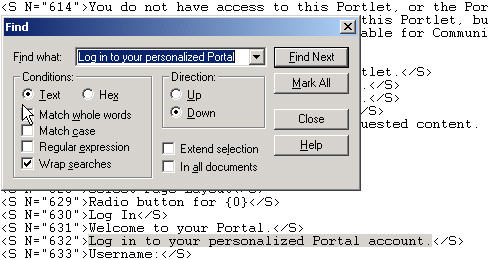
Search for the "Log in to your personalized Portal account" string within the ptmsgs_portalcommonmsgs.xml file.
|
|
Replace the string with the following string: "Log in to your HELLO WORLD account."
|
|
Save and close the ptmsgs_portalcommonmsgs.xml file.
Restart your application server.
Reload your portal; the new string should appear on the login page.
|
|