Understanding Mass Price Maintenance
This chapter provides an overview of mass price maintenance, lists common elements, and discusses how to:
Run the Product Price Extract process (OM_PROD_COST).
Update product prices.
Understanding Mass Price Maintenance
Perform these steps to update product prices using mass price maintenance.
Note. Product price maintenance requires a windows client running Microsoft Excel.
This diagram illustrates the process for performing mass product price updates.
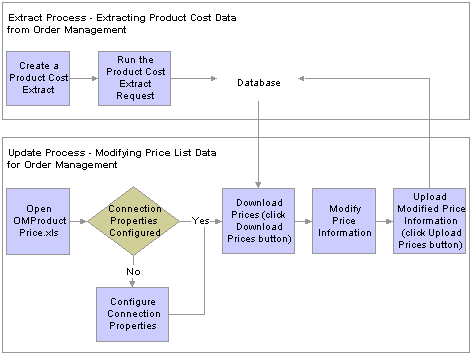
Product price mass maintenance process
On the Product Price Extract page, create a request for data, specifying the exact search criteria and submit the job for processing.
The application extracts the selected data and stores it into an extract record.
Launch the Order Management Product Price Microsoft Excel file (OMProductPrice.XLS).
Note. The Excel spreadsheet OMProductPrice.XLS must be able to run macros in order to function properly. If the macro security in Microsoft Excel is set to High, the spreadsheet will not operate properly. Verify that the security setting is at Medium or below by selecting Tools, Macro, Security and selecting Medium or Low as the Macro security setting for the machine.
If this is the first time working with the OMProductPrice.XLS file, you will need to set the connection properties by clicking the Connection Properties button.
Request the extracted data by selecting the Download Prices button and supplying logon data.
Excel loads and formats the received data.
Modify the list prices as necessary using the Price Maintenance dialog or directly modifying the spreadsheet. The available data to be modified includes:
The price for all items in the spreadsheet can be adjusted by amount or percent. When choosing which rows to modify you can specify criteria such as current dated rows, future dated rows or all rows. In addition, the changes can be applied to visible, hidden, or all rows, as necessary. You can also specify the rounding decimals for the newly created prices.
The start and end dates for the product price can be adjusted. When choosing which rows to modify you can specify criteria such as current dated rows, future dated rows or all rows. In addition, the changes can be applied to visible, hidden, or all rows, as necessary.
The Protect Flag for all items in the spreadsheet can be set. When choosing which rows to modify you can specify criteria such as current dated rows, future dated rows or all rows. In addition, the changes can be applied to visible, hidden, or all rows, as necessary.
Upload the changes made to the product prices to the PeopleSoft. To do so, click the Upload Prices button and provide logon data.
Confirmation of the update is sent back to Excel. For each row that successfully applies, the status column turns green and reads Uploaded. If the a row in the spreadsheet does not post properly, the column turns red and reads Failed.
Modify any rows that failed to post and resubmit the rows. To do so, click the Upload Prices button again.
Note. Keep in mind that you can alter prices on the Product Price page between the export and import of pricing data. Those changes will be overridden when new pricing information is imported from Microsoft Excel.
Common Elements Used in This Chapter|
Apply changes to the Visible data on the spreadsheet (if you entered filtering criteria), to the Hidden rows (the complementary records that are hidden if you applied a filter criteria), or to All records in the spreadsheet. Note. You can view only 30-50 rows of the spreadsheet at one time. Visible refers to rows listed on the spreadsheet and not rows that are visible on the current screen. If you download 1,000 list prices and apply a filter that selects 300 of those 1,000 records, 300 records are visible. |
Running the Product Price Extract ProcessThis section provides an overview of product prices and discusses how to run the product price extract process.
Note. The process must be run before product list prices can be updated using the list price maintenance functionality.
 Understanding Product Prices
Depending on the cost method used for the product’s item cost, the costs are retrieved from separate tables. This table outlines where item costs are stored. If the item is non-costed, any product ID associated with that item is not downloaded.
|
Cost Method |
Table where data is stored |
|
Actual |
CM_ACTUAL_COST |
|
Periodic |
CM_PERDAVG_COST |
|
Perpetual |
CM_PERPAVG_COST |
|
Standard |
CM_PRODCOST |
|
Retroactive Perpetual Average |
CM_PERRAVG_COST |
The Product Price Extract stores the product list price and cost information in the OM_PROD_COST table. The extract performs a unit of measure and a currency conversion. Cost data is stored in a standard unit of measure for that item. The products can have ordering units of measure that are different than the stocking units of measure. Cost data is adjusted according to the unit of measure conversion rate. You can determine an item's orderable unit of measure/conversion rate by querying view INV_ORDR_UOM_VW, or you can view the item Unit of Measure page. In addition, products can be ordered in multiple currencies different than the item’s cost, which is stored in the PeopleSoft Inventory Business Unit's base currency. To have cost data that is meaningful, it is converted to the product list price currency. The product list price currency is stored in the PROD_PRICE table, or you can view it on the Product Price page.
For a product ID and its associated costs to be downloaded, these relationships must be present:
The product ID must have a product list price specified, and the price must fall within the Product Price As of Date supplied on the Product Price Extract page.
If the product ID is associated with an item, that item must have a cost specified, and the cost must fall within the Product Cost Effective Date supplied on the Product Price Extract page.
Note. Non-costed products will be downloaded with a zero cost.
If the product ID is not associated with an item, then the product ID must have a product price with both a list price and unit cost specified, and it must fall within the Product Price As of Date supplied in the Product Price Extract page.
Product 10001 has five active price records with these effective dates:
1/01/2001
1/01/2002
7/01/2002
1/01/2004
7/01/2004
The current date, 8/1/2003, is used as the default. The system exports the price with the maximum effective date that is less than or equal to the Product Price As Of Date. In this case, it would be price number 3 (7/01/2002). If you want to export price number 4 (1/01/2004), you must change the Product Price As Of Date to any value between 1/012004 and 6/30/2004.
Note. You will never be able to export prices in the first and second scenario, because the selected date must be greater than or equal to the current date.
Pages Used to Run the Product Price Extract Process|
Page Name |
Object Name |
Navigation |
Usage |
|
OM_PPRC_RCNTL_PNL |
Products, Request Processes, Product Price Extract |
Use to establish the selection criteria and the effective dates for exporting price data and the currency and unit of measure conversions. These are needed to support product prices in multiple currencies and orderable units of measure when using price maintenance. |
Running the Product Price Extract ProcessAccess the Refresh Product Price Extract page.
Updating Product PricesThis section discuss how to:
Use product price maintenance.
Update list prices in Microsoft Excel.
Filter data.
Use mass maintenance.
Reset data.
Customize display options.
Print list price changes.
Display list price changes in a chart format.
Upload list price data.
Updating List Price and Cost Information in Microsoft ExcelThe Calculator button is the only other button that acts directly on the data in the spreadsheet−the other buttons open dialog boxes where you will make additional selections.
You are limited to one list price maintenance spreadsheet on the hard drive. If you have an existing spreadsheet from a previous maintenance session, the system prompts you to decide if you want to override it with the current download.
You can access the price maintenance spreadsheet you have been working on by opening it directly in Microsoft Excel. Downloaded information appears in Microsoft Excel in three sections on the spreadsheet delineated by different column colors:
Key fields that identify the product appear in gray columns.
Editable fields−New Cost, New Price, New MSRP, and New Eff. Date (new effective date)−appear in light green columns. All other cells on the spreadsheet are locked.
Current price and cost information appear in beige columns.
|
Click the Download Prices button to view product information in the spreadsheet. |
|
|
Click the Calculator button to toggle between the two views using the Price Maintenance toolbar. Differences are not uploaded, but the view does impact the mass maintenance changes that are available when changes are based on the differences values. |
Key Field Columns
|
A product may be included in more than one product group. If this is the case, and you have downloaded data that encompasses more than one group, the product will appear multiple times on the spreadsheet. The only data changes that are uploaded are those made in rows where the key fields appear in bold. The system bolds the group you designate as the primary pricing product group on the Product Group page. If you do not designate a primary group among multiple groups, the system uses the first one it encounters. |
|
|
If the product is not stocked in a warehouse (a service or product kit, for example), the value in the column will be Non Inv (non-inventory) and the Item ID field will be blank. |
Editable Columns
These are the editable columns affected by pricing, costing, and effective date changes. The data in these columns will be uploaded to update PeopleSoft tables. You can edit each cell individually or apply Mass Maintenance.
Current Price and Cost Information Columns
Active Cost, Active Price, Diff % (difference percent), MSRP (Manufacturer’s Suggested Retail Price) and Eff. Date (effective date) reflect the status of the data at download. They are available for comparison, but you cannot change the values in these columns. The toggle between the two differences affects both the New Diff. column and the Diff % column.
Filtering DataThe spreadsheet provides auto filtering for all columns. This enables you to choose criteria in one or more columns that limits the product rows displayed to a subset of those downloaded. After choosing a subset of the data, apply changes just to that subset. This enables you to apply different adjustments to separate subsets of the downloaded data.
Click the arrow in the heading row for a column and select a value from the drop down list to filter the parameters. When filtering criteria are in effect, the color of the arrow changes from black to blue.
In addition to all the values in the column, there are five additional options to change for each column.
(All): After applying filters, this value resets the column to display all the data from the download.
Top 10: This is a standard Microsoft Excel filtering option that is not used in price maintenance.
Custom: Choose to set a particular range for column values.
Blanks: Displays only those rows without a value.
Non-Blanks: Displays only those rows with a value.
Using the Price Maintenance DialogUse mass maintenance to apply changes to multiple products in the editable columns.
Resetting List Price DataAccess the Reset List Price Data dialog box to reset the data to the original data from the download:
|
Click the Reset Data button on the Price Maintenance toolbar to reset the columns to the original settings from the download. You can apply resets selectively using the filtering function. |
|
|
Resets values in the New Price column to those that were downloaded. These are the same values as those in the Active Price column. |
|
|
Resets values in the New price column to match the values in the New Cost column. |
|
|
Resets values in New Eff. Date column to those that were downloaded. |
|
|
Resets the values in the New Cost column for non-inventory products to those that were downloaded. These values might not match those in the Active cost column if the Product Price As Of Date is different from the Product Cost Effective Date. |
|
|
Resets values in the New MSRP column to those that were downloaded. These are the same values as those in the Active MSRP column. |
Customizing Display OptionsDisplay the Customize Sheet dialog box.
|
Click the Customize Sheet button. |
|
|
Select each column from the drop-down list box, and enter a New Heading and or a New Width If you prefer different headings or column widths. |
|
|
Select this option to set column widths to display the values entered and override any manually entered column widths. |
|
|
Select this option to display all the downloaded data if you previously restricted the display of spreadsheet rows by using the filtering option on one or more columns. |
|
|
Select this option to view only the bold rows on the spreadsheet. To view all rows, clear this option. |
|
|
Select this option to view only changed rows. To view all rows, clear this option. |
|
|
Select this option if making changes to the heading or width of a number of columns. |
|
|
Click the Apply button to apply changes to each column one at a time. |
Printing List Price Data ChangesUse to print the spreadsheet. The system includes auto-filter settings and prints only changed rows.
|
Click the Print button to print the spreadsheet data. |
Displaying List Price Data in Chart FormatClick the View Charts button to create graphical charts of the list prices.
To change the display properties of the chart, use the standard Microsoft Excel menu Format options.
|
|
Click the View Charts button to create charts based on prices, differences, or both. |
Uploading Product Pricing Data from Microsoft ExcelThe system uploads only rows with changes (where the key fields appear in bold) in the New Price, New Cost (non-inventory products only), New MSRP, and New Eff. Date columns.
If you changed the new effective date, the system inserts a new row in the product price table. This is comparable to entering a new row in the product price table for the price by inventory business unit with a new effective date. When the effective date of the spreadsheet row is unchanged, but you have altered the price, the current row in the product price table is updated.
Note. Keep in mind that at download the New Eff. Date column is populated with the Product Cost Effective Date you selected on the Product Price Maintenance page. Because the minimum new effective date allowed for upload is the current date plus one day, selecting the current date as the Product Cost Effective Date requires that you change the new effective date for all rows you want to upload.
Uploading Modified Product Price Data
Click the Upload Prices button on the price maintenance toolbar.
|
|
The prices are uploaded into the PeopleSoft system. If the row applies successfully the status in the Status column for row changes to Uploaded. If the row does not apply successfully the status in the Status column changes to Failed. Correct the error(s) for the row and click the Upload Prices button. |
Price Maintenance Setup and Technical InformationThis section discusses:
PeopleSoft Order Management workstation setup requirements.
How to configure connection properties.
List Price Maintenance user security requirements.
Workstation Setup
There are several supporting applications that you must install in order to enable Microsoft Excel and the PeopleSoft system to communicate with one another. Additionally, there are some minimum system requirements for the download and upload of data between Excel and the PeopleSoft system to function properly.
IBM Compatible PC running Windows 2000 Professional Operating System.
Microsoft Office 2000 - Excel.
Microsoft XML Parser (MSXML.dll) Version 3.0 SP2 or greater.
Visual Basic 6.0 SP5: Run-Time Redistribution Pack.
Microsoft Office 9.0 Object Library or greater.
The system administrator should confirm these settings.
Specifying PeopleSoft Connection Information
Prior to downloading any data from a PeopleSoft database, you must enter connection information to the PeopleSoft system they wish to communicate with. If this spreadsheet is used on only one system, you only must complete this configuration step once. The information provided is saved to the spreadsheet for further connection attempts. We suggest that the system administrator fill in this information on a master copy of the OMProductPrice.xls file and distribute the modified spreadsheet to all users.
|
|
Click the Connection Properties button to set up the OMProductPrice.xls file to communicate with PeopleSoft Order Management. |
|
Web Server Machine Name |
Name of the PeopleSoft web server. |
|
Protocol |
Web server protocol. Either http or https. |
|
HTTP Port |
Port the web server is using. |
|
Portal |
Name of the portal that is used. |
|
Site Name |
Site name defined when setting up PIA. |
|
Node Name |
Node name of the PeopleSoft system. |
|
Language Code |
The PeopleSoft Language Code to specify the data download language. |
|
Chunking Factor |
If data is uploaded and processed by a component interface, the number of transactions that are sent at a time to process by the component interface. |
Security
The modified product price data is downloaded and uploaded using the OM_SOAPTOCIXML link (Security, Permission & Roles, Permission Lists, WEBLIB_OM:SOAPTOCI.FieldFormula.iScript_Connect). You must have permission for this web library if you plan to use the OMProductPrice.xls file to perform mass product price maintenance for Order Management.
See Enterprise 8.48 PeopleBook: Security Administration, “Setting Up Permission Lists”