 Understanding the Bank Tape Reconciliation Process
This chapter provides an overview of the bank tape reconciliation process and discusses how to:
1. Reformat the bank tape.
2. Reconcile voided payments and receipts.
3. Refresh account reconciliation information.
4. Match the bank tape to the reconciliation workfile.
5. Verify the bank tape reconciliation.
See Also
Reconciling Voided Payments and Receipts
Understanding the Bank Tape Reconciliation Process
If your bank provides you with a tape of the transactions that have cleared your bank account, you can use the JD Edwards EnterpriseOne General Accounting system to automatically reconcile the account. Your bank must provide magnetic media.
Before the system can automatically reconcile transactions, you must convert the data from the bank tape into a flat file called F095051. Then you can run the Custom Reformat UBE program (R09501), which converts the data in the F095051 to the F09505 workfile. For the Custom Reformat UBE program to convert the data, the data must be mapped to certain positions in the F095051 workfile. If it is not, you must create a new custom reformat program.
This graphic illustrates the bank tape reconciliation process:
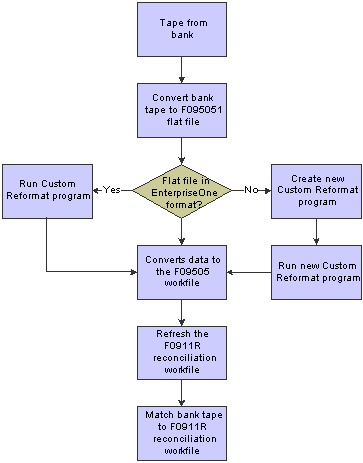
Reconciliation process
Reformatting the Bank Tape
This section provides an overview of the program used to reformat bank tapes and discusses how to:
Run the Custom Reformat UBE program.
Set processing options for Custom Reformat UBE (R09501).
 Understanding the Program Used to Reformat Bank Tapes
After you convert the bank tape to the F095051 flat file, run the Custom Reformat UBE program to convert the information to the F09505 workfile.
For the Custom Reformat UBE program to convert the data to the F09505 workfile, the data must be in these positions in the F095051 workfile:
|
Positions |
Information |
Specifications |
|
Positions 1–8 |
Account ID |
Enter the ID with or without leading zeros, right or left justified. |
|
Positions 9–16 |
Payment number |
Enter the payment number right justified with leading zeros. |
|
Positions 17–46 |
Explanation |
Enter the explanation for the payment. |
|
Positions 47–61 |
Amount |
If you are working with a decimal currency, enter the decimal or the whole monetary amount. For example, enter 200.00 CAD as either 200 or 200.00. If you enter the amount as 200000, the program tries to match the amount as 200000.00. |
|
Positions 62–67 |
Payment date |
Gregorian format |
If data in the F095051 workfile is not in the positions specified, you must create a new custom reformat program. Use the Custom Reformat UBE program as a template for creating your custom program.
Running the Custom Reformat UBE Program
Select Bank Tape Reconciliation (G09213), Custom Reformat UBE.
Setting Processing Options for Custom Reformat UBE (R09501)
Use these processing option to specify when to purge workfiles.
Purge
|
1. Purge F09505 table before processing. |
Specify whether the system purges the F09505 workfile before it runs the Custom Reformat UBE program. Values are: Blank: Do not purge the F09505 workfile. 1: Purge the F09505 workfile. The system purges this workfile before it updates the F095051 workfile. |
|
2. Purge F095051 table before processing. |
Specify whether the system purges the F095051 workfile after it runs the Custom Reformat UBE program. Values are: Blank: Do not purge the F095051 workfile. 1: Purge the F095051 workfile. |
Refreshing Account Reconciliation Information
Before the system can match the data from the bank tape to your general ledger and reconcile your bank account, you must run the Refresh Reconciliation File program (R09130). Typically, you run this program at the end of each fiscal period to reconcile transactions for the period. The Refresh Reconciliation File program copies the unreconciled transaction detail for all reconcilable accounts from the F0911 table to the F0911R reconciliation workfile.
See Also
Understanding the Refresh Reconciliation File Program
Matching the Bank Tape to the Reconciliation Workfile
This section provides an overview of the program used to reconcile transactions and discusses how to:
Run the Match Tape File to Recon File program.
Set processing options for Match Tape File to Recon File (R09510).
Understanding the Program Used to Reconcile Transactions
After you run the Custom Reformat UBE program to convert the bank tape data from the F095015 workfile to the F09505 workfile, run the Match Tape File To Recon File program (R09510) to have the system reconcile the transactions that have cleared your bank account.
The Match Tape File To Recon File program reconciles the transactions by performing these steps:
Compares cleared transactions from the bank tape in the F09505 to unreconciled transactions in the F0911R reconciliation workfile.
Marks as reconciled all transactions with matching document numbers and amounts, and cleared dates greater than the document date in the F0911R workfile and F0911 table.
Prints four reports that show the results of the comparison and list any errors that occurred during the automatic reconciliation.
Running the Match Tape File To Recon File Program
Select Bank Tape Reconciliation (G09213), Match Tape File To Recon File.
Setting Processing Options for Match Tape File To Recon File (R09510)
Use these processing options to specify an account ID and assign a reconciliation number, if applicable.
Select
|
1. Account ID |
Specify an account ID to automatically assign to each GL account to maintain an audit trail. The account ID is a unique identification number (account key) and a self-check digit. This number is also called the account serial number, the short account number, and the ID number. |
|
2. Reference 3 |
Specify whether to automatically assign a reconciliation number to the Reference 3 field. Values are: Blank: Do not update the Reference 3 field. 1: Update the Reference 3 field with a reconciliation number. |
|
3. Reference 3 Value |
Specify the reconciliation number to update in the Reference 3 field. If you leave this processing option blank, the system uses the Next Number Revisions program (P0002) to assign the reconciliation number. |
Verifying the Bank Tape Reconciliation
Use reports to verify the accuracy of the bank tape reconciliation and, if applicable, to determine the cause of any errors. If errors occur, the system does not mark the transactions as reconciled. You must manually reconcile them using the Manual Reconciliation program (P09131).
When you run the Match Tape File To Recon File program, the system generates these four reports:
|
Report |
Description |
|
Reconciliation Report |
Prints a detail line for every transaction and, if errors occurred, prints a message such as:
|
|
Cleared Not Issued Report |
Summarizes any payments that cleared the bank but do not exist in the F0911 table. Payments appear on this report if:
|
|
Cleared Before Issued Report |
Summarizes payments that have a cleared date prior to the payment date. Payments appear on this report if:
|
|
Amounts Not Equal Report |
Summarizes payments that have cleared the bank, but the cleared amount is not the same as the actual payment amount. Payments appear on this report if:
|