 Understanding Managing Harvest Estimates
This chapter provides an overview of managing harvest estimates, lists a prerequisite, and discusses how to:
Manage harvest estimates.
Manage continuous harvest estimates.
Perform mass updates on harvest estimates.
Perform mass updates on continuous harvest estimates.
Create frozen harvest estimates.
Manage frozen harvest estimates.
Understanding Managing Harvest Estimates
Many growers harvest their crop over a period of time. For example, avocados are continuously harvested over a period of two years. Growers should estimate and schedule how much of the crop to harvest during each time period. An overestimation of the total crop volume may result in a large financial loss to the grower because of the uneven shipment spread. A grower might anticipate a record crop volume and therefore ship large quantities early in the harvest cycle. If the overall estimate is lower than anticipated, not enough crop will be available to harvest later on in the harvest cycle.
This diagram represents several blocks of broccoli, and each block has two separate harvest dates and estimated quantities:
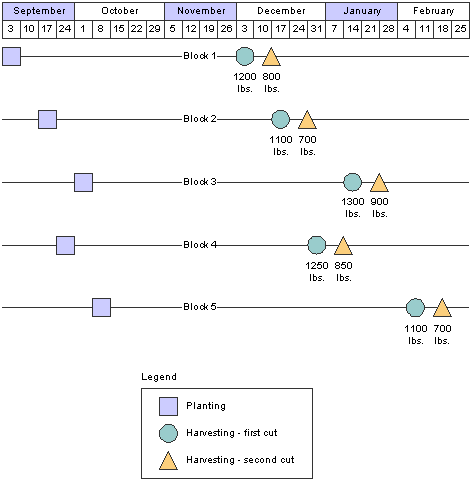
Multiple harvest estimates
Harvest Estimate Updates
The system enables you to update one or more harvest estimate records at a time. The four update methods are by:
Percentage.
Specified value.
Override original amount.
Specified amount per acre.
Harvest Estimate
Use the harvest estimate to adjust the harvest estimate based on the planted area. You can also change the estimate per area to calculate a new harvest estimate. When you change the harvest estimate, the system recalculates the estimate per area by taking the harvest estimation and dividing it by the planted area.
This table shows the calculated values for the harvest estimate and estimate per area based on the planted area:
|
Block Code |
Harvest Period |
Harvest Estimate |
Estimate Per Area |
Estimate UOM |
Planted Area |
Planted UOM |
|
Block 1 |
H1C |
1200 |
120 |
TN |
10 |
AC |
|
Block 1 |
H2C |
800 |
80 |
TN |
10 |
AC |
|
Block 2 |
H1C |
1100 |
73.3333 |
TN |
15 |
AC |
|
Block 2 |
H2C |
700 |
46.6667 |
TN |
15 |
AC |
Mass Update Harvest Estimate
Use the mass update functionality to change the estimate for one or more harvest records by the same percentage or value. You can increase or decrease the estimate.
This tables shows the original harvest estimate and the adjusted estimate based on a percentage and a specified value:
|
Harvest Name |
Original Harvest Estimate |
Increase Percentage Value = 10 |
Decrease Percentage Value = 5 |
Specified Value Value = 100 |
Specified Value Value = –50 |
|
Block 1 H1C |
1200 |
1320 |
1140 |
1300 |
1150 |
|
Block 1 H2C |
800 |
880 |
760 |
900 |
750 |
|
Block 2 H1C |
1100 |
1210 |
1045 |
1200 |
1050 |
|
Block 2 H2C |
700 |
770 |
665 |
800 |
650 |
You can also override the current estimates by a specific value.
This table shows the original harvest estimate and the adjusted estimate using the override estimate method:
|
Harvest Name |
Original Harvest Estimate |
Override Estimate Value = 1000 |
|
Block 1 H1C |
1200 |
1000 |
|
Block 1 H2C |
800 |
1000 |
|
Block 2 H1C |
1100 |
1000 |
|
Block 2 H2C |
700 |
1000 |
Freeze Harvest Estimates
The system enables users to freeze harvest estimates at the end-use reservation (EUR) level. If an EUR is not assigned to a harvest, the system assigns an EUR value of UNKNOWN. This provides a snapshot of a harvest estimate for planning and comparison purposes for each EUR. For example, a grape grower may freeze his harvest estimate in early spring with forty percent going to EUR Premium and sixty percent going to EUR Standard. When the crop is harvested in October, if he is short on the Standard EUR, he can plan to meet his expected needs by other means.
Continuous Harvest Estimates
Many crops, like bananas and avocados, are harvested continuously over a period of time. The system enables you to manage estimates by pick date range. You can add multiple pick dates and quantities for each harvest record. The system totals the estimates from the different pick dates and updates the harvest-level estimate. When using continuous harvests, the system enables you to manage one harvest record at a time.
When freezing a continuous harvest estimate, you can freeze the estimate only at the harvest level for each EUR.
Push Forward
The system enables users to push a harvest estimate to future harvest records within the same block. Users can select the harvest records that they want to change.
 Prerequisite
Before you complete the tasks in this section, enter harvest estimates on the harvest record.
Managing Harvest Estimates
This section discusses how to manage harvest estimates.
Forms Used to Manage Harvest Estimates
|
Form Name |
FormID |
Navigation |
Usage |
|
W40G032A |
Daily Processing (G40G111), Harvest Workbench |
Search and select harvest records. |
|
|
W40G20A |
On Manage Harvests, select one or more harvest records. In the Select Record (s) field, select Enter Harvest Estimates, and click the Go button. |
Manage harvest estimates. Change the harvest estimate or estimate per area on individual harvest records. |
|
|
W40G20D |
On Manage Harvests, select a harvest record. In the Select Record (s) field, select Estimate Push Forward and click the Go button |
Push forward a harvest estimate. |
Managing Harvest Estimates
Access the Harvest Estimate - Entry form.
|
Harvest Estimate |
Enter the revised harvest estimate. The system recalculates the estimate per area when you change this value. The system prevents you from entering a negative estimate. |
|
Estimate Per Area |
Enter the revised estimate per area. The system recalculates the harvest estimate when you change this value. |
Pushing Harvest Estimates Forward
Access the Harvest Estimate - Push Forward form.
|
Push Forward |
Select the records that you want to update, and click this button. |
|
New Harvest Estimate |
Displays the new harvest estimate. |
Managing Continuous Harvest Estimates
This section lists prerequisites and discusses how to manage continuous harvest estimates.
Prerequisites
Before you complete the tasks in this section:
Select the Use Continuous Estimates check box in the Add/Edit Grower Block program (P40G02).
Add harvest records to the block.
Forms Used to Manage Continuous Harvest Estimates
|
Form Name |
FormID |
Navigation |
Usage |
|
W40G032A |
Daily Processing (G40G111), Harvest Workbench |
Search and select harvest records. |
|
|
W40G23A |
On Manage Harvests, select a harvest record that is set up for continuous estimates. In the Select Record (s) field, select Enter Continuous Harvest Estimates, and click the Go button. |
Change the continuous harvest estimate. Enter an estimate per area on individual harvest records. |
|
|
W40G23A |
On Continuous Harvest Estimate - Entry, select the rows to delete and click Delete. Click OK to delete the selected item. Click Save and Close to remove the record from the Grower Continuous Estimate table (F40G033). |
Manage continuous harvest estimates. Delete harvest dates on the harvest record. |
|
|
W40G23C |
On Manage Harvests, select a harvest record. In the Select Record(s) field, select View Continuous Harvest Estimates and click theGo button. |
View continuous harvest estimates. |
Managing Continuous Harvest Estimates
Access the Continuous Harvest Estimate - Entry form.
|
Past Date Estimates |
Displays estimates that are past due. Past date estimates are not displayed in the grid area. |
|
Remaining Estimates |
Displays the remaining estimates by subtracting the past date estimate from the total continuous estimate. |
|
Total Continuous Estimates |
Displays the total of the Continuous Estimate fields. This value is used to update the current estimate on the Grower Harvest table (F40G03). |
|
Harvest Date |
Enter the harvest date. This value is for the item only and does not include any EUR breakout. The harvest date must be unique for each harvest period. |
|
Continuous Estimate |
Enter the amount that is expected to be harvested for this harvest date. The system prevents you from entering a negative estimate. |
|
Estimate Per Area |
Enter the revised estimate per area. The system recalculates the continuous estimate when you change this value. |
Performing Mass Updates on Harvest Estimates
This section discusses how to perform mass updates on harvest estimates.
Forms Used to Perform Mass Updates on Harvest Estimates
|
Form Name |
FormID |
Navigation |
Usage |
|
W40G032A |
Daily Processing (G40G111), Harvest Workbench |
Search and select harvest records. |
|
|
W40G20C |
On Manage Harvests, select one or more harvest records. In the Select Record(s) field, select Mass Update Harvest Estimates, and click the Go button. |
Perform a mass update on one or more harvest estimates. |
Performing Mass Updates on Harvest Estimates
Access the Harvest Estimate - Mass Update form.
|
Update Method |
Select the method to use when updating the harvest estimate. Values are: By Percentage By Value Override Estimate |
|
Update Value |
Enter a value that is used in conjunction with the update method to calculate the new harvest estimate. |
|
New Harvest Estimate |
The system displays the new harvest estimate based on the update method and value. |
Performing Mass Updates on Continuous Harvest Estimates
This section discusses how to perform mass updates on continuous harvest estimates.
Forms Used to Perform Mass Updates on Continuous Harvest Estimates
|
Form Name |
FormID |
Navigation |
Usage |
|
W40G032A |
Daily Processing (G40G111), Harvest Workbench |
Search for and select harvest records. |
|
|
W40G23B |
On Manage Harvests, select a harvest record. In the Select Record (s) field, select Mass Update Continuous Harvest Estimates, and click the double arrow on the right. |
Perform a mass update on the harvest dates for the continuous harvest estimate. |
|
|
W40G23B |
Select the rows to reset, and click Reset. The system changes the calculated estimate to blank. |
Reset the continuous estimate so that no changes are made to the Continuous Harvest Estimates table (F40G033). |
Performing Mass Updates on Continuous Harvest Estimates
Access the Continuous Harvest Estimate - Mass Update form.
Select the rows that you want to update.
|
Update Method |
Select the method to use when updating the harvest estimate. Values are: By Percentage By Value Override Estimate |
|
Update Value |
Enter a value that is used in conjunction with the update method to calculate the new harvest estimate. |
|
Calculated Estimate |
The system displays the new calculated harvest estimate based on the update method and value. |
Creating Frozen Harvest Estimates
This section provides and overview of creating frozen harvest estimates, lists a prerequisite, and discusses how to create frozen harvest estimates.
Run the Harvest Estimate Freeze program.
Set processing options for Harvest Estimate Freeze (R40G032).
Understanding Creating Frozen Harvest Estimates
The system enables you to freeze one or more harvest estimates. The system will not allow you to refreeze a harvest estimate with the same name if at least one frozen EUR record exists for that harvest.
Prerequisite
Before you complete the tasks in this section, create harvest estimates.
Running the Harvest Estimate Freeze Program
Select Advanced and Technical Operations (G40G131), Harvest Estimate Freeze.
Setting Processing Options for Harvest Estimate Freeze (R40G032)
Use these processing options to control system processing and define print options.
Process
These processing options specify the freeze name, control whether the system runs in proof or final mode, and determine whether the system refreshes the Freeze Detail table.
|
1. Freeze Name (Required) |
Specify a name, up to 40 characters, that the system will use when freezing EUR distribution quantities during the Harvest Estimate Freeze (R40G032). A harvest estimate can be frozen under a freeze name only once, unless the freeze is being run in refresh mode. |
|
2. Processing Mode |
Specify whether the system generates the report in proof mode or final mode. Proof mode does not perform table updates. Final mode updates tables based on the harvest records that are specified in the data selection. Values are: Blank: Run in proof mode. 1: Run in final mode. |
|
3. Refresh Data |
Specify whether the system refreshes data for the freeze name that is specified on this tab. When this processing option is set to refresh freeze data, all previous freeze data sharing this freeze name will be deleted from the Freeze Detail table (F40G032) upon initiation of the Harvest Estimate Freeze (R40G032). Then new freeze data is created for harvest records that match the data selection on this version, using the same freeze name. Values are: Blank or 0: Create new freeze data. 1: Refresh freeze data. |
Use these processing options to specify whether the system prints harvest totals and zero amounts.
|
1. Print Harvest Totals |
Specify whether the harvest totals are printed on the report. Values are: Blank or 0: Do not print harvest totals. 1: Do print harvest totals. |
|
2. Print Zero Quantities |
Specify whether frozen estimates with zero quantities are printed on the report. Values are: Blank or 0: Do not print zero quantities. 1: Do print zero quantities. |
Managing Frozen Harvest Estimates
This section lists a prerequisite and discusses how to:
Manage frozen harvest estimates.
Delete frozen harvest estimates by EUR.
Delete frozen harvest estimates by name.
Prerequisite
Before you complete the tasks in this section, create frozen harvest estimates.
Forms Used to Manage Frozen Harvest Estimates
|
Form Name |
FormID |
Navigation |
Usage |
|
W40G21A |
Advanced and Technical Operations (G40G131), Harvest Estimate - Edit Freeze |
Search and select frozen harvest estimates. |
|
|
W40G21B |
On Edit Freeze - Frozen Estimate - Search / Select, select a record and then click Edit. |
Edit the EUR information for the frozen estimate. |
|
|
W40G21B |
On Edit Freeze - Frozen Estimate - Search / Select, select a record and then click Delete. Select the EUR code to delete, and click Delete. On the Harvest Estimate - Edit Freeze - Confirmation window, select Yes to permanently delete the record from the table. |
Delete the EUR information for the frozen estimate. |
|
|
W40G21D |
On Edit Freeze - Frozen Estimate - Search / Select, and click the Delete By Frozen Estimate Name link. |
Delete a frozen estimate by name. |
Managing Frozen Harvest Estimates
Access the Edit Freeze - Frozen Estimate - Edit form.
|
EUR Quantity (end use reservation quantity) |
Displays the estimated EUR quantity for the frozen harvest records. |
|
Freeze Price |
Displays the unit price for the frozen harvest item, excluding freight, taxes, discounts, and other factors that might modify the actual price that you record when the blend system receives the item. |
|
Crush Site |
Displays the site where the crop will be crushed. |
|
Produced Site |
Displays the site where the crop will be produced. |
|
Reason Code |
Enter notes to reference why the estimate is being changed. |
Deleting Frozen Harvest Estimates By EUR
Access the Frozen Estimate - Delete form.
Deleting Frozen Harvest Estimates By Name
Access the Delete By Frozen Estimate Name form.
|
Frozen Estimate Name |
Displays the frozen harvest estimate name to be deleted. |