 Reviewing and Revising Requisitions
This chapter discusses how to:
Review and revise requisitions
Approve and reject requisitions
Reviewing and Revising Requisitions
This section provides an overview of reviewing and revising requisitions and discusses how to:
Set processing options for Requisition Inquiry.
Review requisitions.
Review requisition details.
 Understanding Reviewing and Revising Requisitions
The Requisition Inquiry program (P43E15) enables managers, buyers, and originators to review requisitions and determine what actions must be taken for them. If you need to revise a requisition, select it and click Edit on the View Requisition form, and the system displays the Add Requisition form for you to revise fields as necessary. If you make any changes to the requisition, you must resubmit the requisition for approvals.
The default view for the View Requisitions form is to display all requisitions for the originator signed on to the system. However, you can narrow the search by entering a buyer number, commodity, supplier, or a range of requisition dates. Within a search, you can also filter by:
Requisitions at a status of Composing, Submitted, Completed, or Canceled.
Requisitions that have been flagged as special requests.
Requisition lines with errors.
Requisitions that have been flagged as high priority.
You can also review the approval route for requisitions.
Forms Used to Review and Revise Requisitions
|
Form Name |
FormID |
Navigation |
Usage |
|
W43E15A |
Daily Processing (G43E11), Requisition Inquiry |
Review Requisitions |
|
|
W43E82B |
Click Review Approvals on the View Requisitions form. |
Review the approval route for requisitions. |
|
|
W43E10C |
Click the value in the Description field in the Requisition Detail subform on the View Requisitions form. |
Review additional details for the requisition, such as account distribution. |
|
|
W43E10A |
Click Edit on the View Requisitions form. |
Revise requisitions. |
Setting Processing Options for Requisition Inquiry (P43E15)
These processing options determine default processing information for viewing requisitions.
Defaults
|
1. Order Type |
Specify an order type for the system to use as a default value for the Order Type field on the View Requisitions form. Enter a valid order type. |
Display
|
1. Requested By |
Specify whether you can change the Requested By search criteria field. The default value is the user ID of the user currently signed on to the system. Values are: Blank: The Requested By field is enabled; you can change the default value in the field 1: The Requested By field is disabled; you cannot change the default value in the field. |
Versions
|
1. Requisition Entry (P43E10) |
Specify the version to use when accessing the Requisition Entry program from within Requisition Inquiry. |
Reviewing Requisitions
Access the View Requisitions form.
Reviewing Requisition Details
Access the View Requisition Details form.
Approving and Rejecting Requisitions
This section provides overview of approving and rejecting requisitions and approving over-budget requisitions and discusses how to:
Set processing options for Approve Requisitions Over Budget (P43E070).
Approve and reject requisitions.
Approve over-budget requisitions.
Understanding Requisition Approval and Rejection
The Requisition Approval program (P43E82) enables you to view all requisitions, all requisitions at a certain status, or a specific requisition or line. You can also enter a date range for requisitions to view, including a future date range. The date range enables you to view not only the requisitions currently waiting for approval, but also all requisitions that will be needing approval at a later date. You can approve one requisition or several at once.
When you approve or reject a requisition, the system uses workflow to send messages to the originator. If you approve a requisition, the system assigns a status of Approved to only the approved requisition lines. The system does not change the status of the requisition header until a purchase order is generated.
This diagram illustrates the approval flow:
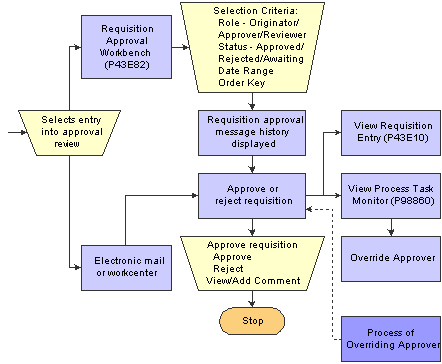
Requisition approval flow
When approving or rejecting requisitions, you can review the existing justification information that was entered by the requestor. You can enter additional comments to the justification, and the system saves the comments when you click Approve or Reject. The requestor can then review the additional comments in the Requisition Inquiry program (P43E15).
Understanding Approval for Over-Budget Requisitions
If you have activated budget checking in the Procurement system, use the Requisitions Over Budget program (P43E070) to process requisitions that exceed the budget. This program enables you to inquire on all requisitions that have at least one line that is over budget. To release lines that are over budget, you select one or more lines for release, and then you must enter a password. The password that you enter is the same password that you would use for releasing purchase orders in the JD Edwards EnterpriseOne Procurement system. After the system validates the password, it updates the status on the lines to Submitted and sends the requisitions for approval, if you have set up the system for approvals. If you have not set up requisition approval correctly, the system generates an error. You must correct the workflow approval setup and then process the budget release again.
See Working with Orders on Hold.
See Setting Up Requisition Approval Workflow.
Forms Used to Approve and Reject Requisitions
|
Form Name |
FormID |
Navigation |
Usage |
|
W43E82B |
Daily Processing (G43E11), Requisition Approval |
View requisitions to be approved. |
|
|
W43E82A |
Select Approve or Reject from the Requisition form |
Approve and reject requisitions. |
|
|
W43E10A |
Select Review Requisition on the Approve Requisition form. |
Review details of the requisition to determine whether to approve or reject. |
|
|
Approve Requisitions Over Budget |
W43E070A |
Daily Processing menu (G43E11), Approve Requisitions Over Budget |
Review existing requisitions that are over budget. Select a requisition to approve. |
|
Confirm Password |
W43E070B |
Select a requisition on the Approve Requisitions Over Budget form and click Approve Budget. |
Enter the correct password to approve the requisition. |
Setting Processing Options for Approve Requisitions Over Budget (P43E070)
These processing options provide default processing information for the Approve Requisitions Over Budget program.
Defaults
|
1. Order Type |
Specify the default document type for the system to use on the Approve Requisitions Over Budget form. Enter a valid document type from user-defined code table 00/DT. |
|
2. Hold Orders Code |
Specify the hold code that the system uses to approve requisition lines that are over budget. The user will need to provide the correct password corresponding to the hold code to approve the over-budget line. |
Versions
|
1. Requisition Entry Version (P43E10) |
Specify the version of the Requisition Entry program (P43E10) for the system to use when accessing it from within the Approve Requisitions Over Budget program. When you specify a version, review its processing options to ensure that it meets your needs. |
Approving and Rejecting Requisitions
Access the Approve Requisition form.
Click Approve or Reject.
Approving Over-Budget Requisitions
Access the Confirm Password form.
|
Password |
Specify the correct password. You set up the password in the Release Code processing option for the Held Order Release program (P43070). See Setting Processing Options for Held Order Release (P43070). |