 Example Overview
This appendix provides an overview of an example of an Application Integration Framework transformation and discusses how to:
Define a dynamic value map.
Define and populate a static value map.
Use the XSLT extension function in the transformation program.
Update the service operation routing.
Example OverviewThis diagram represents the scenario for this application:
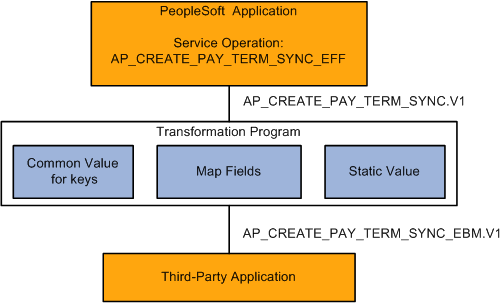
Payment terms integration flow
In this example, the PeopleSoft application updates the third-party application every time a new payment term is added. This transformation requires mapping the PeopleSoft ABM elements to the EBM elements, as well as mapping keys and static values. This example covers the following data translations within Application Integration Framework:
The combination of the fields SETID and PYMNT_TERMS_CD is used as the key in the PeopleSoft application. This value needs to be assigned a common GUID for the EBM.
The PeopleSoft application uses a 3-character code for language. The third-party system uses a numeric code.
This integration requires a transformation that:
Maps the message structure.
Creates a common value for the key fields.
Translates the data values for static fields that differ.
Defining a Dynamic Value MapTo create a new dynamic value map:
Select Enterprise Components, Integration Definitions, Transformation Framework, Define Value Maps.
Select the Add a New Value page.
Enter PaymentTermsGUID for the map name.
Select Cross-reference (Dynamic) for the map type.
Click Add.
The map will contain the element UniqueGUID.
Add two additional elements SETID and PYMNT_TERMS_CD.
Three elements are defined: UniqueGUID, SETID, and PYMNT_TERMS_CD.
To add the domains:
Select the Domains page.
The UniqueGUID domain appears.
Click the Add a new row icon to create another domain.
Enter PSFT for the domain name.
Select SETID for the first element.
Click the Add a new row icon to add another row.
Select PYMNT_TERMS_CD for the second element.
Save the page.
Two domains are defined for this map:
UinqueGUID is the domain used by the third party; it contains the UniqueGUID element.
PSFT represents the PeopleSoft application and contains the elements SETID and PYMNT_TERMS_CD.
Defining and Populating a Static Value MapTo create a new domain value map:
Select Enterprise Components, Integration Definitions, Transformation Framework, Define Value Maps.
Select the Add a New Value page.
Enter LanguageCodeDVM for the map name.
Select Domain Value Map (static) for the map type.
Click Add.
The map will contain the element UniqueGUID.
Add two additional elements, LANGUAGE_CD and COMMON.
To add the domains:
Select the Domains page.
The UniqueGUID domain appears.
Click the Add a new row icon to create another domain.
Enter PSFT for the domain name.
Select LANGUAGE_CD for the first element.
Click the Add a new row icon in the header to add another domain.
Enter AIA for the domain name.
Select COMMON for the first element.
Save the page.
Three domains are defined: AIA, PSFT and UniqueGUID.
To populate the DVM:
Select Enterprise Components, Integration Definitions, Transformation Framework, Populate Domain Value Maps.
Select LanguageCodeDVM.
In the LANGUAGE_CD column, enter a data value as defined in the PeopleSoft (PSFT) domain.
In the corresponding COMMON column, enter the value to be used for the AIA domain.
Add as many rows as necessary to map all of the static values.
Save the page.
Using the XSLT Extension Function in the Transformation ProgramCreate a transformation program that maps the fields in the PeopleSoft ABM message to the corresponding fields in the EBM message. You will then use the XSLT functions to map the data values.
This section provides sample coding for sections of the transform application engine program for:
Key value transformation
Domain value transformation
 Key Value Transformation
This example shows the elements in XML in the ABM that need to be translated, the code for the translation, and the resulting elements in the EBM.
Key Elements for Translation in PeopleSoft ABM
Elements in XML message:
<MsgData>
    <Transaction>
      <PYMT_TRMS_HDR class="R">
        <SETID IsChanged="Y">SHARE</SETID>
        <PYMNT_TERMS_CD IsChanged="Y">DIT91</PYMNT_TERMS_CD>
XSLT Code
This snippet of the XSLT code shows the transform XSLT in the application engine program:
Create a new variable by concatenating SETID and PYMT_TERMS_CD:
<corecom:ApplicationObjectKey> <corecom:ID> <xsl:attribute name="schemeID"> <xsl:text disable-output-escaping="no">PSFT</xsl:text> </xsl:attribute> <xsl:attribute name="schemeAgencyID"> <xsl:text disable-output-escaping="no">PSFT_COMMON</xsl:text> </xsl:attribute> <xsl:variable name="NamedValuePair"select='concat("<SETID>",PYMT_TRMS_⇒ HDR/SETID,"</SETID><PYMNT_TERMS_CD>",PYMT_TRMS_HDR/PYMNT_TERMS_⇒ CD,"</PYMNT_TERMS_CD>")'/>
Use the generate-guid utility to generate a unique GUID:
<xsl:variable name="CommonGuid" select='concat("<UniqueGUID>",utility:⇒ generate-guid(),"</UniqueGUID>")'/>
Note. This step is not necessary. If the GUID does not exist, the appropriate xref:populate function automatically generates the unique GUID.
Use the xref:populateValueNVP function to add the new GUID to the cross-reference:
<xsl:variable name="GUIDAdd" select='xref:populateValueNVP("PaymentTermGUID","PSFT"⇒
⇒
⇒
⇒
⇒
⇒
,$NamedValuePair,"UniqueGUID",$CommonGuid,"ADD")'/>
           <xsl:call-template name="Process-GUID">
             <xsl:with-param name="returnValue">
                <xsl:value-of select="$GUIDAdd"/>
             </xsl:with-param>
                <xsl:with-param name="statusDelimiter">;</xsl:with-param>
             </xsl:call-template>
  </corecom:ID>
Insert the values in the EBM message:
        <corecom:ContextID>
      <xsl:attribute name="schemeID">
          <xsl:text disable-output-escaping="no">SETID</xsl:text>
      </xsl:attribute>
      <xsl:attribute name="schemeAgencyID">
          <xsl:text disable-output-escaping="no">PSFT</xsl:text>
      </xsl:attribute>
      <xsl:value-of select="PYMT_TRMS_HDR/SETID"/>
  </corecom:ContextID>
  <corecom:ContextID>
      <xsl:attribute name="schemeID">
        <xsl:text disable-output-escaping="no">Payment Terms Code</xsl:text>
      </xsl:attribute>
          <xsl:attribute name="schemeAgencyID">
          <xsl:text disable-output-escaping="no">PSFT</xsl:text>
      </xsl:attribute>
      <xsl:value-of select="PYMT_TRMS_HDR/PYMNT_TERMS_CD"/>
  </corecom:ContextID>
Transformed Elements in EBM Message
The transformed EBM message contains the common GUID value:
<corecom:ApplicationObjectKey>
          <corecom:ID schemeAgencyID="PSFT_COMMON"schemeID=⇒
"PSFT">b15f3c34-72bc-11dd-b7dd-aaf7c4308a71</corecom:ID>
          <corecom:ContextID schemeAgencyID="PSFT" schemeID=⇒
"SETID">SHARE</corecom:ContextID>
          <corecom:ContextID schemeAgencyID="PSFT" schemeID=⇒
"Payment Terms Code">DIT91</corecom:ContextID>
Domain Value TransformationThis example shows the domain value elements in XML in the ABM that need to be translated, the code for the translation, and the resulting elements in the EBM.
Domain Value Elements for Translation in PeopleSoft ABM
Here is the element for language in PeopleSoft ABM message:
<<PSCAMA class="R">
        <LANGUAGE_CD>ENG</LANGUAGE_CD>
XSLT Code
This snippet of the XSLT code shows the dvm lookup in the transform application engine program:
<xsl:variable name="MsgLang" select='dvm:lookup-dvm ("LanguageCodeDVM"⇒
,"LANGUAGE_CD",//MsgData/Transaction/PSCAMA/LANGUAGE_CD,"COMMON"⇒
,//MsgData/Transaction/PSCAMA/LANGUAGE_CD,false())'/>
<xsl:variable name="BaseLang" select='dvm:lookup-dvm("LanguageCodeDVM"⇒
,"LANGUAGE_CD",//MsgData/Transaction/PSCAMA/BASE_LANGUAGE_CD,"COMMON",⇒
//MsgData/Transaction/PSCAMA/BASE_LANGUAGE_CD,false())'/>
<xsl:attribute name="languageCode">
  <xsl:value-of select="substring-after($MsgLang,';')"/>
</xsl:attribute>
Transformed Elements in EBM Message
Here is the translated elements in the resulting EBM message:
<?xml version="1.0"?>
<paytermcreate:CreatePaymentTermEBM languageCode="500" xmlns:corepaymenttermcust=⇒
"http://xmlns.oracle.com/EnterpriseObjects/Core/Custom/EBO/PaymentTerm/V1"⇒
 xmlns:paytermcreate="http://xmlns.oracle.com/EnterpriseObjects/Core/EBO/Create⇒
PaymentTermEBM/V1">
  <corecom:EBMHeader languageCode="500" xmlns:corecom="http://xmlns.oracle.com⇒
/EnterpriseObjects/Core/Common/V2">
    <corecom:Sender>
      <corecom:ID>E900B20</corecom:ID>
    </corecom:Sender>
  </corecom:EBMHeader>
Updating the Service Operation RoutingTo update the service operations routing:
Select PeopleTools, Integration Broker, Integration Setup, Service Operations.
Select the service operation that you need to update.
Select the Routing page.
Either enter a new routing or click the link for an existing routing.
If it is a new routing, enter the routing information.
Access the Parameters page.
|
Message.Ver into Transform 1 |
This is the PeopleSoft ABM message. |
|
Transform Program 1 |
This is the transformation program created for this integration. |
|
Message.Ver out of Transforms |
This is the EBM message that will be sent to the third party. |
Save the routing.