 Understanding the Store-and-Forward Process for Vouchers
This chapter provides an overview of the store-and-forward process for vouchers, lists a prerequisite, and discusses how to:
Create or revise vouchers to store and forward.
Upload store-and-forward vouchers to the server.
Process store-and-forward vouchers.
Update transaction control records.
Purge processed store-and-forward vouchers.
Understanding the Store-and-Forward Process for Vouchers
Store-and-forward voucher processing provides an efficient way to enter and manage a high volume of vouchers before processing them in the JD Edwards EnterpriseOne Accounts Payable system. For example, if you are at a remote site and do not have a dedicated line for access to the server, you can create vouchers locally on your PC during normal business hours. Then you can upload them to the server for processing during off-peak hours.
Before creating vouchers on your PC, you must download business data and technical data tables from the server. These tables are necessary to create and validate transactions. For example, to provide you with the supplier information that you need to create vouchers, you must download the Address Book Master (F0101) and Supplier Master (F0401) tables.
After downloading business data and technical data tables, the system creates a download report for each table that you download. Use this report to verify the number of records that the system downloads to your PC. After you download the business data and technical data tables, you can enter your transactions using the store-and-forward environment.
The process for store-and-forward vouchers includes:
Create store-and-forward vouchers locally.
Upload store-and-forward vouchers to the server.
Process store-and-forward vouchers.
Post processed store-and-forward vouchers.
Purge processed store-and-forward vouchers.
This graphic describes the store-and-forward process:
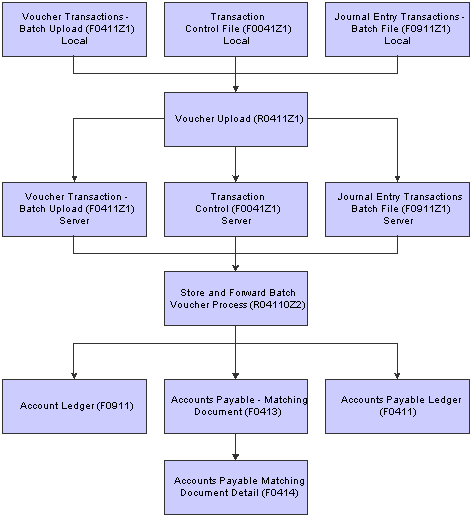
Store and forward process
Prerequisite
Download the required business data and technical data tables needed for store-and-forward voucher processing.
See Business Data Tables Needed for Processing Store-and-Forward Vouchers.
See JD Edwards EnterpriseOne Tools 8.96 Configurable Network Computing Implementation Guide
Creating and Revising Vouchers to Store-and-Forward
This section provides an overview of how to create and revise vouchers to store-and-forward and discusses how to:
Create and revise vouchers to store-and-forward.
Set the processing options for Store and Forward Batch Vouchers Revisions.
 Understanding How to Create and Revise Store-and-Forward Vouchers
Use the Store and Forward Batch Voucher Revisions program (P0411Z1) to create or revise store-and-forward vouchers.
Creating Store-and-Forward Vouchers
After you download the master tables to your PC, you can create standard vouchers using the Store and Forward Batch Voucher Revisions program (P0411Z1). You store the vouchers on your PC until you are ready to upload (forward) them to the server for processing.
When you create vouchers that you store and forward, the system does not assign document numbers until you upload and process them. Instead, it assigns a transaction number to each voucher. When you create vouchers that you store and forward, the system:
Edits and validates each voucher based on the information that you downloaded from the tables.
Creates a transaction control record for each voucher, assigns it a status of 1 (ready to process), and stores it in the Transaction Control File table (F0041Z1).
Creates a transaction record in the Voucher Transactions - Batch Upload (F0411Z1) and Journal Entry Transactions - Batch File (F0911Z1) tables.
Revising Store-and-Forward Vouchers
After running the Store and Forward Batch Voucher Process program (R04110Z2), you might find that some records ended in error. You must review the error messages in the work center, revise the records, and then run the Store and Forward Batch Voucher Process program again.
Use the Store and Forward Batch Voucher Revision program (P0411Z1) to review your records and revise fields as needed.
Note. You cannot use the Store and Forward Batch Voucher Revision program to revise successfully processed records. You must use
the Standard Voucher Entry program (P0411) to revise them because the system wrote data to the Accounts Payable Ledger (F0411)
and Account Ledger (F0911) tables when the records processed successfully.
You can delete only unprocessed vouchers from the Work With Store & Forward Vouchers form. If the store-and-forward voucher
has been successfully processed, you must purge it using the Purge Store and Forward Vouchers program (R0041Z1P).
You can also use the Store and Forward Batch Voucher Revision program to add records to the Voucher Transactions - Batch Upload table (F0411Z1). You cannot add a voucher to a batch that you attempted to process. You can, however, create a new batch and add a voucher to it.
Store and forward voucher information is stored in the Voucher Transactions - Batch Upload (F0411Z1) and Journal Entry Transactions - Batch File (F0911Z1) tables.
Forms Used to Create and Revise Store-and-Forward Vouchers
|
Form Name |
FormID |
Navigation |
Usage |
|
Work With Store & Forward Vouchers |
W0411Z1A |
Batch Voucher Processing (G04311), Batch Voucher Revisions. |
Select and delete batch vouchers. |
|
Enter Voucher - Payment Information |
W0411Z1D |
Click Add on the Work With Store & Forward Vouchers form. Alternatively, select an existing voucher then click Select on the Work With Store & Forward Vouchers form. |
Add, review, or revise a batch voucher. |
|
Enter Voucher - G/L Distribution |
W0411Z1C |
On the Enter Voucher - Payment Information form, select G/L Distribution from the Form menu. |
Add or review GL distribution for a batch voucher. |
|
Voucher G/L Distribution - Detail |
W0411Z1G |
On the Enter Voucher - G/L Distribution form, select Detail from the Row menu. |
Review detail about the voucher's GL distribution, such as tax and subledger information. |
|
Tax Amounts to Distribute |
W0000209A |
On the Voucher G/L Distribution - Detail form, select Amt to Dist from the Form menu. |
Review tax amounts to be distributed. |
Creating and Revising Store-and-Forward Vouchers
Access the Enter Voucher - Payment Information form.
|
Default Payment Terms |
Enter a code that specifies the default terms of payment. You establish payment terms in the Payment Terms Revisions program (P0014). Examples of payment terms include:
|
|
Invoice Date |
Enter the date of the supplier's invoice to you. |
|
G/L Date |
Enter the date that identifies the financial period to which the transaction is posted. The company constants table for general accounting specifies the date range for each financial period. You can define up to 14 periods. |
Setting Processing Options for Store and Forward Batch Voucher Revisions (P0411Z1)
Processing options enable you to specify the default processing for programs and reports.
Defaults
|
Service/Tax Date |
Enter 1 to use the invoice date as the service or tax date. Leave this processing option blank to use the GL date as the service or tax date. |
|
Default Factor/Special Payee address |
Leave this processing option blank to use the supplier's address number in the Alternate Payee field for payments. Enter 1 to use the factor/special payee number. |
Dates
|
Invoice Date > Todays Date (Invoice Date is greater than Today's Date) and Invoice Date > G/L Date |
Specify the type of message the system sends when the invoice date is greater than the current date or the GL date. Values are: Blank: No message. No edit is performed. Processing can continue. 1: Warning message. Processing can continue. 2: Error message. Processing cannot continue until the error is corrected. |
|
Due Date for Debit/Credit Memos |
Leave this processing option blank to use the GL date as the due date for debit and credit memos. Enter 1 to use the payment terms due date for credit and debit memos. |
Currency
|
VAT Tax Allowed |
Enter 1 to enable value-added tax (VAT) on currency entries. |
Manual Checks
|
Manual Check Creation |
Enter 1 to create a manual check for the total voucher amount. |
Journal Entry
|
Bypass Out-of-Balance Edit |
Leave this processing option blank to specify that transaction entries must balance. Enter 1 to specify that transactions do not need to be in balance. |
Display
|
Summarized |
Leave this processing option blank to suppress the display of summarized vouchers on the Work With Store & Forward Vouchers form. Enter 1 to display summarized vouchers. |
Entry Type
|
Transaction NOT Store and Forward Entry |
Leave this processing option blank to indicate that transactions were entered using the Store & Forward Voucher Entry program. Enter 1 to indicate that transactions were not entered using the Store & Forward Voucher Entry program. |
Uploading Store-and-Forward Vouchers to the Server
This section provides an overview of the Voucher Upload program (R0411Z1) and discusses how to run the program.
Understanding the Voucher Upload Program
After creating vouchers on your PC, you must upload them to the server for processing. To do this, you must be connected to the server and signed on to your normal production environment.
Before you upload and process your vouchers, you can review them. After reviewing the vouchers, you might need to correct or delete some of them. To do so, locate the voucher to modify using the Store and Forward Batch Voucher Revision program (P0411Z1). Then make the changes to the voucher on your PC and upload it again.
When you upload vouchers, the system:
Creates records in the Voucher Transactions - Batch Upload (F0411Z1) and Journal Entry Transactions - Batch File (F0911Z1) tables on the server (the target environment).
Updates the transaction control status of each voucher to 5 (uploaded) on the PC.
After a voucher is updated to this status, you cannot modify it on the PC. You can modify it only on the server. If a voucher on the PC is a status of 1 (ready to process) or 2 (errors), you can modify it on the PC.
Creates a transaction control record for each voucher on the server and assigns it a status of 1 (ready to process).
Deletes the Accounts Payable Ledger table (F0411) and Account Ledger table (F0911) records from the local machine and stores them on the destination machine (server) after the system successfully uploads vouchers from the local machine to the server.
The system creates a transmission upload report for all of the vouchers that you upload. Use this report to verify that the vouchers have been uploaded correctly.
Note. To maximize system performance, upload the vouchers during off-peak hours.
Running the Voucher Upload Program
Select Store and Forward Vouchers (G04318), Voucher Upload.
Processing Store-and-Forward Vouchers
This section provides an overview of processing store-and-forward vouchers and discusses how to:
Run the Store and Forward Batch Voucher Process program.
Set processing options for the Store and Forward Batch Voucher Process program.
Understanding the Store and Forward Batch Voucher Process Program
After you upload vouchers to the server, you must process them to create transactions in the Accounts Payable Ledger table (F0411) using the Store and Forward Batch Voucher Process program (R04110Z2). Running this program processes the information in the Voucher Transactions - Batch Upload (F0411Z1) and Journal Entry Transactions - Batch File (F0911Z1) tables and loads it into the F0411 and F0911 tables.
You can submit your vouchers for processing in proof or final mode.
In proof mode, the system:
Verifies the data, produces a report that shows the number of incorrect transactions, and creates workflow messages. Processing in proof mode does not affect your ledgers.
Enables you to correct errors from the workflow message before you process them in final mode.
In final mode, the system:
Creates vouchers in the F0411 table and associated journal entries in the F0911 table.
Creates payments in the Accounts Payable - Matching Document (F0413) and Accounts Payable Matching Document Detail (F0414) tables if you supply a payment number and date.
Creates Advanced Cost Accounting information in the F0911 table. The system does this only if the Activate Cost Objects option in the Cost Management Constants table (F1609) is enabled and if a voucher contains cost management information.
Produces a report that shows the number of correct and incorrect transactions.
Creates workflow messages.
Purges vouchers that have been processed (if you set the processing option in the Store and Forward Batch Voucher Process program to do so).
Any additional information that is necessary for a completed transaction is loaded from other sources or calculated from existing information. For example:
The document number originates from the Next Number Revisions program (P0002).
The fiscal year and period are calculated from the GL date and the Companies program (P0010).
The F0911 table explanation comes from the supplier's alpha name from the supplier number.
The F0911 table company number is assigned based on the business unit from the first line of distribution.
Note. Versions ZJDE0003 and ZJDE0004 of the Store and Forward Batch Voucher Process program are for Payroll processing only.
After you process your store-and-forward vouchers, you must update the transaction control status of the vouchers on the PC to match the status of those on the server.
Posting Processed Store-and-Forward Vouchers
After you process your batch vouchers you post them to the general ledger.
Post vouchers to the general ledger manually from the Supplier & Voucher Entry menu (G0411). Alternatively, set two processing options for the Batch Voucher Processor Report program (R04110ZA) to post processed batch vouchers automatically at the time of processing:
Enter 1 in the Batch Approval processing option on the Batch Approval tab to automatically set the status of the processed batch to Approved.
Enter a version of the General Ledger Post Report (R09801) in the Version processing option on the Auto Post tab.
See Also
Running the Store and Forward Batch Voucher Process Program
Select Store and Forward Vouchers (G04318), Store and Forward Batch Voucher Process.
Setting Processing Options for the Store and Forward Batch Voucher Process (R04110Z2)
Processing options enable you to specify the default processing for programs and reports.
Processing
|
Mode |
Specify whether the system runs the program in proof or final mode. In proof mode, the system generates a report, but does not update any tables. In final mode, the system generates a report and updates the F0411 and F0911 tables based on the information that you provide. Values are: Blank: Proof mode 1: Final mode |
|
Allow out of Balance |
Specify whether the system updates the F0411 and F0911 tables when the sum of the amounts to be distributed for the voucher does not equal the sum of the amounts to be distributed for the corresponding journal entry. The system considers tax amounts when determining the amounts to distribute for both the voucher and journal entry. Values are: Blank: Do not process vouchers that are out of balance. 1: Process vouchers that are out of balance. Select this option only when you convert voucher records separately from their corresponding journal entries, such as when you upload legacy information from another system. Warning! When you process vouchers that are out-of-balance, you might cause unpredictable results in other applications. |
|
Purge |
Enter 1 to automatically purge successfully processed voucher records from the Vouchers Transactions-Batch Upload (F0411Z1) table and the Journal Entry Transactions - Batch File table (F0911Z1). |
Messages
|
Suppress Warning |
Specify whether the system sends any warning messages that occur during processing to the employee work center. The system sends all error messages to the employee work center, regardless of how you set this processing option. Warning messages do not prohibit vouchers from processing successfully. Values are: Blank: Send warning messages to the employee work center. 1: Do not send warning messages to the employee work center. |
|
User ID for Workflow messages |
Specify which user receives workflow warning messages. If you leave this processing option blank, the system sends warning messages to the user who entered the transaction. |
Defaults
|
Bypass Tax Default |
Leave this processing option blank to have the system update the tax explanation code and tax rate and tax area information on successfully processed supplier ledger records with the values specified in the Address Book Master (F0101) table and the Business Unit Master table (F0006). If the Tax Rate/Area field is completed in both tables, the system uses the value from the Supplier Master table (F0401). Enter 1 to suppress the update of the tax values. |
MBF Versions
|
Version |
Specify the version of the Voucher Entry MBF Processing Options program (P0400047) that the system uses to process the voucher transaction to the F0411 table. If you leave this processing option blank, the system uses version ZJDE0001. |
|
Version |
Specify the version of the Journal Entry MBF Processing Options program (P0900049) that the system uses to process the voucher transaction to the F0911 table. If you leave this processing option blank, the system uses version ZJDE0001. |
Batch Approval
|
Batch Approval |
Leave this processing option blank to have the system assign to successfully processed voucher batches a status according to the Manager Approval of Input option specified on the Accounts Payable Constants form. Enter 1 to assign a status of approved (A) to successfully processed voucher batches. |
Auto Post
|
Version |
Specify whether the system automatically posts successfully processed voucher transactions to the Account Balances table (F0902). You must specify the version of the post program that you want the system to use. If you leave this processing option blank, the system does not post transactions. |
Updating Transaction Control Records
This section provides an overview of updating transaction control records and discusses how to:
Run the Update Transaction Control Record program.
Set processing options for the Update Transaction Control Record program.
Understanding the Update Transaction Control Record Program
After you process vouchers, the transaction control status for each voucher on the PC will be different from the voucher's status on the server. You need to update the status on the PC so that it matches the status on the server. To do this, run the Update Transaction Control Record program (R0041Z1).
You can also run the update program to identify any PC vouchers that were in error when they were uploaded to the server. The system updates the voucher on the PC with the error status of the voucher on the server. You can then identify the vouchers that are in error on the PC, correct them, and upload them again to the server. Alternatively, you can correct them on the server.
Running the Update Transaction Control Record Program
Select Store and Forward Vouchers (G04318), Update Transaction Control Record.
Setting Processing Options for Update Transaction Control Record (R0041Z1)
Processing options enable you to specify the default processing for programs and reports.
Purge
|
Purge |
Enter 1 to automatically purge processed transactions from the batch files. If you leave this processing option blank, the system flags transactions as processed and the transactions remain in the batch files. |
Purging Processed Store-and-Forward Vouchers
This section provides an overview of purging processed store-and-forward vouchers and discusses how to run the Purge Store and Forward Vouchers program.
Understanding the Purge Store and Forward Vouchers Program
After posting vouchers, run the Purge Store and Forward Vouchers program (R0041Z1P) to purge vouchers from both your PC and the server. When you run the program, the Override Location option on the Advanced Version Prompting form enables you to purge vouchers on either the client or the server.
Alternatively, you can set a processing option for the Update Transaction Control Record program (R0041Z1) to automatically purge processed vouchers.
When you purge processed vouchers, the system removes the records in these tables:
Voucher Transactions - Batch Upload table (F0411Z1).
Journal Entry Transactions - Batch File (F0911Z1).
Transaction Control File (F0041Z1).
Running the Purge Store and Forward Vouchers Program
Select Store and Forward Vouchers (G04318), Purge Store and Forward Vouchers.