This page covers information on the following topics related to familiarizing yourself with Oracle Connector for Outlook and adjusting to migration:
Creating Recurring Tasks and Meetings
Planning a Meeting Without Conflicts
Display Another User's Folder in a New List of Shared Folders
Searching Text in E-mail Messages
How does Oracle Connector for Outlook Change your Microsoft Outlook Experience?
Why Are There Two Online Help Systems Included with Oracle Connector for Outlook?
Can Oracle Connector for Outlook Users Schedule Meetings with Other Oracle Calendar Users?
Using Oracle Connector for Outlook, Can I Use the Contacts I Previously had in Outlook?
Accessing Messages Stored on the Internet Message Access Protocol (IMAP) Server
Is Personal Digital Assistant (PDA) Synchronization Possible with Oracle Connector for Outlook?
Responding to Multiple Meeting Requests with a Single Command
How Can I Prevent My Entire Day from Appearing Busy When I Accept All-Day Events?
Setting Your Folder Counts to Automatically Refresh
Working Offline with Oracle Connector for Outlook
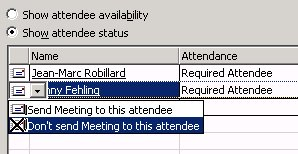
When it comes to scheduling meetings, Oracle Connector for Outlook offers the same functions as Microsoft Outlook, but with the added benefit of instant schedule updates. Instead of requesting attendance through e-mail, you are creating a meeting on the Oracle Calendar server to which recipients can respond immediately. Your availability, as well as the availability of all other migrated users, is always up-to-date and does not need to be published to others. All calendar information is accessed directly from the Oracle Calendar server through Microsoft Outlook.
You can create recurring meetings but not recurring tasks.
Note: To verify which version of Microsoft Outlook you are using, select About Microsoft Outlook from the Help menu in Microsoft Outlook. The first line in the About dialog box displays the Microsoft Outlook version number.
Note: To verify which version of Outlook you are using, select About Microsoft Outlook from the Help menu in Outlook. The first line in the About dialog box displays the Outlook version number.

When it comes to scheduling meetings and reserving resources, Oracle Connector for Outlook offers the same functions as Outlook, but with the added benefit of real-time access to resource availability. When scheduling resources with Oracle Calendar server, there is no need to use sign-up sheets for meeting rooms or equipment. Administrators can designate any shared property as a resource, making it available for all connected users to reserve on a first-come, first-served basis. In order to reserve a resource, you locate it and then invite it to a meeting as a resource. If you attempt to reserve a resource that requires approval from an administrator, an e-mail request is sent to the administrator. Because resource conflict is shown at meeting creation time and schedules are updated instantly, scheduling conflicts involving resources are significantly reduced.
Resources may be given a status of available or be set up so that a user needs to be assigned access rights to control reservations. If you require access to a resource account, contact your administrator.
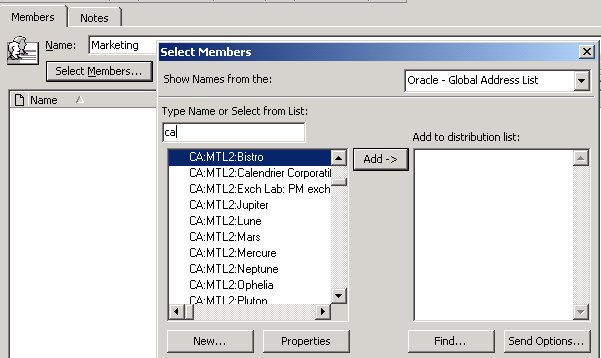
You may have previously set up groups of users with whom you scheduled regularly. This makes it easy and convenient to invite multiple attendees to meetings without having to add each name individually. You can use existing distribution lists (select them from the list of distribution lists or users) or create your own, if you prefer.
Follow these steps to create a distribution list:
Folder sharing is supported in Oracle Connector for Outlook, but the difference is that you can set sharing privileges for a public folder or add an e-mail address for a public folder as long as the administrator has granted these privileges. You can also share your calendar, tasks, contacts, notes, and journals.
Task assignment is not implemented in this release of Oracle Connector for Outlook.
While Microsoft Outlook with Exchange offers a mechanism by which each individual e-mail message is immediately pushed to the Microsoft Outlook Inbox, Oracle Mail uses an Internet Message Access Protocol (IMAP) mail standard to check for new mail on the server every few minutes (according to the time interval set for your profile). To receive your e-mail messages sooner, click Send/Receive.
To choose the fields you want to search in your e-mail messages, click Find, then click Advanced Find in the top-right corner.
To choose the fields you want to search in your e-mail messages, click Find. Then click Options (in the top-right corner) and select Advanced Find.
Working with Oracle Connector for Outlook is very similar to working with Microsoft Outlook with Exchange. To benefit from the added functions of the Oracle Collaboration Suite Calendar server and Oracle Collaboration Suite Mail server, you must sometimes use new menu options and features. These are documented in the Oracle Connector for Outlook online help. While the core functions are not affected, certain Microsoft Outlook features like message recall, mail merge, and setting send options are currently not supported.
Oracle Connector for Outlook does not change the core functions of Microsoft Outlook, so the procedures documented in Microsoft Outlook's online help are still applicable to Oracle Connector for Outlook. Features that are specific to Oracle Connector for Outlook are documented in the Oracle Connector for Outlook online help which can be accessed by selecting Oracle Connector for Outlook Help from the Help menu in Microsoft Outlook.
Yes. Oracle Connector for Outlook connects directly to the Oracle Calendar server database so that you can schedule meetings with other Oracle Calendar users, and benefit from real-time scheduling. Outlook users gain all the benefits of the Oracle Calendar solution, including interoperability with the full range of Oracle Calendar clients (Windows, Mac, Linux, and Web), wireless connectivity, and PDA synchronization tools.
To use your previous Contacts, you need to add your Microsoft Outlook Address Book to your Services:

To use your previous Contacts, you need to add your Microsoft Outlook Address Book to your Services:
In order to access messages stored on the IMAP server, you must subscribe to the folders where those messages are stored. Subscribing to a folder displays it in your Microsoft Outlook Folder List. See the Oracle Connector for Outlook online help for more details.
Oracle Connector for Outlook synchronizes with a variety of PDAs through third-party conduit software. For a list of the supported devices and software versions, contact your administrator.
You can respond to multiple meeting requests with a single command if your response is the same for all of them. However, you can respond to instances of recurring meetings only one at a time.
You can show time as free, tentative, busy, or out of office for all-day events and meetings in your calendar.
You can choose to have your e-mail folder counts refresh automatically when you log on to Microsoft Outlook. You can also specify how frequently your e-mail folder counts should be refreshed during a Microsoft Outlook session. You cannot set a refresh rate under 1 minute. You can set the refresh rate on the Other tab in the Oracle Connector for Outlook Profile Settings dialog box. See the Oracle Connector for Outlook online help for more details.
You can schedule and join Web conferences from Oracle Connector for Outlook. See the Oracle Connector for Outlook online help for more details.
You can set up Oracle Connector for Outlook to download specified e-mail and calendar folders to your hard drive so you can work with them even when you are not connected to the e-mail and calendar servers. See the Oracle Connector for Outlook online help for more details.
Copyright © 2005, Oracle. All Rights Reserved.