Release 7.3
Part Number E26760-06

Contents

Previous

Next
| Oracle Demantra Implementation Guide Supplement Release 7.3 Part Number E26760-06 | Contents | Previous | Next |
This chapter provides updates about how to configure levels with the Configure > Levels option.
This chapter covers the following topics:
A general level can have population attributes in addition to general attributes. A population attribute specifies a set of item-location combinations and consecutive time buckets with which the general level is associated.
Note: General levels are not supported in Demand Planning.
To add a population attribute to a general level
Click Configuration > Configure Levels. Or click the Configure Levels button.
Business Modeler displays the Configure Levels screen.
Right-click a general level and select Open > Population Attributes.
Business Modeler displays the population attributes associated with this level.
Right-click the Attribute Name list and then select Add.
A new row is added to the list.
In Attribute Name, enter the name for the attribute.
As soon as you move the cursor out of this field, the Business Modeler automatically generates names for the tables associated with this level.
If you want the attribute to be visible, select the Visible check box.
If an attribute is visible, its properties are available for editing by the user in Demantra. It is recommended that an attribute be configured as non-visible when you do not wish the user to have the ability to edit the attributes. If the attribute is non-visible, it can be edited only in the database.
On the right side of the screen, complete the fields as follows:
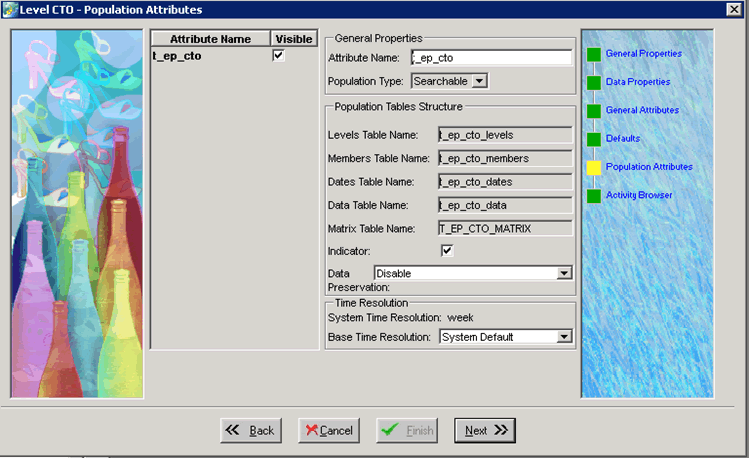
| Field | Description |
|---|---|
| Population Type | Select Searchable or Descriptive. A general level can have only one searchable population attribute and any number of descriptive population attributes. If a population attribute is searchable, then each member of the general level is directly linked with the associated item-location combinations and time buckets. Internally, Demantra automatically joins the data for use by the Analytical Engine. If the selected level’s Population Type is set to Searchable, this screen includes the Time Resolution information and the Base Time Resolution settings. If a population attribute is descriptive, it is available to the users but is not available to the Analytical Engine. |
| Indicator | Specifies whether the cells in a worksheet table should display an indicator if a general level is associated with them. It is useful to enable this indicator for the benefit of users of the worksheet. This option is enabled only for the searchable population attribute. |
| Data Preservation | Controls whether the selected General Level (GL) member's dates are preserved when either the member’s ‘from’ and ‘until’ dates change, or the member’s population changes. It also controls whether the series-level settings 'Copy/Paste Preservation Type' and ‘Move Preservation Type’ are respected when a member’s dates or population changes. Note: This parameter is available only if the Population Type setting for the selected GL level is "Searchable" and the selected level has a Data table. Values include:
For examples, see Examples of General Level Data Preservation in the Oracle Demantra Implementation Guide. |
| System Time Resolution | If the selected level’s Population Type is set to Searchable, this screen includes the Time Resolution information and the Base Time Resolution settings. Read-only. The system time resolution specified for your data model (Month, Week, or Day). Note: The System Time Resolution and Base Time Resolution parameters are available only if the Population Type setting for the selected GL level is "Searchable." |
| Base Time Resolution | Values include System Default, Day, Week, and Month. Use this setting to modify the time resolution for the selected level. This setting allows Demantra end users to view data in a worksheet at a lower, more granular time bucket than what is specified as the system time resolution. For example, if your system time resolution is ‘Week’ and you want users to be able to view data in a worksheet using this level in daily time buckets, set this option to Day. (Note that Demantra does not support calendar months in this release. Therefore, if your system time resolution is ‘Month’, Oracle does not recommend setting this option to Week.) Important: Do not choose 'Day' unless you have installed Demantra on the Oracle Exadata database machine and/or Oracle Exalogic. Performance will be adversely affected when forecasting and aggregating data from a daily level on a system that is not engineered and optimized for a very large amount of data. Note: If you set the Base Time Resolution to the same value as the system time resolution, Demantra displays an informational message and changes this setting to System Default when you click OK. (For example, if you choose Month and your system time resolution is Month.) |
When you are done adding population attributes, click Finish.
Or, if you are configuring a general level at the lowest level, click Next. See "Configuring the Activity Browser" in the Oracle Demantra Implementation Guide.

Copyright © 2012, 2013, Oracle and/or its affiliates. All rights reserved.