
Viewing Incident Reports
After you select the criteria in the Incident Report Editor, you can generate the report, or name it and save it as a template. If you save it as a template, you can select the template and then click Report in the Reports window. Whether you generate the report from the editor window or from a template, the same Report window opens.
Figure 13–1 Report Window – Incidents
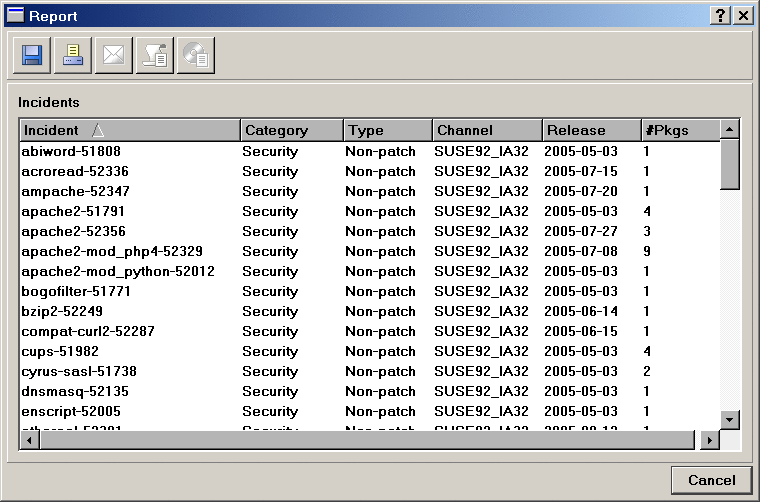
Each line in the Report shows the incident name (defined by vendor), category, type, channel, and release date. It shows the number of packages that belong to this incident.
To see package details of an incident, select an incident name in the report and then click Details. A new Report window opens, displaying the packages needed for the selected incident. The Recommended columns list the latest incident name and package version that is recommended for you to install. If an incident is a newer fix to a previous incident, the recommended incident shows which incident (and installation of its packages) will bring your systems most up-to-date.
To see informational details of an incident, select a line in the new report list and click Incident Information. The Incident Information window opens.
Figure 13–2 Incidents Information
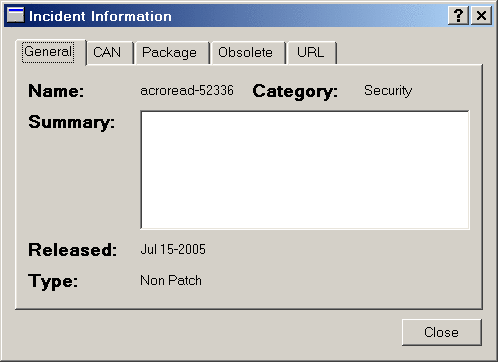
The Incident Information window has the following tabs:
-
General. Includes the name, category of incident, summary (if the vendor published one), date released, and type (nonpatch or patch).
-
CVE. Shows the ID in the CVE list.
-
Package. Shows the list of packages that are related to this incident.
-
Obsolete. Shows the list of incidents that are made obsolete by this incident.
-
URL. Shows the reference to more information published by the vendor.
- © 2010, Oracle Corporation and/or its affiliates