 Understanding PeopleSoft Navigator
This chapter provides an overview of PeopleSoft Navigator and discusses how to work with PeopleSoft Navigator.
Understanding PeopleSoft Navigator
PeopleSoft offers multiple navigation methods for accessing application pages. PeopleSoft Navigator is an alternative navigational structure that uses a process-oriented organization to show you how individual steps fit together into a single activity or process.
This section discusses:
Advantages of PeopleSoft Navigator.
PeopleSoft Navigator hierarchy.
Workflow processing.
 Advantages of PeopleSoft Navigator
PeopleSoft Navigator maps are organized by procedure. For example, the delivered navigation hierarchy for PeopleSoft Enterprise Human Resources Management is organized functionally: payroll-related pages appear under a different hierarchy than benefits-related pages. Using the PeopleSoft Navigator process-oriented organization, however, you might have a hiring activity that includes both payroll-related and benefits-related steps.
The PeopleSoft Navigator process orientation also provides a high-level view of the process, which helps you understand the overall flow of work in your organization. Unlike text and menu-based navigations, PeopleSoft Navigator displays graphical maps. These maps clarify relationships among the steps in a process and ease your navigation through sequential tasks.
Navigator maps can also show you any workflow notifications that are triggered by changes that you make on a page. Without PeopleSoft Navigator, you would not necessarily know when you trigger a workflow notification. A PeopleSoft Navigator map can clarify when a notification is sent.
See Also
Understanding PeopleSoft Workflow
PeopleSoft Navigator HierarchyPeopleSoft Navigator maps are organized hierarchically, enabling you to navigate from processes to subprocesses to the lowest level page, where individual transactions occur. Workflow uses three hierarchical levels. The first two levels, business processes and activities, are both maps: graphical representations of the relationships between the component objects (other maps or steps).
The third level, steps, does not contain maps. Steps are elements within activities, and they represent the level at which the user interacts directly with application pages.
This example shows the PeopleSoft Navigator hierarchy:
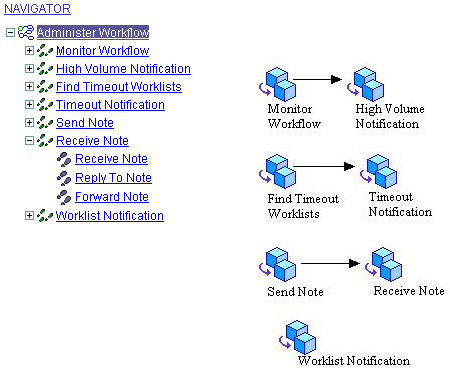
Example PeopleSoft Navigator hierarchy
See Also
Workflow Processing
Some PeopleSoft Navigator maps incorporate a visual representation of associated workflow processing. The icons associated with workflow processing appear only in the maps, not in the PeopleSoft Navigator tree. These icons merely provide information.
This diagram shows some of the icons associated with workflow processing:
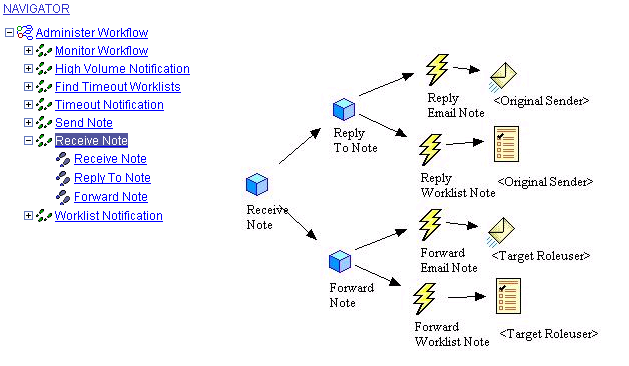
Map with workflow icons
Some of the icons that you are likely to see include:
|
|
|
|
|
Email Routing: A workflow notification that is delivered to users by email. |
|
|
Worklist Routing: A workflow notification that is delivered to users through their worklist. |
See Also
Working With PeopleSoft NavigatorThis section discusses how to:
Navigate the map hierarchy.
Navigate to pages.
Navigate to the next page in an activity.
Page Used to Work with PeopleSoft NavigatorNavigating the Map Hierarchy
You can navigate through the PeopleSoft Navigator hierarchy by opening nodes in the tree or by clicking icons in the map. Either way, both the tree and the map always show the currently selected item. Navigate the map hierarchy by using the following actions:
To select a tree node and simultaneously expand it, click either the node or the plus sign that appears next to the node.
To collapse a tree node, click the minus sign that appears to the left of the node.
To return to a higher-level map, click the appropriate tree node; you cannot use the map to move to a higher level.
Navigating to Pages
When you click a step (the map element corresponding to a single page), the corresponding page appears on the right side of the screen where the map otherwise appears. A page that you access through PeopleSoft Navigator has the same access requirements as a page that you access through the standard application navigation. Therefore, you may need to go through a search page before accessing a transaction.
All of the standard page operations, including the Save and Return to Search buttons, are available. The PeopleSoft Navigator tree also remains available, and you can use it to move to maps or to other pages.
Navigating to the Next Page in an Activity
When an activity contains sequential steps, PeopleSoft Navigator offers two ways to move through the sequence:
Continue using the tree by clicking the next step in the activity.
Click the navigation links that appear in the upper-right corner of any page that appears in PeopleSoft Navigator.
Depending on where the page falls in the sequence of pages, links for the Prev (previous) page and Next page appear. When you move from page to page, key fields are remembered so that you do not have to go through the search page unless you are moving to a page with different high-level keys.


