 Understanding Forecast Time Collection, Distribution, and Review
This chapter provides an overview of forecast time collection, distribution, and review, and discusses how to:
Create and modify forecasts.
Protect and submit forecasts.
Review and approve forecasts.
Note. The forecasts mentioned in this chapter refer to only Services Forecasting forecasts, not to the Estimate at Completion forecasts.
Understanding Forecast Time Collection, Distribution, and Review
This section provides overviews of:
Forecast time collection.
Forecast distribution rules and behavior.
Forecast protection and submission.
Supervisor and project manager forecast reviews.
 Forecast Time Collection
This diagram shows forecast accumulation over time for a resource. In this example, the frequency is semimonthly with four horizon periods in the forecast horizon.
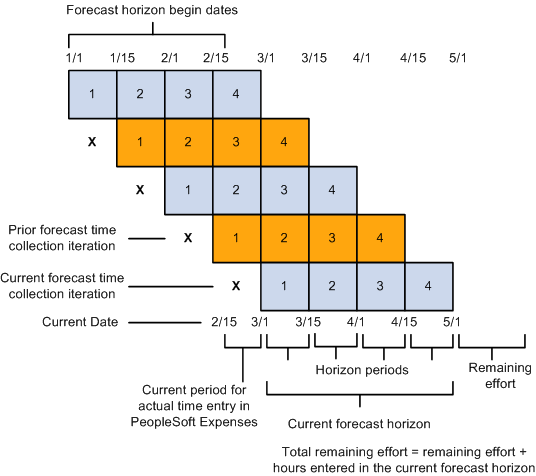
Example of forecast accumulation over time for a resource
Forecast Time Collection Pages
Resources use the forecast time collection pages to enter forecasted work hours. The pages initially display the current forecast, but you can also access prior forecasts. The four main time collection pages are:
Forecast Time - Summary page.
On this page you can:
Add or modify projects and activities if schedules are not up-to-date or no prepopulation mechanism is available.
Add new projects or activities based on the type of security that is implemented.
View projects for which you are a team member (if project team security is active in PeopleSoft Project Costing) and view the associated activities (if activity team security is active in PeopleSoft Project Costing).
Enter the total number of forecasted project hours that fall within the forecast horizon and the forecasted project hours that you expect to work during the forecast horizon on projects or activities that are in the project charging level.
Access the Forecast Activity Distribution page to distribute prepopulated project hours from PeopleSoft Resource Management across activities that are in the project charging level, if forecasting is required at the activity level.
Access the Forecast Horizon by Day page to adjust project or personal hours more precisely for specific days within the forecast horizon.
Access the Monthly Schedule page if PeopleSoft Resource Management is installed; on that page, resource managers can update their resources' schedules.
If you use PeopleSoft Expenses, access the Time Report - Time Report Summary page in PeopleSoft Expenses for resources to enter project and personal time.
Access the Status Report Entry component (PC_SR_ENTRY) and Issue Management Issue Detail component (PC_IM_ISSUE) in PeopleSoft Program Management to report project status and manage project issues.
Forecast Time - Forecast by Period page.
This page controls the distribution of hours across periods in the forecast horizon. On this page you can:
Enter the forecast for project and personal hours for each horizon period.
Access the Forecast Horizon by Day pages to adjust project or personal hours more precisely for specific days within the forecast horizon.
Forecast Activity Distribution page.
Activities that are in the project charging level and are associated with the project appear on this page.
Use this page when the prepopulation engine loads hours to your forecast at the project level from PeopleSoft Resource Management, but the project requires forecasting at the activity level. You can select the activities that you will work on and indicate how to distribute the project hours across activities. Alternatively, if you already know the specific activity, you can enter the information on the Forecast Time - Summary page or the Forecast Time - Forecast by Period page.
Forecast Horizon by Day (project-based work) page and Forecast Horizon by Day (policy time) page.
Use these pages to adjust the project or personal hours for each day within the forecast horizon and recalculate total forecast hours.
See Also
Understanding Project Charging Levels
Forecast Distribution Rules and Behavior
Forecast updates may require the system to distribute hours across multiple days. Forecasting distributes the hours based on some basic configuration assumptions and default rules:
When you enter forecast hours on the Forecast Time - Summary page, the application populates the forecast by period and daily detail forecast by spreading the horizon hours evenly over the standard workdays within the entire time horizon for the resource.
Entering forecast hours into horizon periods on the Forecast Time - Forecast by Period page also results in the population of the daily detail forecast. In this case, however, the hours entered in each period distribute to the days within that period so that the distribution of hours can vary from one period to another.
If an odd number of hours must be spread over a resource's standard work days in a week, the extra hour is placed in the resource's last work day of the date range.
If dividing a number of forecast hours results in the allocation of less than one hour per day to one or more days in a series, the distribution process rounds up to one hour per day and does not distribute evenly over all days. For example, if there are 8.6 hours to spread over 10 days, the system distributes 1.0 hour to each of the first seven days, and 1.6 hours on the eighth day, leaving the ninth and tenth days empty.
Note. All hours are stored and appear with two decimal places.
When distributing project time for a resource's forecast, the application does not double-book the resource on company holidays that are already loaded onto the Personal Time grid.
Instead, it distributes the hours that are allocated to that period evenly among the remaining days in the calendar week.
To enter a specific number of hours on the Forecast Activity Distribution page, the algorithm enters the specified number of hours for each workday, skipping company holidays.
For example, if personal time for company holidays is encountered for the first 3.25 days of a 10-day distribution of seven hours a day, the distribution is 0 hours for the first through fourth day, and seven hours per day for the fifth through tenth days. To double-book the company holiday time, update those specific days by using the Forecast Horizon by Day pages.
The system automatically double-books all days where personal time (other than a company holiday) is on the Personal Time grid.
The resource or other authorized individual can correct the forecast as required.
Forecasting distributes the hours to the individual activities based on the following assumptions:
For distributing hours, the forecast time collection tool needs to determine how many hours per unit of time a resource is normally expected to work.
Forecast time collection is based on the assumption that you populate the Standard Hours field (STD_HRS) and Standard Work Period field (STD_HRS_FREQUENCY) on the Job record. The system populates these fields automatically when you use PeopleSoft Human Resources Management (HRMS). If you do not use PeopleSoft HRMS, in addition to entering the required fields on the Personal Data record (PERSONAL_DATA), General Employment Data record (EMPLOYMENT), and Job record, you must also load the Standard Hours field, the Standard Work Period field, and the Frequency Table record (FREQUENCY_TBL). That data is used to determine standard hours. Forecast time collection and utilization interactive reports require these fields and records to convert each resource's standard hours per unit of time to standard hours per week.
If you are using PeopleSoft Resource Management, the distribution of hours takes into account the resource's standard work days that are defined in the resource profile.
If you are not using PeopleSoft Resource Management, standard work days are derived from the standard work days that are associated with the resource's GL business unit, and standard hours are derived from the Job record.
The Forecast Activity Distribution page displays the activities that are in the project charging level for which you are a team member.
If activity team security is used, you can see only the activities to which you have security access. If activity team security is not used, all that are in the project charging level activities appear.
See Defining Projects.
Forecast Protection and SubmissionA forecast status is either Pending or Submitted. A forecast is first created in Pending status. Any user with permission to add or update a forecast can protect the forecast in this status and continue to make modifications. A protected forecast is not automatically overwritten by the forecast prepopulation process.
When you submit a forecast, the status changes to Submitted. Only the project manager and administrator can approve forecasts and modify forecasts that are in a Submitted status. The supervisor and administrator can unsubmit a forecast and modify it until the next forecast collection period begins.
Supervisor and Project Manager Forecast ReviewsAfter the forecast is submitted, it can be reviewed by the resource, project manager, supervisor, or administrator. The project manager can analyze project information to anticipate projected costs and revenues. Supervisors can analyze utilization to anticipate supply and demand of resources versus new business and projects.
Supervisor Review
The Review Forecasted Time (supervisor review) page is used primarily to ensure that resources are complying with the requirement that they update their forecasts each horizon period. On this page, the supervisor can:
View forecasts for resources that are direct reports.
Unsubmit and modify forecasts until the next forecast collection period begins.
Modify forecast status.
Trigger an email reminder indicating to each resource that a forecast is due.
The supervisor is the value in the Supervisor ID field (SUPERVISOR_ID) for the resource in the Job record (JOB) in the HRMS database.
Project Manager Review and Approval
The Review Forecast by Project (project manager review) page is used to ensure that forecasts are accurate before they are used by PeopleSoft Program Management for cost and revenue analysis. On this page, the manager can:
View forecasts by project.
View a list of resources who have submitted time toward the project.
View billing rates, cost rates, and total project costs.
Approve resource forecasts for the project.
A project team is optional. All forecasts in a Pending status are view-only. The project manager cannot edit them until they are submitted by a resource, supervisor, or administrator. After a forecast is submitted, the project manager can edit and approve the forecast.
The project manager is the value in the Project Manager field (PROJECT_MANAGER) for the project in the Project Manager record (PROJECT_MGR) in the Financials database.
Creating and Modifying Forecasts
To create and modify forecasts, use the Forecast Time Capture component (FC_TIME_CAPTURE).
After you prepopulate the forecast and upload forecast time or remaining work from a third-party application, you can view, modify, and finalize the forecast.
This section discusses how to:
Enter forecast summary information.
Distribute forecasts across the horizon.
Distribute forecasts by activity.
Adjust project forecast hours by day.
Adjust personal time forecast hours by day.
Pages Used to Create and Modify Forecasts|
Page Name |
Definition Name |
Navigation |
Usage |
|
FC_TIME_SUMMARY |
Employee Self-Service, Employee Project Center, Time, Forecast Time, Forecast Time - Summary |
Enter forecast summary information. Add or modify projects, activities, and summary level hours to a resource's forecast. |
|
|
FC_TIME_PERIODS |
Select the Forecast by Period tab on the Forecast Time - Summary page. |
Distribute the forecast project and personal hours across the horizon periods. |
|
|
FC_TIME_DTL_DIST |
Select Distribute in the Project Time grid on the Forecast Time - Summary page. |
Distribute the hours among the activities that are associated with the project. |
|
|
FC_TIME_DTL_DLY |
|
Adjust the forecasted project hours for each day within the forecast horizon and recalculate the total forecast hours. |
|
|
FC_TIME_POL_DLY |
|
Adjust the forecasted personal hours for each day within the forecast horizon and recalculate the total forecast hours. |
Entering Forecast Summary InformationAccess the Forecast Time - Summary page (Employee Self-Service, Employee Project Center, Time, Forecast Time, Forecast Time - Summary).
The projects and activities for which you can enter forecast data is based on project team security, and the project charging level. If project team security is used, you can enter forecasts only for the projects to which you have security access. You can enter forecast data only for activities that are in the project charging level.
Data may appear in the forecast from any of these sources:
The prior forecast.
PeopleSoft Resource Management resource schedules.
Third-party project management tools.
If PeopleSoft Expenses is installed, this page contains a link to the resource's time report so that the resource can review and adjust hours and enter the actual time for the current period.
If PeopleSoft Resource Management is installed and the resource exists in PeopleSoft Resource Management, this page contains a link to the Monthly Schedule page, where the resource or resource manager can view and update the resource schedule.
The system automatically spreads the hours evenly across the resource's standard business days, excluding company holidays.
General Information
The Horizon Begin Date, Horizon End Date, (using criteria from the Forecast Configuration page), and Forecast Status fields appear.
|
Select to prevent the Populate Time process from overwriting the current forecast. You can deselect the check box (unprotect the forecast) when the forecast status is Pending, but you cannot unprotect a forecast if the status is Submitted because a submitted forecast is by definition already protected. |
The system displays a row for each project or activity combination for which the employee has forecasted time. Add or delete rows as needed.
|
PC BU (project business unit) |
Select the project business unit. |
|
Project |
Select the project ID. |
|
Activity ID |
Select the activity within the specified project. This field is active if forecasts are required at the activity level. |
|
Distribute |
Click to access the Forecast Activity Distribution page, where you can distribute the hours for a project by activity. This link is active if forecasts are required at the activity level. |
|
Select Billable, Internal, or Nonbill (nonbillable) to differentiate these actions in the utilization analysis. |
|
|
Details |
Click to access the Forecast Horizon by Day page, where you can adjust daily forecast hours for project time. |
|
Horizon Hours |
Enter the total hours that you expect to work on the project or activity during the forecast horizon. This number is the total of the detailed hours by day. If you update this number, the detailed hours are evenly distributed. You must enter a value in this field. If you do not want to forecast any time for this project or activity, delete the row. |
|
Remaining Hours |
Enter the total hours that you expect to work on the project or activity beyond the forecast horizon. |
|
Total Forecast Hours |
Displays the sum of the horizon hours and remaining hours. |
Select the Additional Information tab to view these additional fields:
Select the Status and Issues tab to access links to the Status Report Entry component (PC_SR_ENTRY) and Issue Management Issue Detail component (PC_IM_ISSUE) in PeopleSoft Program Management. You can use PeopleSoft Program Management to report project or activity status and manage project issues.
Forecast Summary Personal Time
The Personal Time grid displays a row for each time reporting code (TRC). If PeopleSoft Resource Management is installed and task categories are mapped to TRCs, the Populate Time process prepopulates the periods based on tasks in the resource schedules. If PeopleSoft Resource Management is not installed, or if the resource is not an active resource in PeopleSoft Resource Management, you must manually enter personal time hours.
|
Description |
Displays the personal time reporting categories that were predefined on the Time Reporting Code page in PeopleSoft Expenses. |
|
Details |
Click to access the Forecast Horizon by Day page, where you can adjust daily forecast hours for personal time. |
|
<Horizon period date range> |
Displays the actual personal time hours that were entered in PeopleSoft Expenses for the date range that is specified in the grid column header. |
|
Horizon Hours |
Displays the number of personal hours that occur during the current horizon period. This field is not editable because, unlike project hours, total personal hours should not be evenly distributed over the horizon. |
Distributing Forecasts Across the HorizonAccess the Forecast Time - Forecast by Period page (Employee Self-Service, Employee Project Center, Time, Forecast Time, Forecast Time - Forecast by Period).
Use this page to simplify the distribution of hours across periods in the forecast horizon. You can enter the total hours for each horizon period and submit the forecast, or you can click the Details link to adjust hours for specific days on the Forecast Horizon by Day page.
A row appears in the Project Time grid for each project or activity that is in the project charging level. You can enter the project business unit, project, activity, billing action—Billable, Nonbill, or Internal— and the hours for each forecast horizon period.
A row for each predefined TRC appears in the Personal Time grid. You can enter the personal hours for each horizon period in the forecast horizon.
Note. The format of the horizon period date range that appears in these column headers is controlled by a message catalog entry. To change these date formats, update Message Set 138, Message 1. This message may be used by other PeopleSoft applications.
Distributing Forecasts by ActivityAccess the Forecast Activity Distribution page (select Distribute in the Project Time grid on the Forecast Time - Summary page).
On this page, you can distribute the project hours to activities that are in the project charging level. You can view the forecasted horizon hours, remaining hours, and total forecast hours for the project.
|
Activity and Description |
Displays the name and description of the activity that is associated with the project. If activity team security is used, you can see only the activities to which you have security access. If activity team security is not used, all activities appear. |
|
Available values are: Auto-Fill: Select to enter the from date, the through date, and the hours per day, to populate the hours by spreading them evenly across the specified days. Scheduled: Select to enable the system to exclude the from date and through date and to distribute the hours that are already scheduled for specific days proportionally across the activities that you specify. |
|
|
From Date and Through Date |
Enter the start and end dates for the activity. The system distributes hours evenly across these days if you select Auto-Fill as the distribution method. |
|
Hours Per Day |
Specify the hours per day to distribute to a particular activity if you select Auto-Fill as the distribution method. Note. If you enter start and end dates for an activity, but you do not enter a value in the Hours Per Day field, the rows in the grid for the given date range will clear when you click Distribute. This shortcut can be used to clear multiple rows without using the Delete row <n> icon button for each row. |
|
Horizon Hours |
Displays the number of distributed forecast hours that fall within the project period. |
|
Remaining Hours |
Enter the number of hours to distribute to the activity beyond the horizon period. |
|
Total Forecast Hours |
Displays the sum of the forecast horizon hours and remaining hours for an activity. |
|
Distribute |
Click to calculate the total hours to allocate to each activity for the forecast horizon after you specify the distribution details for each activity. The system updates the remaining hours if you enter more hours at the activity level than appeared on the Forecast Time - Summary page for total forecast hours. You can adjust the hours or dates and click Distribute as many times as needed. |
|
OK |
Click to calculate the total hours to allocate to each activity for the forecast horizon and return to the Forecast Time - Summary page. A row appears on the Forecast Time - Summary page for each project or activity combination that you selected on the Forecast Activity Distribution page. |
Note. To further adjust the activity hours for a specific day, click OK to access the Forecast Time - Summary page, and select Details for the specific activity to access the Forecast Horizon by Day page.
Adjusting Project Forecast Hours by DayAccess the Forecast Horizon by Day page (select Details in the Project Time grid on the Forecast Time - Summary page).
On this page, you can adjust the hours for each day and recalculate the total horizon hours for the project. If there is no daily data for the forecast horizon, when you submit the forecast, the system automatically distributes the total forecast hours from the Forecast Time - Summary page equally across the days in the forecast horizon, excluding business holidays.
|
Auto-Fill |
Enter the date range and hours per day for distributing project hours. |
|
Distribute |
Click to display the daily hours in the grid. |
|
Calculate |
Click to calculate the total project hours during the horizon. You can adjust the daily hours and click Calculate as many times as required to recalculate the total project hours. |
|
OK |
Click to return to the previous page, where the updated hours appear. |
Note. In the Project Manager Review component (FC_REVIEW_PROJ_MGR), the Auto-Fill feature double-books a resource's time for company holidays when this page is used by the project manager. It does not double-book for company holidays when the page is used by the resource, supervisor, or administrator acting on behalf of a supervisor.
Adjusting Personal Time Forecast Hours by DayAccess the Forecast Horizon by Day page (select Details in the Personal Time grid on the Forecast Time - Summary page).
On this page, you can adjust the personal hours for all days (where applicable) and recalculate the total personal time during the forecast horizon in the same manner as on the Forecast Horizon by Day page for project-based work.
Protecting and Submitting ForecastsAfter you complete the forecast updates, you can save, protect, and submit a forecast for review and approval.
This section discusses how to protect and submit forecasts.
Pages Used to Protect and Submit Forecasts|
Page Name |
Definition Name |
Navigation |
Usage |
|
FC_TIME_SUMMARY |
Employee Self-Service, Employee Project Center, Time, Forecast Time, Forecast Time - Summary |
Save and protect the forecast and submit it for approval. |
|
|
FC_TIME_PERIODS |
Select the Forecast by Period tab on the Forecast Time - Summary page. |
Save and protect the forecast and submit it for approval. |
|
|
FC_SUBMIT_CONFIRM |
|
Confirm the action to submit a forecast for approval. |
Protecting ForecastsAccess the Forecast Time - Summary page (Employee Self-Service, Employee Project Center, Time, Forecast Time, Forecast Time - Summary) or the Forecast Time - Forecast by Period page (Employee Self-Service, Employee Project Center, Time, Forecast Time, Forecast Time - Forecast by Period).
Select the Protect Forecast check box and click Save, or click Save and Protect at the bottom of the page at any time to ensure that the Populate Time process does not overwrite your work.
When you submit the forecast, you automatically protect it. The system selects the Protect Forecast field, and you cannot clear it unless a supervisor first unsubmits the forecast.
Submitting ForecastsAccess the Forecast Time - Summary page (Employee Self-Service, Employee Project Center, Time, Forecast Time, Forecast Time - Summary) or the Forecast Time - Forecast by Period page (Employee Self-Service, Employee Project Center, Time, Forecast Time, Forecast Time - Forecast by Period).
Click Submit for Approval and the Submit Confirmation page appears. Click OK to confirm the submission to change the forecast status from Pending to Submitted.
Only project managers and administrators can modify forecasts that are in a Submitted status. Supervisors and administrators can unsubmit a forecast and modify it until the next forecast collection period begins, if they need to modify a forecast's data.
If the automatic forecast approval option is enabled on the Program Management Options page or specified for the project on the Program Management page, forecast approval by the project manager is not required to make the forecast accessible to PeopleSoft Program Management for cost and revenue analysis. If you did not select the automatic forecast approval option, approval is required on the Review Forecast by Project page before the forecasts can be used for cost and revenue analysis.
Note. Forecast data is available for utilization calculations, with or without approval.
Reviewing and Approving ForecastsTo review and approve forecasts, use the Supervisor Review component (FC_REVIEW_SUPERVSR) and the Project Manager Review component (FC_REVIEW_PROJ_MGR).
After a resource submits a forecast, the project manager can review, edit, and approve the forecast for use in PeopleSoft Program Management cost and revenue analyses.
This section discusses how to:
Review forecasts by supervisor.
Review and approving forecasts by project.
Perform administrative functions.
Pages Used to Review and Approve Forecasts|
Page Name |
Definition Name |
Navigation |
Usage |
|
FC_REVIEW_SUPERVSR |
Manager Self-Service, Review Forecasted Time, Review Forecasted Time |
View, modify, and submit the forecast. Send email reminders of forecasts that are due. |
|
|
FC_REVIEW_PROJ_MGR |
Program Management, Forecasting, Review Forecast by Project, Review Forecast by Project |
View all forecasts that are pending or submitted. Edit and approve submitted forecasts. |
Reviewing Forecasts by SupervisorAccess the Review Forecasted Time page (Manager Self-Service, Review Forecasted Time, Review Forecasted Time).
The resources that appear on this page report directly to the human resource supervisor who is identified in the Supervisor ID field (SUPERVISOR_ID) on the resource's current row in the Job record (JOB). The supervisor can create, update, protect, submit, and unsubmit a forecast on behalf of a resource.
The grid displays a row for each resource reporting to the supervisor and lists the hours across all projects where the employee is charging time for the period, including current hours, horizon hours, remaining hours, total forecast hours, total policy (forecasted personal time), and creation date (date that the forecast was submitted). The forecast status visual indicator enables you to monitor compliance with the submission process.
Reviewing and Approving Forecasts by Project
Access the Review Forecast by Project page (Program Management, Forecasting, Review Forecast by Project, Review Forecast by Project).
Projects appear on this page if the user ID of the person who is logged into the system is identified as the project manager.
On this page, the project manager can view project forecasts in any status, and update or approve forecasts that are in Submitted status.
Project Information
General project information is at the top of the page, including the project business unit, project name, currency code, and the standard rate source that is configured for the project business unit on the Program Management Options page or specified for this project on the Defaults tab of the Project General page in PeopleSoft Program Management.
|
As Of and Search |
Enter a date occurring in a prior forecast submission period to examine past forecast submissions. Click Search to see details of past forecasts that were made against the project. Leave the date blank and click Search to return the most current forecast submissions. |
The grid displays a row for each resource on the corresponding project team and lists the hours for each project or activity where the resource is charging time for the period.
|
Approve |
Select the check box in a specific project or activity row to approve the corresponding resource forecast when you save the page. The column appears if forecast approval is required by the project manager. The check box appears for submitted projects. |
|
Activity ID |
Enter an ID, if needed, to change activities on submitted forecasts. |
|
Select to change the billing action, if needed. Available values are Billable, Internal, and Nonbill (nonbillable). This information is used to determine whether time is treated as utilized for the purposes of utilization analysis. |
|
|
Details |
Click to access the Forecast Horizon by Day page and edit a specific resource forecast for a project or activity row. On the Forecast Horizon by Day page, you can modify hours that the resource entered for any day in the forecast horizon. This link is active for submitted forecasts. |
|
Enter a value, if necessary, to change the hours that the resource is expected to work on the project or activity beyond the forecast horizon for submitted forecasts. |
|
|
Approve All |
Click to approve all of the project or activity forecasts that appear in the grid. This column appears if forecast approval is required by the project manager. |
The changes that you make to activity, billing action, detail, and remaining hours are reflected in the resource's forecast when it is viewed in the Forecast Time Inquiry component.
The Cost & Bill Rates tab displays estimates of cost and revenue for each resource and project or activity row.
|
Displays the sum of horizon hours and remaining hours. |
|
|
Cost Rate and Billing Rate |
Displays the resource's hourly cost and hourly billing rate for the time spent on this activity. The cost and billing rates are converted to hourly rates if the standard rate is quoted in any unit of measure other than hours, such as days or weeks. The system converts the rates to the project currency that appears in the header of the page. The source of the standard rates for each resource on the project is defined on the Defaults tab of the Project General page in PeopleSoft Program Management. If no standard rate source is specified for the project, the system uses the default standard rate source that is defined on the Program Management Options page. |
|
Total Cost |
Displays the product of total forecast hours multiplied by the cost rate. |
|
Bill Total |
Displays the product of total forecast hours multiplied by the billing rate. |
Performing Administrative FunctionsAs administrator, you can use the same pages discussed in the previous section to approve, change the status of, and submit all forecasts that you can access. You can also unsubmit a forecast, modify it, and resubmit it until the next forecast collection period starts. You must first be granted security access to these pages through the Authorize Users page in PeopleSoft Expenses.
On the Review Forecasted Time page, you can view each resource's forecasted hours across all projects. On the Review Forecast by Project page, you can view the project hours and update the forecast for each resource on the project team who is charging time for the period.
See Also
Granting Security Access to Forecasts


