 Understanding Your Portal Homepage
This chapter provides an overview of the portal homepage and discusses how to:
Personalize your homepage content.
Personalize your homepage layout.
Understanding Your Portal Homepage
Your portal homepage aggregates a variety of content gathered from sources across your organization. This content is organized by tabs, is presented in pagelets, and can be accessed through menu navigation and links.
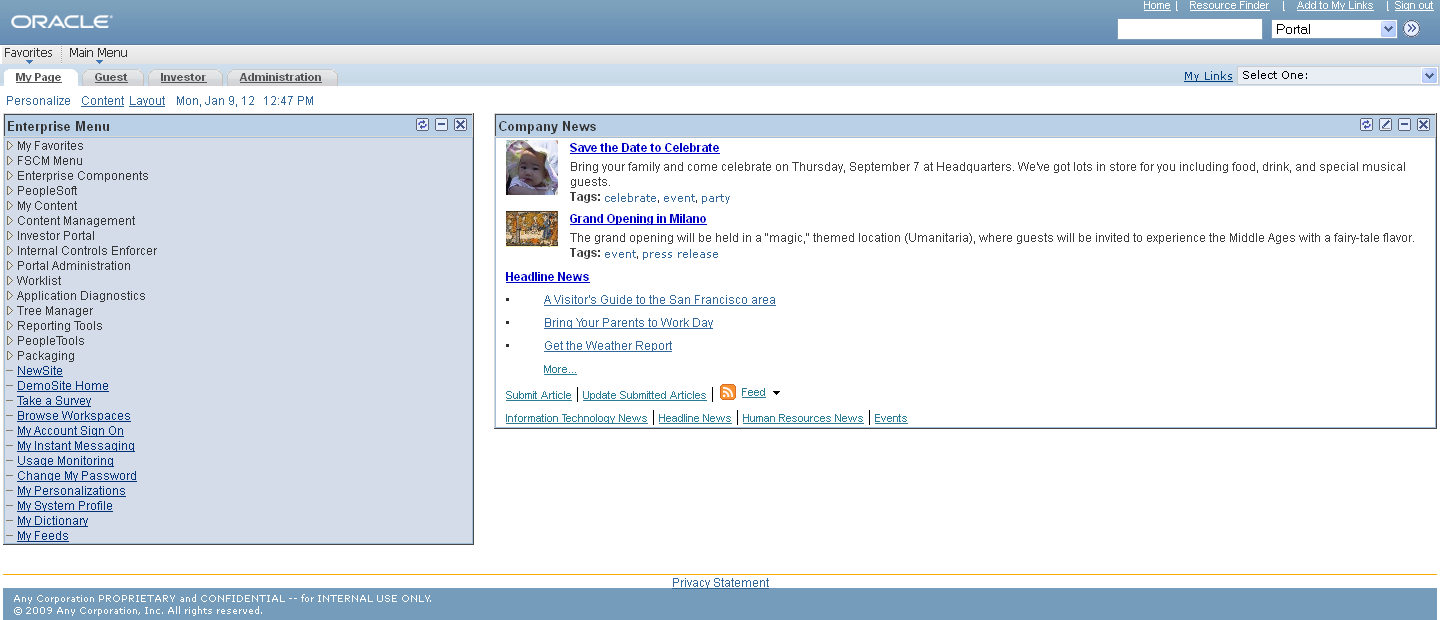
PeopleSoft Applications Portal homepage
These features are available on the PeopleSoft Applications Portal homepage header:
|
Home |
Click to return to your PeopleSoft Applications Portal homepage (the My Page tab). |
|
Worklist |
Click to access your worklist. See PeopleTools 8.52: PeopleSoft Applications User's Guide PeopleBook, “Using Workflow.” |
|
Resource Finder |
Click to access the Resource Finder - Advanced Search page on which you can perform detailed searches for resources in your enterprise and access relevant resource profiles. |
|
MultiChannel Console |
Click to launch the MultiChannel console. See PeopleTools 8.52: PeopleSoft MultiChannel Framework PeopleBook, “Understanding PeopleSoft MultiChannel Framework.” |
|
Search |
Submit a portal search request and access the Search page. |
|
Add to My Links |
Click to access the Add to My Links modal window on which you can add a link to the current page. |
|
Main Menu |
Use the cascading drop-down menu navigation to view menu folders and navigate to a menu item. |
|
My Page, Guest , Investor, or Adminstration |
Select a tab to view the pagelets configured for that homepage tab. |
|
My Links |
Click to access the View My Links page. |
|
Content |
Click to access the Personalize Content: <Tab Name> page on which you can select pagelets to display on your portal homepage. |
|
Layout |
Click to access the Personalize Layout: <Tab Name> page on which you can select pagelets to display on your portal homepage. |
Personalizing Your Homepage Content
You can configure your portal homepage to display a variety of pagelets in a layout that suits your needs. Numerous pagelets are delivered with the PeopleSoft Applications Portal product for your use.
Access the Personalize Content page (click the Content link on the homepage tab that you want to personalize).
Use the Personalize Content page to designate the pagelets (types of content) you want to display on the homepage tab.
To select pagelets for your portal homepage:
Enter the name for the tab in the Tab Name field.
Enter an optional welcome message in the Welcome Message field.
Select the check box for each pagelet that you want to display on your homepage.
Note. The pagelets are organized by the folders in which they are stored in the portal registry.
Do one of the following:
To return to the portal homepage with the pagelets arranged in their default columns and in a default order, click the Save button.
To specify the layout of the pagelets, click the Personalize Layout link.
See Also
PeopleTools 8.52: PeopleTools Portal Technologies PeopleBook, “Administering Homepages, Dashboard Pages and Pagelets,” Managing Tabbed Homepages, Selecting Tab Content.
Personalizing Your Homepage LayoutUse either of these two methods to modify the layout of your portal homepage:
Move pagelets on the Personalize Layout page.
Drag and drop pagelets on the portal homepage.
 Moving Pagelets on the Personalize Layout Page
Access the Personalize Layout page (click the Layout link on the homepage tab that you want to personalize).
Use the Personalize Layout page to designate the layout of content on the homepage tab.
|
Tab Name |
Displays the name of this tab as specified on the Personalize Content page. |
|
Basic Layout |
Select to display the pagelets in either two or three columns on the portal homepage. |
|
Personalize Content |
Click to access the Personalize Content page to add or delete pagelets |
|
Left Column, Center Column, and Right Column |
Displays the pagelets selected on the Personalize Content page under the assigned column headings. If the basic layout is two columns, the pagelets are divided into left and right columns. If the basic layout is three columns, the pagelets are divided into left, center, and right columns. |
|
|
Use the Move Left, Move Up, Move Right, and Move Down buttons to position a pagelet. Select a pagelet, and then click the directional arrow buttons to move the selected pagelet up in the list, down in the list, to the next column to the right, or to the next column to the left. |
|
Delete Pagelet |
Select a pagelet and then click Delete Pagelet to delete the pagelet from the homepage tab. |
|
Save |
Click to save your changes and return to the portal homepage. |
See Also
PeopleTools 8.52: PeopleTools Portal Technologies PeopleBook, “Administering Homepages, Dashboard Pages and Pagelets,” Managing Tabbed Homepages, Arranging the Tab Layout
Dragging and Dropping Pagelets on the Portal Homepage
You can also rearrange pagelets on the portal homepage by dragging and dropping them between columns.
To drag a pagelet, hover over the pagelet title bar; the cursor changes shape to indicate that you can drag the pagelet. Click and drag the pagelet. When you are in the new location—signified by the color change—release the mouse.
See Also
PeopleTools 8.52: PeopleSoft Applications User's Guide PeopleBook, “Setting User Preferences,” Personalizing Your Homepage.
