 Understanding External System Integration
This chapter provides an overview of external system integration and PeopleSoft External Search/Match functionality, and discusses how to:
Integrate HCM with Campus Solutions
Set up External Search/Match
Work with External Search/Match
Understanding External System IntegrationPeopleSoft HCM and PeopleSoft Campus Solutions product suites have historically resided within a shared instance of the same database. This coupling enabled HCM and Campus Solutions to share a person model, a single instance of a person in the system, and student refund processing through HR Payroll. HCM and Campus Solutions now reside in separate database instances, with each product suite pursuing its own release cycle. HCM 9.1 and Campus Solutions 9.0 are the first such separate instances. Oracle supports a set of integrations to continue to allow HCM and Campus Solutions to communicate with each other.
External Search/Match is a tool that enables Search/Match functionality to work, in both directions, between the separate HCM and Campus Solutions instances or, with customization, another external target system of your choice.
See Also
If your organization is both an Oracle PeopleSoft HCM and an Oracle PeopleSoft Campus Solutions customer, consider reading the External Search/Match FAQs, white paper, and various implementation guides that have been developed by Campus Solutions to assist in the integration effort. The documents are posted to My Oracle Support under Doc ID 1259484.1,CS Bundle #19 Functional Documentation for Campus Solutions 9.0 & Feature Pack 4.
Understanding External Search/MatchExternal Search/Match functionality looks and feels much like the standard Search/Match that exists in PeopleSoft HCM. However, External Search/Match integrates with an external system and enables your institution to perform searches within that external system and import records into Person records. The goal is to provide complete and meaningful lists of potential duplicate IDs in your entire environment, including IDs that reside outside of the HCM database.
External Search/Match executes these searches with the help of two delivered web service operations. You can then use web services to import a matching individual that does not exist inside the HCM database. Web services send outbound search requests from the system of record to an external system and also receive inbound responses coming directly from the external system. As enterprise architectures grow more complex and HCM may no longer be the sole source of person data entry and maintenance, searching against external systems ensures that no duplicates exist in your environment.
External Search/Match searches only for people in an integrated separate-instance system. Use External Search/Match to search simultaneously against HCM and Campus Solutions to identify potential duplicate person records and ensure that you add only unique employee IDs and person records to your HCM system, and carry the employee IDs throughout your business processes. The process displays the combined results inside HCM search results pages.
 How to Search
As is the case for internal Search/Match, two methods exist for performing searches in an external system:
Online search: Manually navigate to the Search/Match Integrated component and enter search options.
Automatic search: From a Campus Solutions component where an ID can be created, the External Search/Match triggers behind the scenes after user clicks Save.
You can perform either an online or an automatic search using External Search/Match.
Online Search
To perform an online search:
Access the Search/Match Integrated component.
Select a Search Type, Search Parameter, Search Result Code, and other search fields as appropriate; this step is the same as the existing Search/Match.
After populating some or all of these fields with search data, click the Search or Selective Search button.
The system validates the external system data settings and determines whether the institution supports Search/Match, External Search/Match, or both. This determination causes the system to then perform the search inside the HCM database, outside to an external system, or both.
If the system determines that an external search should occur, then it generates the outbound search request (Match Request). That search request contains all information known about the search. The XML message will contain the search parameters used, the search fields and their values, and so on.
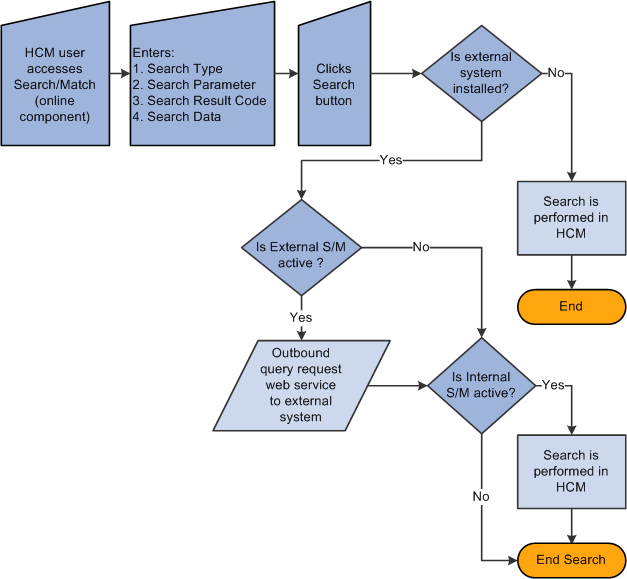
Online search business process
Automatic Search
To perform an automatic search, all of the above information applies. When you enter data to create an employee ID on as HCM page and then click the Save button, the system invokes additional logic to validate the external data integration settings and then triggers the Match Request.
Note. As of the date of this publication, automatic search is not available from within HCM. Oracle anticipates that it will be available in a subsequent update.
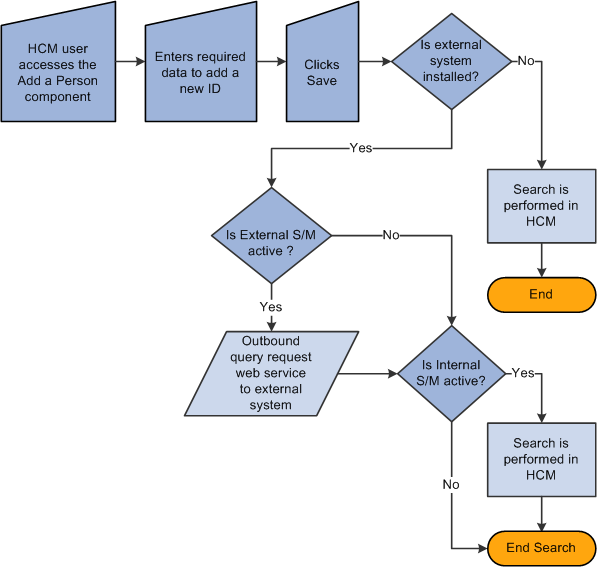
Automatic search business process flow
Understanding External Search/Match Web Services
Oracle delivers web services that are triggered and used by External Search/Match functionality. Specifically, these web services are:
Match service (SCC_SM_SERVICE).
Fetch request and fetch response (SCC_SM_FETCH).
The PeopleSoft Campus Solutions Constituent Web Services Developer's Guide contains more technical details of these web services including examples of the XML message code.
When you click the Search or Selective Search buttons on the Integrated Search Criteria page, the system conducts an Internal Search/Match, External Search/Match, or both. External Search/Match sends a Match Request to the external system. This is an XML message that contains all of the fields included in the search request. The external system returns a Match Response, also an XML message.
The Match Request XML message (SCC_SM_SERVICE_REQ) to the external system exposes all information that the system has:
All of the search order numbers that can potentially return matching candidates.
Search fields.
Search data.
Search/Match configuration information.
The Match Response XML message (SCC_SM_SERVICE_RESP) from the external system contains:
Search order number/rule that found results.
Matching candidates.
External System ID/cross reference.
Person data.
Fetch Request and Fetch Response
When you click the Detail or Import buttons on the Integrated Search Results page for a individual without an employee ID, the system sends a fetch request to the external system. This is an XML message that requests the full person record from an external system. The external system returns a fetch response, also an XML message.
The fetch request XML message (SCC_SM_FETCH_REQ) to the external system contains the external system ID for which the Import or Detail buttons were selected.
The fetch response XML message (SCC_SM_FETCH_RESP) from the external system contains the full person record.
When you import a new person record fetched from an external system:
The HCM system creates an emplID.
The HCM system publishes the PERSON_BASIC_SYNC message, if it has been activated within Integration Broker.
See Also
PeopleSoft Campus Solutions Constituent Web Services Developer's Guide on My Oracle Support https://support.oracle.com
Search Results
After the external system search process completes its search for potential matches, the result data is sent to HCM through the response message (Match Response). When you perform a search that triggers both the Internal Search/Match and External Search/Match processes, the system may not find results on the same search order number. The rule for External Search/Match functionality is to display all search results, beginning with the lowest search order number obtained (the most restrictive search rule where matching emplIDs are found). The search order is determined by the Results Engine.
Before it can display your search results, the Results Engine receives the results from both the Internal Search/Match and External Search/Match processes. The engine evaluates the search order number from each system’s matching candidates.
If Internal Search/Match found matching candidates with a lower search order number than the external system, then the Results Engine displays the results from Internal Search/Match; the lowest search order indicates that it was a more restrictive search.
If the opposite is true, then the Results Engine displays the results found from the external search.
If both searches retrieve results on the same search order number, the Results Engine combines the search results into a single display for the user.
Regardless of whether you invoke Internal Search/Match, External Search/Match, or both, the search results appear on the Integrated Search Results page. This page contains many of the same fields as the Search Results page. In addition, the Results tab contains optional columns such as the external system ID and the employee ID. The Results tab uses the same masking configuration that is in place for Search/Match.
When External Search/Match finds a matching candidate that does not exist inside the internal system, the user can use the Detail link to view information about the individual. Clicking the Detail link triggers an outbound web service request for more information (Fetch Request). The external system receives the request and returns detailed person information inside its response web service (Fetch Response). The system then displays (but does not store) the detailed information inside a Detail page that enables you to review the data.
If you determine that the matching candidate is the person you are looking for, you can import the person record from the Integrated Search Results page. When you click the Import button, the system generates a Fetch Request (the same web service used to retrieve more details about the individual) and uses the information contained in the Fetch Response to create the new person record inside the HCM database. After you generate the person’s emplID, you can then use it to perform subsequent transactions.
Setting Up External Search/MatchThis section describes the prerequisites for setting up External Search/Match and discusses how to:
Configure external system integration.
Configure External Search/Match options.
See Also
Setting Up and Working with Search/Match
PrerequisitesWhile your current Search/Match setup can remain unchanged, Oracle recommends that you review it to maximize the search capabilities offered by the external system.
SearchResults: If your results code(s) contain fields that are not stored inside your integrated external system, and if the person returned has an emplID in the HCM system, the Results Engine fetches the data inside the HCM database to populate the Results tab.
For example, a user uses a Search Results code that contains the Job Code field. If your external system does not store that information, the Results Engine uses the returned emplID to fetch the HCM database and retrieve the information. This is also true for matching candidates returned with an emplID. If the matching candidate is not stored in the HCM database (no emplID exists), then the Job Code column remains blank for that candidate.
Search Results code masking configuration: The system reuses the existing setup when you use a Search Results code with masking configuration and the external system returns results for display.
In addition, you must set up Integration Broker to trigger the following web services:
SCC_SM_FETCH (Search/Match fetch service).
SCC_SM_SERVICE (External Search/Match service).
Finally, you must grant users security to the Search/Match Integrated component.
Note. All searching capabilities included inside the Search/Match component are included inside the Search/Match Integrated component
Pages Used to Set Up External Search/Match Functionality
|
Page Name |
Definition Name |
Navigation |
Usage |
|
External System Integration |
SCC_EXT_SYSTEM |
Set Up HRMS, Install, External System Search Match |
Specify an external system that is integrated with HCM for person data. |
|
Search Match Options for External Systems |
SCC_CS_HUB_INSTALL |
Set Up HRMS, System Administration, Utilities, Search/Match, Search/Match with External Sys, Search Match Options for External Systems |
Specify External Search/Match options when integrating with an external system. |
Configuring External System IntegrationAccess the External System Integration (Set Up HRMS, Install, External System Search Match)
|
Is External System Installed |
Select this check box to indicate whether HCM is integrated with an external system. If you do not select this check box, the other fields on the page are unavailable for input. When users perform a Search/Match, the system evaluates this indicator and determines whether to invoke External Search/Match functionality. |
|
Integrated External System |
HCM installed as third party indicates that HCM and Campus Solutions systems are in separate instances and the administrative user has distinguished the Campus Solutions system as an external system with direct integration between the two. |
Configuring External Search/Match OptionsAccess the Search Match Options for External Systems page (Set Up HRMS, System Administration, Utilities, Search/Match, Search Match with External Sys, Search Match Options for External Systems).
If the Is External System Installed check box is not selected on the External System Integration page, the following message appears: “Currently, no External System is configured with Campus Solutions. To configure an External System, navigate to External Core Data Integration page.”
Search/Match Options
Fields in this group box determine under what conditions the system will use Search/Match, External Search/Match, or both when adding a new person or saving an updated Biographical Details page.
|
Search Type |
Select Person, Applicant, or Organization. Note. Currently, you may select only the Person option. The other search types are not yet integrated with External Search/Match |
|
Search/Match Option |
Select which Search/Match functionality to use when an external system is installed: If you select Internal Search/Match, and you make it Active, then the Search/Match process will search for person IDs inside the HCM database. If you select External Search/Match, and you make it Active, then the External Search/Match process will search for person IDs inside the integrated external system (the HCM system and the external Campus Solutions system, or whatever external system you targeted). Note. Both searches can be selected at the same time, and results appear from both searches on the same Integrated Search Results page. |
Static Columns to Display in the Results Grid
Fields in this group box contain information about additional columns to display inside the Results grid of the Integrated Search Results page.
|
Default Column Name |
Select Employee ID and Universal ID. These are delivered translate values; do not modify them: Employee ID appears by default (just like for internal Search/Match). Universal ID is a generic term that refers to the external system ID in use. When selected, the external system ID appears inside the Additional Information tab of the Results grid.
Note. Score is a generic term
that refers to your external system method for ranking the matches found.
It is the weight or the accuracy of the results found. It is sometimes expressed
by a percentage or a number. If your external system does not have ranking
capability, do not select this option. When selected, the column appears first
in the Results grid. |
|
Display Name |
Enter a custom column name for the static columns that appear in the Results Grid |
Working With External Search/MatchThis section discusses how to use External Search/Match from within PeopleSoft HCM. It provides an overview of working with external search/match and discusses how to:
Select criteria for an integrated search.
View integrated search results.
Conduct an automatic search.
See Also
Setting Up External Search/Match
Integrating HCM with Campus Solutions
Pages Used for External Search/Match
|
Page Name |
Definition Name |
Navigation |
Usage |
|
HCR_SM_SEARCH |
Workforce Administration, Personal Information, Search Match Internal/External |
Enter criteria to search for duplicate person or multiple person records contained inside an external system. When the page is accessed through the SCC_SM_SEARCH component, then the system performs the External Search/Match evaluation. |
|
|
SCC_SM_RESULTS |
Enter criteria on the Search Criteria page and click Search or click one of the search by order number Selective Search buttons to launch a manual search. |
View Search/Match results of an external system search and investigate potential duplicate IDs. |
|
|
SCC_SM_RESP_DTL |
Click the Detail link on the Search Results page for a matching candidate that does not have an emplID. |
View personal data stored inside the external system. |
|
|
SCC_BIO_DEMO_REG |
Click the Detail link on the Integrated Search Results page, then Regional tab. |
View regional data stored inside the external system. |
Entering Search CriteriaAccess the Search Criteria page (Workforce Administration, Personal Information, Search Match Internal/External).
The fields on this page are the same as those on the Search/Match page. However, the SCC_SM_SEARCH component includes logic that evaluates the external system data settings when you click the Search or Selective Search button. Note that this is only true when the Search Type is Person.
Note. For a Search Type of Applicant or Organization, the system triggers Search/Match only if on the Search Match Options for External Systems page, External Search Match is set to Inactive and Internal Search Match is set to Active.
Viewing Integrated Search Results
Access the Integrated Search Results page (click the Search button or one of the available Selective Search buttons on the Search Criteria page). If the External Search/Match is triggered and the system has found matching candidates on a search rule number lower or equal to the Search/Match, the Integrated Search Results page appears.
Many fields on this page are the same as those on the Search Results page. However, there are some important distinctions:
Records with no HCM employee IDs appear first in the Search Results group box.
Records with no HCM employee IDs are assigned an External Sys ID..
Where an HCM employee ID exists, the Detail link accesses a page where you can view details of the ID record from the HCM system.
Where no HCM employee ID exists, the Detail link accesses a page where you can view details of the data from the external system.
The Import button appears when a person meets the criteria in the external system.
The external system ID column appears based on the settings defined on the Search Match Options for External Systems page. The column heading depends on the Display Name that is defined for the Universal ID column, in this case CS Employee ID.
Masking configuration is in effect for all matching individuals, even those with no employee ID.
For matching person records found by External Search/Match, this page displays information that is not necessarily stored inside the external system (for example, Campus SolutionsAid Year).
|
Number of ID's Found |
The system displays the total number of distinct IDs returned by both Search/Match and External Search/Match, just Search/Match, or just External Search/Match. |
|
Search Order Number |
The system shows the Search Order Number where results were found. When the internal and external searches find results under different search rules, the Results Engine evaluates the Search Order Number returned by both searches and displays the results for the search that found results under the smallest search order number (the most restrictive search). When the internal and external searches find results under the same search rule, the Results Engine displays them both. |
Search Results
The fields in this group box are similar to those on the Search Results page. The system displays the results returned from both the HCM database and the external system, along with additional data to describe the IDs that are retuned. However, the columns are dynamic and they can refer to personal data information or transaction data information. You define static columns to appear here on the Search Match Options for External Systems page.
|
Import or Carry ID |
The Carry ID button appears when an employee ID exists; otherwise the system displays the Import button. Security access to the Add/Update Person component controls whether users can use the Import button. Click the Import button to import external system data when the person does not exist in the HCM system. When you click the button, the system displays a message asking if you want to create the new ID in the system. If you click Yes, the system performs a Fetch Request to request the complete constituent record from the external system. When the system receives the Fetch Response from the external system, it uses the personal data in it to create a new employee. After successfully importing the data, the Search Results group box refreshes and the newly created employee appears; the Import button for the person row changes to Carry ID. Notice that no other import can be performed (all the Import buttons are then unavailable). This is to prevent the user from importing multiple matching candidates. If you click No, the system does not import any data and returns to the Integrated Search Results page. |
|
Detail |
If an HCM employee ID exists, click this link to access the page that is set up inside the Search Results Code to view more information about the person. The default page for HCM is Biographical Details (PERSONAL_DATA1). If no HCM employee ID exists for the person, click this link to invoke a Fetch Request to retrieve the complete constituent record from the external system. When the system receives the Fetch Response from the external system, it displays the personal data in the response on the Biographical Details (SCC_SM_RESP_DTL) page. Note. Both the Import button and the Detail link (when no employee ID exists) trigger the same Fetch Request. The data received inside the Fetch Response will only be saved to your database when the Fetch request is triggered from the Import button. It is therefore good practice to always review the detailed information prior to importing. |
Additional Information
A column with the external system IDs appears on the Additional Information tab when a Universal ID static column to display is selected on the Search Match Options for External Systems page. The column heading depends on the Display Name defined, in this case CS Employee ID.
Viewing Biographical Details
Access the Biographical Details page (click the Detail link on the Integrated Search Results page).
Note. The sample component shown is Biographical Details (SCC_SM_RESP_DTL), which is accessed by clicking the Detail link for an individual with no HCM employee ID.
This page displays sections of data that are not stored in the HCM database until you click the Import button.
The system displays messages on this page based on the following conditions:
Note. Where no data exists, the system hides the fields and displays a message in the Missing Information group box.
|
Data Region |
Condition |
Message |
|
Current Names |
No name information exists |
No Current Name Information |
|
Personal Information |
No personal information exists |
No Personal Information |
|
Biographical Information |
No biographical information exists |
No Biographical Information |
|
National ID |
No national ID information exists |
No National ID Information |
|
Email Addresses |
No email address information exists |
No Email Addresses Information |
|
Phone Numbers |
No phone information exists |
No Phone Number Information |
|
Current Addresses |
No address information exists |
No Address Information |
|
Regional |
No regional data exists |
No Regional Information |
|
Import |
Click this button to import the external system ID and all the information displayed, into the HCM system and create an emplID. |
Current Names
|
History |
This link appears only if the external system ID contains a past or future date in addition to the current row. Click the link to access the Name Type History page. |
Current Addresses
|
History |
This link appears only if the external system ID contains a past or future date in addition to the current row. Click the link to access the Address Type History page. |
View Regional DetailsAccess the Regional page (click the Detail link on the Integrated Search Results page, then Regional tab).
This page is available only if it contains data. If the fetch response contains no regional information, this message appears on the Missing Information group box on the Biographical Details page.
|
Data Region |
Condition |
Message |
|
Regional |
No regional data exists |
No Regional Information |