 Understanding OLAP Reporting
This chapter provides overviews of online analytical processing (OLAP) reporting and PeopleSoft predefined dimensions and measures and discusses how to:
Create the Total Compensation Department Tree.
Fill in the ALL_TIME Tree.
Note. The Cube Builder, including the Compensation cube and Headcount/FTE cubes, are designed to be OLAP platform independent and to integrate with third party applications.
Understanding OLAP Reporting
With OLAP reporting, you can view compensation data from different axis points and move easily from one view to another.
Use OLAP to identify the dimensions (attributes) of the data and then combine the dimensions in various ways. For example, analyze total compensation data by looking at it from several perspectives—for example, department, jobcode, and time, as shown here:
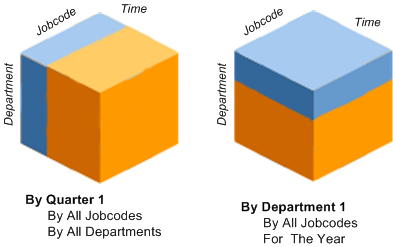
Example cubes showing dimensions of data for department, jobcode and time
Define the cube and then slice and dice the data based on combinations of these dimensions. For example, examine the total compensation data for the training department of the Western Region for the year. When you analyze the data, slice off part of the cube or dice it to get to an individual cell.
Understanding PeopleSoft Predefined Dimensions and Measures
The measures for the Compensation cube are Compensation Amount and Payroll Amount. The system places amounts extracted from a source marked Comp Amt into the Compensation Amount measure, and places amounts extracted from a source marked Payroll Amt into the Payroll Amount measure.
The measures for the Headcount/FTE Cube are FTE and Headcount.
This table lists the total compensation dimensions provided with HCM. Most of the dimensions are in both the Compensation and Headcount/FTE Cubes.
|
Dimension |
In Which Cubes? |
Rollup Type |
Comments |
|
TC_BUS_UNIT |
Both |
Query |
Retrieves the business units and their descriptions. All the business units are rolled up into the All Business Units umbrella. This query also retrieves the All Business Units text from the Message Catalog for globalization purposes. |
|
TC_CATEGORY |
Both |
Query |
Retrieves the workers labor agreement and categorization information. |
|
TC_COMPANY |
Both |
Query |
Grouped by country and company code. You usually won't alter the query. |
|
TC_COMPENSATION |
Compensation |
Tree |
You modified this tree when you set up the total compensation reporting structure. |
|
TC_DEPT |
Both |
Tree |
TC_DEPT trees are copies of standard department trees in which the department IDs are the concatenation of the setID with the standard department ID. For instance, Department 10001 on the US Department Tree is Department USA10001 in the related TC Department Tree. |
|
TC_EE_COMPTOTAL |
Compensation |
Query |
Determines whether you have specified that the comp ID is included in the compensation total. You specify this in the Empl Compensation Total field on the Compensation Definition page. |
|
TC_JOBCODE |
Both |
Query |
Grouped by job function and JobCode. You usually won't alter the query. |
|
TC_LOCATION |
Both |
Query |
Grouped by country, state/province, and location code. You usually won't alter the query. |
|
TC_POSITION |
Both |
Query |
Grouped by position. |
|
TC_SALARY_LEVEL |
Both |
Query |
Grouped by salary administration plan and salary grade. You usually won't alter the query. |
|
TC_TIME |
Both |
Tree |
Modify this query to match the ALL_TIME tree. |
|
TC_TYPE |
Compensation |
Query |
Determines whether you have specified that the comp ID is worker paid or employer paid. You specify this in the Organizational Cost field on the Compensation Definition page. |
See Also
Setting Up the Total Compensation Reporting Structure
Creating the Total Compensation Department Tree
To create total compensation department trees, use the Total Comp Department Tree (TC_DEPT_TREE_GBL) component.
This section discusses how to create a department tree.
 Page Used to Create a Department Tree Creating a Department Tree
Access the Total Comp Department Tree page (Set Up HRMS, Product Related, Compensation, Total Compensation, Total Comp Department Tree, Total Comp Department Tree).
HCM enables you to duplicate your DEPT_SECURITY Tree, which should already be set up by department for use with the cubes. Create the new Department Tree with the Total Comp Department Tree page. This is a mandatory step.
Filling in the All_TIME Tree
HCM provides the skeleton ALL_TIME Tree, which represents the time dimension of your cubes. Use Tree Manager to construct the tree to meet your needs and to define how time periods roll up. This is how you tell the system that, for example, January 2004, February 2004, and March 2004 make up Q1 2004 and that Q1 2004, Q2 2004, Q3 2004, and Q4 2004 make up the year 2004.
You also have the option of using dynamic ranges to determine your time period rollups at run time. The time rollup periods are determined at run time, based on the reporting plan. The length of each time rollup period matches the frequency of the reporting plan. You do not need to create a TC_TIME Tree for each reporting period. For example, if a plan that is dated January 1, 2000 through December 31, 2010 has a frequency of annual, the rollup time periods would be 10 calendar years (2000 to 2010).
See Also
PeopleTools 8.52: Tree Manager PeopleBook