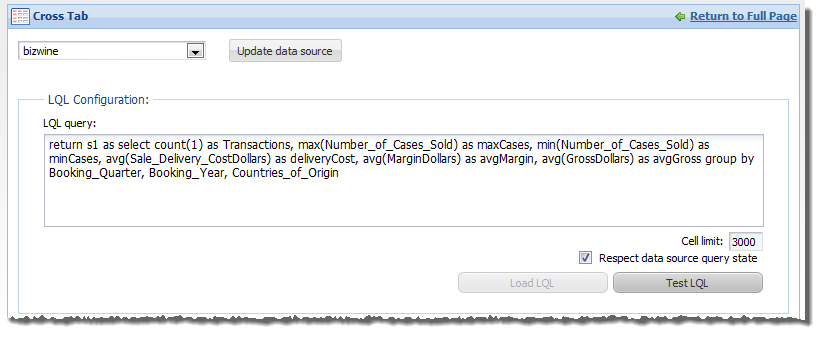
For a Cross Tab component, power users can select a different data source, and must provide an LQL query.
To configure the data source and LQL query for the component:
-
On the component edit view, to bind a different data source to the
component, select the data source from the drop-down list, then click
Update data source.
Note that if you change the data source for an existing component, the rest of the component configuration, including the LQL query, is cleared.
-
In the
LQL query field, enter an LQL query to return
the cross-tab values.
 Note: When entering your LQL query, remember that all attribute names, including the names of derived attributes, must be NCName-compliant. They cannot contain spaces or special characters.
When selecting the attributes to group by, make sure to select attributes that have a limited number of values. If you group by an attribute that has too many values, your Cross Tab table may become too large to be useful.
-
In the
Cell Limit field, set the maximum number of
cells to include in the
Cross Tab results table.
The default value is 3000.
In general, you should not make this value much larger than the default. A table with many thousands of cells is time-consuming to render and difficult for end users to read.
-
To update the table automatically when end users refine the data,
check the
Respect data source query state box.
The box is checked by default.
When the box is unchecked, the component is independent of the data source query state, and the metric values remain constant.
-
To validate the LQL query, click the
Test LQL button.
If the LQL query is valid, then:
- The Load LQL button is enabled.
- A sample result is displayed.
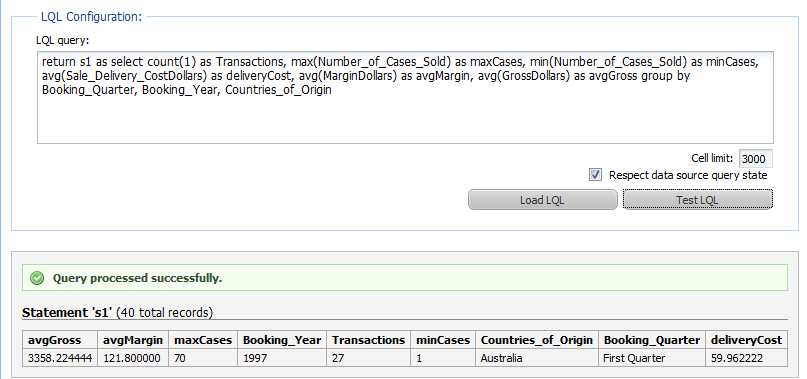
- To load the LQL query, click the Load LQL button.
- The
Metrics Configuration section is populated
with the metrics and grouping fields from the query. The section provides
options to configure the display of the metrics and groupings.
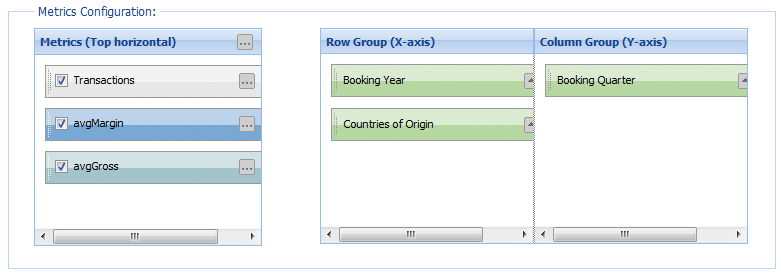
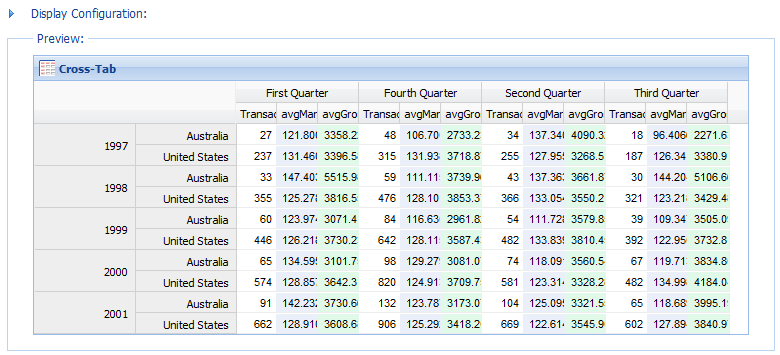
- The preview table at the
bottom of the edit view shows how the component will display to end users.
If you do not need to configure the table layout or dimensions, then to exit the edit view, click Return to Full Page.
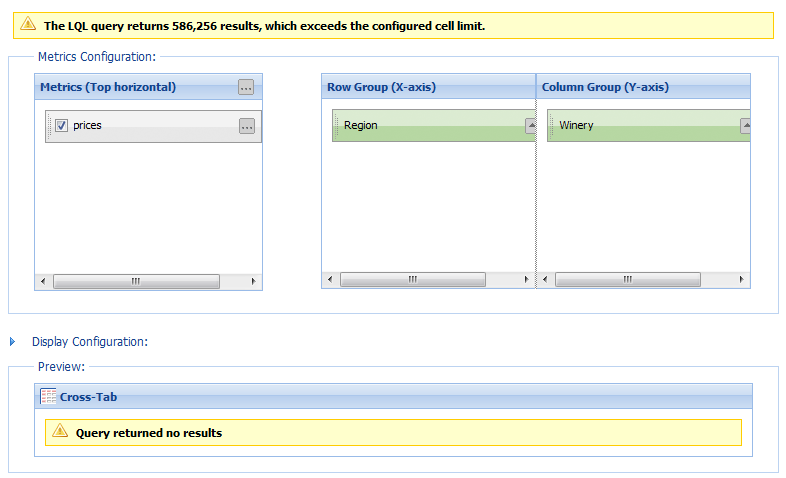
If the number of results is larger than the value of Cell limit, then when you load the LQL query, the preview is not displayed. Error messages indicate that the results need to be filtered.