If you are using an LQL query to populate the table, then when you first load the LQL query, the Attribute/Action List is populated by a single column set called Default Group. In the Default Group are the metrics and grouping attributes from the LQL query.
For results generated from an LQL query, you can create and rename column sets. You can then move the metrics into your column sets.
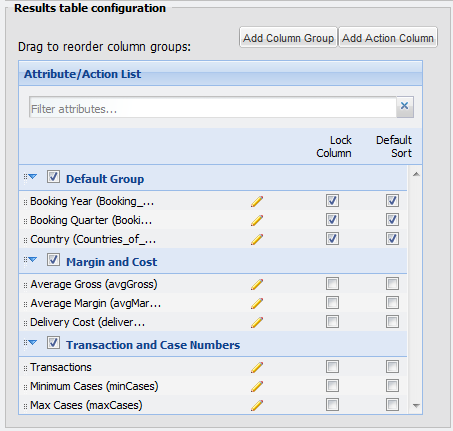
To configure the column sets:
- To add a new column set, click Add Column Group. An empty column set is added to the list.
-
To rename a column set:
-
Double-click the set name.
The name displays in an editable field.
- Type the new name in the field, then press Enter.
-
Double-click the set name.
- To include a column set in the display, check its checkbox. To remove a column set, uncheck the checkbox.
- To change the display order of a column set, drag the set to the new location in the list.
-
To remove an empty column set, click its delete icon.

You cannot remove a column set that contains columns.
- To move a metric into a different column set, drag it into the column set.
- To change the display order of the columns within a column set, drag each column to the new location in the list.
-
To display the metric value as a locked column, check its
Lock Column checkbox.
The column is copied to the Locked Columns list. Locked columns are not displayed in their column set.
They are only displayed in the locked column section to the left of the table.
Note: You should not have more than 2-3 locked columns. Having too many locked columns can make the table less readable for end users. -
To use the metric in the default sort order for the results, check
the
Default sort checkbox.
The column is copied to the Sorting Controls list.
- To save the changes, click Save Preferences.
- To exit the edit view, click Return to Full Page.
