The power user can set the following preferences for the Guided Navigation component.
The edit controls on the Guided Navigation component allow you to configure the layout so only facets relevant to the end user are exposed.
- Data source controls:
Select from the available data sources in the drop-down list, and then click
Update data source to bind your selection to the
component.
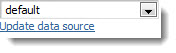
- Disable type-ahead:
Check to remove the
Type-ahead search box from dimensions with many
dimension values.
 Important: Dimension search wildcarding must be enabled in the MDEX Engine in order for type-ahead to work in Discovery Framework components.
 - Maximum type-ahead
suggestions: Set the maximum total number of type-ahead suggestions the
MDEX Engine will offer. If fewer results are available, the number returned
will be less than this maximum. Note that this control is only visible if
Disable type-ahead is not selected.

- Maximum refinements to show in a single dimension: Set the maximum number of refinements per dimension to be displayed. This can help prevent your end users from being overwhelmed by an excessive number of results.
- Dimension
Configurations: Includes the following settings:
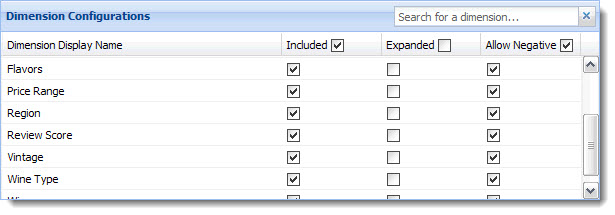
- Search for a dimension by name.
- Select dimensions to include. Dimensions not selected are hidden from the end user's view.
- Select dimensions that will appear expanded by default in the end user's view. (The end user may choose to collapse them.)
- Select dimensions that can be negative as well as positive refinements. A negative refinement, when selected, is excluded from results.
- Targeted Page: Set the target page for any page transition. Page transitions allow a component on one page in your Discovery Framework application to pass data to a component on another page.