Another method of setting Endeca ACLs on your records is to add an Access Rules component to your pipeline.
With an Access Rules component, you can restrict the Endeca records that a user can see by creating a set of access rules for the Endeca properties in your implementation. Each rule states that if the value of a property on a record is equal to a value that you specified, then that record can be seen by any member of a group that you also have specified.
To create an Access component in Developer Studio:
- Make sure that you have created an Endeca.ACL.Allow.Read property in your implementation. Developer Studio will automatically add the property to the property mapper and map the property to itself.
- In the Pipeline Diagram, select New > Access Rules. The Access Rules editor will be displayed.
-
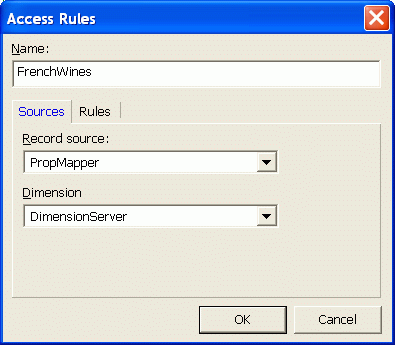
After naming the Access Rules component, use the Sources tab to
specify its Record source as a property mapper (or another Access Rules
component) and its Dimension source as a Dimension Server:
- On the Rules tab, add an access rule by clicking the Add button.
-
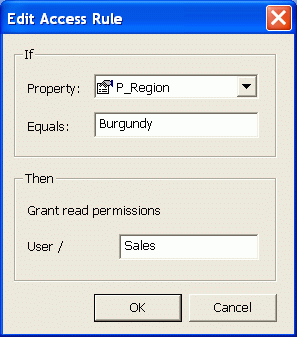
In the Edit Access Rule editor, define the rule by specifying an
If-Then statement:
- Specify the If condition clause by selecting a property (to identify records for access) and then entering a string in the Equals text box. The string is the value of the property against which the rule will be tested. Note that the string must be an exact match with the value of the property on the record.
- In the Then panel, enter the name of a group. This group is allowed access to any records that have the property and value that you specified in the Then clause.
-
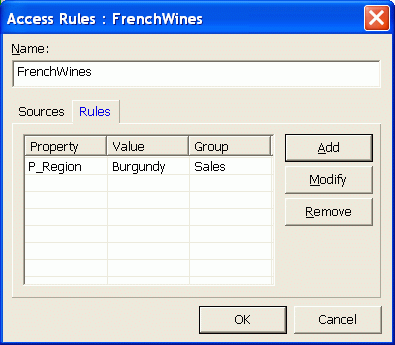
When you finished adding the rules, click
OK. The Rules tab should look like this
example:
- To add additional access rules, repeat steps 4 through 6.
- Click OK to add the Access Rules component.
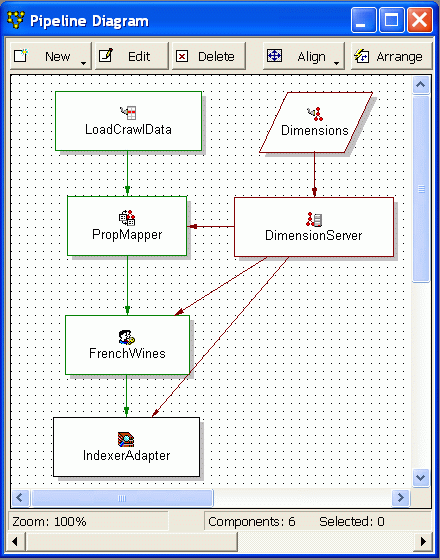
The Pipeline Diagram should look like this example, which has an Access Rules component named FrenchWines: