The Edge component (between the Reader and Reformat components) has to be associated with a Metadata definition so it knows what fields of data are being passed from the Reader component to the Reformat component.
By setting the Metadata definition, you are actually defining the properties that will be tagged on the records.
Most of the metadata configuration will be done in the Metadata editor:
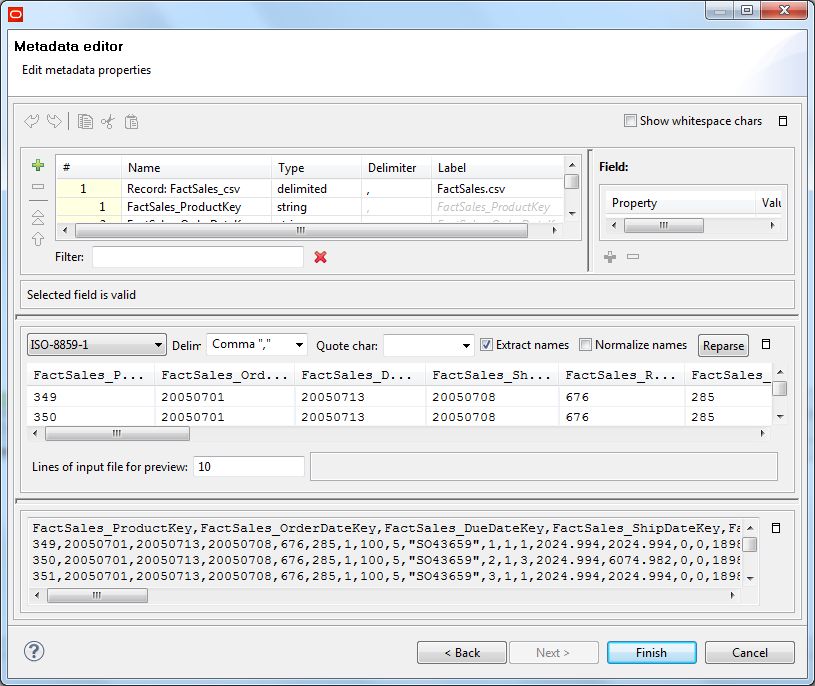
You will be using this editor in Steps 6 and 7 of this procedure.
To configure the Metadata definition for the Reader Edge:
- Right-click on the Edge and select .
- Select . The Flat File dialog is displayed.
- In the Flat File dialog, click the Browse button, which brings up the URL Dialog.
- In the URL Dialog:, double-click the data-in folder, select the FactSales.csv data source file, and click OK. As a result, the Flat File dialog is populated with source data from the data file.
- In the Flat File dialog, make sure that the Record type field is set to Delimited and then click Next. The Metadata Editor is displayed, as in the example above.
-
In the middle pane of the Metadata editor:
- Check the Extract names box.
- Click Reparse.
- Click Yes in the Warning message.
-
In the Record pane of the Metadata editor, make these changes:
- Click the Record Name field and change the default value to a name that is appropriate for your data, such as FactSales for the sales transactions data set. In this example, Record:FactSales will be the resulting Name value.
-
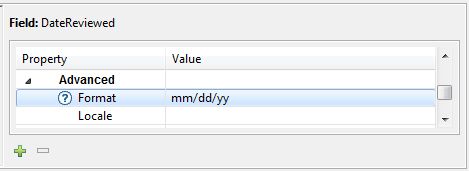
If your source data has date properties, you should set their
type to
date (the type may be set to
string by the Designer). Then use the
Format field (in the Field pane on the
right) to set the appropriate value, as in this example:
- Verify that the other properties have their property type set correctly. For example, change the FactSales_UnitPriceDiscountPct and FactSales_DiscountAmount property types from integer to number in our sample metadata.
- Verify that all properties have the correct delimiter character set (which is the comma character in our source data).
- When you have input all your changes, click Finish.
- Save the graph.
The Metadata definition for the Reader Edge component is now set.
