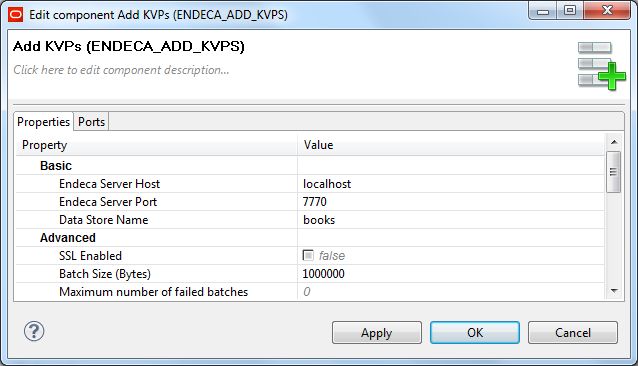
You must configure the Add KVPs connector to properly connect to your Endeca data store.
This procedure assumes that you have created a graph for the Add KVPs connector.
To configure the Add KVPs connector:
- In the Palette pane, open the Discovery section and drag the Add KVPs connector into the Graph Editor.
- In the Graph window, double-click the Add KVPs connector. The Writer Edit Component dialog is displayed.
-
In the Writer Edit Component dialog, enter these settings:
- Endeca Server Host: The host name of the machine on which the Endeca Server is running. You can specify ${ENDECA_SERVER_HOST} if you have that variable defined in the workspace.prm file for your project.
- Endeca Server Port: The port on which the Endeca Server is listening. You can specify ${ENDECA_SERVER_PORT} if you have that variable defined in the workspace.prm file for your project.
- Data Store Name: The name of the Endeca data store that contains the records to be added or modified.
- SSL Enabled: Toggle this field to true if the Endeca Server is SSL-enabled.
- Batch Size (Bytes): To change the default batch size, enter a positive integer. Specifying 0 or a negative number will disable batching.
- Maximum number of failed batches: Enter a positive integer that sets the maximum number of batches that can fail before the ingest operation is ended. Entering 0 allows no failed batches.
- When you have input all your changes, click OK.
- Save the graph.
After configuration, the Writer Edit Component dialog should look like this example: