You may be able to change the column configuration to hide columns, show columns, and move columns into different column sets.
If the table is configured to allow end user configuration, then a Configure button displays on the table.
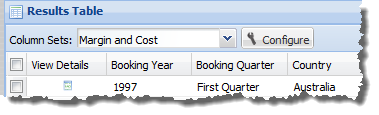
To change the configuration of the table columns.
-
Click the
Configure button.
The Results Table Configuration dialog is displayed.

The dialog displays the current column sets and displayed columns.
The Locked column set contains the current locked columns.
- To hide a column that is currently displayed, uncheck the Show Column checkbox.
- To show a column that is currently hidden, check the Show Column checkbox.
- To make it easier to manage the displayed columns, to hide the columns that are not displayed, check the Hide unselected columns checkbox.
-
To change the display order of columns, or move a column to a
different column set, drag the column to the new location.
If you move a locked column to a different group, it is no longer locked. If you move a column into the Locked group, then it is locked.
- To restore the original configuration set up by the power user, click Reset to Default.
- To save the current configuration, click Apply.
