For an IFrame component, you configure the URL to display.
To configure an IFrame component:
- Click the ... icon at the top of the component.
- From the drop-down menu, select Configuration.
-
On the edit view, in the
Source URL field, type the URL.
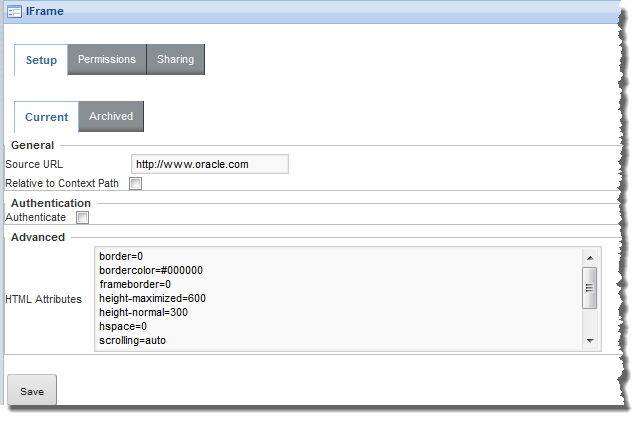
- If the URL is relative to the context path for the Studio application, check the Relative to Context Path checkbox.
-
By default any user, including guest users, can view the
IFrame content. To require user authentication
in order to view the content:
-
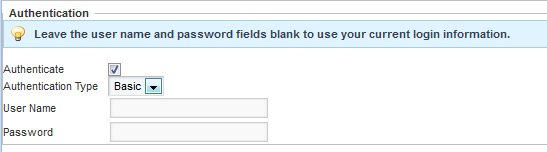
Check the
Authenticate checkbox.
The authentication fields are displayed.
-
From the
Authentication Type drop-down list, select
the type of authentication.
Basic authentication simply requires the user to be logged in.
Form authentication uses POST or GET to validate the user.
- For Basic authentication, to specify the user name and password, enter the values in the fields. If you leave the values empty, then the content can be viewed by any logged-in user.
-
For
Form authentication, from the
Form Method drop-down list, indicate
whether to use GET or POST to validate the user.
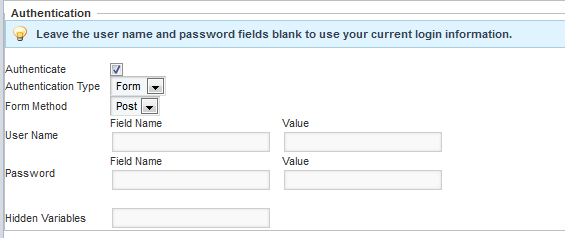
For the user name and password, provide the field names and values to send. If you leave the fields empty, the user's current login information is sent.
In the Hidden Variables field, provide any hidden variables to include in the authentication request.
-
Check the
Authenticate checkbox.
- Use the HTML Attributes field to provide any additional display parameters for the content.
- To save the configuration, click Save.
- To return to the end user view, click Return to Full Page.
