After you select the metrics to display for the Metrics Bar, you then configure how to display each metric.
- The metrics boxes are grey.
- Each box label is based on the EQL query.
- There are no alerts associated with the metrics.
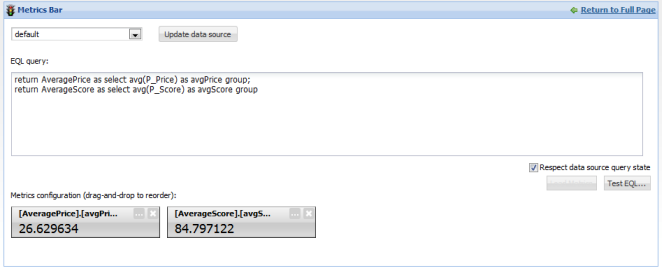
To configure the order in which to display the metrics, drag and drop the metric boxes.
For each metric, to configure how the value and box are displayed:
-
On the metrics box, click the
... button.
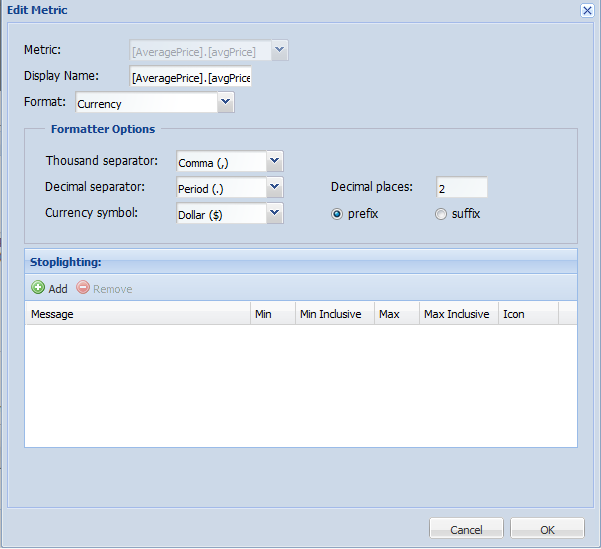
The Edit Metric dialog is displayed.
-
In the
Display Name field, type the display name for
the metric.
This is the label that displays at the top of the metric box.
By default, the display name is based on the EQL query.
-
From the
Format drop-down list, select the format to
use to display the metric value.
When you select a format, the Formatting Options section is updated to contain the fields for configuring the selected format. For more information on the formats and their available configuration, see Formatting values displayed on a component.
-
For numeric values (integer, currency, and decimal values), you
can configure alert messages to display based on the current value of the
metric. String values cannot have alert messages.
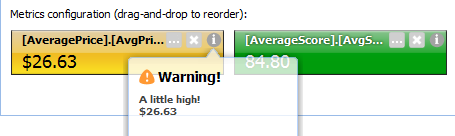
The alert messages are displayed when the end user hovers the mouse over the I icon on the metric box.
As part of this configuration, you also determine the color of the metric box.
In the Stoplighting section, to configure the alert messages:
-
To add an alert message, click
Add.
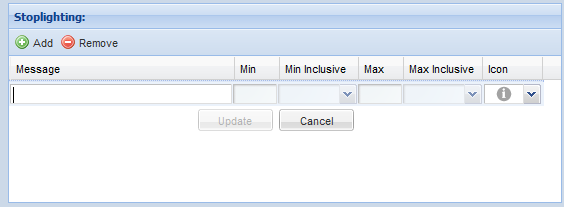
The next row of fields is enabled.
-
To configure the message:
Message In the Message field, type the text of the message to display. Min In the Min field, type the minimum metric value for which to display this message. For example, to only display the message if the value is greater than 85, type 85 in the field.
Min Inclusive If you have provided a minimum value, then from the Min Inclusive drop-down list, select whether the provided value is inclusive. If you select True, then the alert message displays if the value is greater than or equal to the provided value.
If you select False, then the alert message displays only if the value is greater than the provided value.
Max In the Max field, type the maximum metric value for which to display the message. For example, to only display the message if the value is less than 100, type 100 in the field.
Max Inclusive If you have provided a maximum value, then from the Max Inclusive drop-down list, select whether the provided value is inclusive. If you select True, then the alert message displays if the value is less than or equal to the provided value.
If you select False, then the alert message displays only if the value is less than the provided value.
Icon From the Icon drop-down list, select the icon representing the color of the metric box when the metric value meets the minimum/maximum value criteria. The selected icon displays on the alert message, and also determines the alert message heading:- For the grey icon, the heading is Alert!
- For the yellow icon, the heading is Warning!
- For the green icon, the heading is Success!
- For the red icon, the heading is Error!
-
After filling out the fields, to save the alert message, click
Update.
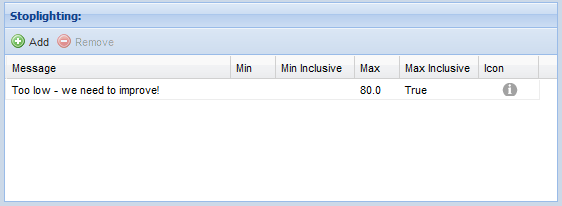
The alert message is added to the list.
-
To edit an existing alert message, double-click the message
row. The fields are enabled to allow you to edit the message.
After making the edits, to save the changes, click Update.
- To remove an alert message, click the message, then click Remove.
-
To add an alert message, click
Add.
-
To save the metric display configuration, click
Save.
On the edit view, the metric box is updated to reflect the new display name, and to use the appropriate color based on the metric value.
To test the alert message, hover the mouse over the I icon.
- To exit the edit view, and return to the end user view, click Return to Full Page.
