You can configure the Map component to allow end users to change the sort order for a set of locations. If you do not allow end users to select the sort order, then you can select an attribute to sort by.
To configure the sorting options for the set of locations:
-
If the checkbox is not checked, then end users cannot change the
sort order.
The Sort Options section contains a single field.
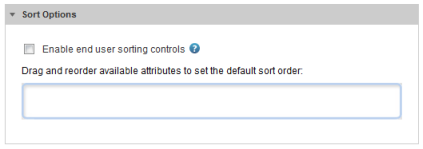
To determine how the list of locations is sorted, drag an attribute from the Attribute Groups list to the Sort Options field.
After you drop the attribute, to determine the sort order:- To sort by the selected attribute in ascending order, click the up arrow. This is the default.
- To sort by the selected attribute in descending order, click the down arrow.
To remove the attribute, click the delete icon.
To replace the attribute with a different attribute, drag a different attribute from the Attributes Groups, then drop it on top of the currently selected attribute.
-
After selecting the list of attributes, to configure the sorting:
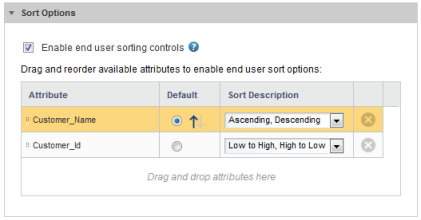
To determine the order of the attributes in the Sort by drop-down list, drag each row up and down in the list.
For the attribute you want to use for the default sort order, click the Default radio button next to the attribute.- To sort by that attribute in ascending order, click the up arrow.
- To sort in descending order, click the down arrow.
You use the Sort Description drop-down list to configure the text that displays next to the attribute in the Sort by list. The list includes one entry for sorting in ascending order, and one for descending order.
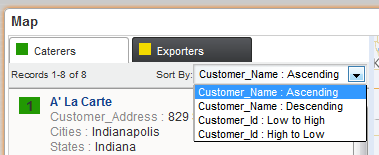
From the Sort Description drop-down list, select the set of values you want to use for that attribute.
To create your description for ascending and descending order, select create custom description.
On the Create Custom Description dialog:
- In the first field, marked with the up arrow, type the text to use to indicate ascending order.
- In the second field, marked with the down arrow, type the text to use to indicate descending order.
- Click Save.
