Studio provides several layout templates that allow you to configure the layout of each page in your application.
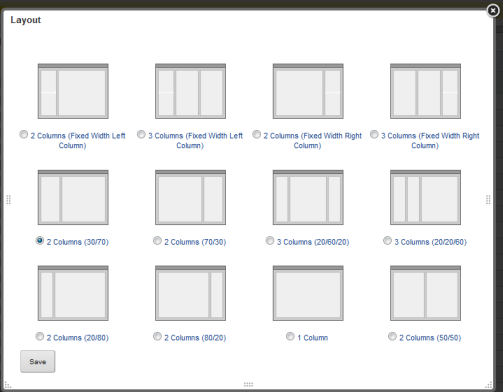
Layout templates determine how components are organized on each page. Pages may have one, two, or three columns. One column width may be fixed, or all of the column widths may be proportional.
To change the layout of a page:
- Click the page tab.
- From the Studio menu, select Layout Template.
-
On the
Layout dialog, click the radio button for the
layout you want to apply to the page.
-
Click
Save
The new layout is applied to the page, with any existing components organized accordingly.
