For values displayed on a component, you can configure the display format.
- Actual attribute values from a view
- Predefined metrics from a view
- Component-specific metrics calculated from view attribute values
For attributes and predefined metrics, the default display format is configured in the View Manager. You can then either use this format, or use a customized format.
For component-specific metrics, the default display depends on the type of aggregation:
| Aggregation Method | Default Metric Format |
|---|---|
| Sum
Average Median Min Max |
Default display format for the original attribute. |
| Variance
Standard Deviation |
Default format (adjusted for locale) for a decimal number. |
| Count (Number of records with values)
Count Distinct (Number of unique values) |
Default format (adjusted for locale) for an integer number. |
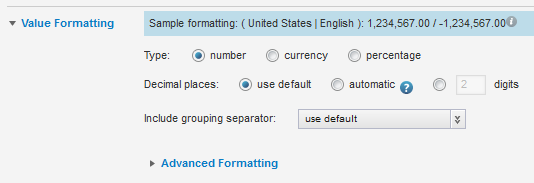
Configuration dialogs for displayed values can include a Value Formatting section to control the display format. In the drop-down lists and radio button labels, Use default indicates to use the default format configured in the View Manager.
At the top of the display settings is a sample value showing the current configuration adjusted for your locale.
From the configuration dialog, to set the display format for a value displayed on a component:
-
To customize the display of a numeric value:
-
If the number is formatted by default as a regular number,
then you can change the display to be a currency value or a percentage.
To change the type of formatting for a number, click the radio button next to the formatting type to use.
If the number is formatted by default as a currency or a percentage, then you cannot select a different type of number formatting.
-
If you have changed the formatting of a number to be a
currency value, then from the
Currency drop-down list, select the type
of currency.
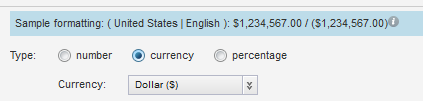
If the number was originally formatted as a currency, then the currency selection is displayed as a read-only value.
-
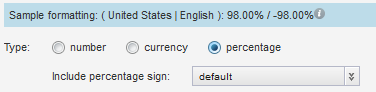
If the number is a percentage, then from the
Include percentage sign drop-down list,
select whether to display the percentage (%) sign with the value.
-
Under
Decimal places, to use the decimal place
configuration from the
View Manager, leave the use default radio
button selected.
To display the full raw number if possible, click the automatic radio button. For extremely long numbers, Studio may still need to truncate the decimal places.
To specify the number of decimal places, click the custom radio button, then in the field, type the number of decimal places to display.
- From the Include grouping separator drop-down list, select whether to display the grouping separator (used to separate thousands).
-
If the number is formatted by default as a regular number,
then you can change the display to be a currency value or a percentage.
-
For numeric values, the
Advanced Formatting section provides
additional format options. To display those options, click the section heading.
For each of the advanced items, you can choose to have the display use the default configured for the view, or select a specific option for this particular component. Under Advanced Formatting:
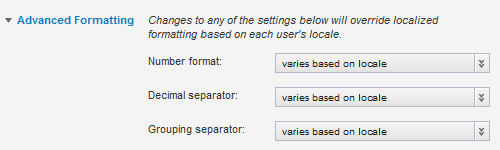
- From the Number format drop-down list, select how to display negative numbers.
- From the Decimal separator drop-down list, select the character to use for the decimal point.
- From the Grouping separator drop-down list, select the character to use for the grouping (thousands) separator.
-
For a Boolean attribute, to set the values to display for each
Boolean value:
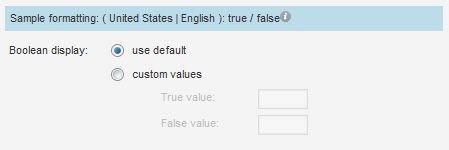
- Click the custom values radio button.
- In the True valuefield, type the value to display if the attribute value is 1 (True).
- In the False value field, type the value to display if the attribute value is 0 (False).
-
For a geocode, to set a specific number of decimal places to
display for the latitude and longitude values:

- Click the custom radio button.
- In the field, type the number of decimal places.
-
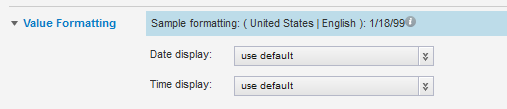
For a date/time attribute:
-
From the
Date display drop-down list, select the
format to use for the date.
For each format, the display is controlled by the locale. For example, for some locales, the month is displayed first, and for others the day is displayed first.
- From the Time display drop-down list, select the format to use for the time.
-
From the
Date display drop-down list, select the
format to use for the date.
-
For a time attribute, from the
Time display drop-down list, select the format
to use for the time.

-
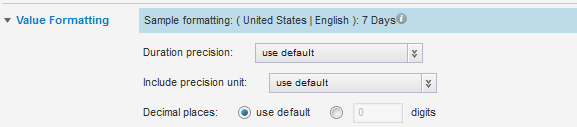
For a duration attribute:
-
From the
Duration precision drop-down list, select
the unit to use when displaying the duration.
For example, for a duration of 1 day, 15 hours, and 20 minutes, if you choose days as the precision, the value displays as 1.63 days. If you choose hours, the value displays as 39.33 hours.
- From the Include precision unit drop-down list, select whether to display the precision unit next to the value.
- Under Decimal places, to specify the number of decimal places to display for the duration value, check the custom checkbox, then enter the number in the field.
-
From the
Duration precision drop-down list, select
the unit to use when displaying the duration.
