You may be able to change the layout of the Pivot Table, including the dimensions and metrics that are displayed and the row and column display order.
If the Pivot Table is configured to allow you to change the table layout, then a Configure button is displayed at the top of the component.
To change the layout of the Pivot Table table:
-
Click the
Configure button.
On the configuration view, the list at the left shows the available metrics and dimensions that are not currently displayed on the table.
The rest of the configuration view shows a mockup of the displayed dimension columns and rows, with the list of displayed metrics in the middle. A metrics placeholder indicates whether the metrics are displayed as rows or columns.
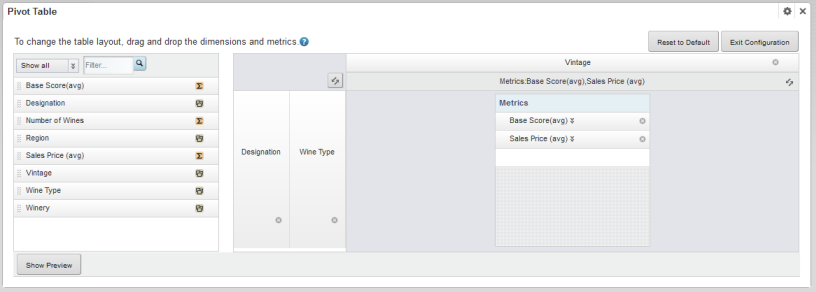
- To change the order of the displayed dimension rows or columns, drag the dimension to the new location.
-
To remove a dimension or metric, click its delete icon.
The dimension or metric is removed from the table and added to the available list.
- To add a new dimension, drag the dimension from the available list to the appropriate location in the row or column groups.
-
To add a new metric, drag the metric from the available list to
the appropriate location in the metrics list.
If the metrics are displayed as columns, then the metric at the top of the list is displayed in the leftmost column.
If the metrics are displayed as rows, then the metric at the top of the list is displayed in the top row.
- To swap all of the rows and columns, including the metrics, click the swap icon in the top left corner of the layout.
- To only switch whether the metrics are displayed as rows or columns, click the swap icon in the metrics placeholder.
- To change the display order of the metric rows or columns, drag each metric to the appropriate location in the list.
-
To display a preview of the table, click the
Show Preview button.
To hide the preview, click Hide Preview.
To update the preview after making changes, click Update.
- To revert the layout back to the original default, click Reset to Default.
-
To exit the configuration view, click
Exit Configuration.
The currently displayed layout is used.
