Completing the import

Studio administrators import applications using the Manage Pages option on the Applications page of the Control Panel.

To import pages from a LAR file into Studio:

  1. From the administrator menu, select Control Panel.
  2. On the Control Panel, click Applications.
  3. On the Applications page, for the application you want to import pages into, click the Actions button, then click Manage Pages.
  4. On the Applications page for the selected application, click the Export/Import tab.
  5. Click the Import tab.

    The Import tab contains the options for importing pages from a LAR file.
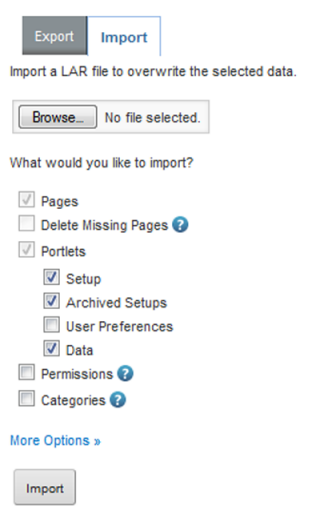
    Import pages options for a selected application
  6. To search for and select the file to import, click the Browse button.
  7. By default, if a page in the selected LAR file has the same friendly URL as an existing page in the destination environment, then it replaces that page. To instead add the page as a new page:
    1. On the Import tab, click the More Options link.

      Under the Pages checkbox, the Page Merge Strategy setting is displayed.
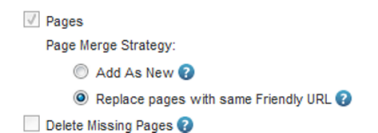

      Page Merge Strategy options on the Import tab

      By default, the Replace pages with same Friendly URL radio button is selected.

    2. To add new pages instead of replacing existing pages, click the Add As New radio button.

    When Studio adds the new page, if an existing page has the same friendly URL, then Studio adds an index number to the end of the new page's friendly URL to make it unique.

  8. To delete any pages on the destination environment that do not exist in the LAR file, check the Delete Missing Pages checkbox.

    For example, a LAR file contains the pages Welcome, Dashboard, and Search. The destination environment contains a page called Charts.

    If the Delete Missing Pages checkbox is checked, then when the LAR file is imported, the Charts page would be removed from the destination environment. The destination environment would only contain Welcome, Dashboard, and Search.

    If the checkbox is not checked, then when the LAR file is imported, the destination environment would contain Welcome, Dashboard, Search, and Charts.

    Note that if you are importing the page into the same application that was displayed when you navigated to the Control Panel, then Studio disables this option.

  9. To ensure that the import includes all of the component configuration, check the User Preferences checkbox.
  10. After selecting the import options, to complete the import, click the Import button.