
Managing Drafts
This section discusses how to:
Cancel manual drafts.
Delete posted manual draft worksheets.
Approve unposted draft payments.
Update draft information.
Write off draft payments.
Enter draft write-off details.
Manual Draft Cancellation Page
Use the Manual Draft Cancellation page (APD_MANDFT_CANCE) to cancel a manual draft after it has been created.
Image: Manual Draft Cancellation page
This example illustrates the fields and controls on the Manual Draft Cancellation page. You can find definitions for the fields and controls later on this page.

Cancel Manual Draft/Payment
Select Payments

Delete WS (After Posting) Page
Use the Delete WS (After Posting) page (APD_MANDFT_DELETE) to delete a manual draft worksheet.
The search functionality of this page is similar to that of the Cancel Manual Draft page.
Draft Approval Page
Use the Draft Approval page (PYMNT_MAN_APPR) to approve unposted draft payments manually.
The draft payments must be created but not posted before you can access this page.
When the Pay Cycle process runs without the Preapprove option selected on the Draft Options page of the Payment Selection Criteria component, the draft payment is created with a status of Created. If you selected the Preapprove option, draft payments are created with a status of Approved.
Image: Draft Approval page
This example illustrates the fields and controls on the Draft Approval page. You can find definitions for the fields and controls later on this page.
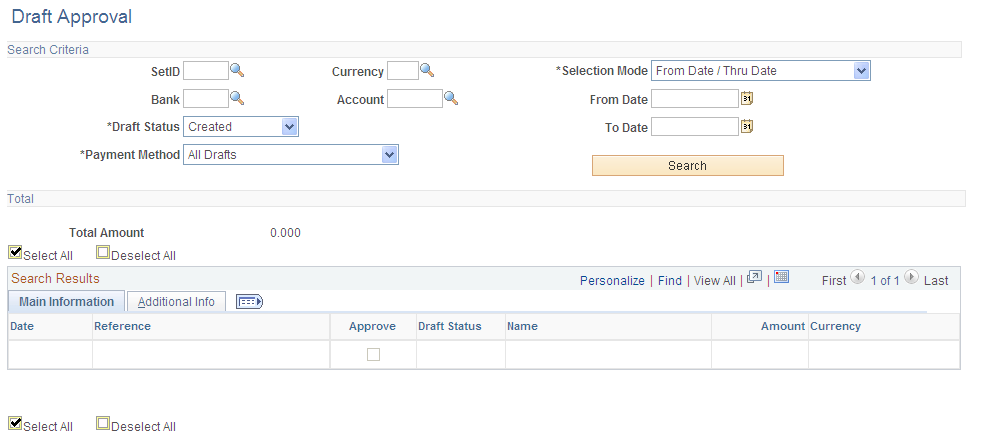
Main Information
Select the Main Information tab in the Search Results scroll area.
Additional Info
Select the Additional Info tab in the Search Results scroll area.
Draft Info Update Page
Use the Draft Info Update page (APD_DRAFT_UPD) to update the draft reference number, the draft control number, and the payment message.
Enter Selection
Enter the draft reference or the draft control ID.

Draft Write Off Page
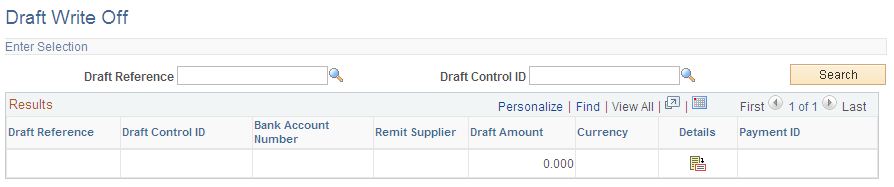
Use the Draft Write Off page (APD_DRAFT_WO) to write off draft payments and enter write-off information for draft payments that you have posted.
Image: Draft Write Off page
This example illustrates the fields and controls on the Draft Write Off page. You can find definitions for the fields and controls later on this page.
Prerequisites
Available drafts have a status of Approved or Posted, but they have not yet reached the maturity date.

Draft Write Off Details Page
Use the Draft Write Off Details page (APD_DRAFT_WO_SEC) to enter the write-off account and write-off date.