
Remitting Direct Debits to the Bank
This section provides an overview of the direct debit remit process and discusses how to:
Enter override options for the Format EFT File process.
Generate an EFT file for direct debits on a worksheet.
Generate an EFT file for all direct debits.
Generate a cover sheet for an EFT file.
Cancel an EFT file.
Receive confirmation from the bank EFT file.
Correct direct debits not matched in the bank EFT file.
Run the EFT Direct Debit Inbound Exception report (AR3750X).
Send the direct debit remittance advice by e-mail.
Pages Used to Remit Direct Debits to the Bank
|
Page Name |
Definition Name |
Navigation |
Usage |
|---|---|---|---|
|
Override Options |
PRCSDEFNOVRD |
|
Enter override options for the Format EFT File process. |
|
Update Direct Debits - Worksheet |
DD_WORKLIST |
|
Create an EFT file for the direct debits on the worksheet. |
|
Create EFT File |
RUN_FIN2025_DD |
|
Create an EFT file for all direct debits associated with a business unit that have a remitted status. Run the Format EFT Files process and the Create EFT through FG System process. |
|
Create EFT File Cover Sheet |
RUN_FIN2025 |
|
Creates a cover letter for the EFT files that you created by running the Format EFT Files process. (Some banks require cover letters. When you define the EFT layout, you need to indicate if you need a cover letter.) |
|
Cancel EFT File |
DD_EFT_CANCEL |
|
Cancel an EFT file that you created by running the Format EFT File process, if it has an error or has been rejected by the bank. |
|
Receive Bank EFT File |
EFT_DD_INBOUND |
|
Run the AR_DD_BNK process to load and process the bank EFT file. |
|
Inbound Bank File for Direct Debits |
DD_IN_BANK_FILE |
|
Change details for a payment record in a bank EFT file so that the record matches an existing direct debit. |
|
Detail |
DD_IN_BANK_SEC |
Click the Details link on the Inbound Bank File for Direct Debits page. |
View bank details for the issuer and the customer for a direct debit that was not collected. |
|
Bank Remit Exception Report |
EFT_DD_EXCEPT |
|
Enter run parameters for the EFT Direct Debit Inbound Exception report (AR3750X). Use the report to see a list of direct debits that were uncollected for a specific reason. |
|
Email Remittance Adv (advice) |
RUN_AR_EMAIL_ADV |
|
Send the direct debit remittance advice by e-mail. Use this run control page to send a remittance advice that is created by EFT SQRs. |
Understanding the Direct Debit Remit Process
When you remit direct debits to the bank, you run one or more processes to generate the EFT files. The process that you run depends on your setup. If you selected the Send to Financial Gateway check box for an EFT file layout on the Collection Methods page for the bank, you run the Create EFT through FG System process. Otherwise, you run the Format EFT Files process.
Note: When you run the Create Direct Debit process, it checks to see what EFT process type was assigned to the file layout that you entered on the run control page and updates the Settle By field on the Direct Debit Control record (DD_CONTROL) with the EFT process type used to generate the EFT file. The Format EFT File process and Create EFT through FG System process each check the Settle By field to determine whether it should process a direct debit.
Format EFT File Process
When you run the Format EFT File process to generate the EFT file in PeopleSoft Receivables, you must either manually submit the EFT file to the bank or use a third-party integration to submit it. You can optionally generate a cover letter for each EFT file if one is required by the customer's bank.
This diagram shows the process flow when you generate the EFT file in PeopleSoft Receivables, submit it to your organization's bank, which sends it to your customer's bank who sends the payment back to the bank again.
Image: Process for EFT files generated in Receivables

If an EFT file has an error or if the bank rejected the file, you can cancel the EFT file and generate it again. If you do not regenerate the EFT file, you must cancel the direct debit.
Create EFT Through FG System Process
When you run the Create EFT through FG System (create electronic file through Financial Gateway process) process, PeopleSoft Cash Management Financial Gateway generates the EFT file and sends the file to the bank. The Create EFT through FG System process triggers the Payment Request message (PAYMENT_REQUEST) and sends a message containing direct debits to Financial Gateway. Financial Gateway generates the EFT file and submits it to the bank the next time you run the Payment Dispatch process (PMT_DISPATCH or PMT_DISP_BT).
This diagram shows the flow of the direct debit transaction if you select PeopleSoft Cash Management Financial Gateway to remit direct debits. PeopleSoft Receivables sends the direct debit transaction to PeopleSoft Financial Gateway, which sends it to your organization's bank, which sends it to the customer's bank. The customer's bank sends a payment to your organization's bank which sends it to Financial Gateway, which updates PeopleSoft Receivables.
Image: Process for EFT files generated in Financial Gateway
The customer's bank sends a payment to your organization's bank which sends it to the Financial Gateway module in Cash Management, which updates PeopleSoft Receivables

Check the message log for the Create EFT through FG System process to verify that the process completed successfully and sent a message for each direct debit. If it did not complete successfully, determine what the problem is and rerun the process.
When Financial Gateway receives the message, it sends a Payment Acknowledgement message (PAYMENT_RESPONSE) for each direct debit and assigns each direct debit a transaction ID. The message contains the transaction ID and the dispatch status. When PeopleSoft Receivables receives the Payment Acknowledgement message, it adds the transaction ID and the dispatch status to the Direct Debit Control record for each direct debit. Initially the status is either Error or Awaiting Dispatch. If you want to be notified when there is an error, you can set up event notification for Financial Gateway. Note that the event notification is set up for one person or one role per event and each time that event occurs the person or people associated with the role are notified. So, they will receive notification when the error event occurs in PeopleSoft Cash Management and PeopleSoft Payables too.
If you want to monitor the dispatch status of direct debits sent to Financial Gateway in PeopleSoft Receivables, use the DD Control page. You can drill down to view the details and history of the settlement in Financial Gateway from the page. Financial Gateway sends a Payment Acknowledgement message each time the dispatch status for the direct debit (settlement) changes in Financial Gateway. The status changes that Financial Gateway sends to PeopleSoft Receivables are:
Awaiting Dispatch: The settlement is waiting to be sent to the bank in Financial Gateway.
Flagged for Hold: Someone put the settlement on hold in Financial Gateway.
Dispatched to Bank: Financial Gateway sent the EFT file to the bank.
Received by Bank: The bank sent a message indicating that it received the EFT file.
Paid: The bank sent a message indicating that the funds were collected for the direct debit. If the transaction corresponds to a Direct Debit prenote, then the prenote status is set to confirmed.
Error: The bank cannot pay the direct debit due to insufficient funds or another reason, or there is a problem processing the settlement request in Financial Gateway.
Use the DD Control page to access the error details for the direct debit in Financial Gateway. If the transaction corresponds to a Direct Debit prenote, then the prenote status is set to rejected.
Canceled: You canceled the direct debit in PeopleSoft Receivables and the settlement is canceled in Financial Gateway.
If Financial Gateway sends a message that indicates the direct debit is in error, cancel the direct debit. Canceling the direct debit, changes the status to Rejected. You must run the Receivable Update process to reopen the items in the direct debit and reverse the accounting entries. Then you correct the problem that caused the error, and create the direct debit again, approve it, and remit it again.
Important! PeopleSoft Receivables does not update the cash account when it receives a message from PeopleSoft Financial Gateway that the direct debit is paid. The cash account is updated when you run the Receivable Update process on the due date. If you use the Cash Clearing option for a bank, PeopleSoft Receivables updates the Cash account on either the due date or when you run bank reconciliation depending on the cash control method that you use.
Bank Collection Confirmation Receipts
Some banks send an EFT file to confirm the collection of the payment. If banks send confirmation EFT files, you perform these tasks:
Run the AR_DD_BNK Application Engine process to receive the bank EFT file that indicates whether the payments were collected.
Correct the payment records from a bank EFT file that do not match direct debits on the system to enable them to match existing direct debits.
Run the EFT Direct Debit Inbound Exception report to obtain a list of direct debits in the bank EFT file that failed collection due to incorrect bank details. You can run this report only if you received a bank EFT file.
You correct the bank details for the customer on the MICR Information - Customer Bank page and then approve and remit the direct debit again.
Remittance Advice E-mail
PeopleSoft Receivables provides the ability to deliver direct debit (DD) remittance advice information to customer contacts through e-mail. Depending on customer contact and direct debit profile setup, you can notify a customer contact that they have instructed their bank to withdraw money from their bank account.
Follow these steps to setup and send the remittance advice by e-mail:
When setting up the direct debit profile, select the Email Notify option on the Direct Debit Profile page.
When setting up the customer:
The primary address location and the contact are used to select the contact e-mail where the remittance advice is sent on the Correspondence Options page.
On the Bill To Options page, the Payment Method field value must be DD (direct deposit) and the Direct Debit Profile ID field value must be one that has the Email Notify option selected.
When setting up the customer contact:
The contact must have the Primary Bill To option selected on the Contact Customer page.
The Email ID field for the contact must have a valid e-mail address on the Contact page.
The Document Code field value must be PRAD and the Preferred Communication field value must be E-mail only on the Contact Additional Information page.
Note: Only the contacts for the primary bill to customer receives an e-mail for the remittance advice. Non-primary bill to contacts do not receive an e-mail even if they have a document code of PRAD and a preferred communication of E-mail only.
The remittance advice e-mail is sent:
Through the Financial Gateway.
The Financial Gateway automatically creates e-mail notifications for the direct debit transactions that go through the Financial Gateway, immediately after the bank returns a positive message to the Financial Gateway that confirms the receipt of the transaction.
The AR_FG_PROC message sends a payment request for direct debits to the Financial Gateway. This is an asynchronous message.
Through the Email Advice process (AR_EMAIL_ADV).
Use the Email Advice process to send by e-mail a direct debit remittance advice that is related to the direct debit transactions that are not processed through the Financial Gateway. For example, you only need to send a direct debit remittance advice e-mail through this run control page for the direct debit transactions that are created by the EFT SQR programs such as FIN2025.
Entering Override Options for the Format EFT File Process
Use the Override Options page (PRCSDEFNOVRD) to enter override options for the Format EFT File process.
Image: Override Options page
This example illustrates the fields and controls on the Override Options page. You can find definitions for the fields and controls later on this page.
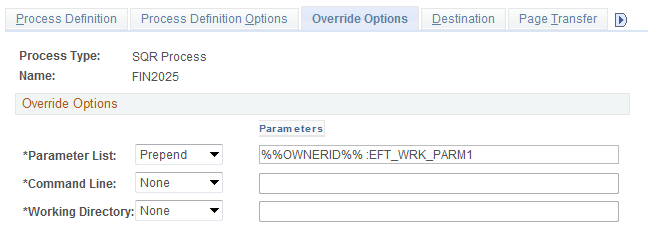
If you run PeopleSoft Receivables on a DB2 database on a Windows or OS390 server, you must manually insert an owner ID parameter in the list of parameters for the process definition before you can run the Format EFT Files process.
Update Direct Debits - Worksheet Page
Use the Update Direct Debits - Worksheet page (DD_WORKLIST) to create an EFT file for the direct debits on the worksheet.


Create EFT File Page
Use the Create EFT File page (RUN_FIN2025_DD) to create an EFT file for all direct debits associated with a business unit that have a remitted status.
Run the Format EFT Files process and the Create EFT through FG System process.
Run the processes to remit all direct debits associated with the selected business unit that have a remitted status and have been posted, but not submitted to the bank. Select one or both processes on the Process Scheduler Request page:
The Create EFT through FG System process sends the PAYMENT_REQUEST message to Financial Gateway to create and send the EFT file for all direct debits that have 01 Financial Gateway in the Settle By field.
The Format EFT Files process creates EFT files for all direct debits that have 02 Format EFT in the Settle By field.
Note: If any direct debits in the business unit have a remitted status, but have not been posted, you cannot run the process until you run the Receivable Update process.
When the Format EFT Files process completes, the location of the file varies depending on your Output Destination Options in the process definition for FIN2025.
If the output destination is user defined, the location varies, depending on the parameters you enter on the Process Scheduler Request page. The following table shows the user-defined options:
|
Output Type |
Output Destination |
Location of EFT File |
|---|---|---|
|
Web |
N/A |
Location you defined for the {FILEPREFIX} variable for SETENV.SQC in %PS_HOME%\sqr\. |
|
File |
Blank |
Location you defined for the {FILEPREFIX} variable for SETENV.SQC in %PS_HOME%\sqr\. |
|
File |
Path to folder |
Folder that you specify, such as C:\temp\EFT files\. |
If the output destination for the FIN2025 process definition is Process Definition, the location will always be in the folder that you define for the Output Definition for the process definition.
If the output destination for the FIN2025 process definition is Process Type Definition, the location will always be in the folder that you define for the output definition for the SQR process type definition.
Create EFT File Cover Sheet Page
Use the Create EFT File Cover Sheet page (RUN_FIN2025) to creates a cover letter for the EFT files that you created by running the Format EFT Files process.
Some banks require cover letters. When you define the EFT layout, you need to indicate if you need a cover letter.
Receive Bank EFT File Page
Use the Receive Bank EFT File page (EFT_DD_INBOUND) to run the AR_DD_BNK process to load and process the bank EFT file.
Enter the EFT Layout Code and the File Name for the EFT file for which you are trying to determine whether the payment collection was successful.
If the payment collection was not successful, the DD_AR_BANK process changes the status of the direct debit to Rejected on the Direct Debit Control record. The next time you run the Receivable Update process, it generates the appropriate accounting entries to reverse the payment and reopens the items that were in the direct debit.
Inbound Bank File for Direct Debits Page
Use the Inbound Bank File for Direct Debits page (DD_IN_BANK_FILE) to change details for a payment record in a bank EFT file so that the record matches an existing direct debit.
Use the Inbound Bank EFT File for Direct Debits page (Accounts Receivable, Direct Debits, Remit to Bank, Receive Bank Confirmation, Inbound Bank File for Direct Debits).
The EFT Transactions grid contains a list of payment records that were in the bank EFT file that the AR_DD_BANK process could not match to direct debits in the system. You need to determine which direct debit in the system matches a payment record and update the information so that it matches a direct debit. When you save the page, the system changes the status of the direct debit based on the reason code assigned to the payment record.
Bank Remit Exception Report Page
Use the Bank Remit Exception Report page (EFT_DD_EXCEPT) to enter run parameters for the EFT Direct Debit Inbound Exception report (AR3750X).
Use the report to see a list of direct debits that were uncollected for a specific reason.
Note: If prenotes are required, the EFT Direct Debit Inbound Exception Report (AR3750X) displays a Prenote column, which indicates whether the transaction is a direct debit prenote.
Email Remittance Advice Page
Use the Email Remittance Adv (advice) page (RUN_AR_EMAIL_ADV) to send the direct debit remittance advice by e-mail.
Use this run control page to send a remittance advice that is created by EFT SQRs.
Remittance advice e-mail messages for direct debits are typically sent through the Financial Gateway. The Email Advice process (AR_EMAIL_ADV) is used to send a remittance advice that is not processed through the Financial Gateway and that is created by EFT SQR programs such as FIN2025.
The Remittance Post Date and Unit (business unit) fields are required.