
Setting Up Parallel Processing for Aging
This section provides an overview of parallel processing for aging and discusses how to:
Define the maximum instances for PSAdmin.
Define the maximum concurrent processes for the server.
Define the number of parallel processes.
Add more parallel processes to the Aging - Parallel multiprocess job (AR_AGE).
Add additional Aging process definitions.
Pages Used to Set Up Parallel Processing for Aging
|
Page Name |
Definition Name |
Navigation |
Usage |
|---|---|---|---|
|
Server Definition |
SERVERDEFN |
|
Define the maximum concurrent processes for Application Engine processes. |
|
AR Parallel Processing Options |
PARALLEL_AR_SBP |
Click the Parallel Processing Options link. |
Specify the exact number of parallel processes or partitions that you want for Aging. |
|
Job Definition |
PRCSJOBDEFN |
|
Add additional Aging process definitions to run the Aging Parallel multiprocess job (AR_AGE). |
|
Process Definition |
PRCSDEFN |
|
Add additional Aging process definitions if you need to run more than eight parallel processes. |
Understanding Parallel Processing for the Aging Process
PeopleSoft Receivables enables you to process multiple Aging processes in parallel to achieve higher performance. You initiate the processes using one run control and the process automatically divides the work between the number of partitions that you specify in your setup.
The Aging - Parallel multiprocess job (AR_AGE) includes:
The Aging Parallel Preprocessor Application Engine process (AR_AGEPP).
The Aging Parallel multiprocess job (AR_AGE).
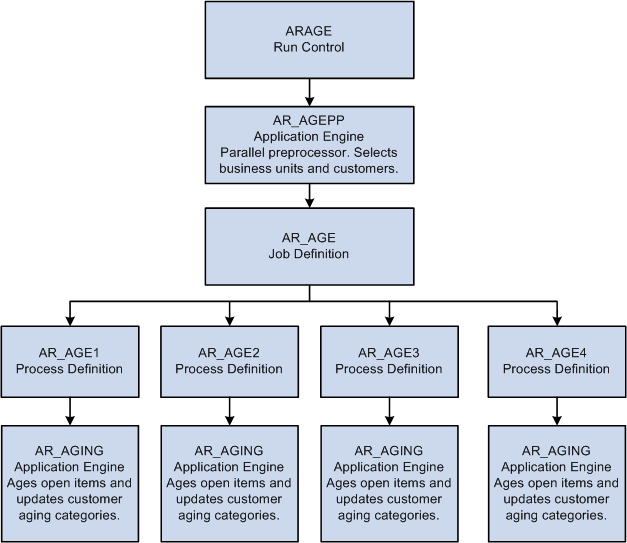
The following diagram illustrates the process flow of the AR Parallel Aging process (AR_AGE) for four separate AR jobs. After setting up the AR_AGE Run Control page, the AR_AGEPP Application Engine parallel preprocessor selects business units and customers, then the AR_AGE runs the job definition for the jobs AR_AGE1, AR_AGE2, AR_AGE3, and AR_AGE4. The AR_AGING Application Engine ages open items and updates customer aging categories for each job.
Image: Aging parallel multiprocessing workflow for multiple jobs
Process flow of the AR Parallel Aging process (AR_AGE) for four separate AR jobs
When you use the Process Monitor to check the status of the process, you view the status of the Aging Parallel Preprocessor process (AR_AGEPP) and each process within the Aging Parallel multiprocess job (AR_AGE). The system does not indicate that the Aging - Parallel multiprocess job (AR_AGE) is successful until each parallel process completes. The Job Message Log Summary page summarizes all the individual parallel process message log messages for the entire AR_AGE job.
This section discusses:
AR_AGEPP process
AR_AGE multiprocess job
AR_AGEPP Process
The Aging Parallel Preprocessor process (AR_AGEPP) acts as a preprocessor for the aging process and also:
Selects business units and customers for processing.
Places the qualified data in temporary tables.
Partitions the data between the child processes.
Initiates the Aging Parallel multiprocess job (AR_AGE) that starts child processes in parallel.
The distribution of the data among the child or parallel processes is based on the composition of the data and the number of parallel processes. The process attempts to spread the data volume evenly among the processors that you previously set up. The staging phase takes a little longer, but the overall processing time is faster because multiple children processes run concurrently. You should balance the decision of using parallel processing or single thread processing based on the volume of data and the hardware capacity to get the maximum benefit from this feature.
AR_AGE Multiprocess Job
The Aging Parallel multiprocess job (AR_AGE) contains all the Application Engine process definitions that you use for parallel processing, such as AR_AGE1. Each process definition calls the AR_AGING Application Engine process, which actually ages the open items, updates the customer aging categories, and performs table cleanup before the process ends.
PeopleSoft Receivables delivers eight process definitions, AR_AGE1 through AR_AGE8. If you want to run more than eight partitions of the Aging process at once, you must define additional process definitions. Use the AR_AGE1 process definition as an example.
The standard setup for the Aging Parallel multiprocess job (AR_AGE) is to run a single threaded process and contains only the AR_AGE1 process definition. If you want to use parallel processing, you must assign additional process definitions to the job definition. You must also specify the number of partitions that your organization will use. You might have to experiment with the number of partitions that works for you. Oracle suggests that you assign just a couple of additional partitions and increase the number, if needed.
You might also have to override the server settings for your organization. By default, you can run up to three instances of a process at one time. If you want to run additional instances, you must change your configuration. If you also use parallel processing for the Payment Predictor (AR_PREDICT), Statements (AR_STMT), and Receivable Update (AR_UPDATE) processes, the maximum instances apply to those processes, as well. For example, if you want to run eight instances for the Receivable Update process and four for the Aging process, you must configure your server for eight instances.
Defining the Maximum Instances for PSAdmin
Open the PSAdmin tool on your server to change the configuration settings.
To change the maximum instances:
Scroll to the section titled Values for config section – PSAESRV.
The section looks as follows:
Values for config section - PSAESRV.
Max Instances = 3.
Recycle Count=0
Allowed Consec Service Failures=0.
Change the value for Max Instances to the maximum number of parallel processes that you want to run at once.
Defining the Maximum Concurrent Processes for the Server
Use the Server Definition page (SERVERDEFN) to define the maximum concurrent processes for Application Engine processes.
Defining the Number of Parallel Processes
Use the AR Parallel Processing Options page (PARALLEL_AR_SBP) to specify the exact number of parallel processes or partitions that you want for Aging.
| Parallel Process and Maximum Partitions |
Enter the exact number of partitions or parallel processes that you want to run for the AR_AGE parallel process. |
Adding More Parallel Processes to the AR_AGE Multiprocess Job
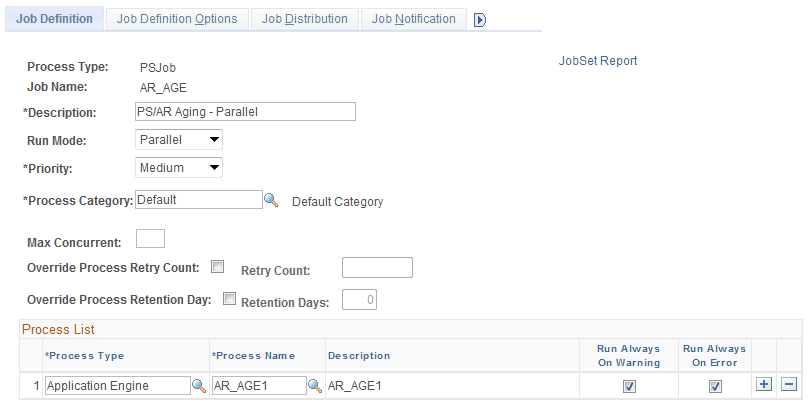
Use the Job Definition page (PRCSJOBDEFN) to add additional Aging process definitions to run the Aging Parallel multiprocess job (AR_AGE).
Image: Job Definition page
This example illustrates the fields and controls on the Job Definition page.
Adding Additional Aging Process Definitions
Use the Process Definition page (PRCSDEFN) to add additional Aging process definitions if you need to run more than eight parallel processes.
Complete the fields on this page and the other pages in the Process Definition component (PRCSDEFN) to match the AR_AGE1 process definition, with two exceptions:
Use another name.
Use another description.
Use this format for the name: AR_AGE#, for example AR_AGE9.