
Approving Journals Using the GL Journal Approval Components
In PeopleSoft General Ledger, an approved journal is one that is marked to post (the approval process automatically marks the journal for posting upon approval). You cannot post a journal that still requires approval.
To provide a more targeted and functional journal approval experience, PeopleSoft delivers a GL Journal Approval component (JOURNAL_APPROVAL) and a Manage GL Journal Approval component for approving journals in mass (JOURNAL_APPROVAL_M). Use these components to:
Approve, deny, push back, or place on hold, individual or multiple journals at once.
Add comments for any approval action.
Add attachments and adhoc approvers as part of the workflow.
Link to the Journal Entry component for additional details within the approval process.
Display only journals that are assigned to a specific user.
Display information related to a specific Line Business Unit only.
See Article ID 1329609.1 on My Oracle Support website for details regarding journal approval using Approval Framework.
Pages Used to Approve Journals
|
Page Name |
Definition Name |
Navigation |
Usage |
|---|---|---|---|
|
Manage GL Journal Approval |
JOURNAL_APPROVAL_M |
|
Use this page to approve, deny, or pushback multiple journals at once. |
|
GL Journal Approval |
JOURNAL_APPROVAL |
OR |
This page is only accessible to authorized users. Use this page to approve, deny, or push back, or place on hold, a journal entry. For interunit journals, you can limit access by specific line business unit. |
|
Approval Attachments |
JOURNAL_APPR_ATT_SEC |
|
Use this page to view and add attachments for journals for which you have approval rights. The attachments are only visible if the Show to Approver option has been selected on the Attachments page of the journal entry. |
|
Approval Attachments (view only) |
JOURNAL_APPR2_ATT_SEC |
|
Use this page to view attachments for journals for which you have approval rights. The attachments are only visible if the Show to Approver option has been selected on the Attachments page of the journal entry |
|
Approval Flow |
GL_APPR_MONITOR |
|
Launch this modal window to view the display-only approval flow graphic. Access the individual GL Journal Approval page to add adhoc approvers. |
Manage GL Journal Approval Page
Use the Manage GL Journal Approval page (JOURNAL_APPROVAL_M) to approve, deny, or pushback multiple journals at once.
Image: Manage GL Journal Approval page
This example illustrates the fields and controls on the Manage GL Journal Approval page. You can find definitions for the fields and controls later on this page.
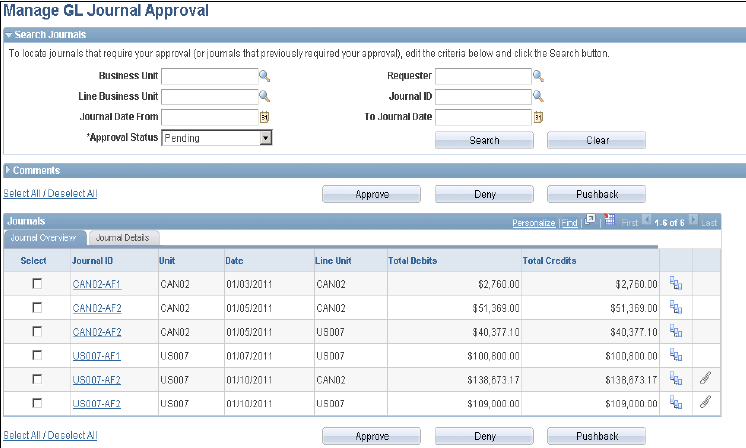
Supply the desired criteria and click the Search button. This action returns only those journals for which the current user is one of the approvers and that have not yet been posted or unposted. Click the Clear button to clear the search criteria.
Comments
Expand the Comments group box to add a common comment for the selected journals. Enter a common comment for the selected journals at once and click the Add Comments button when finished entering. If you select only one journal, the comment applies only to that journal when you click the Add Comments button. If you enter comments before clicking any of the three action buttons, the comments will be saved to those journals’ approval process.
Journal Overview

See Article ID 1329609.1 on My Oracle Support website for more details.
Specifying Journal Entry Approval Actions
The following examples show an interunit journal as it progresses thorough the approval process involving two business units, US007 and CAN02, with the approvals required by each business unit. The examples assume prior workflow setup, which will require the journal to be submitted for approvals. Such journals, which have not yet been approved, cannot be posted.
Access the Journal Entry - Lines page (General Ledger, Journals, Journal Entry, Create/Update Journal Entries, Lines).
Image: Journal Entry - Lines page (interunit example)
This example illustrates the fields and controls on the Journal Entry - Lines page (interunit example).
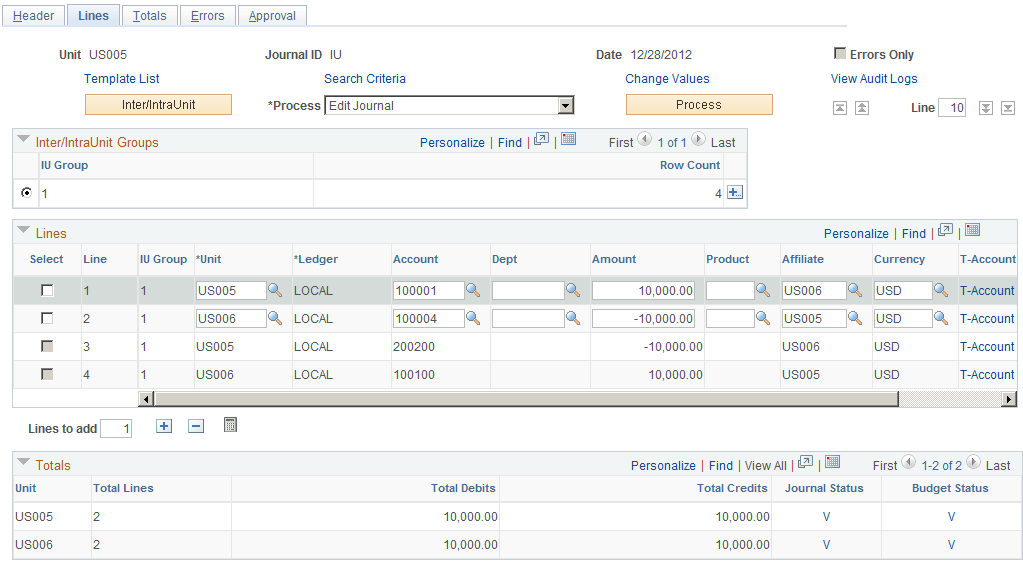
The preceding example shows the journal involving business units US007 and CAN02, which are subject to different approval rules.
The following examples show the sequence of approvals for the interunit journal and the two business units. Access the Journal Entry - Approval page (General Ledger, Journals, Journal Entry, Create/Update Journal Entries, Approval)
Image: Approval status and history for business unit CAN02 pending any approvals
This example illustrates the fields and controls on the Approval status and history for business unit CAN02 pending any approvals. You can find definitions for the fields and controls later on this page.

Image: Approval status and history for business unit CAN02 after initial approval GLS2
This example illustrates the fields and controls on the Approval status and history for business unit CAN02 after initial approval GLS2. You can find definitions for the fields and controls later on this page.
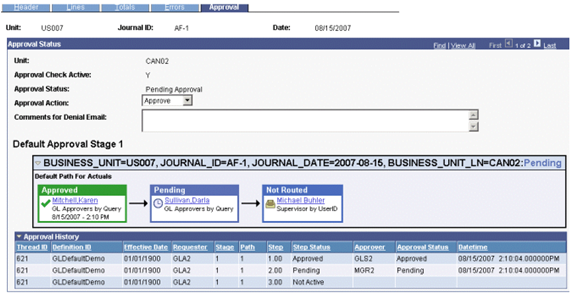
Image: Approval status and history for business unit CAN02 after second approval by MGR2
This example illustrates the fields and controls on the Approval status and history for business unit CAN02 after second approval by MGR2. You can find definitions for the fields and controls later on this page.
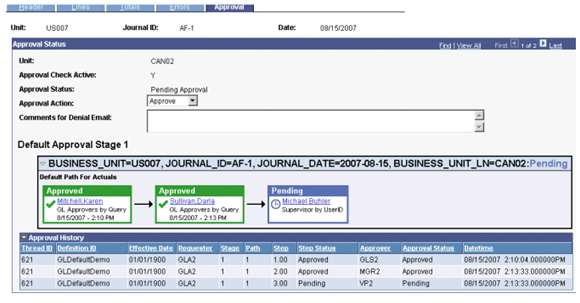
Image: Approval status and history for business unit CAN02 after final approval VP2
This example illustrates the fields and controls on the Approval status and history for business unit CAN02 after final approval VP2. You can find definitions for the fields and controls later on this page.
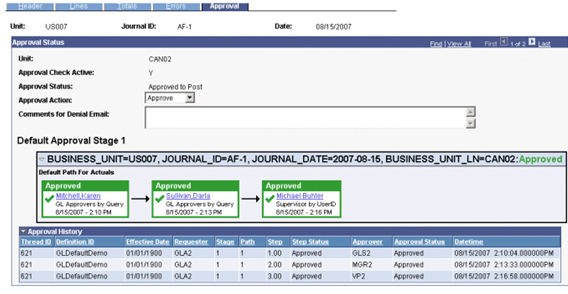
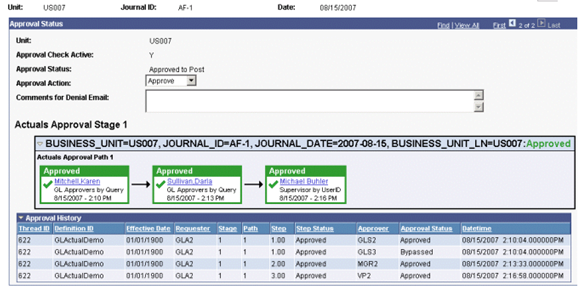
Business unit US007 had a similar approval history, but it bypasses an optional alternate additional approver (GLS3) in the business units US007 approval path. Because both GLS2 and GLS3 are granted the ability to approve the journal, however, the approval rule is set to require only one approver for this step (so that whoever approves the journal first stamped while other approvers bypassed).
Image: Approval status and history for business unit US007 pending approvals
This example illustrates the fields and controls on the Approval status and history for business unit US007 pending approvals. You can find definitions for the fields and controls later on this page.
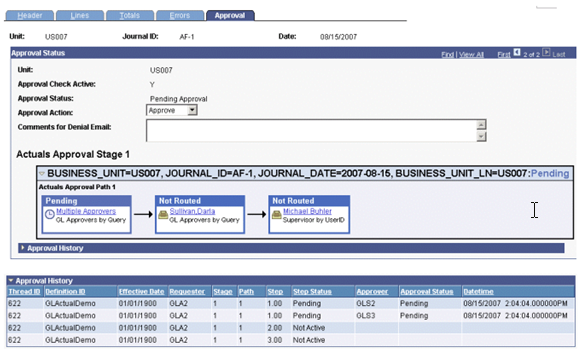
Image: Approval status and history for business unit US007 showing the bypass for GLS3 and final approval by VP2
This example illustrates the fields and controls on the Approval status and history for business unit US007 showing the bypass for GLS3 and final approval by VP2. You can find definitions for the fields and controls later on this page.
Approval Status
The Approval Check Active field indicates, by displaying the value Y, that an approval workflow process is required for the business unit in the journal. If no approval workflow is required for the business unit in the journal, the value displayed is N and no steps or history are displayed.
If approval check is active and displaying Y, the current approval status for the journal is shown by these values:
In the Approval Action list box, the current approver selects the appropriate action for this journal:
Approval History
The Approval History grid lists the step and path, with the status and applicable date-time stamp and user ID for the various activities in the approval process.
See PeopleTools documentation: Security Administration, "Understanding PeopleSoft Security"