
Comparing Asset Repositories
This section provides overviews of the comparison process and the Compare Asset Repositories process and discusses how to compare asset repositories.
Use the Compare Asset Repositories (IT_RECON_RUN) component to compare asset repositories.
Pages Used to Compare Asset Repositories
|
Page Name |
Definition Name |
Navigation |
Usage |
|---|---|---|---|
|
Manage Physical Use |
IT_PHY_USE |
|
View or modify the In Physical Use flag for hardware assets and resolve duplicate serial ID issues in ITAM |
|
Compare Asset Repositories |
IT_RECON_RUN |
|
Compare discovered data with asset repository data. |
|
Query Manager |
AM_IT_ASSETS_SERIAL_ID |
|
Run the delivered query to detect duplicate and blank Serial IDs. |
Understanding the Comparison Process
The third-party integration process includes a run control page that enables you to request the data to be returned to PeopleSoft ITAM for comparison. This process may also be scheduled to run at specific intervals, for example, nightly. You can run the comparison process for all assets that you have already identified as reconcilable, or you can run the process by IT asset type—hardware or software. You can narrow the asset selection further by specifying asset subtypes for hardware or specific titles for software. In this way, you can structure the process to refresh the Manage Exceptions lists based on your business needs. For example, you might want to reconcile only those asset discrepancies that were created by a mass rebuilding of old laptops. Using the appropriate comparison setup, you can do this without running a complete asset comparison.
The comparison creates the initial discrepancy information that populates reconciliation transaction tables. A pagelet displays the comparison transaction summary by the business rules that you define. This high-level summary pagelet allows you to drill down to see the details of the comparison exceptions. The assets that are found to be in discrepancy based on your business rules will show as exceptions in the detail Manage Exceptions pagelet. To reconcile the differences generated by the comparison of the Asset Repository and the inventory tool, access Manage Exceptions.
If no differences are found between the asset repository and the third-party database, the asset is considered in balance and is not added to the reconciliation transaction tables. Assets found to have differences are grouped together with their counterpart from both the third-party database and the asset repository and added to a header reconciliation discrepancy table. The subcomponent or attribute with the discrepancy is added to a detail exceptions table that tracks the assets' individual comparison exceptions, including the comparison rule that was broken.
The comparison process is dependent on accurate and up-to-date information about an employee, such as job, department, supervisor, name, language, and email addresses. This information is brought into PeopleSoft IT Asset Management via a full-sync message from the PeopleSoft HCM application and the third-party applications. The employee information is not required for assets that are Authorize Software by Device. The comparison process is also dependent on definitions and the status of business rules. The Compare Asset Repositories process applies all active business rules to generate the list of exceptions.
As part of system data, business rules data has been delivered to identify exceptions for the following attributes:
Business Unit.
Department.
Custodian.
Location.
Manufacturer.
Model.
Serial Number for assets that were not discovered by third-party software but exist in the Asset Repository.
Serial Number for assets that were discovered by third-party software but do not exist in the Asset Repository.
Software with Unauthorized Install and Over Limit Installs.
Understanding the Compare Asset Repositories Process
The Compare Asset Repositories process, when run by itself, performs a portion of the Load process (IT_LOAD_PROC) to bring back assets that had validation or translation errors but have since been corrected. When the Compare Asset Repositories process is run as part of a streamlined process, immediately after the Load process, the portion of the Load process mentioned above is not performed.
This process cleans up previous exceptions for assets that were corrected and identifies new exceptions or previous exceptions that are yet to be corrected and records them. These transactions are referenced on the Manage Exception page. If this process is run as a part of a streamlined process, it initiates the Generate Metrics process to present the latest picture of inventory exceptions.
To process nonfinancial IT assets for comparison, a physical use flag is selected when adding, transferring, retiring or reinstating hardware assets within Asset Management. Only those assets that are selected for physical use are included in the comparison process. When an asset is partially transferred, the same serial ID can be in use across both assets. Only one should be selected for physical reconciliation.
It is also possible for assets to be in actual use, but for some reason the physical use flag is not selected. The Manage Exceptions page provides an alert that there is an asset in the asset repository that is not in physical use or has a duplicate serial ID and, therefore, is not included in the asset reconciliation set. It is very possible that the existing asset is a match for the asset that is found in the discovery system. The correct course of action is most likely to change the physical use flag associated with the asset that is already in the repository rather than to add a second asset. This can be done by accessing the Manage Physical Use page. Any changes made to this page are incorporated in the main asset record within the asset repository. The Manage Physical Use page provides a way to maintain the physical use for partially transferred assets as well as tracking assets that have duplicate serial Ids, regardless of their transfer history.
After identifying the exceptions for the assets, the comparison process evaluates the Business Rules. For those rules that have actions that are set to Execute, the associated corrective action automatically executes as part of the comparison process.
See Business Rules – Definition Page.
Note: The Compare Asset Repositories process provides the ability to process multiple streams in parallel. You can divide the processing load among different IT subtypes so that one stream can process all desktops, a second can process all laptops, and a third can process all servers.
Manage Physical Use Page
Use the Manage Physical Use page (IT_PHY_USE) to .
This page can be accessed from the portal menu or from the Exists column (duplicate serial ID) link on the Manage Exceptions page.
Image: Manage Physical Use page
This example illustrates the fields and controls on the Manage Physical Use page. You can find definitions for the fields and controls later on this page.
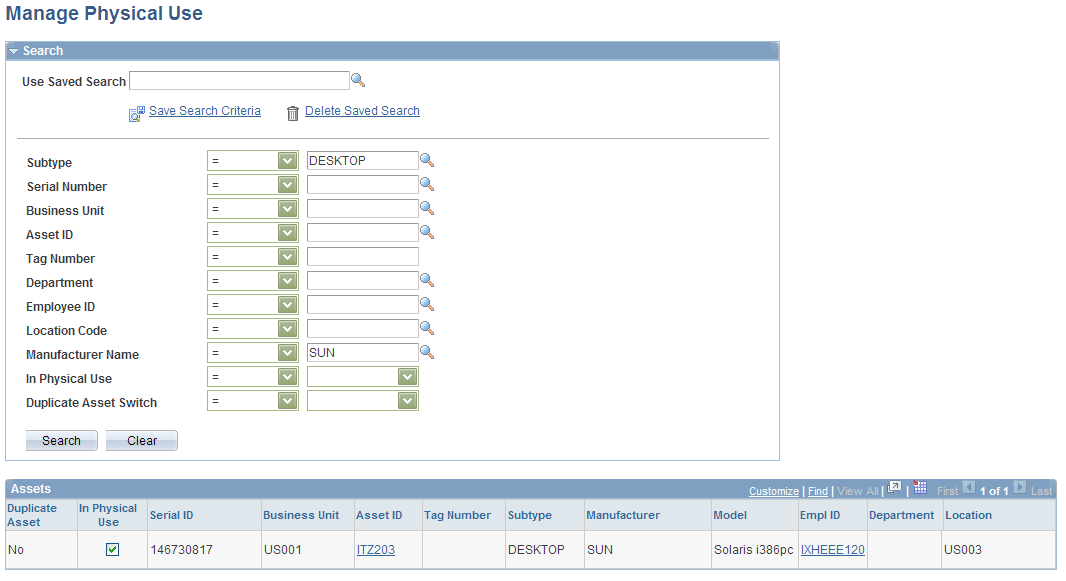
Select desired criteria and click the Search button to retrieve the assets within the Assets result grid.
Compare Asset Repositories Page
Use the Compare Asset Repositories page (IT_RECON_RUN) to compare discovered data with asset repository data.
Image: Compare Asset Repositories page
This example illustrates the fields and controls on the Compare Asset Repositories page. You can find definitions for the fields and controls later on this page.

After running the Compare Asset Repositories process (IT_RECON_RUN), you can review the message log in the Process Monitor to see what discrepancies were found :
Image: IT_RECON_RUN Message Log
This example illustrates the fields and controls on the IT_RECON_RUN Message Log..
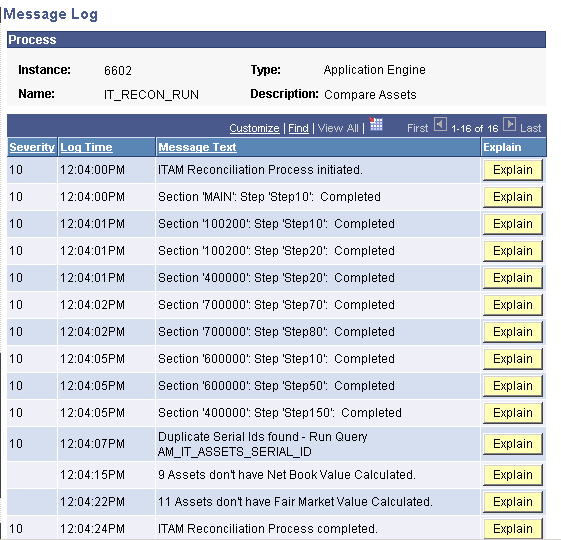
Running Delivered Queries for Comparison to the Asset Repository
PeopleSoft IT Asset Management delivers two queries for comparison to the Asset Repository:
AM_IT_ASSETS_SERIAL_ID - (IT Assets Serial Id Correction) - This delivered query detects duplicate and blank Serial IDs.
AM_IT_ASSET_SW_LICENSE_DEVICES - (Software License for Devices) - This delivered query reports those assets that have a CPU number that is different than the declared licenses.
Serial ID Query
Access the AM_IT_ASSETS_SERIAL_ID query from the Query Manager page
Image: AM_IT_ASSETS_SERIAL_ID query
This example illustrates the fields and controls on the AM_IT_ASSETS_SERIAL_ID query.
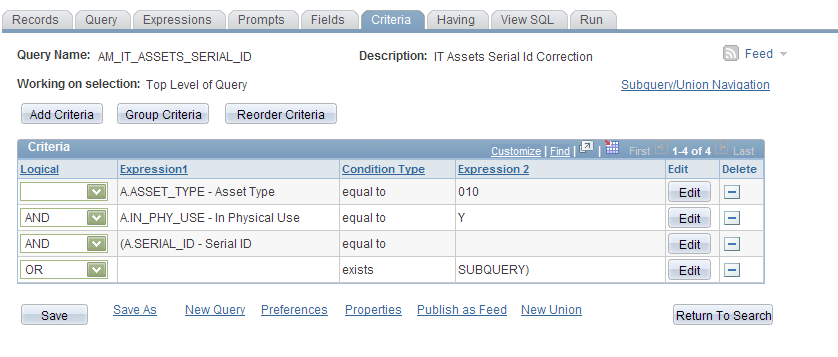
Image: AM_IT_ASSETS_SERIAL_ID query result set
This example illustrates the fields and controls on the AM_IT_ASSETS_SERIAL_ID query result set.
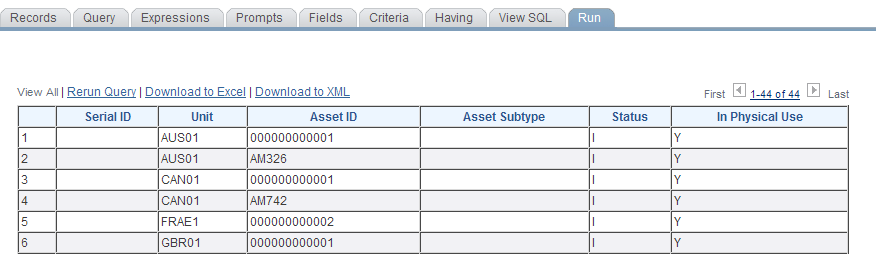
In addition to the alert provided on the Manage Exceptions page for duplicate serial IDs, you can run the query and review the detail results to verify duplicate or blank Serial IDs.
Software License for Devices
Use the Query Manager page (AM_IT_ASSETS_SERIAL_ID) to run the delivered query to detect duplicate and blank Serial IDs.
Image: AM_IT_ASSET_SW_LICENSE_DEVICES query
This example illustrates the fields and controls on the AM_IT_ASSET_SW_LICENSE_DEVICES query.
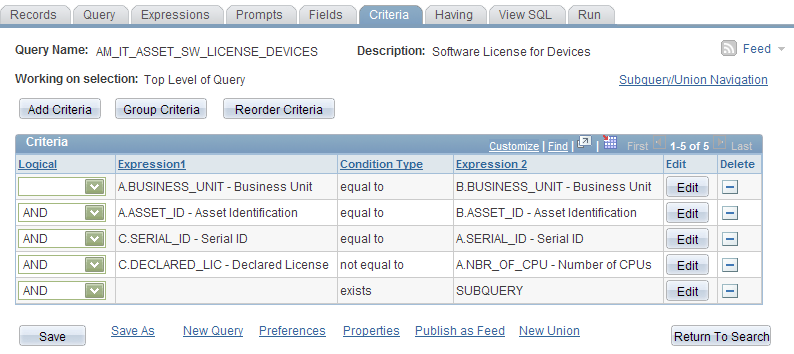
Image: AM_IT_ASSET_SW_LICENSE_DEVICES query result set
This example illustrates the fields and controls on the AM_IT_ASSET_SW_LICENSE_DEVICES query result set.
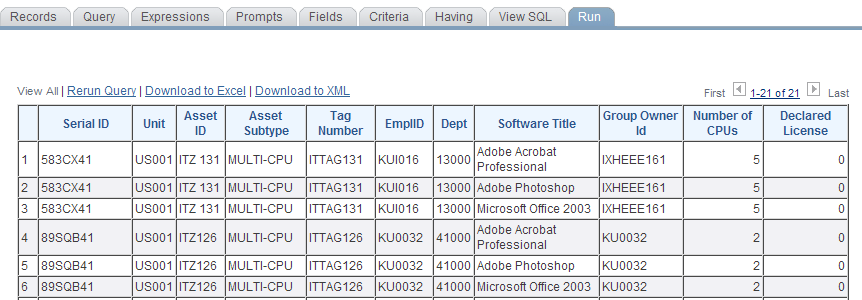
This delivered query reports those assets that have a CPU number that is different than the declared licenses.