
Viewing and Modifying Activity Teams
To view and modify activity teams, use the Project Activity Team component (PROJ_ACT_TEAM).
This topic discusses how to:
Add and remove activity team members.
Copy project team members to a single activity team.
Copy activity team members from other activity teams.
Copy project team members to multiple activity teams.
View reported time by activity and employee.
Pages Used to View and Modify Activity Teams
|
Page Name |
Definition Name |
Navigation |
Usage |
|---|---|---|---|
|
Activity Definitions - Team |
PROJ_ACT_TEAM_01 |
|
View, add, and delete members of an activity team. |
|
Assign Team from Project |
PROJ_TEAM_COPY |
Click Copy from Project on the Activity Definitions - Team page. |
Copy selected project team members and their schedules to a single activity team. |
|
Assign Team from Project |
PROJ_TEAM_COPY |
Click Copy from Activity on the Activity Definitions - Team page. |
Copy selected activity team members and their schedules to a single activity team. |
|
Assign Team from Project |
PROJ_TEAM_COPY |
|
Copy selected project team members and their schedules to multiple activity teams. |
|
Select activities for resources/requirements |
PC_TEAM_ACT_SELECT |
Click Next in the Assign Team from Project page. The Next button is available only on the Assign Team from Project page that you access by using the navigation path |
Select the activity teams to which you want to copy the project team members that you selected on the Assign Team from Project page. |
|
Time by Activity |
PC_LABOR_ACT_TIME |
Click the Reported Time Chart link on the Activity Definitions - Team page. |
Review labor by activity. The system retrieves transactions from the Project Transactions Summary table (PC_SUMMARY_TBL) for transactional rows with an analysis type in the LABOR analysis group. |
|
Time by Employee |
PC_LABOR_EMP_TIME |
Click inside a charted area on the Time by Activity page for a specific employee. |
Review project labor by employee. The system retrieves transactions from the Project Transactions Summary table for transactional rows with an analysis type in the LABOR analysis group. |
|
Activity Team Standard Rate Sheet |
PC_ACT_TEAM_RATES |
Click the Activity Team Rates link on the Activity Definitions - Team page. |
View the cost and bill rates for activity team members by employee, job code, or role. |
Activity Definitions - Team Page
Use the Activity Definitions - Team page (PROJ_ACT_TEAM_01) to view, add, and delete members of an activity team.
Image: Activity Definitions - Team page
This example illustrates the fields and controls on the Activity Definitions - Team page. You can find definitions for the fields and controls later on this page.
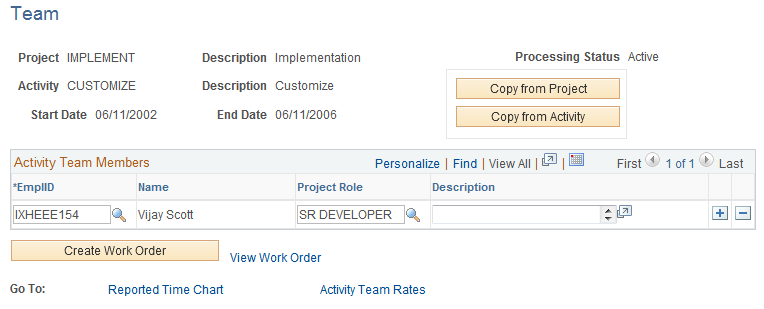
To directly add an individual employee to an activity team, add a new row in the Activity Team Members grid and enter the team member's employee ID and project role. You can add employees to the activity team only if they exist on the project team.
To remove an individual employee from an activity team, delete the corresponding row in the Activity Team Members grid. The employee is removed from the activity team but remains on the project team.
| Copy from Project |
Click to access the Assign Team from Project page to add project team members to the activity team. See Assign Team from Project Page (to a single activity team). |
| Copy from Activity |
Click to access the Assign Team from Project page to add activity team members from another activity team that is associated with the same project. See Copying Activity Team Members From Other Activity Teams. |
| Create Work Order |
Click to access the Create Work Order page to create a work order in PeopleSoft Maintenance Management for this project activity. The system copies the project business unit, project, activity, activity schedule, and eligible resources to the Create Work Order page. The system also sends the default craft value to the Create Work Order page if you associated a craft with the resource's project role on the Project Role page. The Create Work Order button appears for projects if all of these conditions exist:
See Creating Work Orders and Work Order-Managed Projects in PeopleSoft Project Costing. |
| View Work Order |
Click to access the Work Orders page to view a list of all work orders that are associated with the activity. The View Work Order link appears on this page based on the same conditions as the Create Work Order button. |
| Reported Time Chart |
Click to access the Time by Activity page, which displays a graph of the reported time for activity team members. |
View Activity Team Rates
Click the Team Rates link to access the Activity Team Standard Rate Sheet page to view the charge rates for activity team members and unassigned positions of the activity team.
See Viewing Team Rates.
Assign Team from Project Page (to a single activity team)
Use the Assign Team from Project page (PROJ_TEAM_COPY) to copy selected project team members and their schedules to a single activity team.
Image: Assign Team from Project page (Copy from Project button)
This example illustrates the fields and controls on the Assign Team from Project page (Copy from Project button). You can find definitions for the fields and controls later on this page.

To copy project team members to a single activity team, click Copy from Project on the Activity Definitions - Team page where you want to add team members.
Filter Options
When you first access this page, all eligible resources appear in the Select Team Members to Copy grid. Use the Filter Options collapsible group box to filter on various resource attributes so that you can more easily select project team members to add to an activity team.
Select Team Members to Copy
Select individual project team members that you want to copy to the activity team, or click Select All for the system to select all project team members to copy.
Copying Activity Team Members From Other Activity Teams
Use the Assign Team from Project page (PROJ_TEAM_COPY) to copy selected activity team members and their schedules to a single activity team.
Image: Assign Team from Project page (Copy from Activity button)
This example illustrates the fields and controls on the Assign Team from Project page (Copy from Activity button). You can find definitions for the fields and controls later on this page.

To copy team members from one activity team to another, click Copy from Activity on the Activity Definitions - Team page where you want to add team members.
| Select Activity |
Select the activity from which you want to copy team members. |
| Fetch |
Click to retrieve the list of activity team members from the selected activity. |
Copying Project Team Members to Multiple Activity Teams
Use the Assign Team from Project page (PROJ_TEAM_COPY) to copy selected project team members and their schedules to multiple activity teams.
Use the menu navigation to access the Assign Team from Project page for the project. Select the project team members and schedules, and click Next to access the Select activities for resources/requirements page to complete the process of adding project team members to multiple activity teams.
Select Activities for Resources/Requirements
Use the Select activities for resources/requirements page (PC_TEAM_ACT_SELECT) to select the activity teams to which you want to copy the project team members that you selected on the Assign Team from Project page.
Click Next in the Assign Team from Project page. The Next button is available only on the Assign Team from Project page that you access by using the navigation path
Image: Select activities for resources/requirements page
This example illustrates the fields and controls on the Select activities for resources/requirements page. You can find definitions for the fields and controls later on this page.
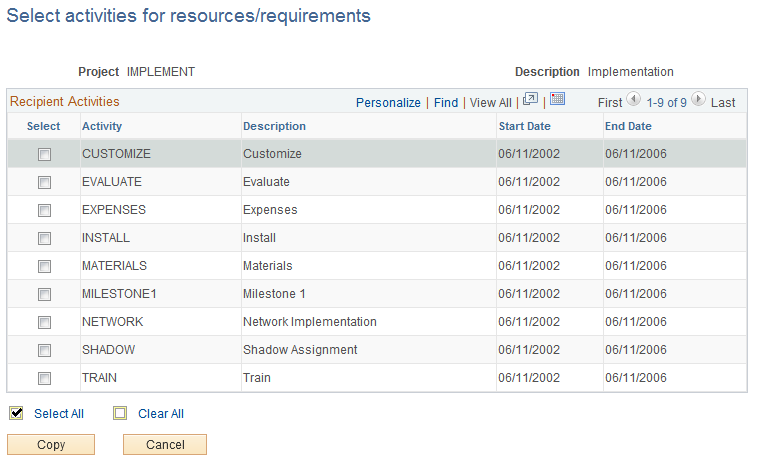
Use this page to complete the process of adding project team members to multiple activity teams.
Time by Activity Page
Use the Time by Activity page (PC_LABOR_ACT_TIME) to review reported time by activity and team members.
The system retrieves transactions from the Project Transactions Summary table (PC_SUMMARY_TBL) for transactional rows with an analysis type in the LABOR analysis group.
Image: Time by Activity page
This example illustrates the fields and controls on the Time by Activity page. You can find definitions for the fields and controls later on this page.
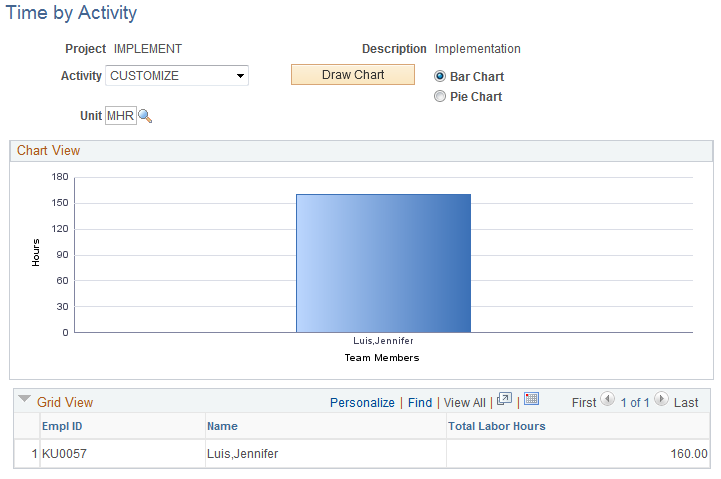
You can select a different project activity, unit of measure, and type of chart, as desired, and click Draw Chart.
Click inside a charted area on the Time by Activity page for a specific employee to view a chart showing the amount of time that the employee reported on all activities for the project.