
Enabling ChartField Security
This topic provides an overview of ChartField Security setup and discusses how to:
Set up ChartField Security options.
Enable product-based ChartField Security.
Register components for ChartField Security.
Work with shared components.
Define ChartField Security rules, exceptions and values.
Pages Used to Enable ChartField Security
|
Page Name |
Definition Name |
Navigation |
Usage |
|---|---|---|---|
|
Security Options - ChartField Security |
SEC_FIELDS |
|
Enable ChartFields for security, set security level (user, role, permission list), and enable individual products. |
|
Secure ChartField Options - Products |
SEC_CF_PROD |
|
Select products to be enable or disable for ChartField Security. |
|
Component Registry - Secured Components |
SEC_COMP_REG |
|
List ChartField Security components. Disable or enable ChartField Security for components. |
|
Component Details |
SEC_COMP_SEC |
Click the Detail link on the Component Registry - Record Details page. |
List component detail records and associate ChartField prompt edit tables (defined in the Edit Table Set) to the detail record. |
|
ChartField Security Edit Tables |
SEC_EDIT_TBLS |
|
The edit table set defines the set of prompt edit tables and corresponding security views. |
|
Dynamic Edit Tables |
SEC_DYN_EDITTBL |
|
Use dynamic edit tables when edit table assignments are dynamically assigned in a component based on product criteria and may differ from product to product. |
Understanding ChartField Security Setup
To set up ChartField Security, you must:
Define security options and products using the ChartField Security page group.
Identify security requirements at the component level. Use the Component Registry page to enable or disable components and to set component level options.
Define security rules using the ChartField Security Rules page.
Assign security rules using the Assign Rules, Exceptions, and Security Values pages.
(Optional) Copy security rules for users, roles, permission lists, or all three.
Set up ChartField Security in this sequence:
Select the ChartFields you want to secure.
Define the rules.
Assign rules to user, role, permission list, or all three.
Build rules.
Enable the ChartField Security option.
See Component Registry - Secured Components Page.
Prerequisites
You must complete the following steps before you can enable ChartField Security:
Define ChartFields to meet your unique requirements.
Determine which ChartFields require securing.
Determine the security level best suited for your needs.
Security Options - ChartField Security Page
Use the Security Options - ChartField Security page (SEC_FIELDS) to enable ChartFields for security, set security level (user, role, permission list), and enable individual products.
Image: Security Options - ChartField Security page
This example illustrates the fields and controls on the Security Options - ChartField Security page. You can find definitions for the fields and controls later on this page.

Your selections on this page determine the ChartField Security method, secured fields, and records.
| User ID |
Select to define rules to assign directly to a user. |
| Role |
Select to assign security rules by roles created in PeopleSoft PeopleTools security. You can facilitate setup by assigning large groups of users to similar rules. |
Component Security Action
The selection for this field determines the default access behavior when a user is only authorized to view or modify some of the rows for a transaction or some of the ChartField values in a transaction.
Secured Fields
View and select active, delivered ChartFields. You can save the security setting without selecting a ChartField.
Warning! You may select only one or two ChartFields.
Security Records
View ChartField associated delivered records. Each ChartField that is enabled for security is associated with a security record for user ID, role, or permission list.
Note: Table names may not be changed. The ChartField Configuration process creates the security records.
Inquiry Views
The Inquiry Views tab displays the security views for each ChartField that are used by the Security Values Page, which displays the secured ChartField values. You can change the inquiry views that are used on this page.
Review the delivered inquiry security views. Each ChartField that is enabled for security is associated with an inquiry security view for user ID, role, or permission list.
Note: This is delivered metadata and modifying the existing data is not recommended.
Enable ChartField Security - Products Page
Use the Enable ChartField Security - Products page (SEC_CF_PROD) to select products to be enable or disable for ChartField Security.
Image: Enable ChartField Security- Products page
This example illustrates the fields and controls on the Enable ChartField Security- Products page. You can find definitions for the fields and controls later on this page.

Your selections on this page determine whether a product is enabled or disabled for ChartField Security. When you disable a product, all registered components for that product are also disabled for ChartField Security. You can enable a product but disable some of its components.
Note: When a product and its components are enabled for ChartField Security, you must define rules and assign users, roles, and permission lists. If you do not define rules, then users will not be able to access the product components nor enter or view transactions. When you enable a product and one or all of its components, ChartField Security is strictly enforced.
Component Registry - Secured Components Page
Use the Component Registry - Secured Components page (SEC_COMP_REG) to list ChartField Security components.
Disable or enable ChartField Security for components.
Image: Component Registry - Secured Components
This example illustrates the fields and controls on the Component Registry - Secured Components. You can find definitions for the fields and controls later on this page.

Filter
Register Components - Options
 Drill to Component
Register Components - Record Details
Component Details Page
Use the Component Details page (SEC_COMP_SEC) to list component detail records and associate ChartField prompt edit tables (defined in the Edit Table Set) to the detail record.
Image: Component Details page
This example illustrates the fields and controls on the Component Details page. You can find definitions for the fields and controls later on this page.
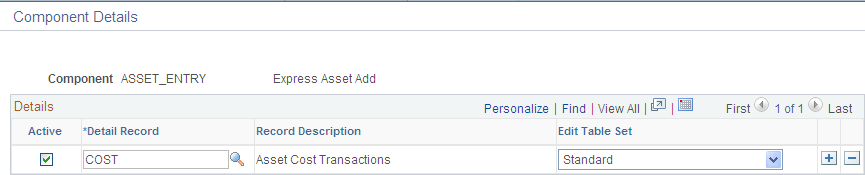
This page shows the detail record (or records) that are delivered for each component. You can activate or inactivate specific detail records for each component. At least one record should be active for ChartField Security to be enabled.
The detail record includes the same key fields as the header record. ChartField Security supports multiple detail records. For Transaction Entry or Transaction Data Correction Components only, the Edit Table Set must be identified. For inquiry components, the Edit Table Set field should be blank because it does not require inquiry components, even if the component includes prompt edits for the criteria selection.
The example pictured shows the component details for the Detail Budget Maintenance component. This component has multiple detail records (DTL_LEDG_DVW and LEDGER_BUDG):
Image: Component Details page (Single Transaction Display check box not selected on Register Components - Options page)
This example illustrates the fields and controls on the Component Details page (Single Transaction Display check box not selected on Register Components - Options page). You can find definitions for the fields and controls later on this page.
